
Loading workflow preview
Upload
Choose the image in Enhancer
After the local preview, select the same JPG, PNG, or WebP in the signed-in workspace.
Preview a render, photo, screenshot, or graphic at 2x or 4x dimensions, then continue to Enhancer to run the upscale, compare the result, and download it.
Upload and preview here. Sign in only when you continue.
The upload above keeps the page fast and browser-local. These short loops show the signed-in Enhancer steps that follow when you are ready to run and download the upscale.
After the local preview, select the same JPG, PNG, or WebP in the signed-in workspace.
Confirm the scale, review the current credit cost, and start the image enhancement.
Inspect the before-and-after view, then download the finished PNG for client-ready work.
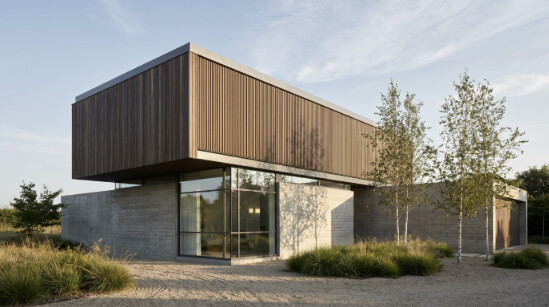
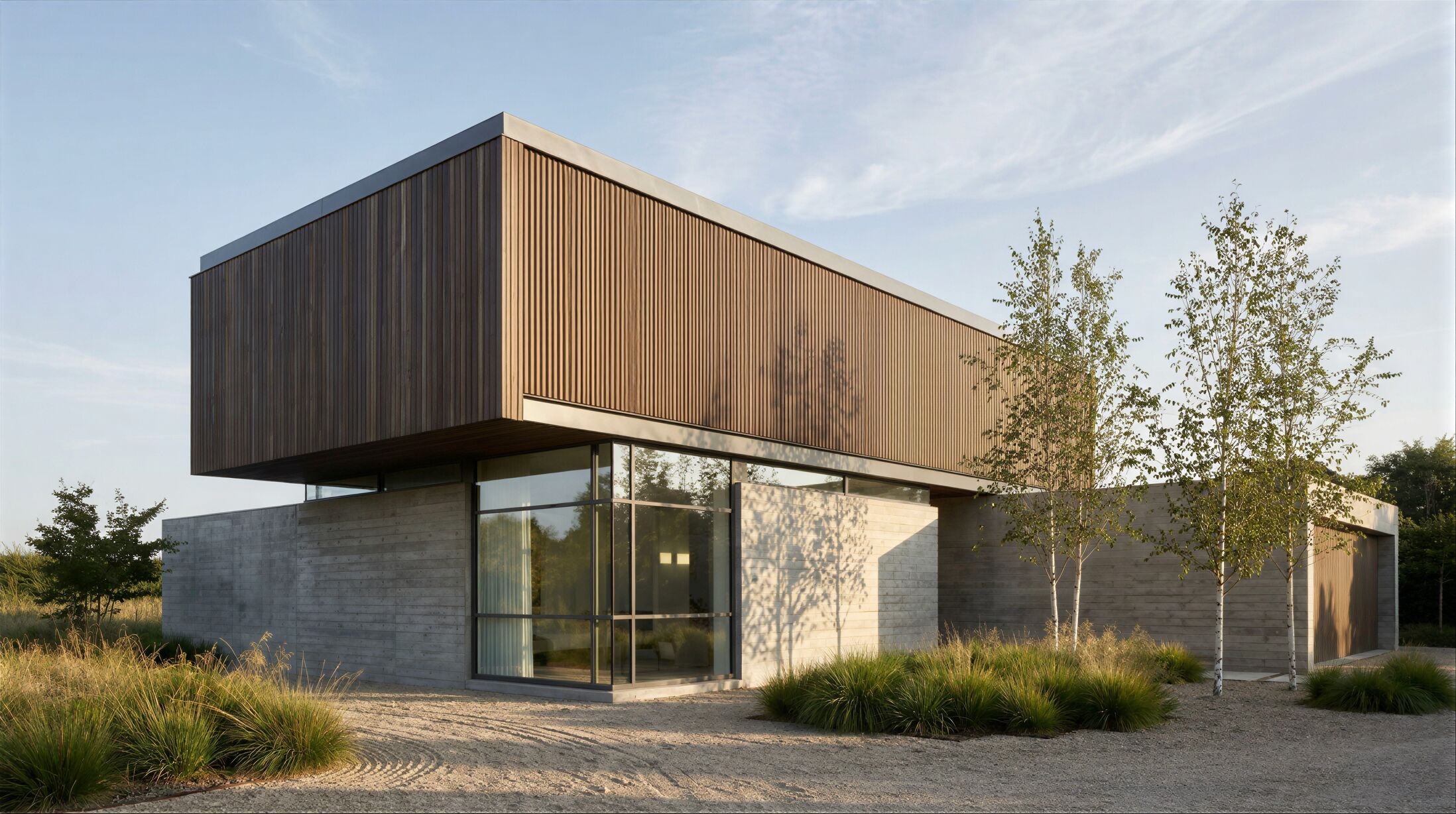
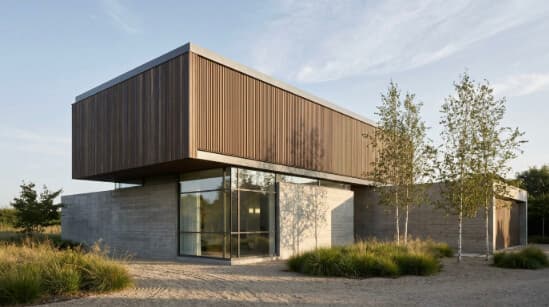
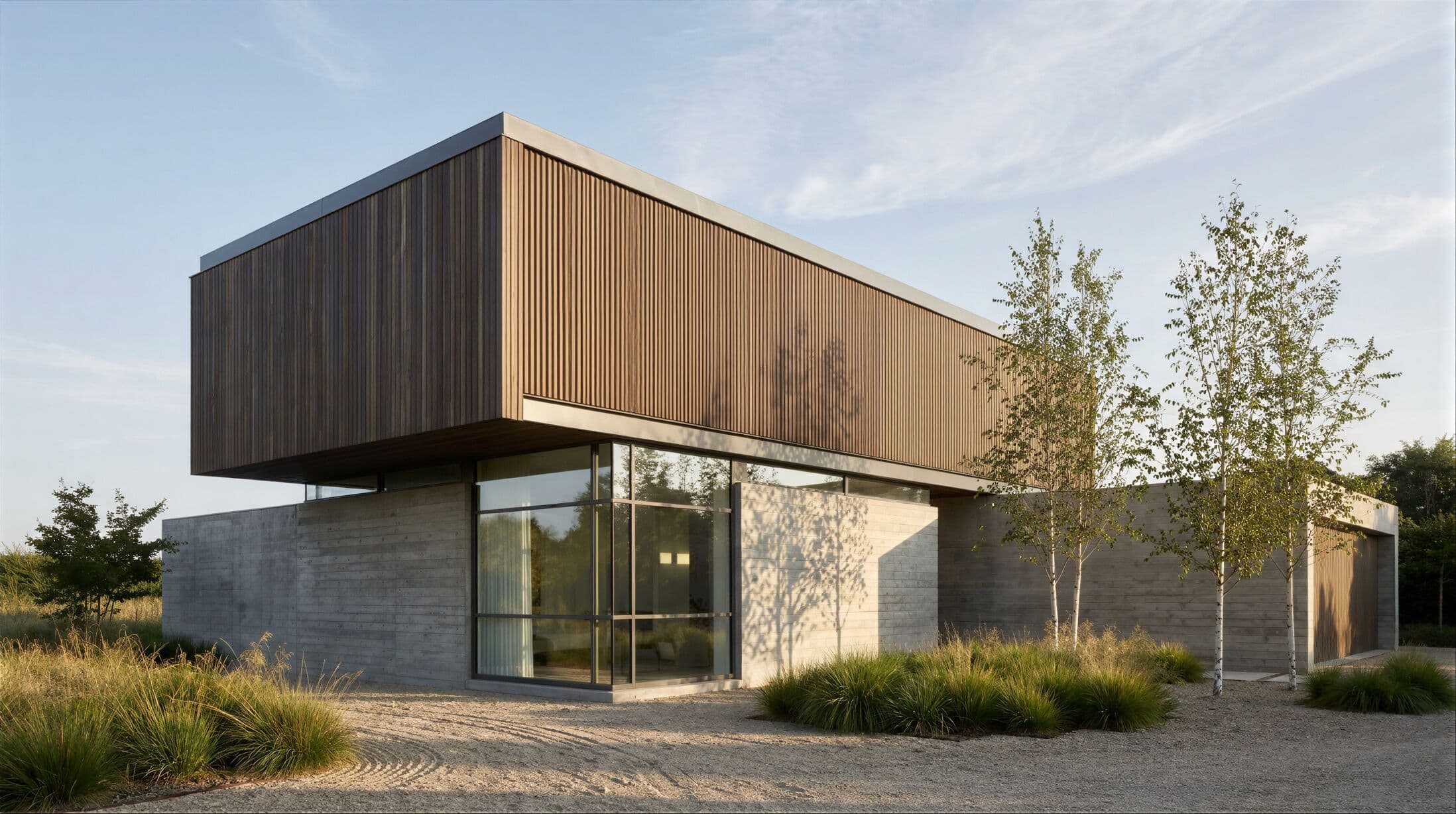
Use the example comparison above for the full image, then inspect this close crop for roof lines, foliage, textures, and small edges instead of trusting a generic quality score.
Choose a JPG, PNG, or WebP file. You can preview the source and catch the wrong image before you spend a credit in Enhancer.
See the exact output dimensions before you leave this local preview.
Sign in, choose the image and scale again, review the current cost, then run, compare, and download the result.
An AI image upscaler increases the width and height of an image while estimating new pixel detail. Standard resizing only stretches the existing pixels, which can make a larger image look soft or blocky. AI upscaling studies edges, textures, and nearby patterns to produce a sharper enlargement.
A 2x upscale doubles each side, so the output contains four times as many pixels. A 4x upscale quadruples each side and creates sixteen times as many pixels. More pixels do not automatically make every image more accurate, which is why this page keeps the original beside the result for inspection.
Enlarge render crops and supporting images for layouts without returning to the source model.
Prepare sharper project images for case studies, portfolios, and high-density screens.
Compare small details and edges before you place the image in client-facing work.
An AI image upscaler increases an image's pixel dimensions while estimating sharper edges and textures. It is more useful than simple stretching when you need a larger image for a presentation, website, crop, or print.
Choose 2x or 4x based on the source dimensions shown in the tool. A 1000 x 1000 image becomes 2000 x 2000 at 2x or 4000 x 4000 at 4x. Whether the result is exactly 4K depends on the image you start with.
The image upscaler accepts common JPG, PNG, and WebP files. The finished result can be downloaded as a PNG.
The model is designed to preserve the composition while sharpening and adding plausible detail. Like any AI enhancement, it can alter very small textures, text, or edges, so compare the result with the original before using it in final work.
No. You can upload an image, preview it, choose 2x or 4x, and see the output dimensions first. Sign in is requested only when you continue to Enhancer. You will choose the image and scale again there; this page keeps its local draft for up to 24 hours if you return in the same browser tab.
The signed-in Enhancer shows the current credit cost and your available balance before you run the upscale.
Start free, then choose the monthly credit allowance that fits your rendering and enhancement work. Annual billing is also available.
$0forever
Try Render a House before choosing a paid plan.
$39per month
For professionals and small teams.
$99per month
For studios with a higher-volume workflow.
Prices are shown in USD. The signed-in pricing page shows the current checkout terms before purchase.
Finish the source image in its original product, export a JPG, PNG, or WebP, then use the same 2x or 4x workflow above. These guides keep the product boundary and limitations explicit.
Separate image enhancement with no claimed native Nano Banana integration.
Model exportSeparate image enhancement with no claimed native Midjourney integration.
Model exportSeparate image enhancement with no claimed native FLUX integration.
Model exportSeparate image enhancement with no claimed native Qwen integration.
Model exportSeparate image enhancement with no claimed native Z-Image integration.
Render exportSeparate image enhancement with no claimed native Lumion integration.
Render exportSeparate image enhancement with no claimed native Enscape integration.
Render exportSeparate image enhancement with no claimed native V-Ray integration.
Render exportSeparate image enhancement with no claimed native Twinmotion integration.
Render exportSeparate image enhancement with no claimed native KeyShot integration.
Turn a clear image into a downloadable 3D model after you improve the source.
Create an architectural render, refine it, then return here when you need a larger final image.
Ready when your image is