Render a House/Updated Oct 21, 2026
Free Trees and Plants CAD Blocks (DWG)
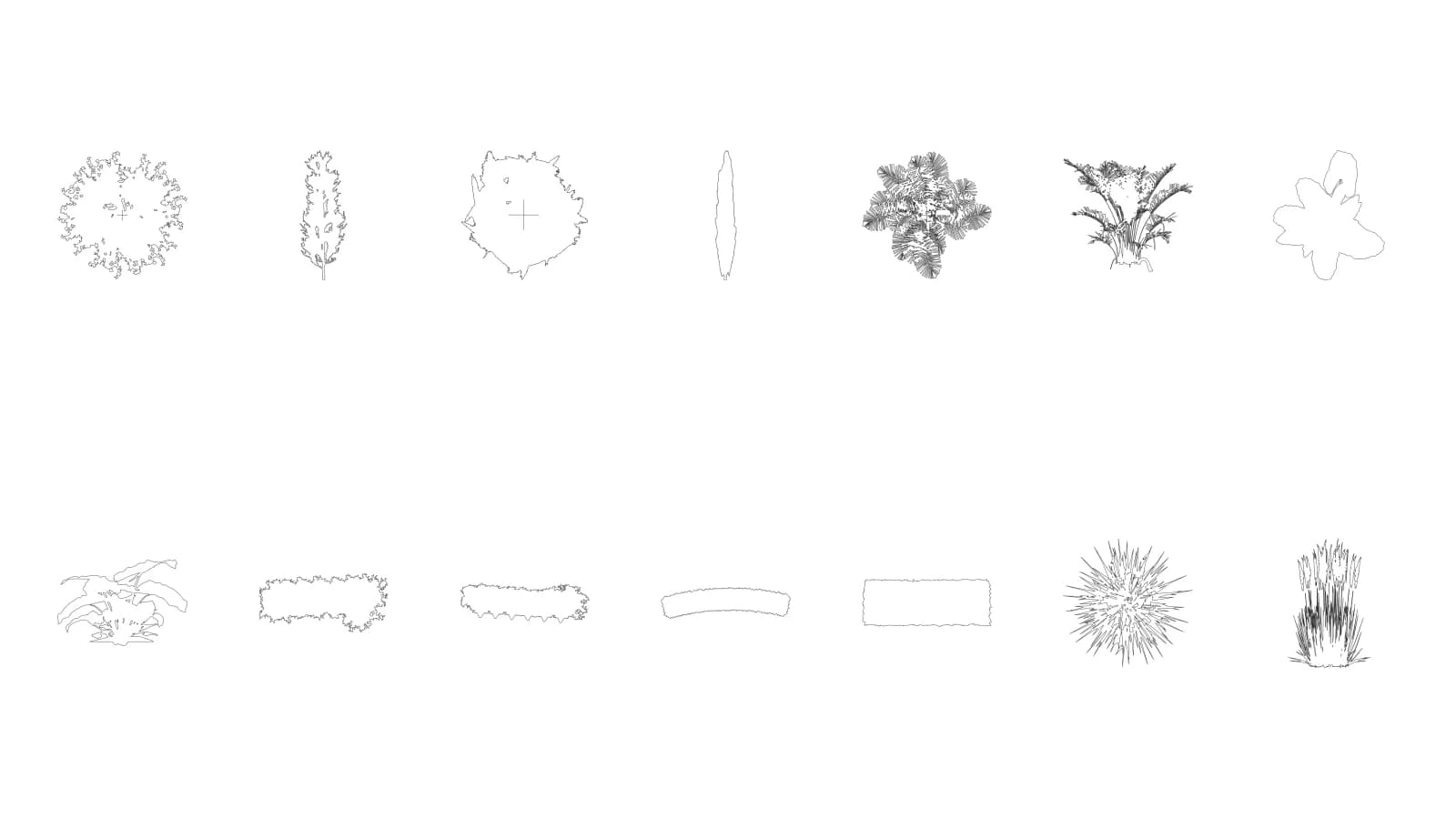
Download 14 free tree and plant CAD blocks in plan and elevation, ready for AutoCAD site plans and landscape drawings. Get DWG, DXF and transparent PNG files in real scale in meters, with no signup.
Free downloads
Quick answer: This free pack includes 14 tree and plant blocks (7 plants, each in plan and elevation), plus the original SketchUp model as a separate download. No signup is required.
Download all 14 blocks (ZIP, 9.9 MB)
Download the SketchUp model (.skp, 10.2 MB)
| Pack detail | Specification |
|---|---|
| Formats | DWG, DXF and transparent PNG; SKP model separately |
| AutoCAD version | AutoCAD 2013 DWG (AC1027) |
| Drawing units | meters; 1 unit = 1 m |
| Blocks | 14 total: 7 plants in plan and elevation |
| Download sizes | Full ZIP: 9.9 MB; SketchUp model: 10.2 MB |
| License | Free for personal and commercial use |
Browse the CAD blocks
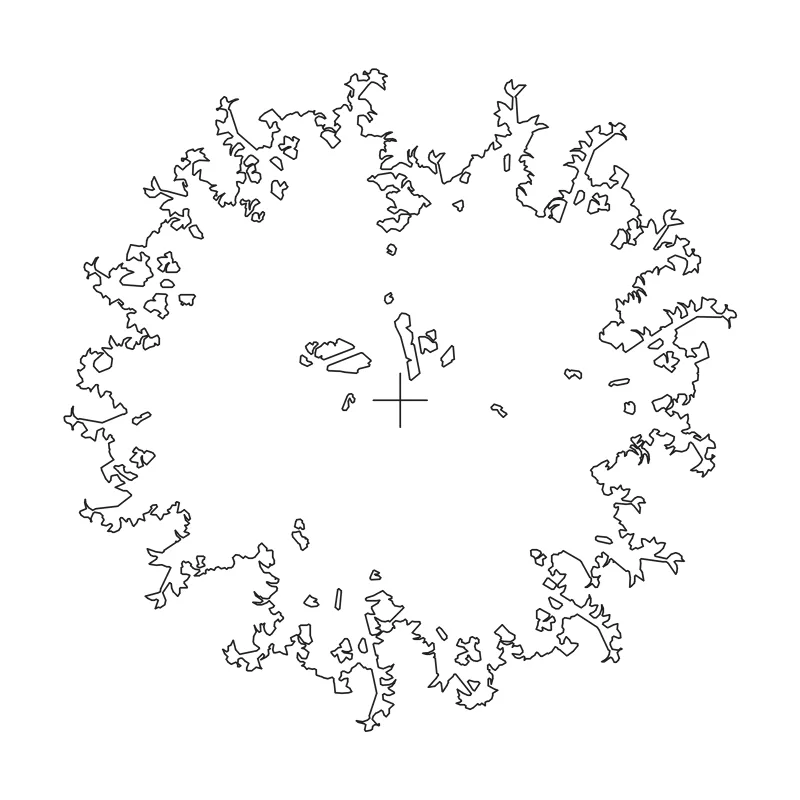
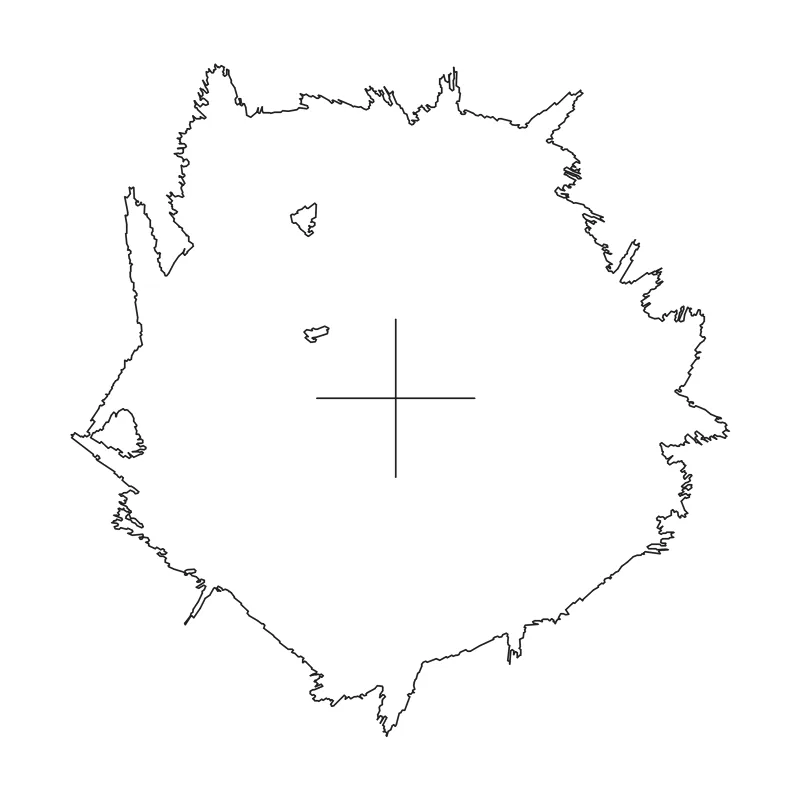
Browse all blocks below. Filter by plant group or view; every card includes a DWG and a transparent PNG download.
Filter by group
Drawing view
 plan
plan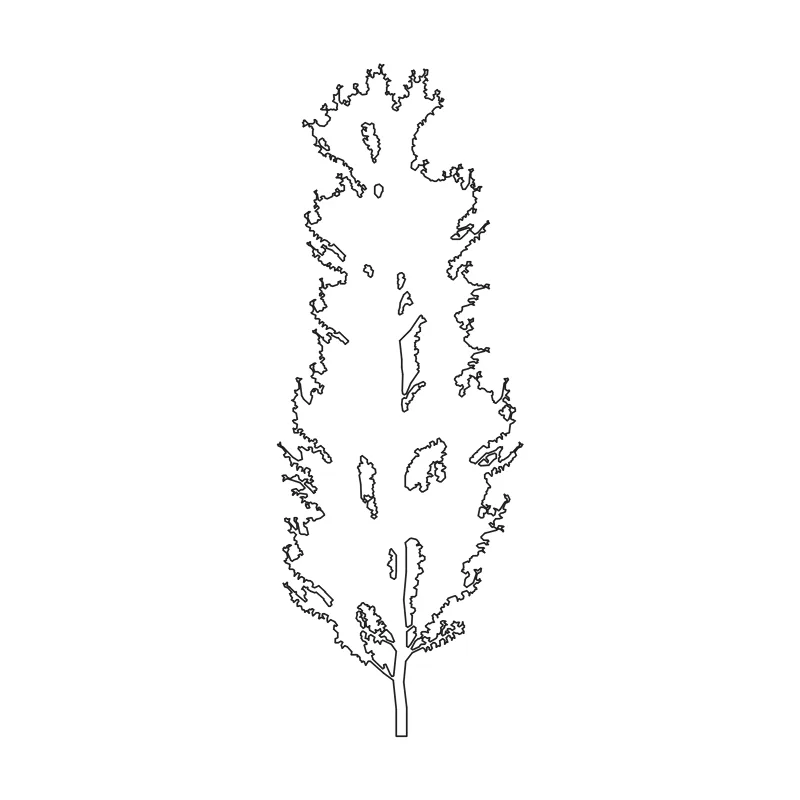 elevation
 plan
plan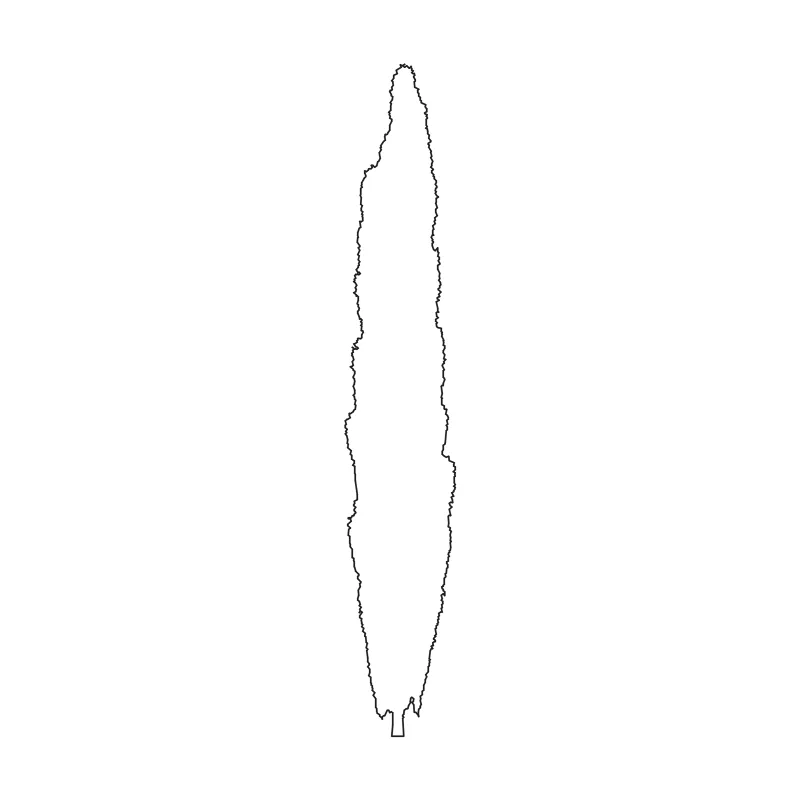 elevation
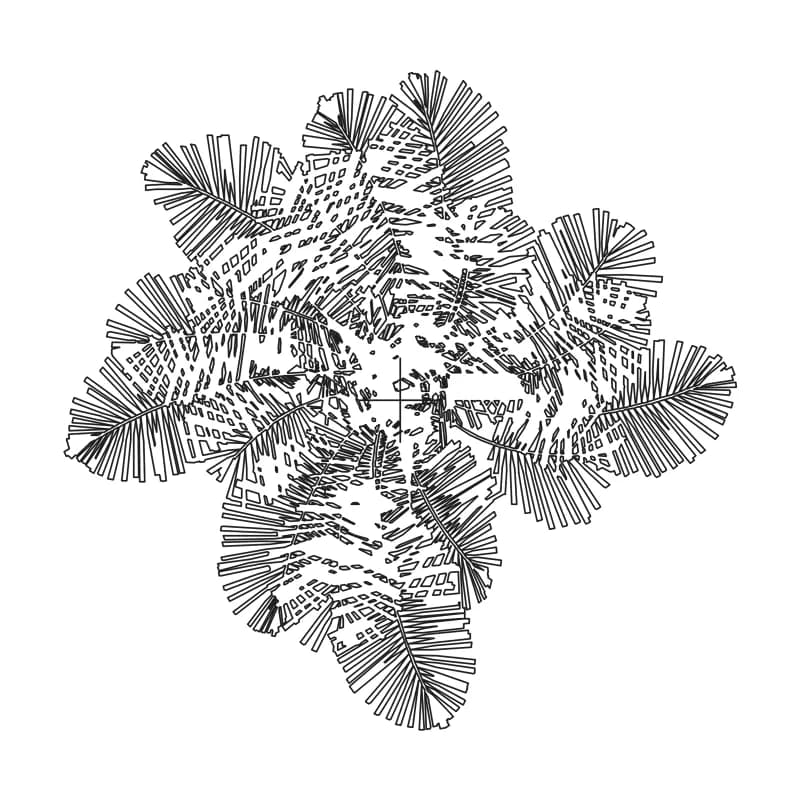 plan
plan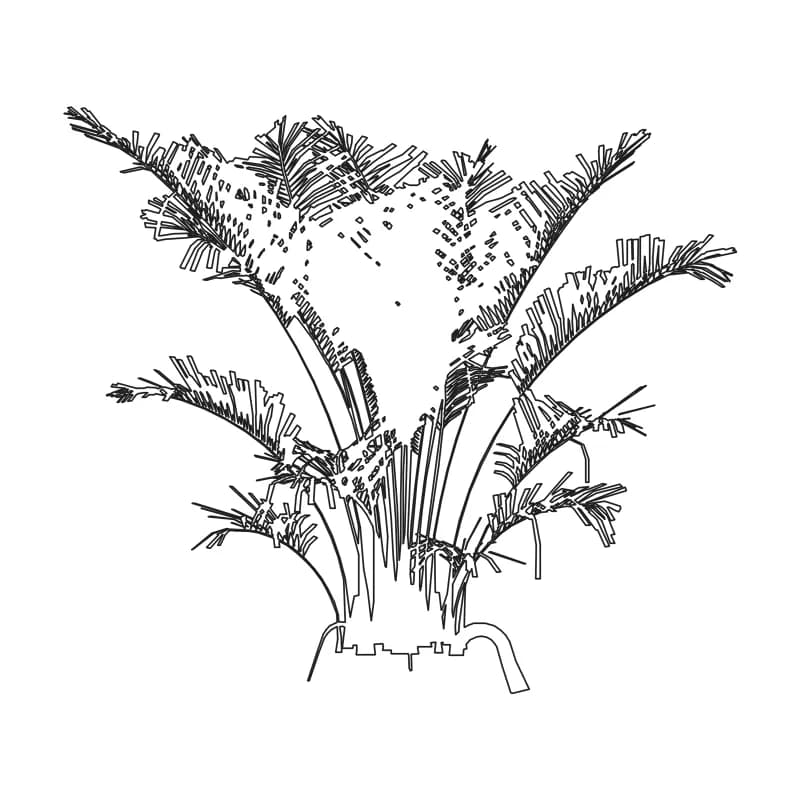 elevation
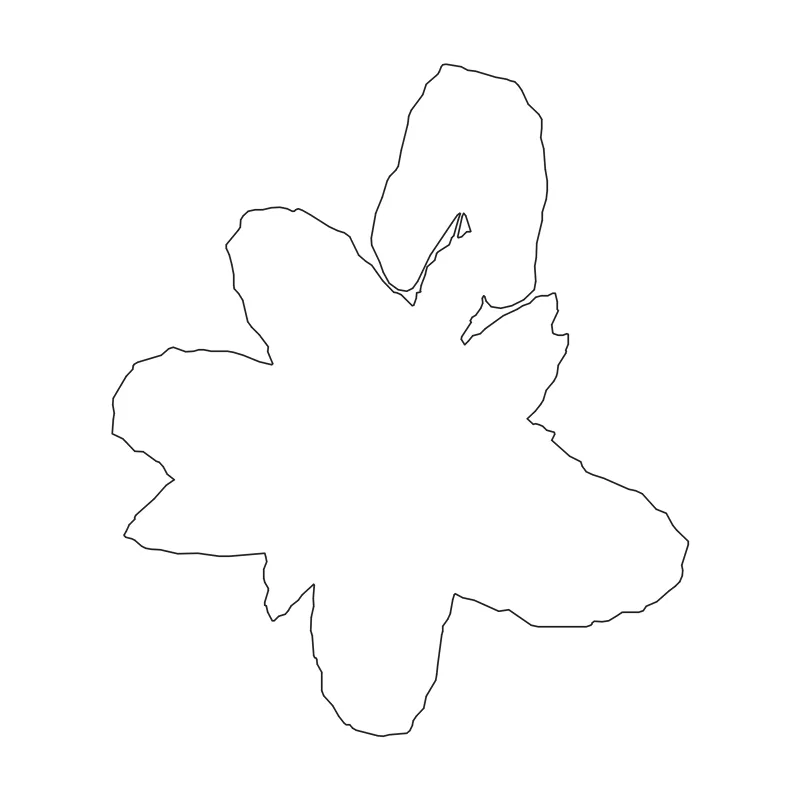 plan
plan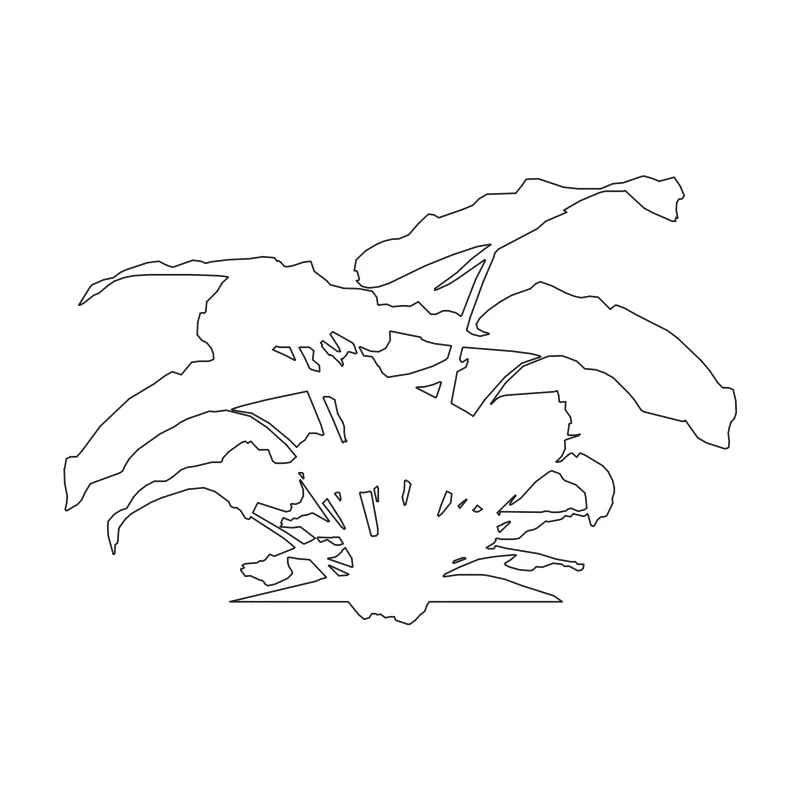 elevation
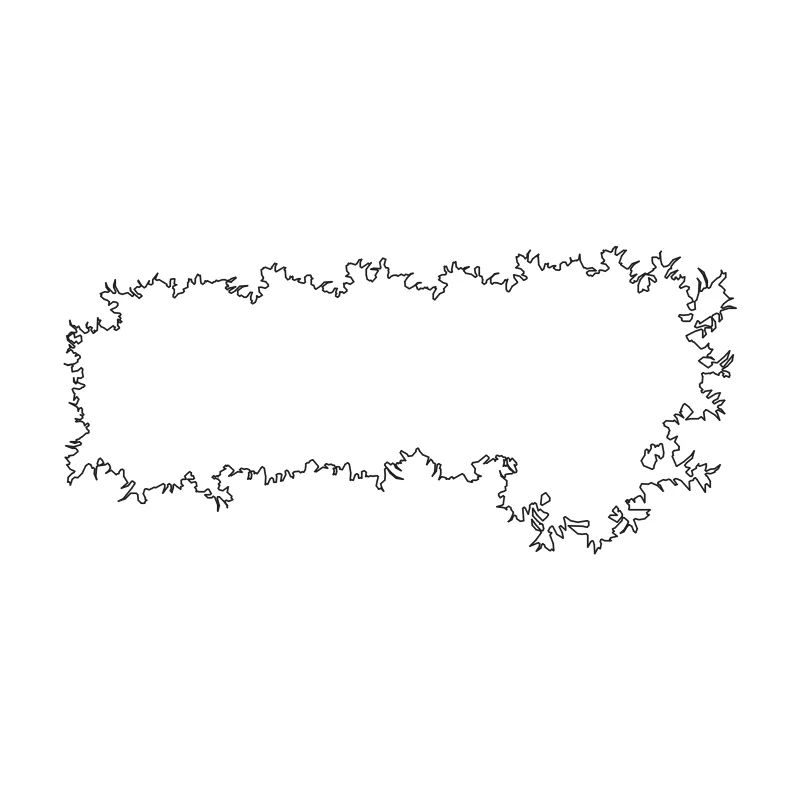 plan
plan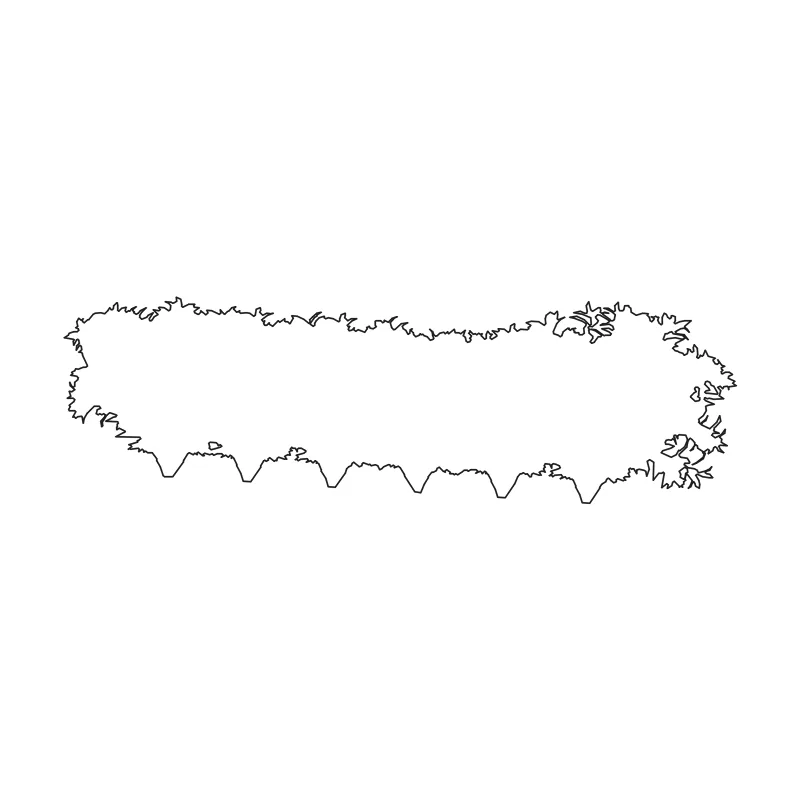 elevation
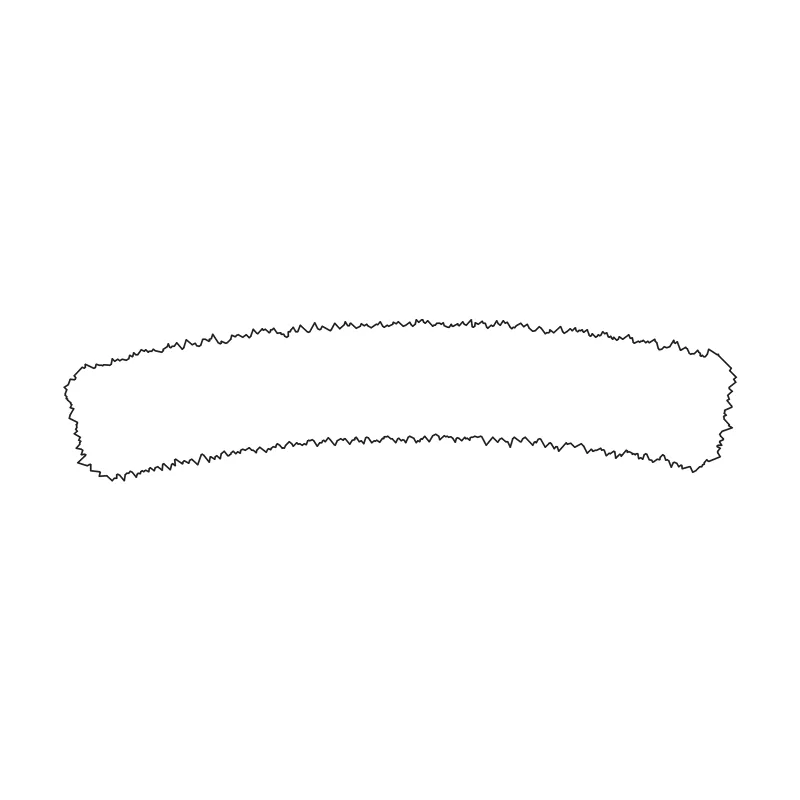 plan
plan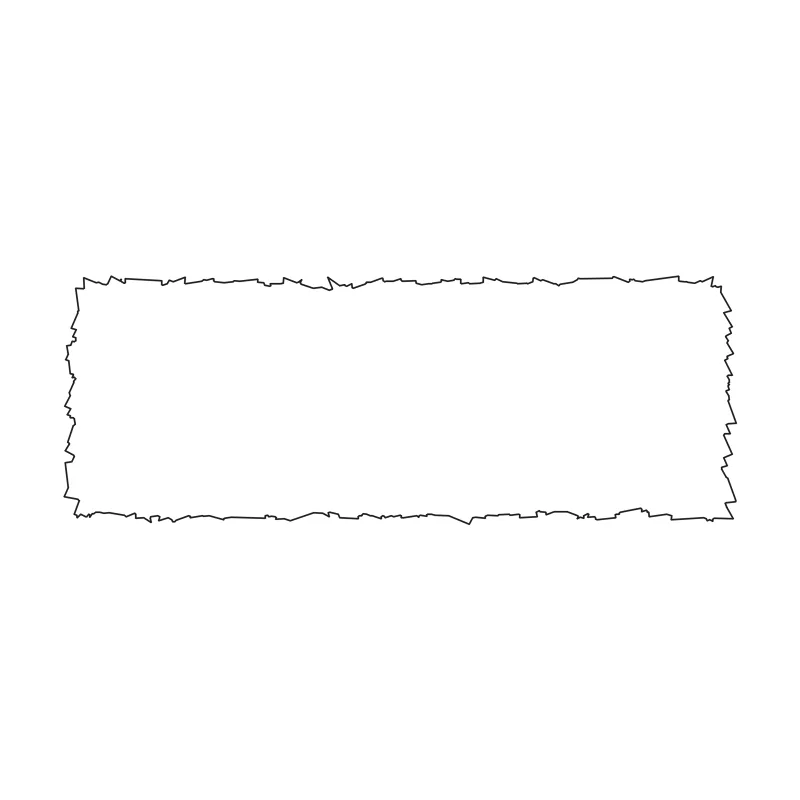 elevation
 plan
plan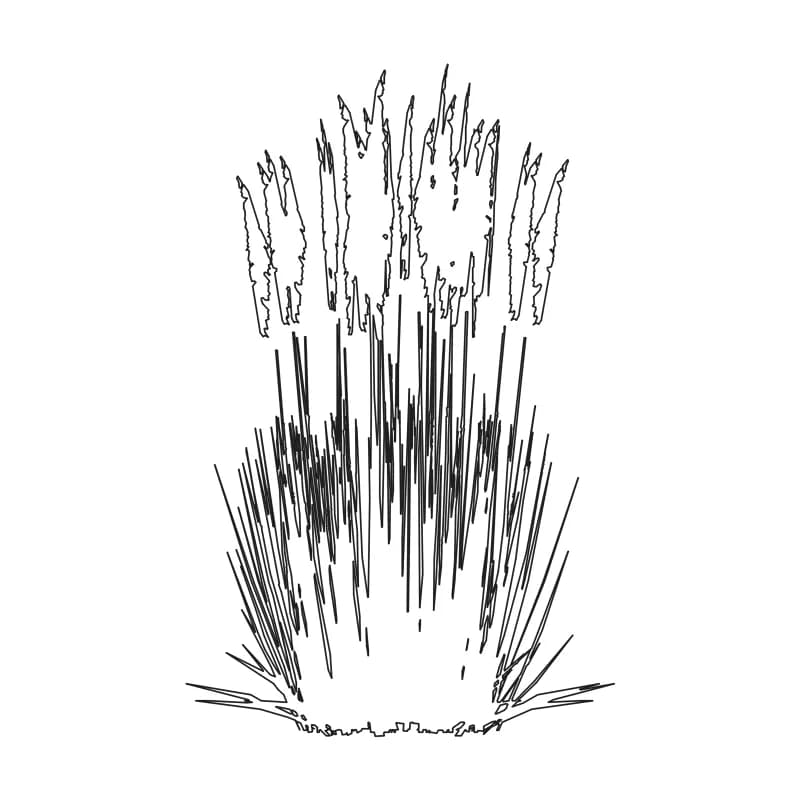 elevation
What’s in the ZIP
The full ZIP contains an individual DWG and DXF for every block, a combined library drawing with named blocks, transparent PNG exports, a README and a license file. The original .skp is a separate download and is not inside the ZIP.
- Individual plan and elevation DWG/DXF files.
- Combined library drawing with blocks on
L-PLNT-TREE,L-PLNT-SHRBandL-PLNT-GRND. - Transparent PNG exports for image-based workflows.
- README.txt and LICENSE.txt.
Tree CAD blocks in plan view
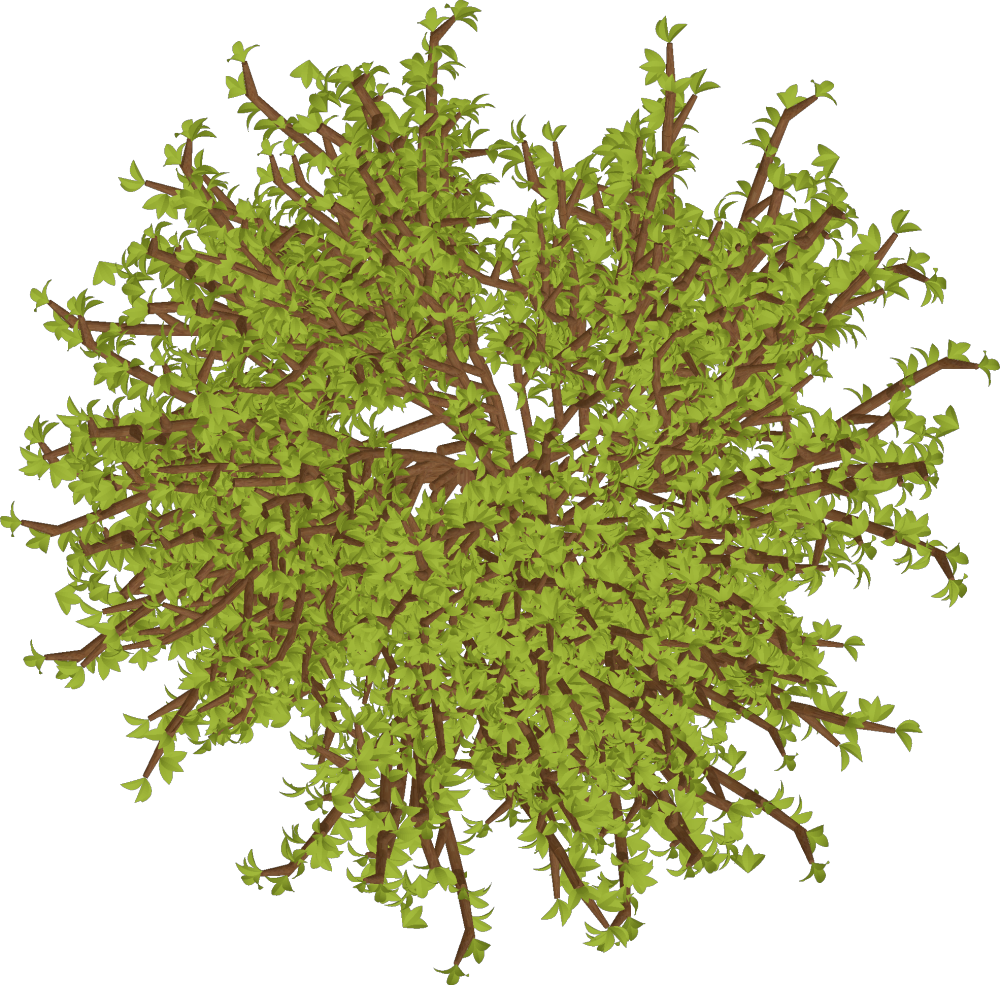
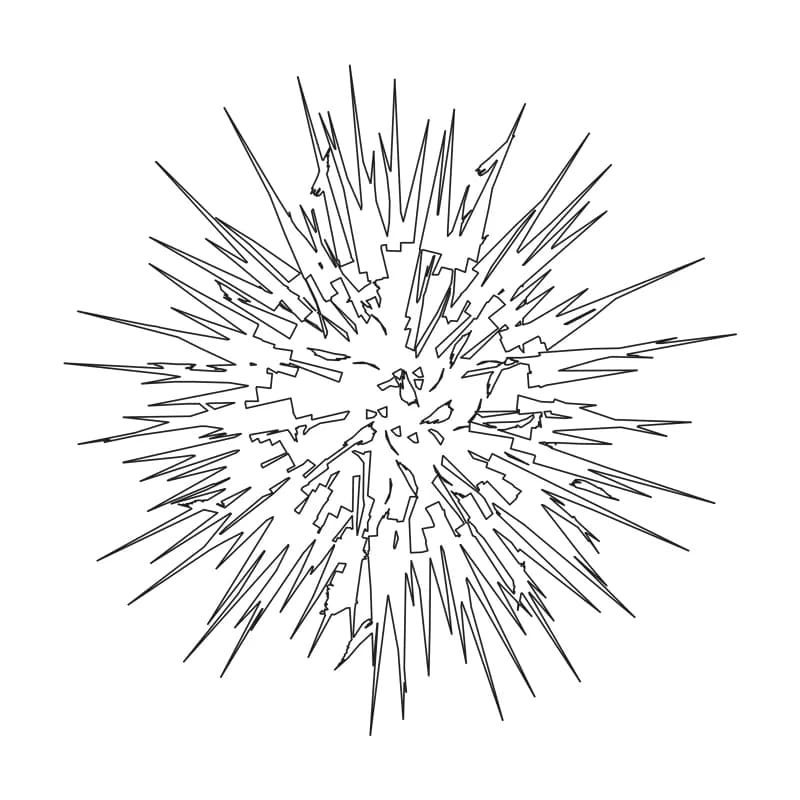
The plan-view tree blocks show planting symbols from above for site plans. Get the dedicated tree plan-view DWG and PNG pack.
Tree elevation CAD blocks
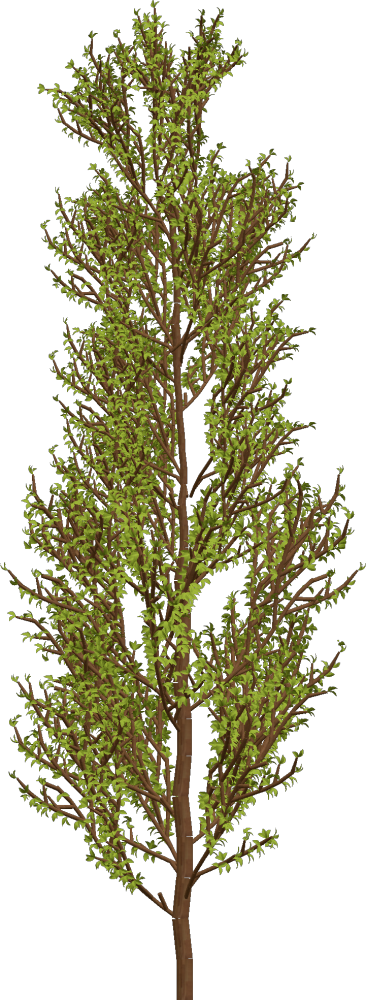
Use the elevation blocks to show tree silhouettes in landscape elevations and sections. See all 7 in the free tree elevation CAD blocks guide.
Palms, shrubs and grass CAD blocks
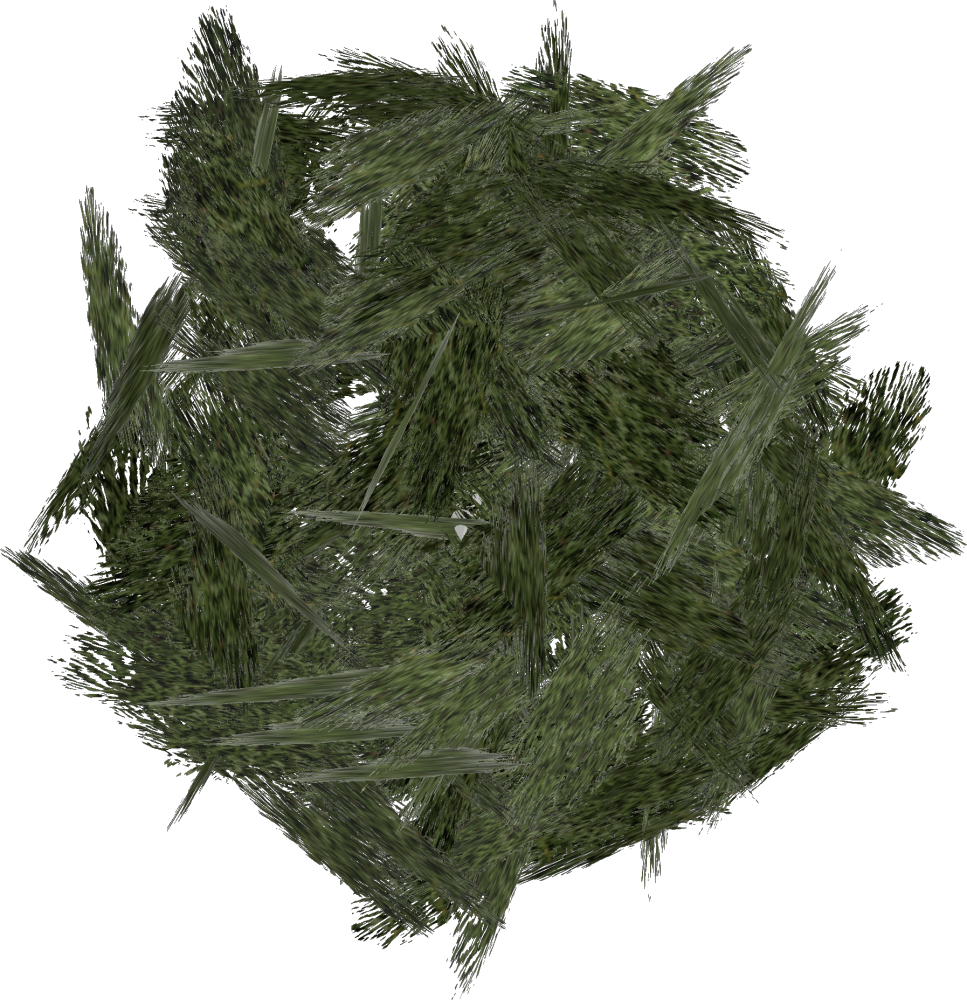
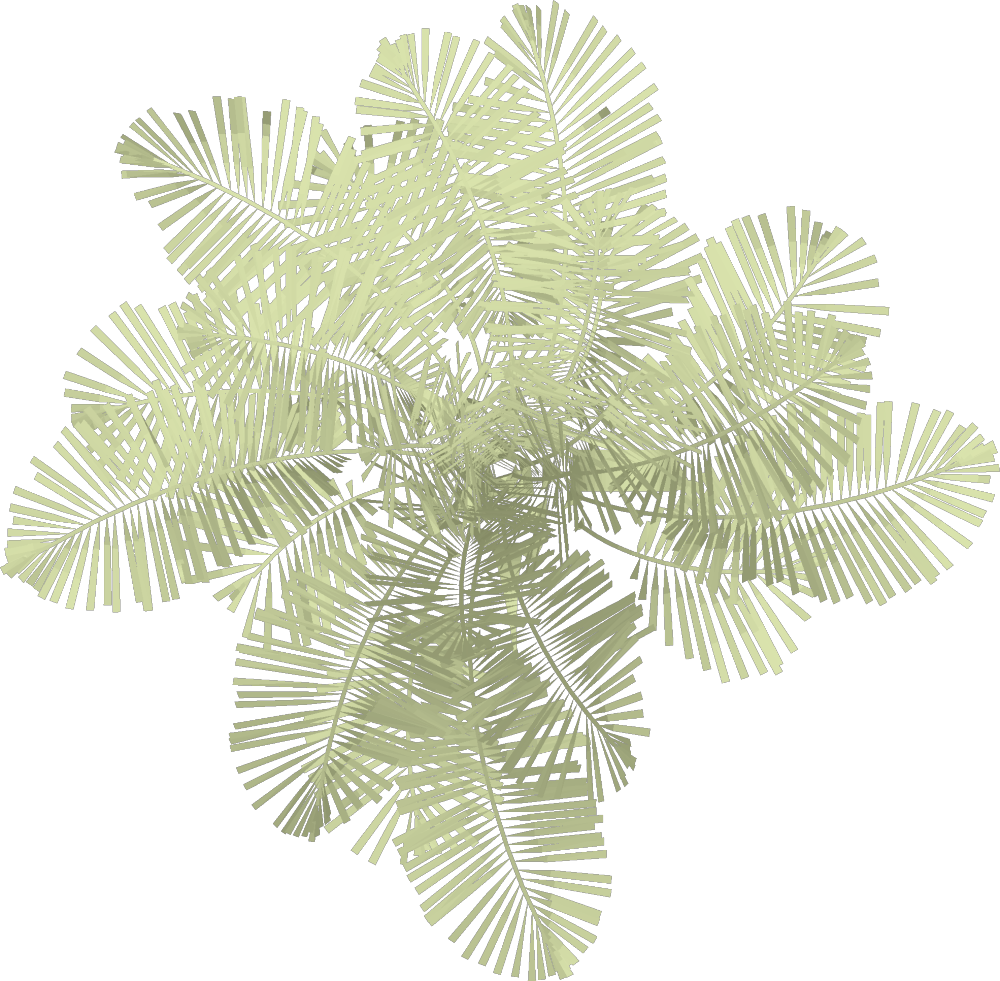
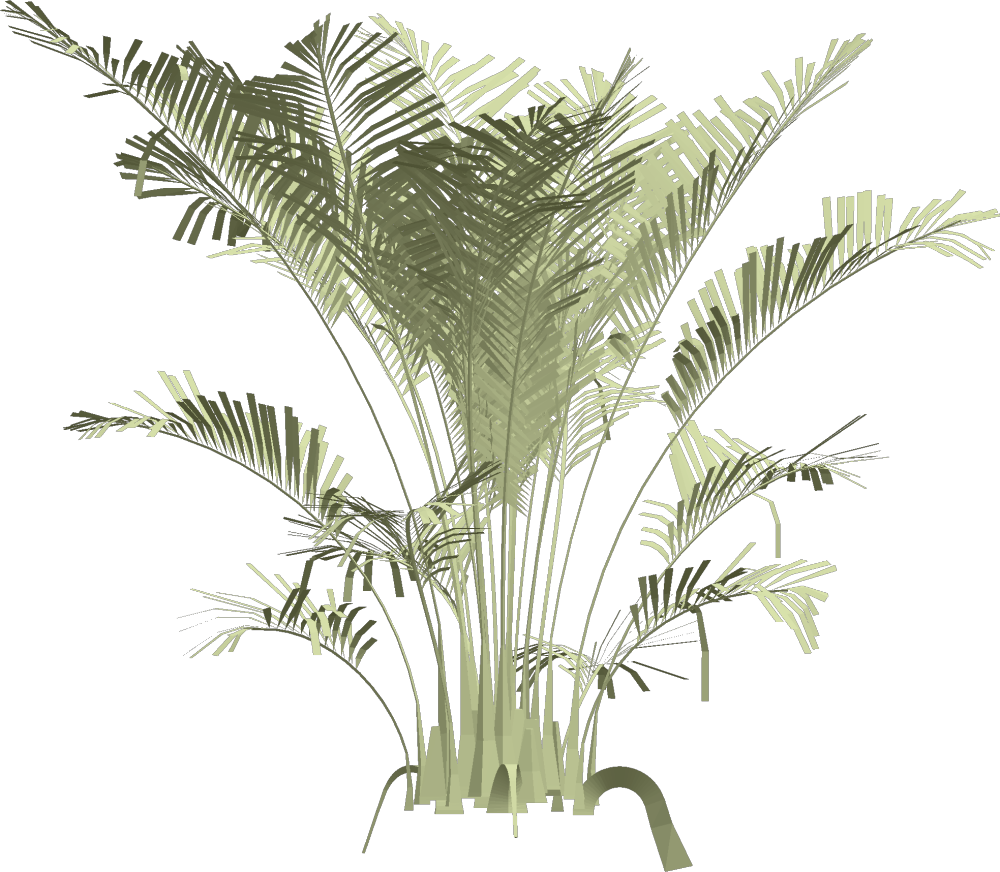
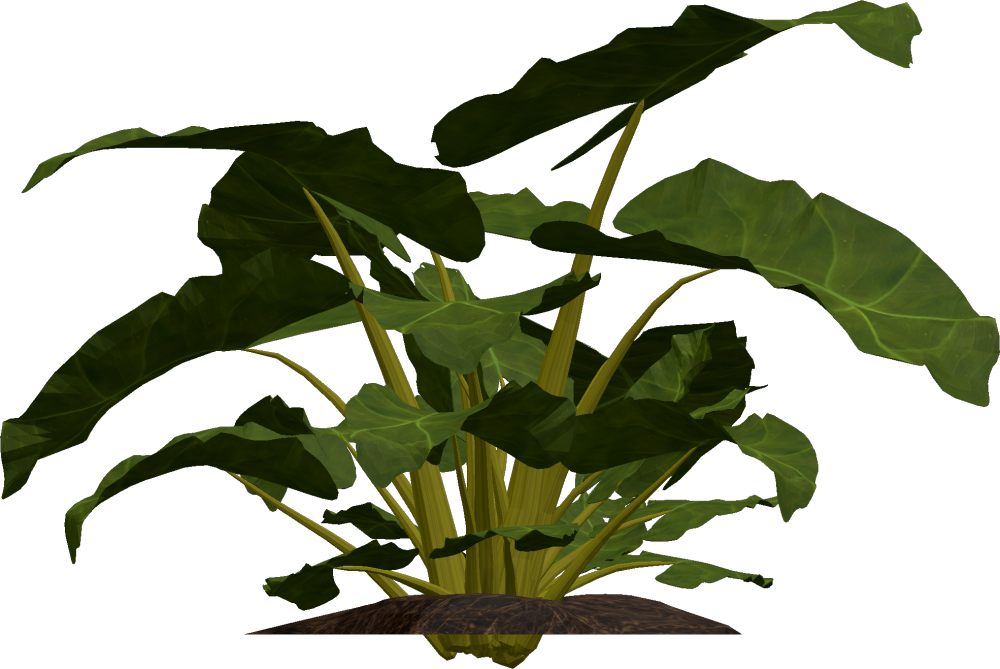
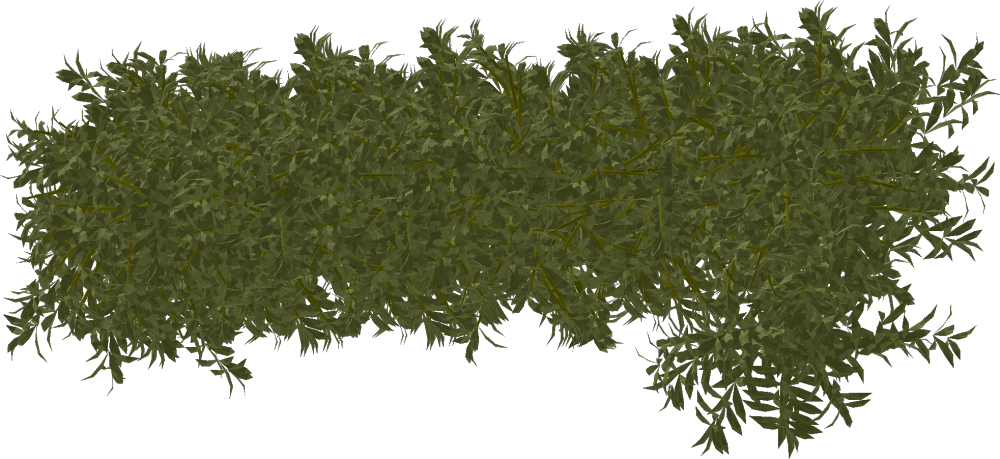
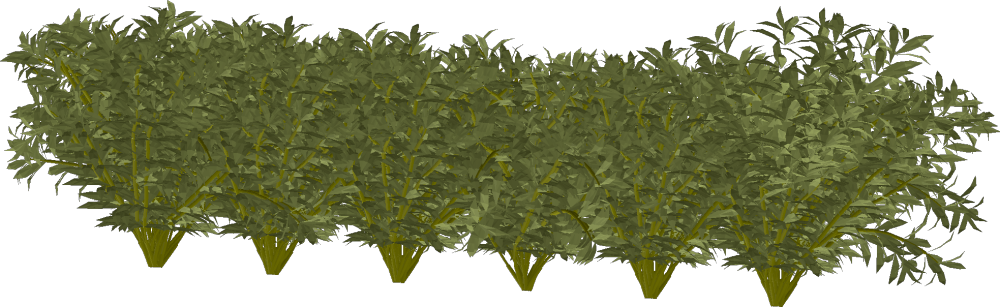
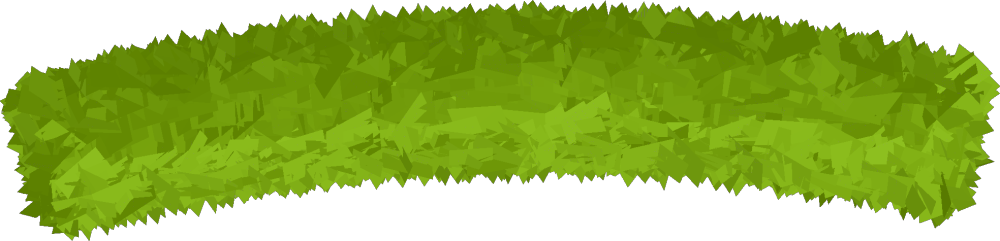
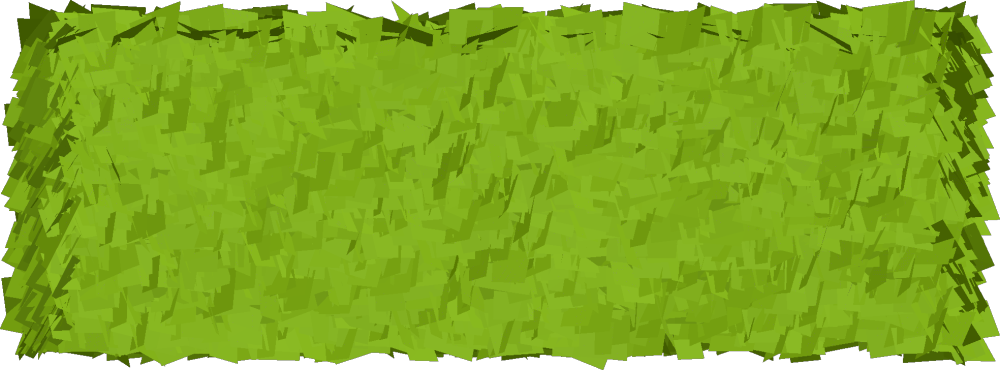
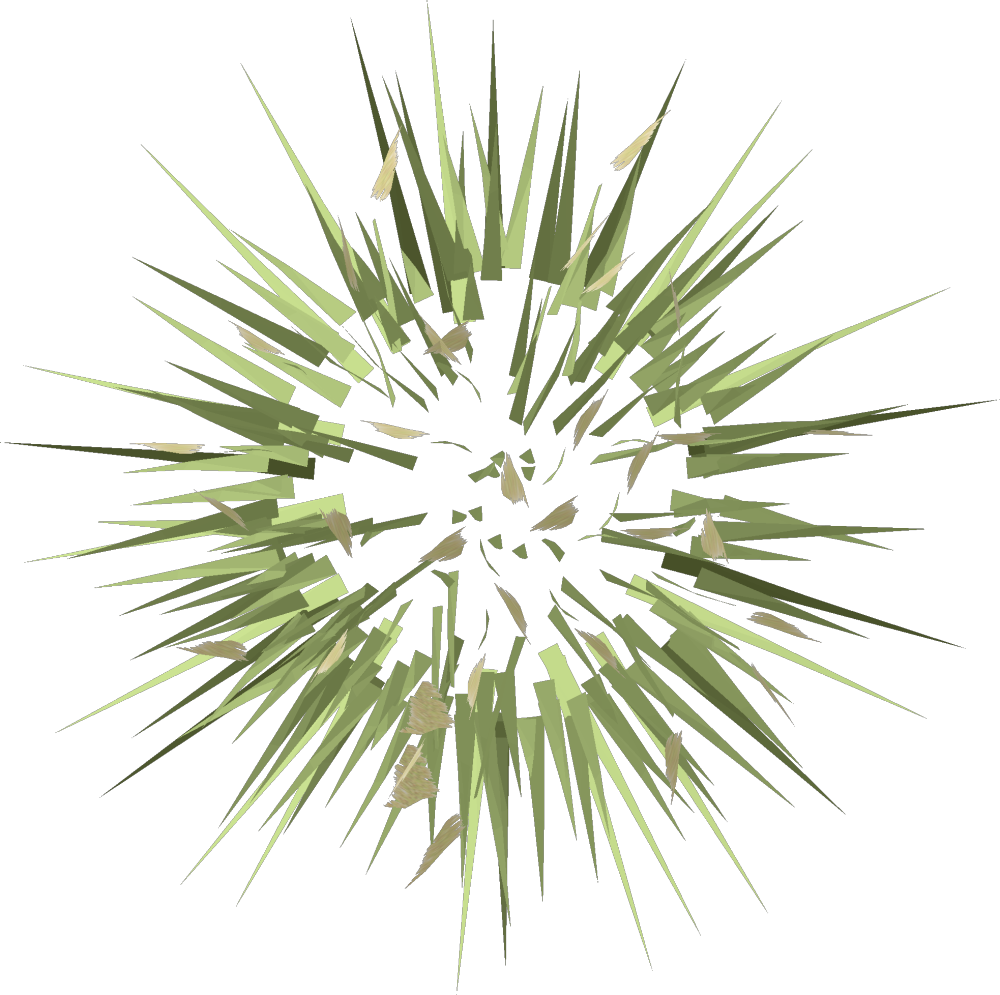
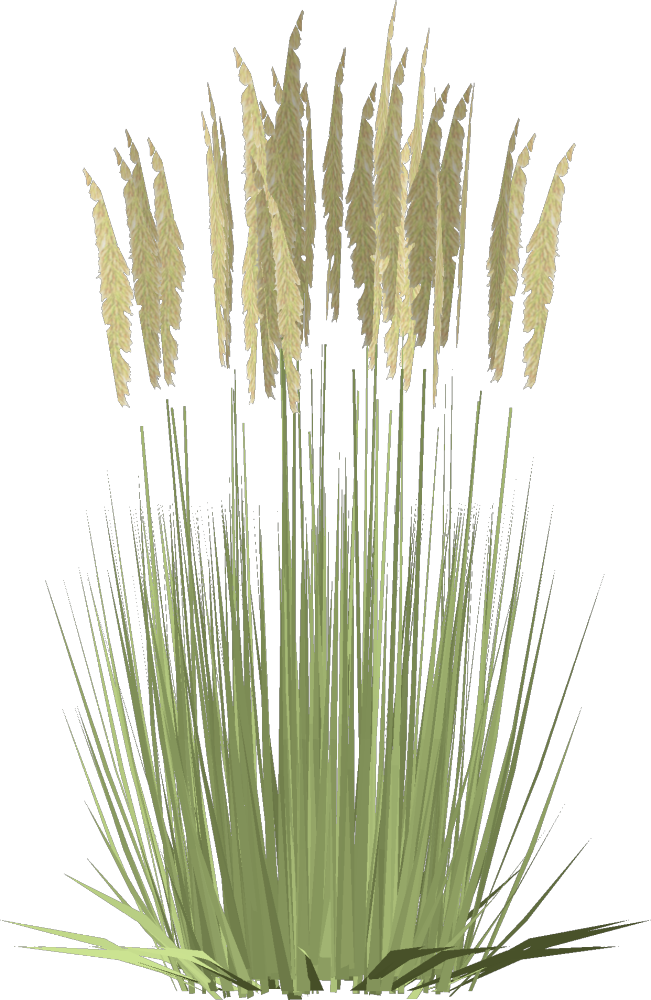
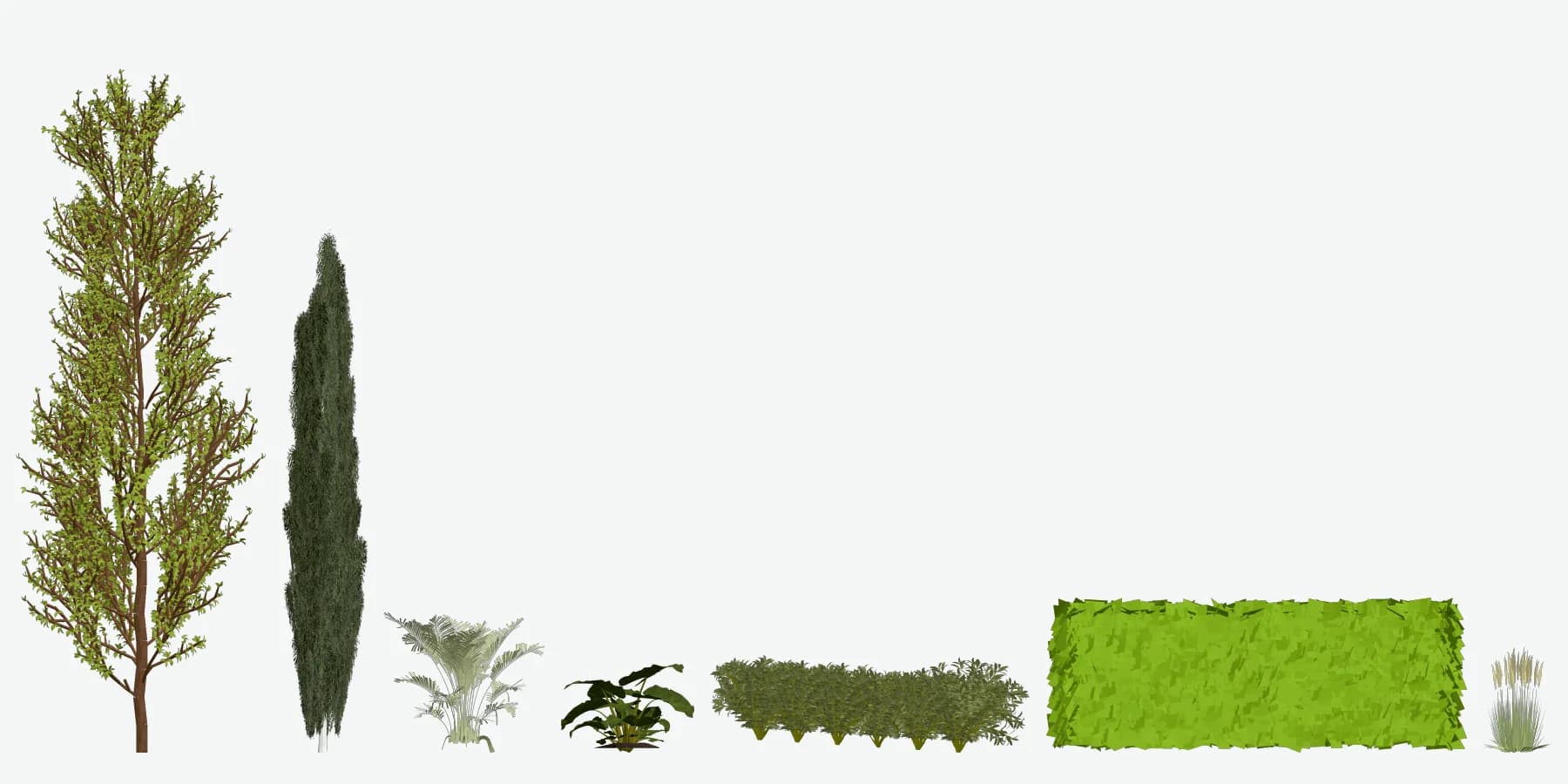
The pack also includes a palm, Alocasia, two hedges and feather reed grass in plan and elevation. Browse the palm, shrub and grass CAD blocks.
SketchUp model
The 7 plants are also available in the original SketchUp model for 3D workflows. Download the .skp above, or preview the SketchUp file in 3D in your browser.
How to insert a block in AutoCAD
- Unzip the pack. Every block (plan and elevation of each plant) has its own DWG and DXF file.
- In AutoCAD, use
INSERTto select a block DWG, or open the combined library drawing and insert a named block through DesignCenter (ADCENTER) or the Blocks palette. - Insert at scale 1. The blocks are drawn in meters and declare their units, so AutoCAD rescales them automatically when your drawing’s units (
UNITS/INSUNITS) are set to millimeters, centimeters or feet. Only if your drawing is unitless, enter the scale manually: 1000 for millimeters, 100 for centimeters, 3.2808 for feet. - Place the insertion point at the trunk or center in plan, and at the ground center in elevation. Keep or remap the supplied layer names to match your drawing standards.
Use the included DXF files in other compatible CAD software. For SketchUp, importing DWG/DXF requires SketchUp Pro; Revit and ArchiCAD provide CAD import or merge workflows.
Layer names
L-PLNT-TREE— trees and palms.L-PLNT-SHRB— shrubs and hedges.L-PLNT-GRND— ground-cover and grass elements.
Render your plan
Turn your CAD site plan into a realistic landscape concept: export the drawing as an image and upload it to AutoCAD Rendering or the AI Landscape Design tool.
License
Free for personal and commercial projects. No attribution is required. Do not resell or redistribute these files as a standalone pack or as part of another block library.
Frequently asked questions
Can I use these CAD blocks commercially?
- Yes. The files are free for personal and commercial projects with no attribution required. Do not resell or redistribute them as a standalone pack or as part of another block library.
Which AutoCAD version do these blocks open in?
- The DWG files use AutoCAD 2013 format (AC1027). They open in AutoCAD 2013 and newer, and in most DWG-compatible applications.
Do the files work in SketchUp, Revit or ArchiCAD?
- The DWG and DXF files can be imported into compatible CAD and 3D applications. SketchUp Pro can import DWG/DXF. The original SketchUp .skp model is also available as a separate free download.
Are the blocks at real scale?
- The blocks are drawn in meters and declare their units. AutoCAD rescales them on INSERT when the drawing’s UNITS / INSUNITS are set. Only a unitless drawing needs a manual scale factor: 1000 for millimeters, 100 for centimeters or 3.2808 for feet.
How do I insert a tree block in AutoCAD?
- Unzip the pack and use INSERT to select the block DWG, or open the library DWG and insert a named block with DesignCenter (ADCENTER) or the Blocks palette. Insert at scale 1 when the drawing declares its units; use a manual conversion factor only for a unitless drawing.
How can I turn a CAD site plan into a realistic render?
- Export the plan as an image, then upload it to Render a House to create a realistic landscape concept. Start with AutoCAD Rendering or the AI Landscape Design tool.
Do I need an account or email to download the files?
- No. The ZIPs and SketchUp model are direct downloads with no signup or email required.
Related guides
- Free Trees in Plan View (DWG + PNG) — 7 tree plan-view blocks for site plans.
- Free Tree Elevation Blocks for Drawings — Tree silhouettes for elevations, sections and facades.
- Free Palm Trees, Shrubs and Grass CAD Blocks — Palm, shrub, hedge and grass blocks in both views.