Getting Started
Your first render in under two minutes: create a project, upload a sketch, floor plan, or 3D model, pick a style, and generate a photorealistic image.
This guide gets you from zero to your first finished render. No design software required — you can use one of the sample images to try it.
1. Create an account
Go to renderahouse.com and sign up. You can log in with Google or an email + password. New accounts start on the Free plan: 1 render + 3 edits per day, refreshed daily. Free renders include a small watermark.
If you need more, see Plans and Pricing.
2. Start a new project
From the dashboard, click New Project in the top-left. You'll land on the upload screen.

Before uploading, you can:
- Save to — pick a folder (default: "No folder") or create a new one inline via New Folder...
- Project name — optional. If you leave it empty, Render a House will generate a name based on what it sees in your image
Three ways to upload:
- Drag and drop a file onto the big box in the middle
- Click to upload and pick a file from your computer
- Use a sample image — scroll down and pick one of the existing thumbnails

Have a 3D model instead of a drawing? Start with 3D Preview to position your model on real satellite terrain and render it from any camera angle.
3. Supported formats and size
- Images: PNG, JPEG, WebP
- 3D models: SKP, GLB, GLTF, OBJ, STL. Upload SketchUp
.skpdirectly; 3D import is a paid-plan feature. Revit and other unsupported native formats need a compatible export or view screenshot.
Max file size: 5 MB. Recommended image size: 2000–3000 px on the longest side.
Once the file is processed, you land in the editor.
4. Pick your render settings
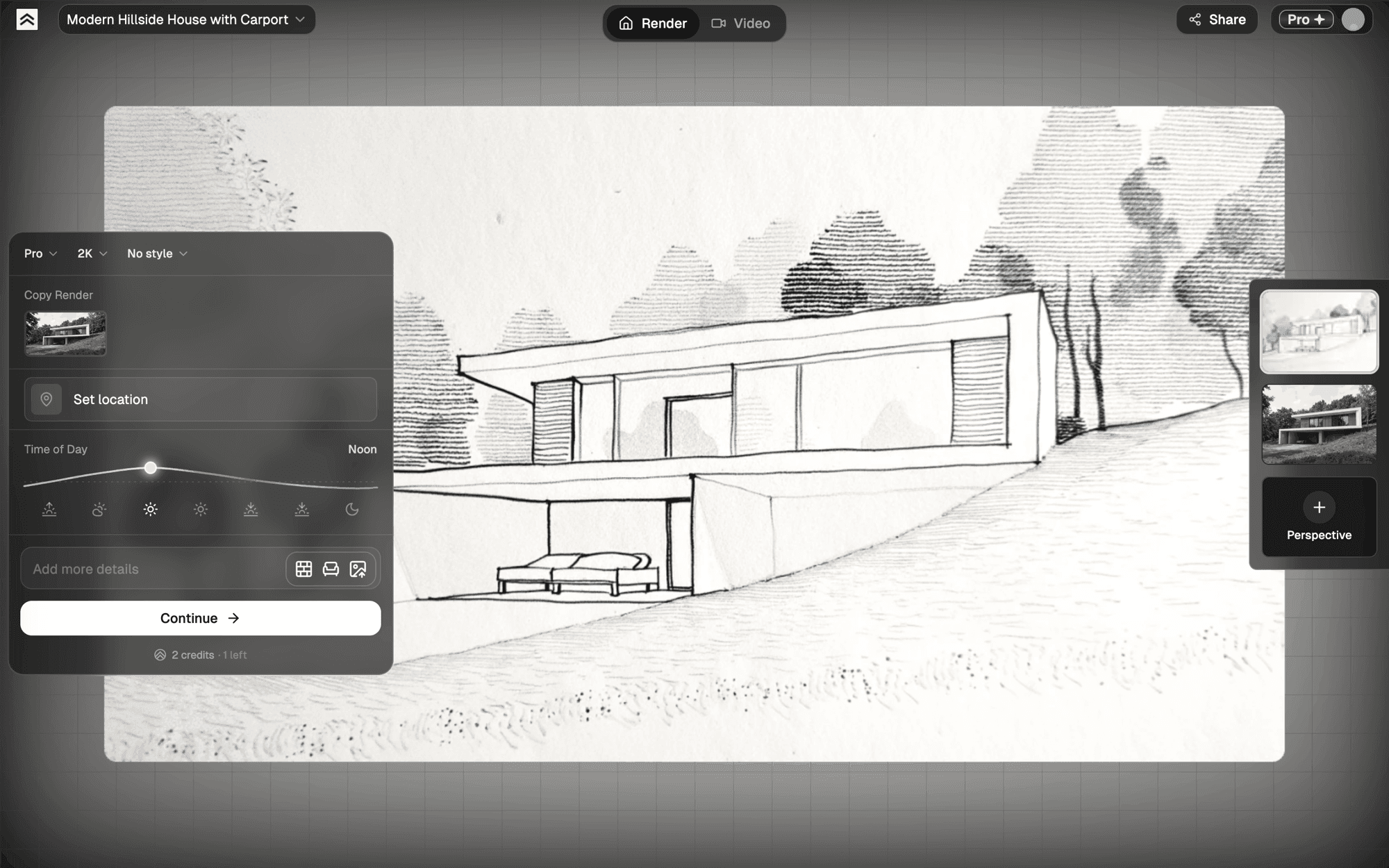
The left panel is where you configure the render. You don't need to touch everything — the defaults are sensible. For your first render:
- Model: pick Pro — it produces the best results and gives the AI the most consistent base to iterate from. Switch to Standard for quicker, cheaper iterations later
- Time of Day: Noon (default) is neutral; Sunset / Dusk are cinematic for exteriors
- Style: Real photo is the safest for a photorealistic output. For strict fidelity to your drawing, pick a more neutral style and describe realism in the prompt
- Skip Set location and References for now — you can always iterate
5. Render with the chat assistant
At the bottom of the settings panel, click Continue. This opens the chat assistant, which asks a short set of questions (time of day, atmosphere, details) with quick-pick buttons and a Skip on each. It turns your answers and settings into a prompt for you — you never have to write one from scratch.
The render usually takes ~80 seconds.
Want to move fast? Skip through the questions and the assistant renders right away with your current settings. Once you have something on screen, you can decide whether to generate a new version or edit what you have — see step 7.
6. Answer the questions
Answer each question (or hit Skip) — the assistant renders a preview once the brief is complete and you confirm.
7. Decide: generate a new version or edit this image
Once a render is on screen, you have two paths:
- Generate a new version — broad changes: different environment, different weather, different style, or a composition the AI got wrong
- Edit this image — local changes: swap a material, remove an object, add a specific element ("add a tree here")
The chat assistant routes you automatically based on what you ask. You can also use the toolbar directly:
- Compare — before/after slider
- Improve quality (Enhance) — higher-resolution version
- Download — as PNG or JPG
- Select area — mask a region for a local edit
- Share — public link
Note: each Render and each edit counts as one credit. Enhance also uses a credit. Failed renders don't charge credits.
What's next
- Learn how Projects and Views are organized
- Dig into choosing a style
- Iterate with Refine and Iterate
- Watch tutorials on our YouTube channel