Render a House

Copy Render

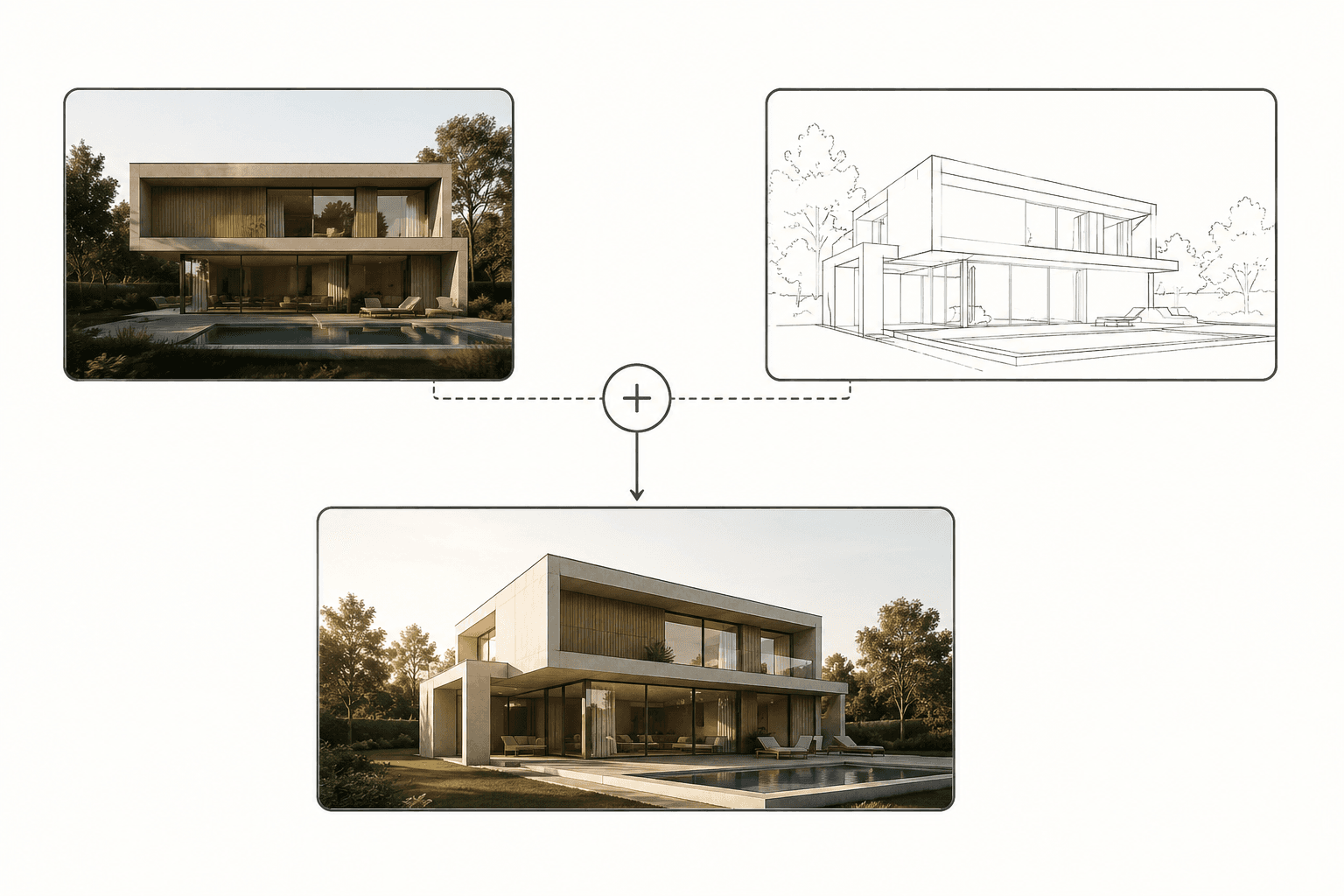
Reuse the style, model, and seed of a render across different perspectives of the same building.

Copy Render carries the style, model, and seed of an existing render over to a new view. Use it when you're rendering multiple angles of the same building and want them to feel like they belong together — matching materials, lighting, mood.

Pro-only. This is the official flow for multi-view consistency — no need to copy prompts manually.

When to use it

  • You rendered the front elevation of a house and now want the side or 3D perspective to match
  • You finalized the look of a hero shot and want that exact treatment applied to detail shots
  • You want different perspectives of the same project to share one visual identity for a client deck

If you just want to re-render the same view with a tweak, use Generate a new version or Edit this image from the chat — not Copy Render. See Refine and Iterate.

How it works

Inside the project, the building lives across multiple views (also called perspectives). Each view can have its own uploaded image — a plan, an elevation, a 3D angle. See Projects and Views.

Copy Render takes the render output of one view and applies the same generation recipe — style, model, and seed — to a different view's input. The geometry still comes from your new upload; only the look is reused.

Step by step

  1. Create (or open) the new view — the one you want to render in a different angle

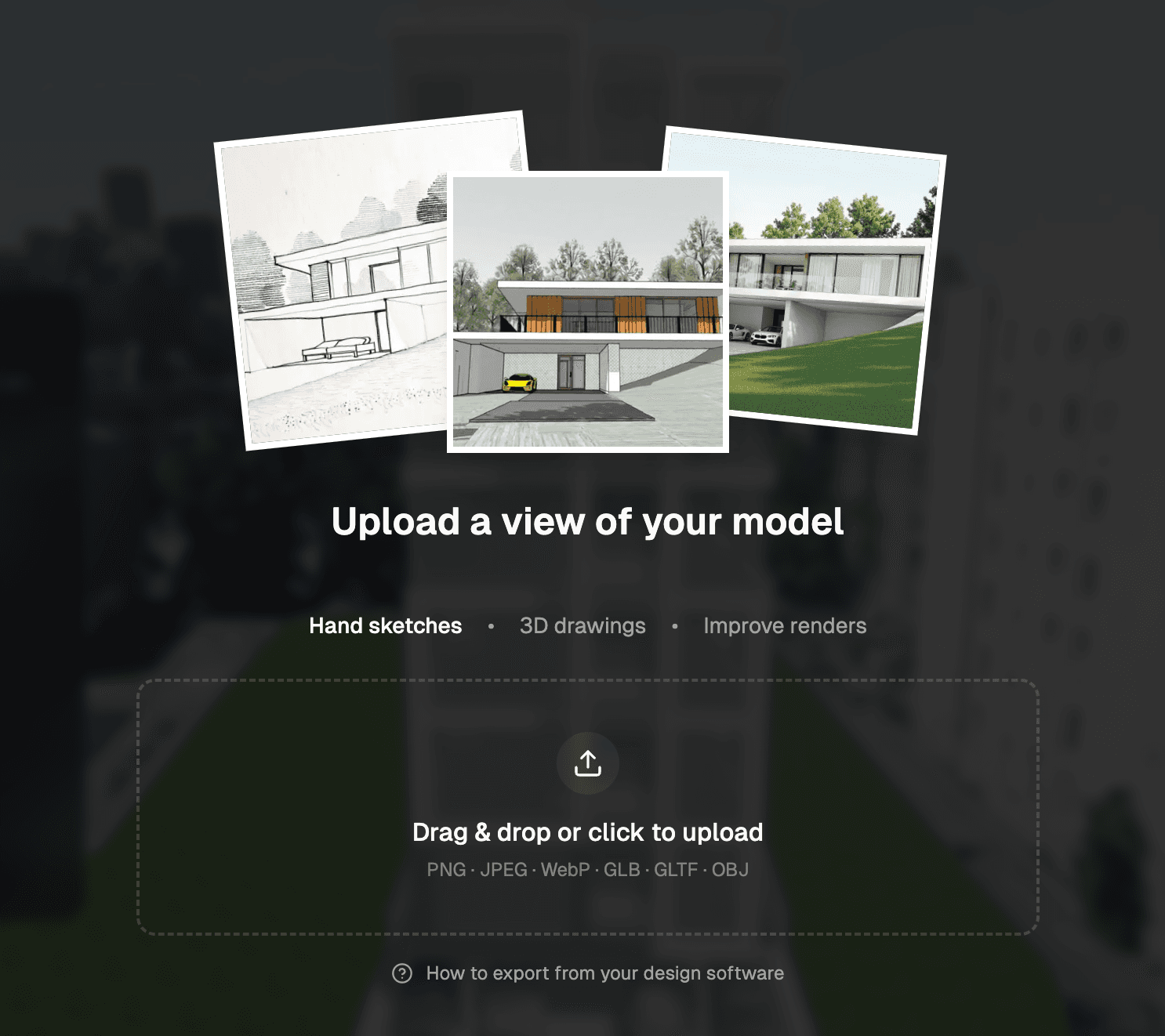
  2. Upload the image for that view (plan, elevation, 3D, whatever)

  3. At the top of the editor, next to Render, click the Copy Render tab:

    Copy Render tab

  4. The Change Render Perspective panel opens:

    Change Render Perspective panel

  5. Pick the reference render you want to reuse. You can pull from any render in the project

  6. Hit render. The new perspective comes out consistent with the reference

What gets copied vs. what doesn't

Copied from the referenceDriven by the new view
StyleUploaded image / geometry
ModelViewpoint / camera angle
SeedAny new prompt text you add
Overall look & mood

If you want to nudge the result (e.g., "same look but at sunset"), add a short prompt alongside Copy Render. Big changes are better handled by a plain new render.

Tips

  • Start with your strongest render. Copy Render's output is only as good as the reference. Pick the render that nailed the look
  • Use it across a project, not across projects. It's built for multi-view consistency inside one building, not for applying a style library across unrelated projects — for that, use References → Upload style
  • Don't over-copy. If three perspectives all use Copy Render off the same seed, they'll look near-identical. For variety (dusk / noon / night of the same building), generate fresh renders instead

On this page