Generate Renders
The render settings panel end to end: model, resolution, reused settings, time of day, location, style, and the prompt.
Every render is the product of: the uploaded view, a model, a resolution, a time of day, a location, a style, and an optional prompt. The render always keeps the camera angle of the view. This page covers each of them, ending with Continue at the bottom of the panel.
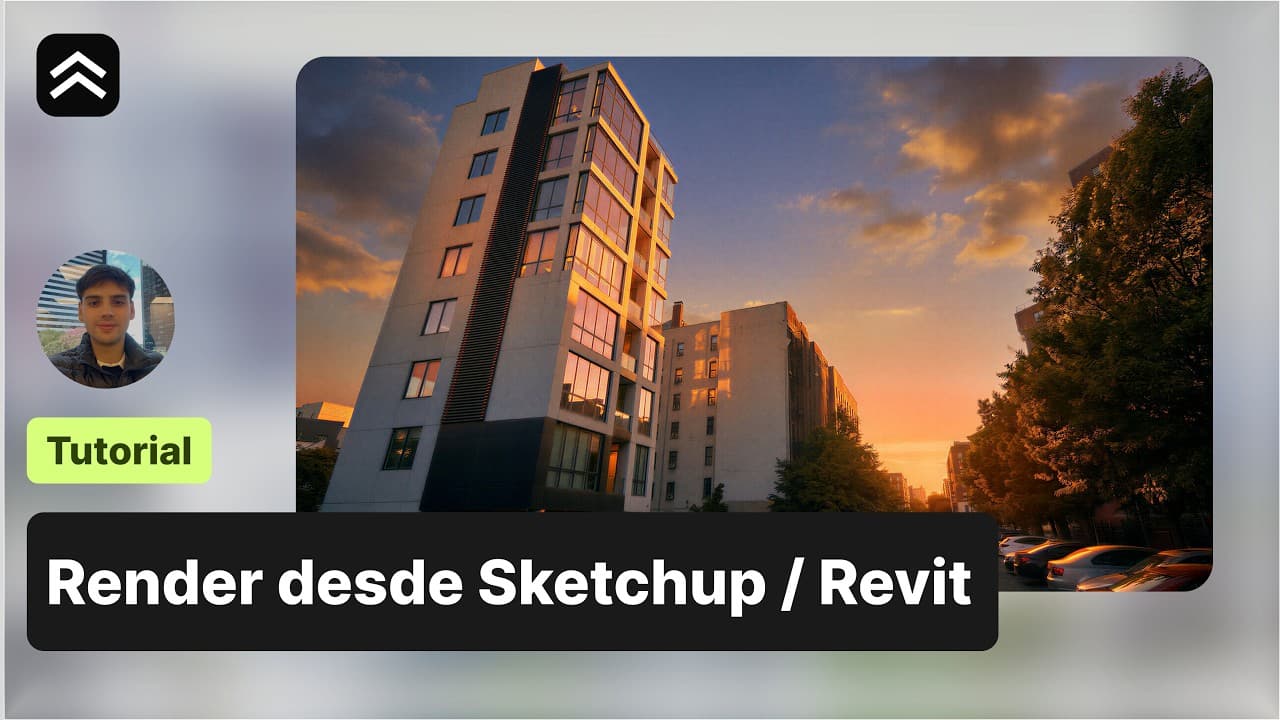
📺 Prefer to watch? See the full walkthrough on YouTube (in Spanish):
Where to start
There are three ways to reach the panel, depending on where you begin:
- New project: you upload your floor plan, sketch, or drawing, and that view is ready to render.
- Existing project (no 3D): you open the project and click one of its views to start rendering it.
- From the 3D Scene: move around the scene with drone or orbit mode, then click Render to set up the shot — lens, format and correct verticals — next to the same render configuration. Continue captures that perspective.
All three land you in the same render configuration. Don't obsess over the perfect framing yet; you can save several perspectives and render them one by one.
If you are starting from a bathroom photo or bathroom render instead of a broader project view, the AI bathroom design workflow gives you a bathroom-specific starting point for visual tile, vanity, lighting, and fixture concepts.
Render configuration
You don't have to touch everything. These are the decisions that actually change the result:
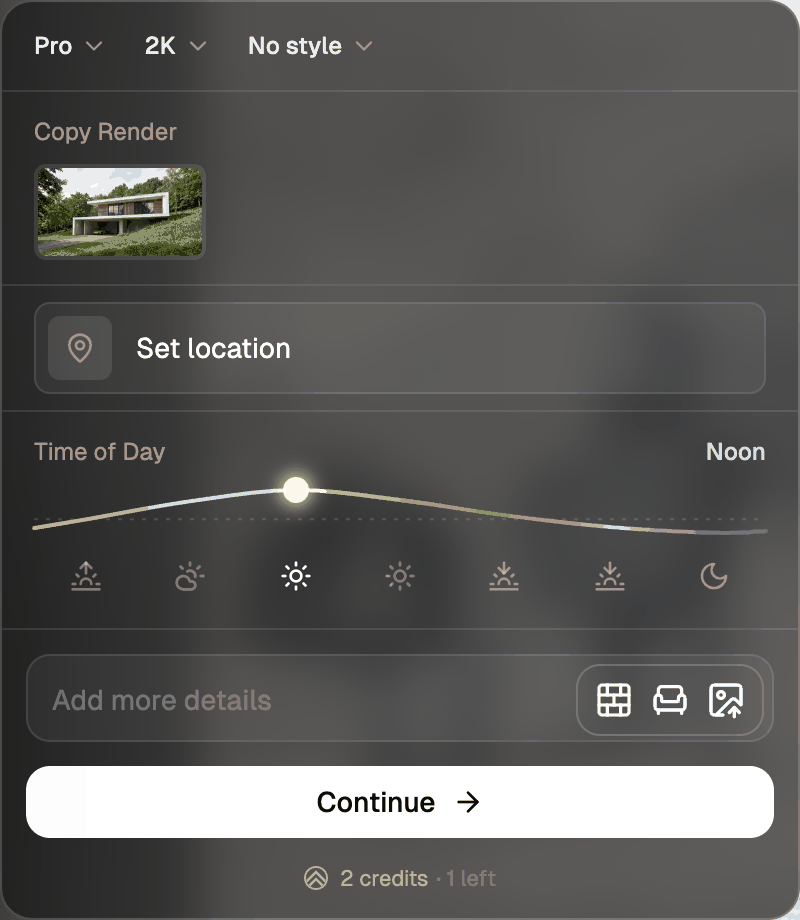
- Model. Exploring or delivering? Standard to try ideas fast and cheap; Pro when you want client-ready photorealism. Simple rule: the first render of a project, in Pro, because it gives the AI the most consistent base.
- Resolution. Sets the output size of the render: 1K, 2K, or 4K. Higher resolutions carry more detail and cost more credits. Standard supports all three; Pro starts at 2K (no 1K). See How credits work for the exact per-render cost of each model and resolution.
- Copy Render. Once the project has renders that can be copied, a strip with them appears in the panel, right below the model and resolution row. Click one to copy its look through Copy Render, along with its time of day and location; click it again to undo. In the 3D Scene the strip is Copy camera instead: it copies the lens and format, and Copy Render is an optional checkbox.
- Location. Set it once and every view in the project starts with it, whether it came from your 3D model or another view. Otherwise, select it. Interior views don't use it.
- Time of day. Sets the mood of the scene. Noon is the most neutral; sunset and dusk, the most cinematic. Golden hour almost always looks great on exteriors. Pick an hour by clicking its icon or its stretch of the sun curve; hover an icon to see its name.
- Style. Sets how it looks. Real photo for photorealism, or upload your own reference: that Pinterest image with the mood you're after.
Add more details
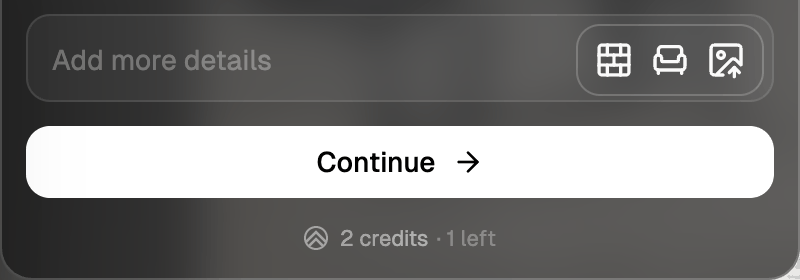
This is the field where you tell the AI what the model can't say on its own. It starts as a single line with the References icons on the right; click it to open the full box, which stays open while it has text or references. How to make the most of it:
- Short, always. One or two lines are enough. I know it's tempting to write the perfect paragraph (or ask ChatGPT for it), but here the opposite happens: long prompts, especially ones built with another AI, tend to make the render worse. They fill up with instructions that contradict each other and pull the image away from your model.
- Describe the abstract, not the obvious. The geometry, the measurements, and the openings are already in your model, so don't describe them. What adds value is the intangible: the atmosphere, the feel, "make it feel like a quiet neighborhood", "exposed concrete facade", "warm end-of-day light". You bring what the AI can't guess by looking at the model.
- If you can't say it in words, show it. When a material or mood is hard to describe, upload an image under References and point the prompt at it: "use the uploaded image as the facade material". A good reference is worth more than three lines of adjectives.
References
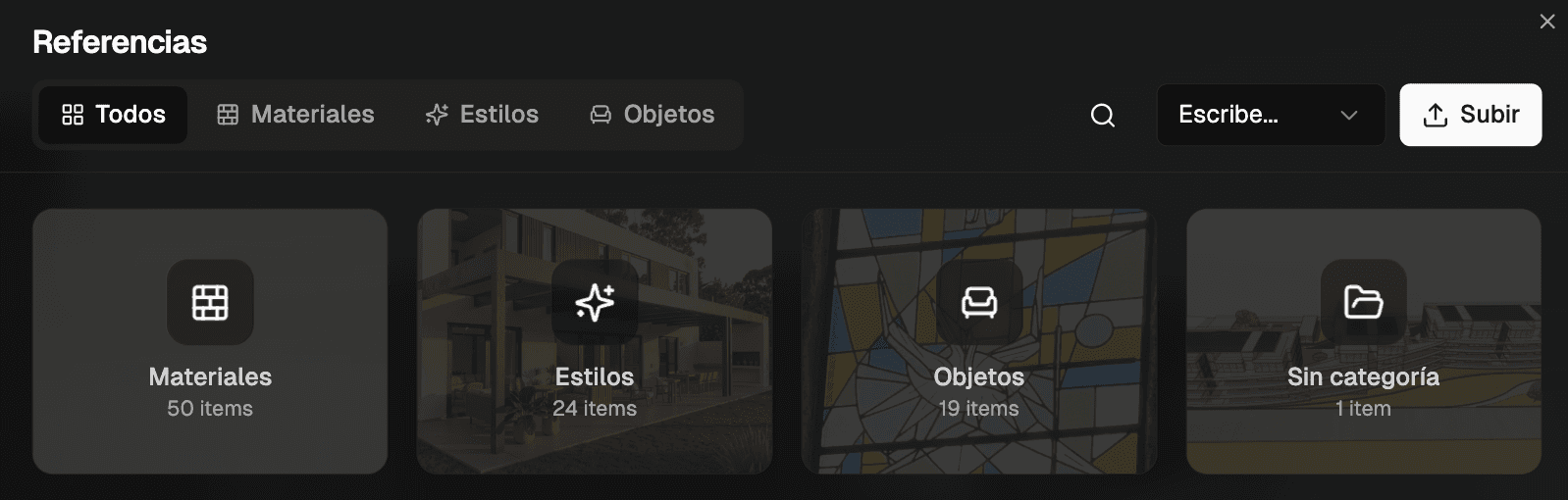
The References window has four tabs: All (everything together), Materials (a photo or sample of a material, which you can pair with Select area), Styles (images that capture the look you're after), and Objects (furniture, plants, and props to insert). Each has an Upload button to add your own images, plus a library of examples.
Continue and the questionnaire
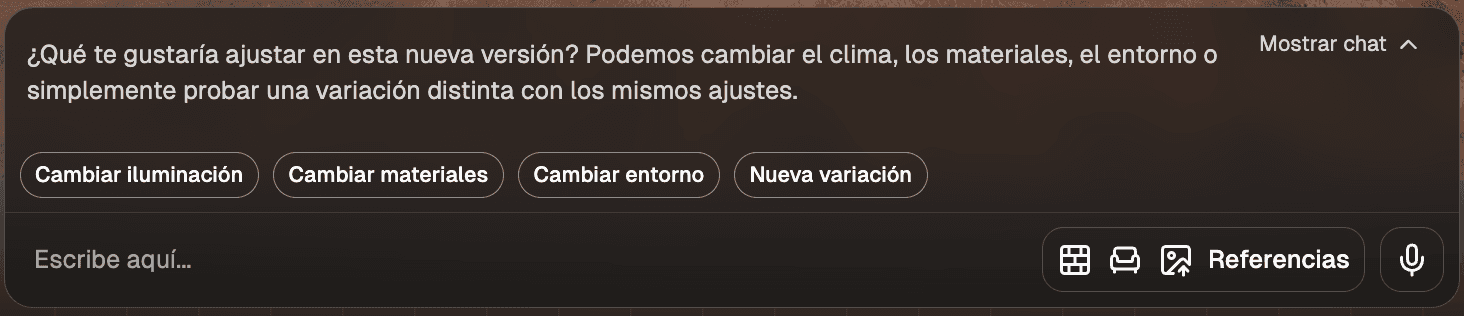
You don't need to write a perfect prompt: the AI completes it by asking you questions. When you click Continue, it reads your reference and your model, and asks you two or three short questions (the surroundings, the light, the materials), each with buttons to pick with one click.
- Don't care about one? Skip and move on.
- Want to be specific? Type it, short, again.
When it's done, it assembles the prompt for you and starts rendering.
While the render generates
A render takes about 80 seconds, and you don't have to sit and wait in front of the screen: when it's done, the platform plays a subtle sound as a notification to let you know.
That time is yours. While one image generates, you can create other perspectives and keep launching renders, or edit another image, all while the rest renders in parallel. The flow never stops.
Generate a new version or Edit this image
The first render is almost never the final one, and that's fine. When it appears, you have two paths, and you almost always know which one without thinking:
- Generate a new version. For big changes. If the whole scene doesn't convince you (the surroundings, the mood, the level of realism, switching day to night), the AI remakes the image from scratch with the new cues.
- Edit this image. For targeted touch-ups. You like almost everything, but you want to remove an object, add a tree, or change a material: you mark that area with Select area, tell it what to do, and the rest stays intact. When you want to go deeper, see Refine and Iterate.
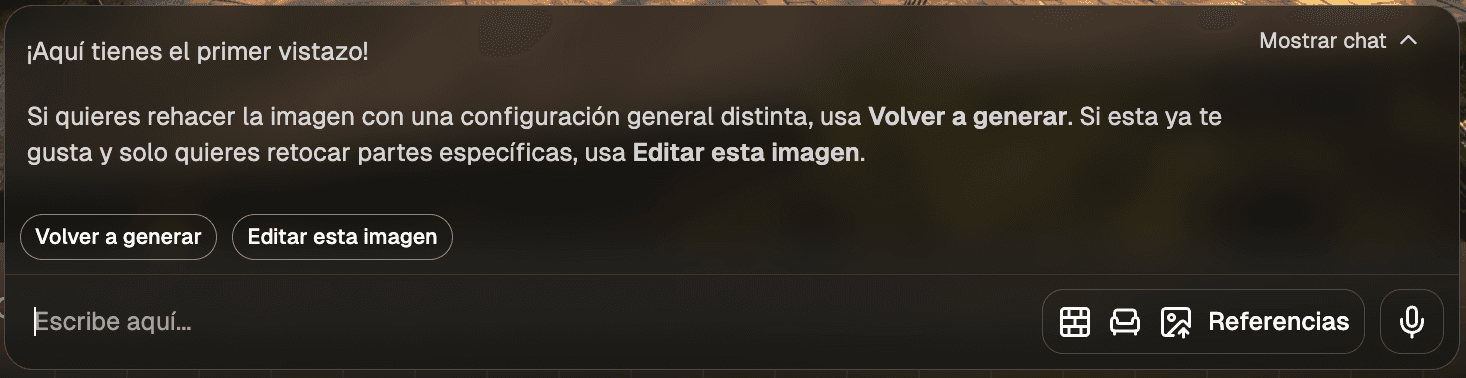
Quick rule: if more than about a third of the image changes, generate a new version; if it's a detail, edit. In two or three passes you'll have something to show.
The assistant checks each render before showing it and regenerates it once for free if the camera, geometry, or materials came out wrong. You can rate it with 👍/👎 next to the render in the chat. 👎 opens a popover with options to say what failed. Each render has 2 free regenerations.