Download, Share, and Export
Get your renders out of Render a House — download them in full resolution, share a private link with clients, or post directly to social media.
The render toolbar
Once a render is on screen, the toolbar at the bottom-right of the viewer gives you:
- Enhance (Improve Quality) — higher-resolution version
- Compare — slider between the original and the render
- Download — PNG or JPG
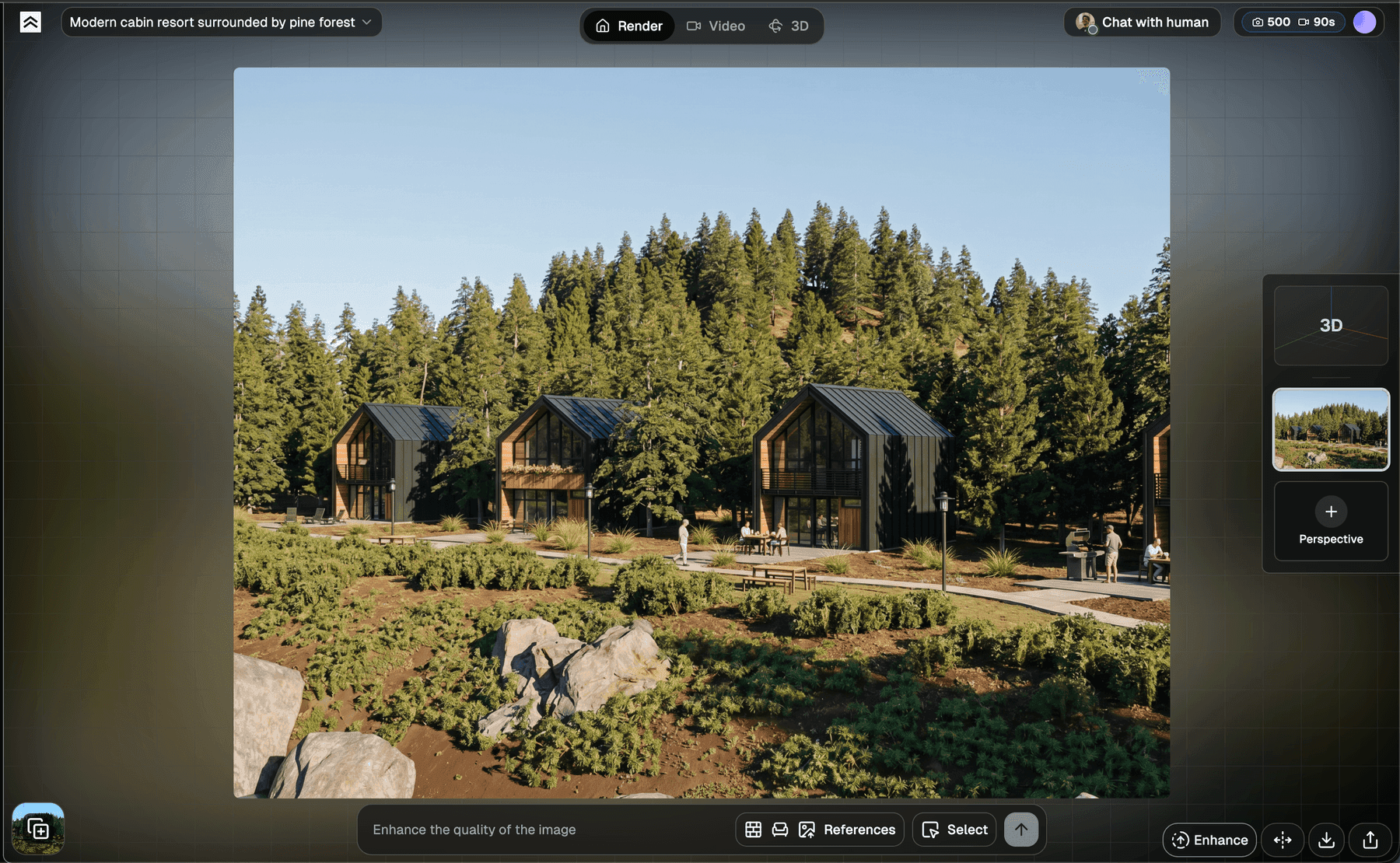
Download a render
Click the Download icon. A small popup lets you choose the format:

- PNG — lossless, larger file. Best for prints and high-quality exports
- JPEG — smaller file, lossy. Best for email, web, and social
The platform automatically applies an upscale on download, so the saved file looks sharper than what you see in the viewer. For even higher resolution, click Enhance before downloading.
Free plan note: downloads include a small Render a House watermark. Upgrade to Pro to remove it.
Share a render
Click Share to generate a private link. Visitors get an interactive viewer where they can flip through your renders and videos, fly through the 3D model, and leave pinned comments — without an editor account. See Share feature for the full walkthrough.
Compare before downloading

The Compare button shows a slider right on the image, between the uploaded drawing and the final render — just move your mouse over it. Useful to verify the transformation before you share.
Improve quality (Enhance)

For prints, large displays, or anything that needs more pixels, click Enhance (tooltip: "Improve Quality") before downloading. See Refine and Iterate for details. Uses one credit.
Export for specific uses
Client presentations
- Render in Real photo style (or use a custom uploaded style for brand consistency)
- Click Enhance for a higher-res version
- Download as PNG
- Drop into Keynote / PowerPoint / Figma
Real estate listings
- Render with Sunset or Afternoon time of day (warmer, more appealing)
- Set Location to realistic context (suburb, countryside, beach — whatever matches the property)
- Download and upload to the MLS / listing platform
Social media
- Render at your preferred style
- Share and post the link — the public page is preview-friendly for Twitter / LinkedIn / WhatsApp
- Or Download, crop to 1:1 or 4:5, and post natively
Design reviews
- Render the same view in 3 styles (Real photo, Sketch, Concept)
- Open All Renders (stacked-cards icon, bottom-left of the viewer) to step through them in the meeting
- Or generate a Share link for each and send ahead of time
Video
Render a House can generate a short animated video from a render. Video is a Pro-only feature — not available on Free.
To create a video:
- Open a render
- Click the Video option at the top
- Choose Animar (animate) or Transicionar (transition between frames)
- Configure the details and generate
Videos take a few minutes to generate. Credits are consumed per second of video, not per video. If generation fails because the source image is too large, the app will auto-resize and retry.
3D
Render a House can import 3D models (.skp, .glb, .gltf, .obj, .stl). Open the 3D option in a project to work with an imported model. Requires a paid plan.
See Supported File Formats for details.