Enhancer
Upscale and sharpen any image to 2× or 4× its size — renders, photos, or sketches — and download a crisp, high-resolution version.
The Enhancer upscales and sharpens any image. Feed it a render, a photo, or a sketch and it rebuilds the detail at 2× or 4× the original resolution, so soft edges get crisp and small pictures become large, print-ready ones.
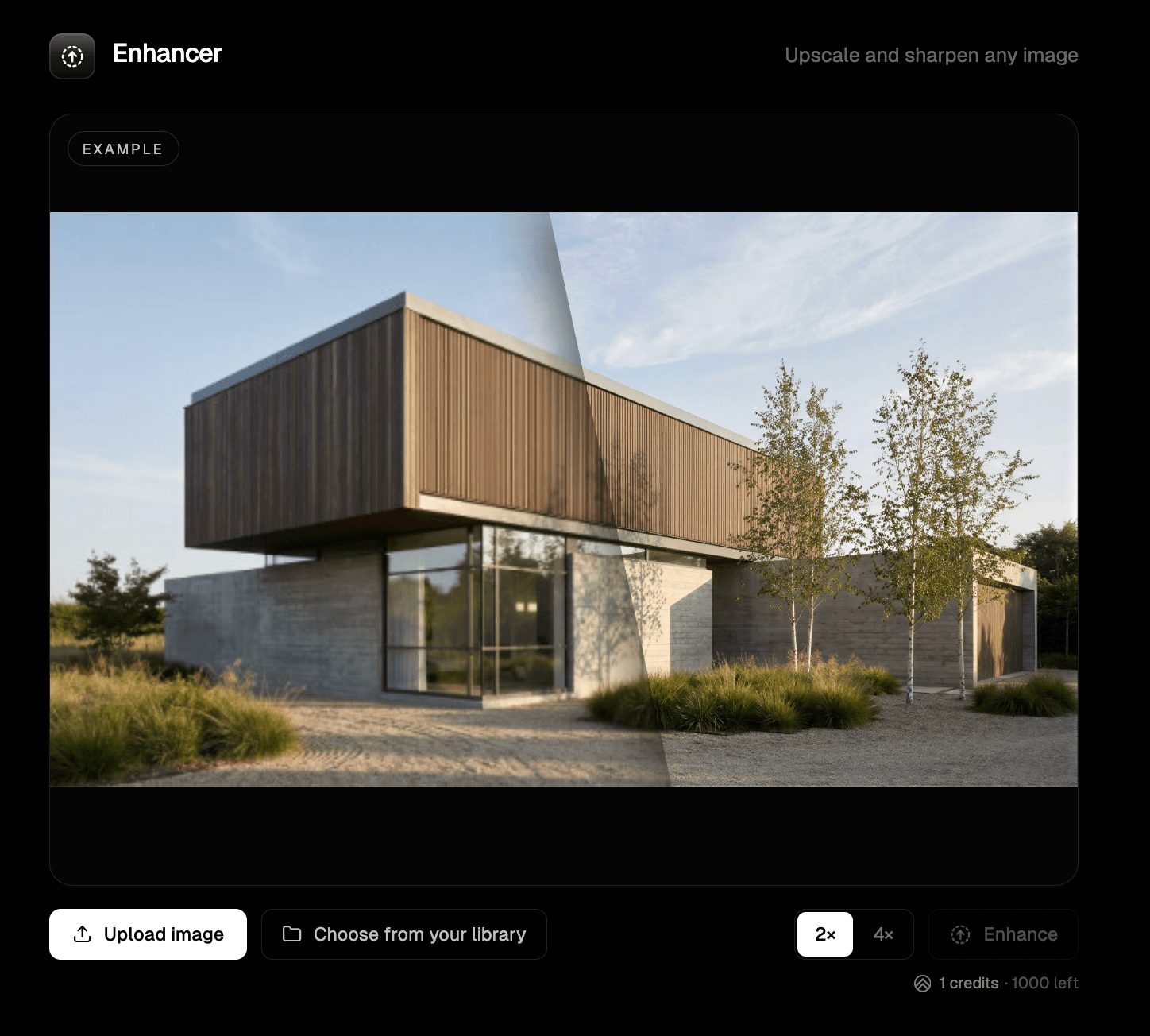
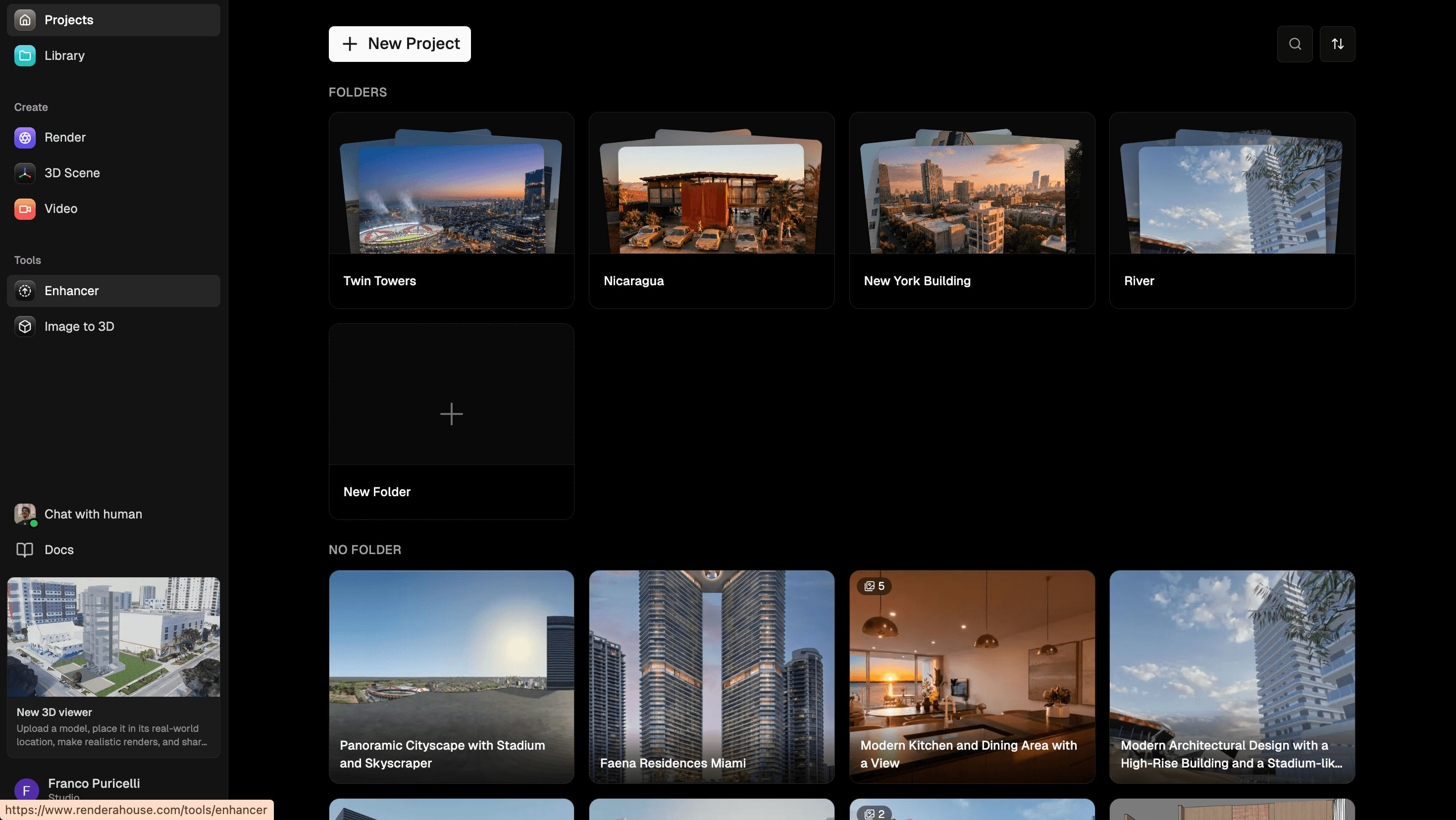
It's a standalone tool — you don't need a project open. Find it under Tools in the sidebar, alongside Image to 3D.
1. Add an image
There are three ways to load an image:
- Upload image — pick a file from your computer.
- Drag and drop — drop a file straight onto the stage.
- Choose from your library — reuse any render or asset you already have in Render a House. The picker lets you filter by Uploads, Renders, or Tool results.
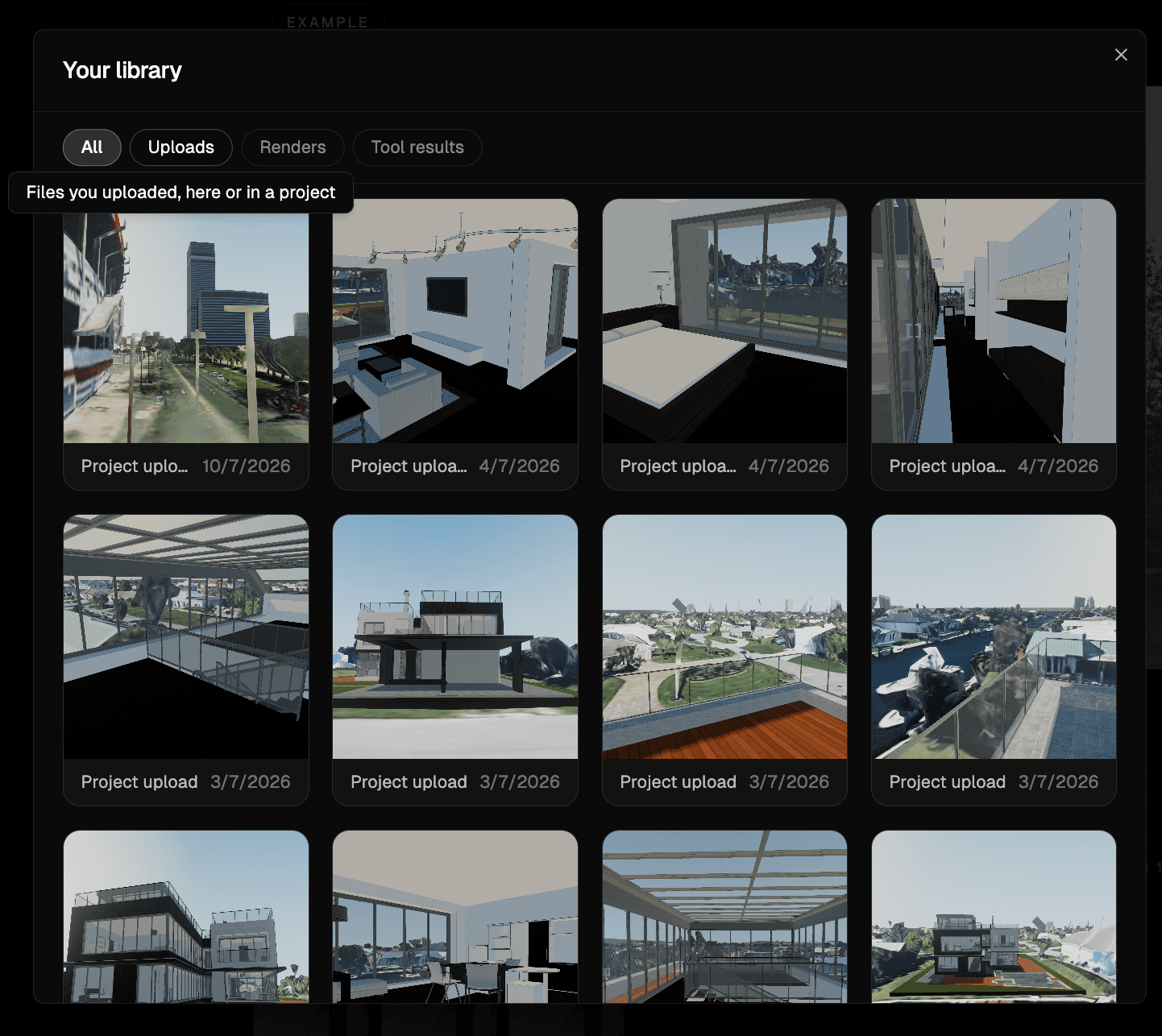
Any image format works — a render, a photo, a scanned drawing.
2. Pick a scale factor
Use the 2× / 4× toggle to choose how much bigger the result should be:
- 2× — doubles each side (a 1000×750 image becomes 2000×1500). Costs 1 credit.
- 4× — quadruples each side (1000×750 becomes 4000×3000). Costs 2 credits.
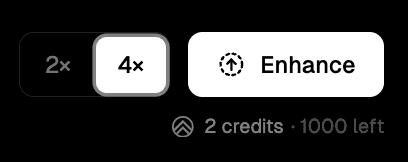
The readout next to the toggle shows the exact output size you'll get, and the credit cost appears below the stage before you run anything.
3. Enhance
Click Enhance. The AI works through the image — this usually takes under a minute. If it fails for any reason, you're not charged, and you can retry.
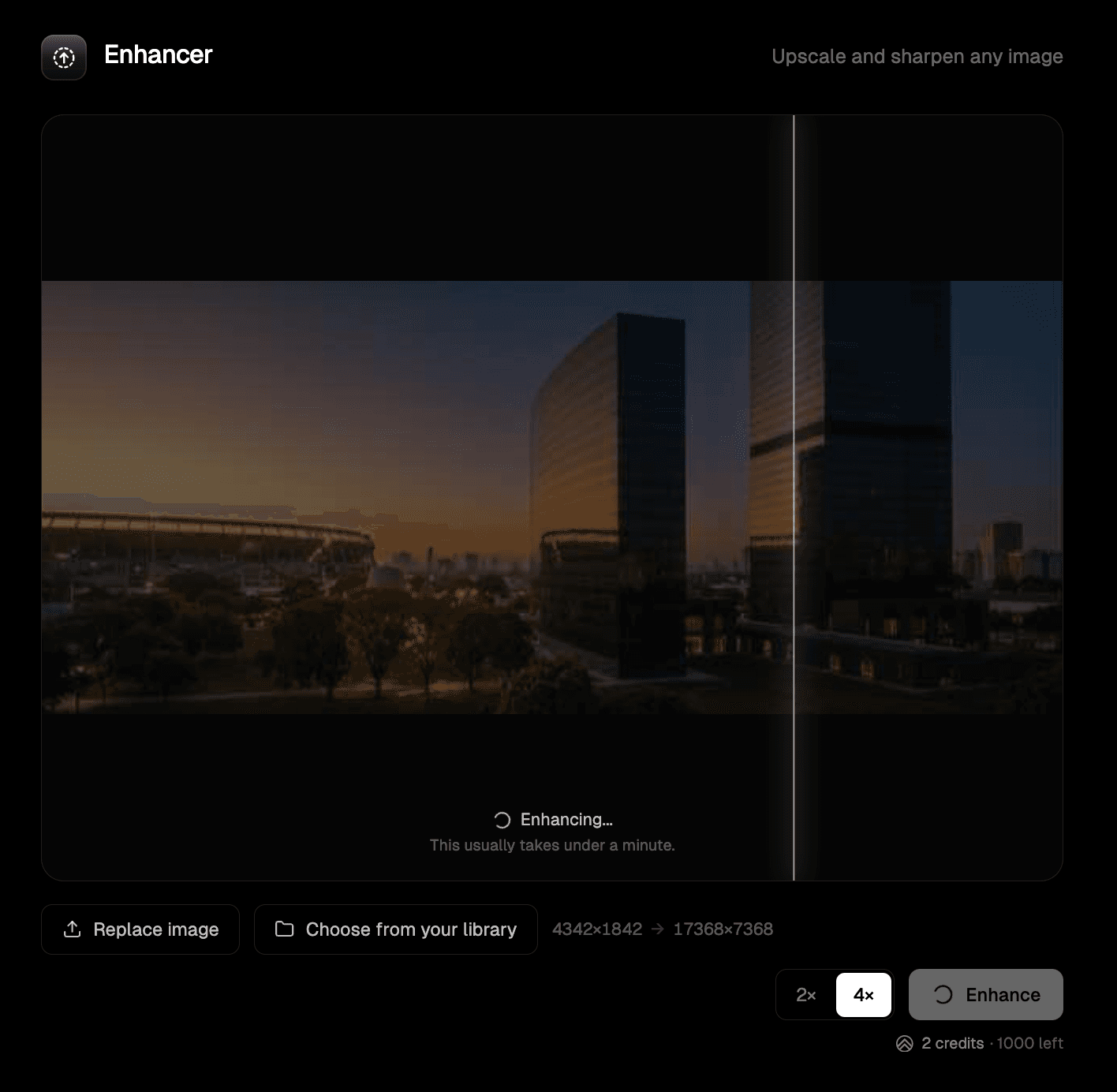
When it's done, drag the slider to compare the original against the enhanced version side by side. Hit the download button in the top-right corner to save the full-resolution result as a PNG.
Results history
Every image you enhance is kept in the Results strip below the tool. Click any thumbnail to bring that result back onto the stage — compare it again or re-download it. Runs still in progress show a spinner; failed ones show a warning icon.
Tips
- Enhance before you animate. A sharper, higher-resolution render makes a better source for video — start from the enhanced version for cleaner motion.
- 4× is for going big. Use 4× when you need a print or a large display; 2× is plenty for screen and web.
- It sharpens, it doesn't restyle. The Enhancer adds detail and resolution — it won't change materials, lighting, or composition. For those, edit the render in a project (Refine and Iterate).
What's next
- Refine and Iterate — restyle and edit a render inside a project
- Download, share and export — get your renders out of Render a House
- Animate a render — turn an enhanced render into video
- Plans and pricing — how credits work