Edit your model's position
Re-open a placed 3D model to move, scale, rotate, or re-seat it on the terrain at any time, without re-uploading or losing your renders.
Placement isn't final — you can re-open any placed model and adjust it whenever you want.
📺 Prefer to watch? See this step in the walkthrough on YouTube: Importar tu modelo 3D en su ubicación real (in Spanish, from 5:17).
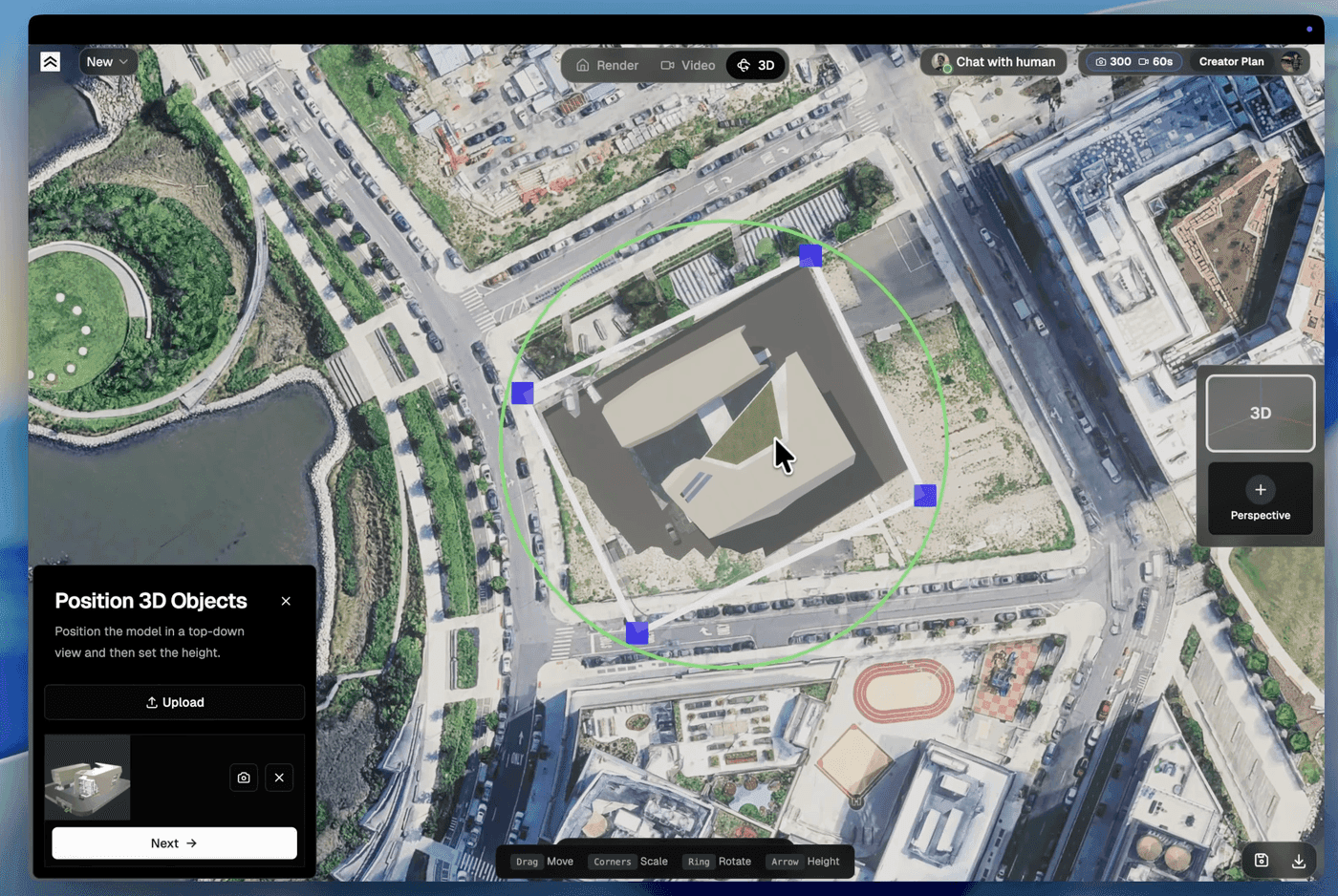
Re-edit a placed model
In the 3D Objects panel, each placed object has a row of actions. Click Edit position (the pencil icon) to re-enter the placement gizmo for that object. From there you can move, scale, rotate, or change its height exactly as you did the first time — for example, rotate it a little more to line it up with the street. Click Next to revisit the height, then Done.
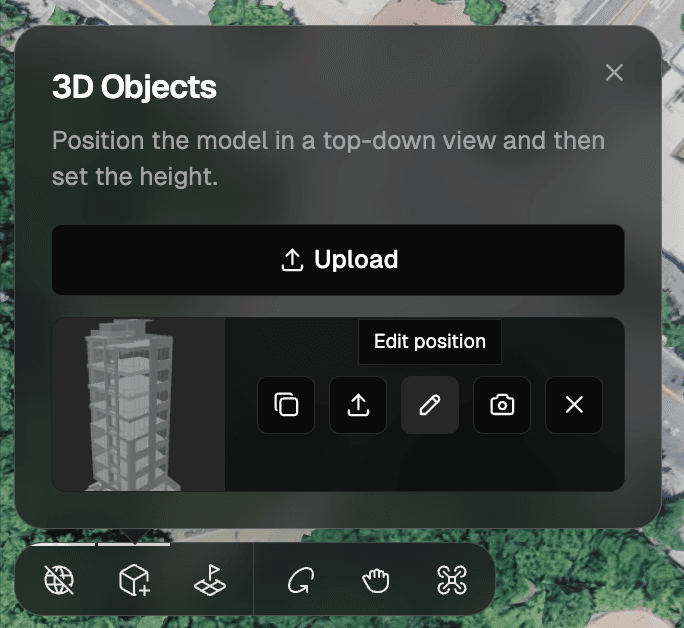
Other per-object actions
The same row gives you:
- Center camera — frame the camera on that object.
- Place copy — drop another instance of the same model.
- Replace model — swap the file for a newer version (see Update an imported 3D model).
- Remove — delete that placement.
Add another model
Click Upload at the top of the 3D Objects panel to bring in another .glb, .gltf, or .obj. Between edits you can move freely around the scene with Orbit, Hand tool (pan), and Fly modes.
What's next
- Update an imported 3D model — push a newer file
- 3D Preview — the full flow