Update an imported 3D model
Swap an imported 3D model for a newer version of the file without losing its placement, terrain edits, camera positions, or existing renders.
Changed your design and re-exported the model? You don't have to rebuild the scene — replace the file in place and keep the placement you already set up.
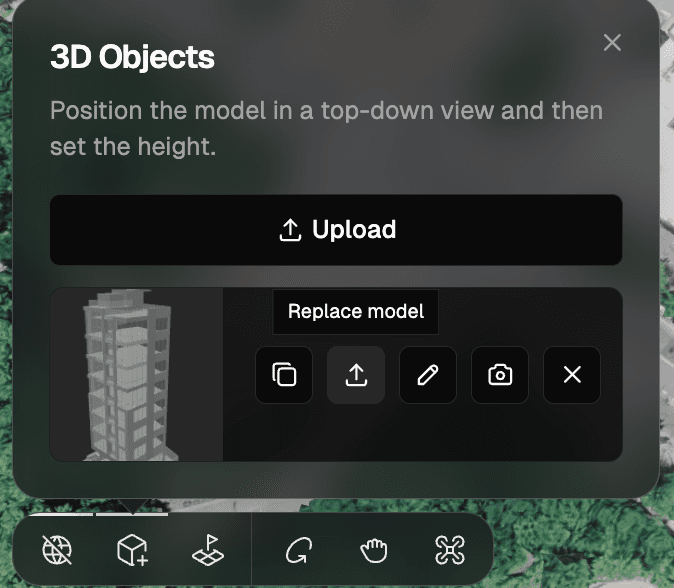
Replace the file
- Export the updated model from your 3D tool the same way as before — see Export your 3D model.
- Open the 3D Objects panel in your 3D scene.
- On the model you want to update, click Replace model (the upload icon).
- Pick the new
.glb,.gltf, or.objfile.
The new file replaces that model everywhere it's used — every placed instance, plus any future copies, switches to the new version, and the position, rotation, scale, and height you set are kept.
There's no separate "version history" — Replace model is how you push an updated file. If you'd rather start from scratch, Remove the object and Upload the new file as a brand-new model instead.
What's next
- Export your 3D model — re-export the updated file
- Edit your model's position — fine-tune placement
- 3D Preview — the full flow