Share feature
Send clients a private share link so they can view your renders, walk through the 3D model, and leave pinned comments — no account required.
The Share feature turns any project into an interactive link you can send to a client, a contractor, or a teammate. Whoever opens it can flip through your renders and videos, fly through the 3D model, and leave pinned comments — all without an editor account.
There is no plan limit on sharing — it works on every plan, including Free.
What gets shared
When you create a share link you choose what to include:
- Renders — any of the still images in the project
- Videos — any animated clips
- 3D model — optional; lets the visitor fly through the scene from any angle
Visitors get a read-only viewer. They can't re-render, edit prompts, or change materials — they can only look around and comment.
Create a share link
Open the project and click Share (top-right of the editor).

Pick the renders and videos you want to include. Toggle Include 3D model at the top if you want the visitor to be able to fly through the scene.

Click Share to generate the link. The dialog that opens lists every share link for this project, with view counts, creation date, copy / open / delete actions, and a button to create more.

Copy the link and send it however you like — email, WhatsApp, Slack, a project tracker. You can come back to this dialog at any time to revoke a link.
Comments
Every share link includes a comment system. Visitors must sign in to leave a comment (anonymous browsing is allowed, anonymous commenting is not). Once signed in, each person gets their own avatar color so it's easy to see who said what.
Comments are pinned to a specific spot — a point in the 3D scene, a pixel on a render, or a frame of a video — so context never gets lost.
Comment on the 3D model
Open the 3D view and switch to comment mode (chat icon, bottom-left). The cursor turns into a pin and a hint shows up: "Click where you want to comment."
Click anywhere in the scene — on a wall, a piece of furniture, the ground — and type your message.

The pin sticks to that exact 3D position. Anyone who opens the link later sees the avatar floating in the scene; clicking it opens the thread.

You can keep dropping pins on different parts of the model — for example, "Add a pool" on the lawn:

Comment on a render
The comment flow is the same on still renders. Switch to comment mode and click the spot on the image you want to talk about. The pin is anchored to that point of the render so it stays in place even if you zoom.
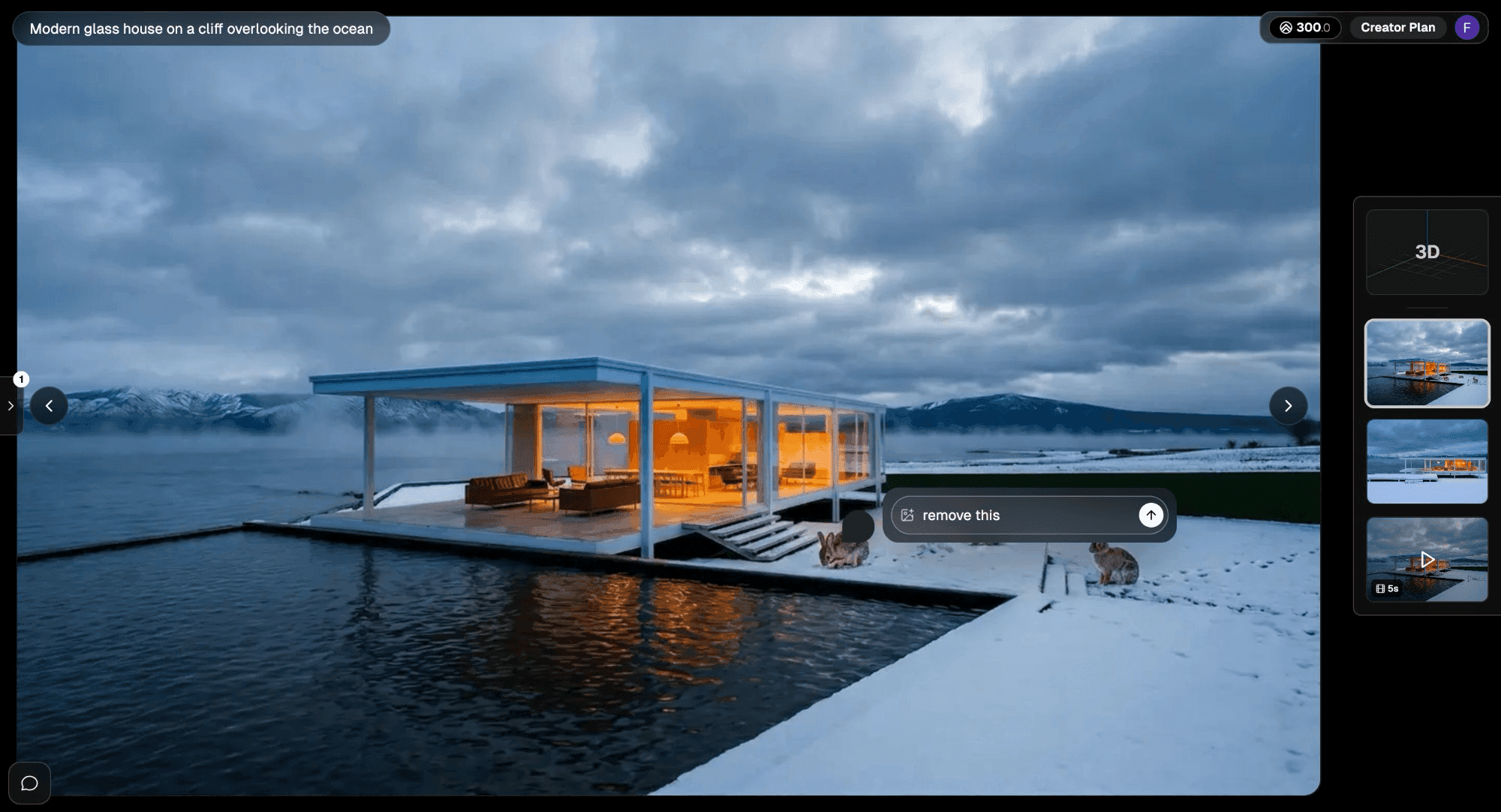
Comment on a video
Videos work the same way — open the video, enter comment mode, and click on the frame. The comment is pinned to that point of the timeline so when someone replies they're talking about the same moment.

Attach an image to a comment
Inside the comment box, click the image icon to upload a reference photo, sketch, or screenshot. Useful for "make it look like this" feedback. One image per comment.

Reply to a thread
Every pin is a thread — clicking an existing pin opens it and you can reply inline. The owner and visitor names show their role tag (Owner / Visitor) so it's obvious who's who.

The owner sees the same thread on their side of the link:

Browse all comments
The Comments sidebar (left edge of the viewer) lists every thread in the project, with the comment text, author, date, and a thumbnail of where the pin is. Click a thread to jump straight to the pin.

3D fly-through
If you included the 3D model, visitors get the same fly controls as the editor:
- W A S D or arrow keys — move
- Q / E — up / down
- Mouse — look around

This is the most useful mode for client review — they can stand on the lawn, look up at the eaves, walk into the living room. Combined with comments pinned in 3D space, you get feedback that's tied to actual locations instead of vague descriptions.
Sharing the link
The link is a plain URL (renderahouse.com/s/<id>). Send it through any channel — email, WhatsApp, Slack, a project tracker, or paste it into a Notion / Figma doc. Anyone with the URL can open the viewer; you don't pre-invite people by email.
To stop sharing, open the Share dialog and delete the link from the list. The URL stops working immediately.