Flatten the terrain
Level the satellite terrain under your building and swap trees, cars, and clutter for a clean surface before you place your 3D model.
When 3D Preview loads your location from satellite data, the tiles come with whatever is really there — the existing building on your plot, trees, parked cars, bits of road. The optional Flatten terrain step lets you clear that footprint and drop in a clean surface so your model sits on level ground.
📺 Prefer to watch? See this step in the walkthrough on YouTube: Importar tu modelo 3D en su ubicación real (in Spanish, from 2:36).
When to flatten
- Replacing an existing building — flatten its footprint so the AI isn't fighting leftover walls and rooftops.
- Clutter around the plot — include trees, cars, or street furniture in the area you flatten. Don't be afraid to take in part of the road: when the render is generated, the AI still recognizes it as a street and renders it correctly.
- Interior scenes or empty plots — you can Skip this step entirely.
Draw the area
After you confirm the location, the viewer switches to a top-down view with a height-coded overlay (low areas blue, tall buildings red) so you can see what's there.
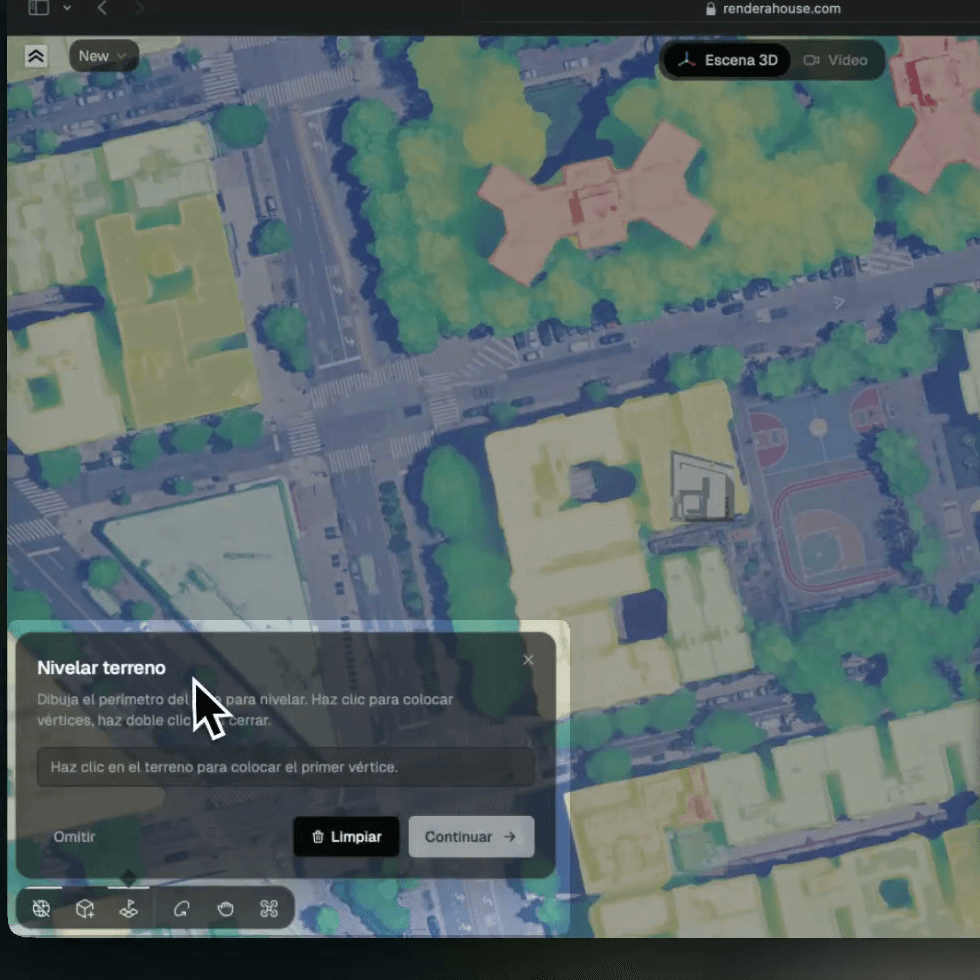
- Click on the terrain to place the first vertex, then keep clicking to trace the perimeter — each click extends the polygon.
- Double-click, or click the first vertex again, to close the polygon.
- To pan around while drawing, click and hold with two fingers on the trackpad (or right-click and drag with a mouse) and move the view.
- Clear wipes the current polygon so you can redraw.
Choose a floor material
Once the area is captured, pick what fills it:
- Captured — keep the original satellite texture.
- Concrete — a clean paved surface.
- Grass — a green surface.
Set the height
Finally, level the flattened patch so your model sits flush on it:
- Drag the cyan arrow in the scene, or use the step buttons / the Elevation field.
- Reset returns it to the default height.
Work through the step with the primary button (Set height, then Continue) to finish. The flatten is saved per project, so it stays applied across reloads and is baked into every render captured from this scene.
Tip — keep the polygon a little larger than the building's footprint so the render isn't fighting leftover edges.
What's next
- Position your model — place it on the flattened plot
- 3D Preview — the full flow