3D Preview
Position a 3D model in a real-world location, set up the camera, and render it from any angle with real terrain, buildings, and lighting.
3D Preview lets you drop a 3D model of your building onto real satellite terrain, compose the camera, and generate a photorealistic render from that exact viewpoint. It's ideal when you want your building to sit in a specific street, plot, or skyline — with real context, shadows, and surroundings.

When to use 3D Preview vs. a regular upload
- Regular upload (2D) — you already have a drawing, sketch, or rendering and you want to re-style it. See Upload your design.
- 3D Preview — you have a 3D model and you want to place it on a real map, pick the exact camera angle, and render it into its real context.
Both flows live inside the same project — you can start in 3D and still end up in the regular render editor for refinements.
1. Open 3D Preview
From the dashboard, start a new project (or open an existing one) and choose 3D Preview → Get started on the onboarding card.
If you're already inside a project, you can also switch to the "3D" perspective in the right dock to jump into 3D Preview at any time.

2. Set a location
3D Preview is built around satellite terrain, so the first step is to tell it where your building will live.

- Search for an address using the search bar, or
- Click anywhere on the map to drop a pin, or
- Skip — you can set the location later, or leave it unset entirely (e.g. for an interior scene where surroundings don't matter)
Once the pin is placed, you'll see the address confirmed and the surrounding streets loaded in.

Click Confirm to continue.
3. Flatten the terrain (optional)
After confirming the location, 3D Preview offers an optional Flatten terrain step. Use it when the satellite tiles include something you don't want in the final render — typically the existing building you're about to replace, but also adjacent trees, parked cars, or any other clutter on or around your plot.
The viewer switches to a top-down view with a height-coded color overlay (low areas blue, tall buildings red) to help you see what's there.
- Click on the terrain to place a vertex. Each click extends the polygon.
- Click the first vertex (yellow) or double-click to close the polygon.
- Clear wipes the current polygon so you can redraw.
- Skip moves on without flattening.
Once closed, everything inside the polygon above ground level is hidden and replaced with a flat textured patch at street level — a clean canvas for your model. The flatten is saved per project, so it stays applied across reloads and is baked into every render captured from this scene.
Click Continue to move on.
Tip — keep the polygon a bit larger than the existing building's footprint so the AI render isn't fighting with leftover walls or rooftops at the edges.
Full guide: Flatten the terrain.
4. Import your 3D model

3D Preview accepts SketchUp .skp files plus .glb, .gltf, .obj, and .stl. If your design lives in SketchUp, upload the .skp as it is — no export needed. From Rhino, Blender, or another 3D tool, exporting to glTF Binary (.glb) is the simplest path.
Uploading from SketchUp
- Save your model in SketchUp (File → Save).
- Drop the
.skpfile into the Upload file button on the import dialog.
For other tools, .glb is recommended (single binary file, textures embedded), but .gltf and .obj work too. Rhino, Blender, and most modern 3D tools can export any of these natively.
Full guide: Export your 3D model — step-by-step for SketchUp, Revit, Rhino, and Blender.
5. Position your model on the map
Once imported, the model appears on the satellite map in top-down view. This is where you pin it to its real plot.
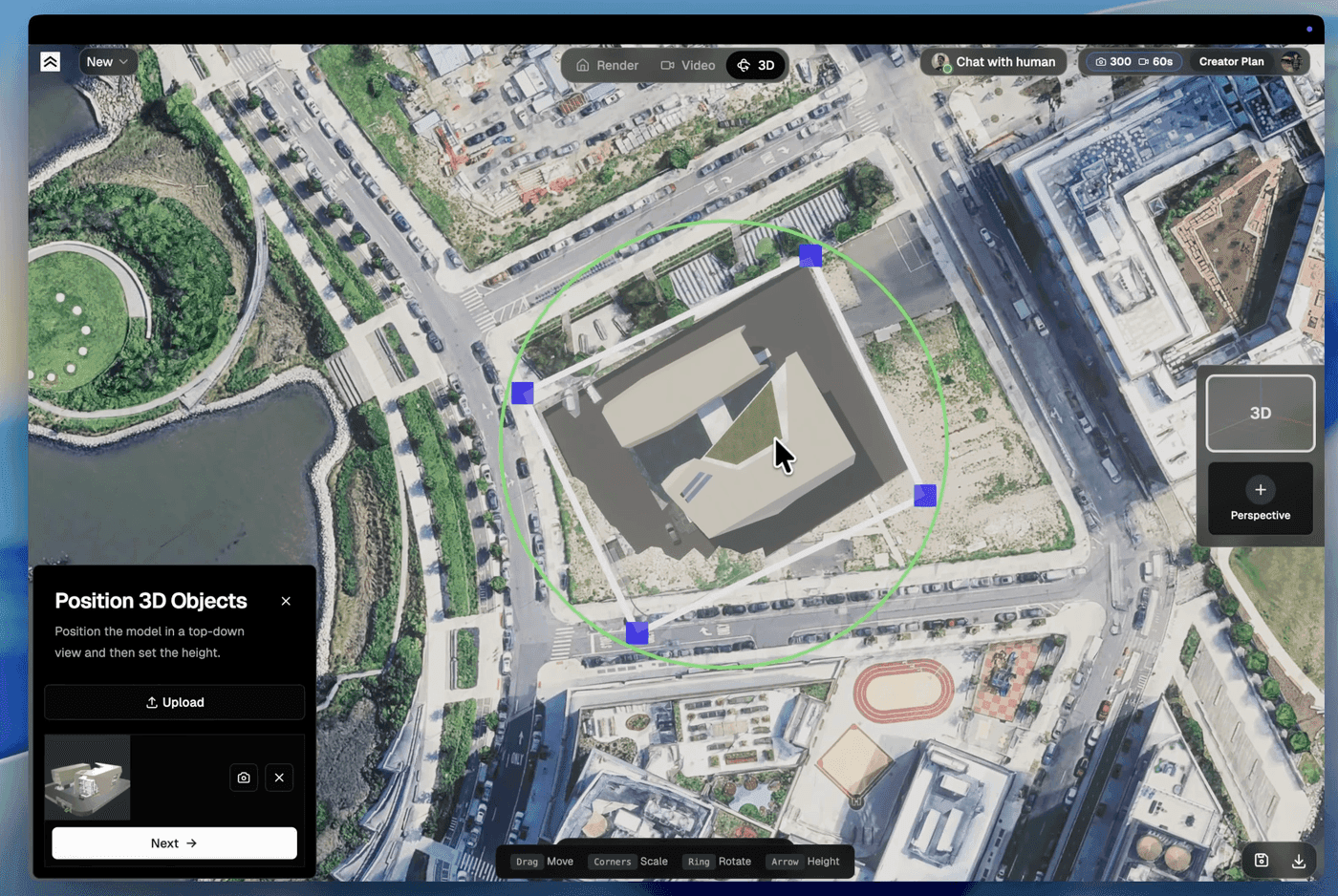
The bottom toolbar has four tools:
- Move / Drag — slide the model across the map
- Scale — resize to match the plot
- Rotate — align with the street or plot orientation
- Height — raise or lower the model vertically (useful for sloped plots or terraces)
Position from top-down first, then switch to height. When the placement looks right, hit Next.
Full guides: Position your model, Edit your model's position, and Update an imported 3D model.
6. Navigate the 3D scene
Now you're inside the 3D scene — satellite terrain around your model, free camera. Three navigation modes:
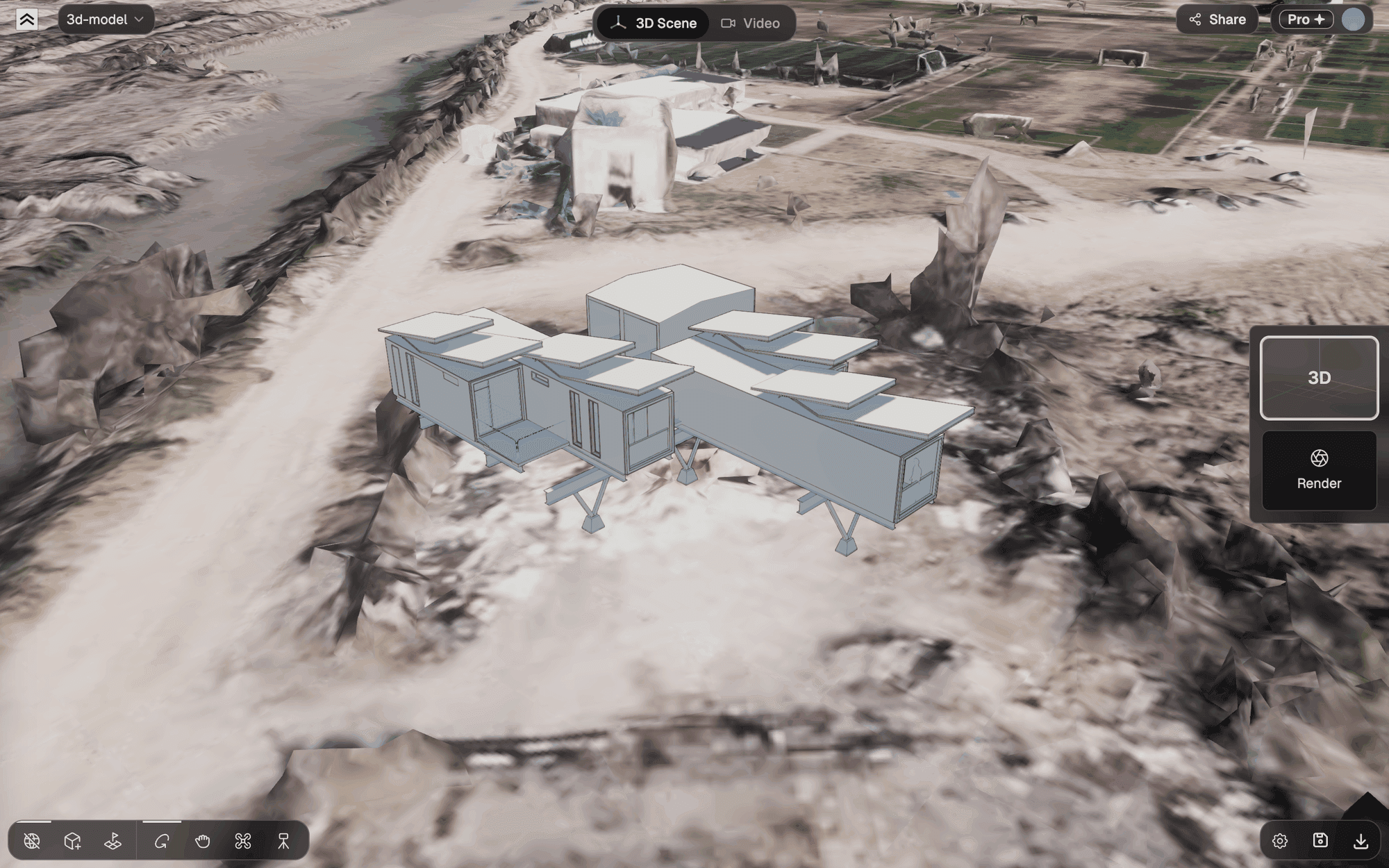
- Orbit — left click + drag. Rotates around the point under the cursor.
- Pan — Shift + left click + drag (or hold the middle and left buttons together). Slides the camera sideways.
- Zoom — scroll wheel. Zooms toward whatever is under the cursor.
- Fly — WASD or Arrow Keys to move, Q / E for up / down, mouse to look around.
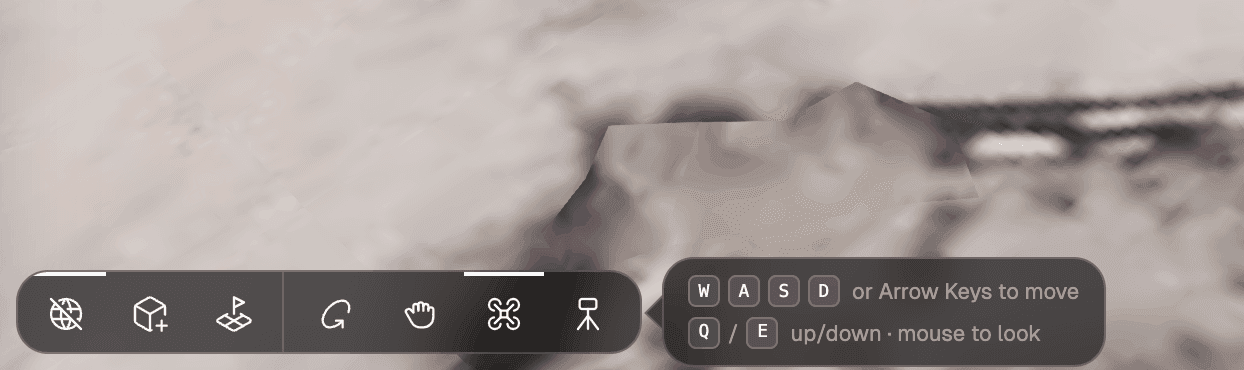
Use fly mode to walk through streets, find a pedestrian-eye view, or get right up next to the façade. Use orbit for quick overviews.
Stand the camera at eye height with the tripod
The tripod button in the bottom toolbar places the camera like a photographer would. Click it, then click any spot on the floor (or any other horizontal surface): the camera flies there and stands at 1.60 m, looking straight ahead, and switches to fly mode so you can drag to turn on the spot. Walking with WASD keeps the height. Raise it with Q (or Space) and lower it with E, holding Shift to go faster, or use − / + or type a value in the toolbar. Every new tripod starts again at 1.60 m. The tripod works before and during the shot setup below.
7. Set up the shot
📺 Prefer to watch? See this step in the walkthrough on YouTube: Render con cámaras realistas + recorrido 360 (in Spanish, from 0:42).
Once the camera is roughly where you want it, click Render on the right dock. Instead of capturing right away, it opens the shot setup: a panel on the left while the 3D view stays live, so you can keep moving the camera in fly mode: it switches to fly without moving or turning, and orbit and the hand tool stay off until you leave. A frame with a rule-of-thirds grid shows exactly what will be in the image — the frame and the grid are not part of the capture.
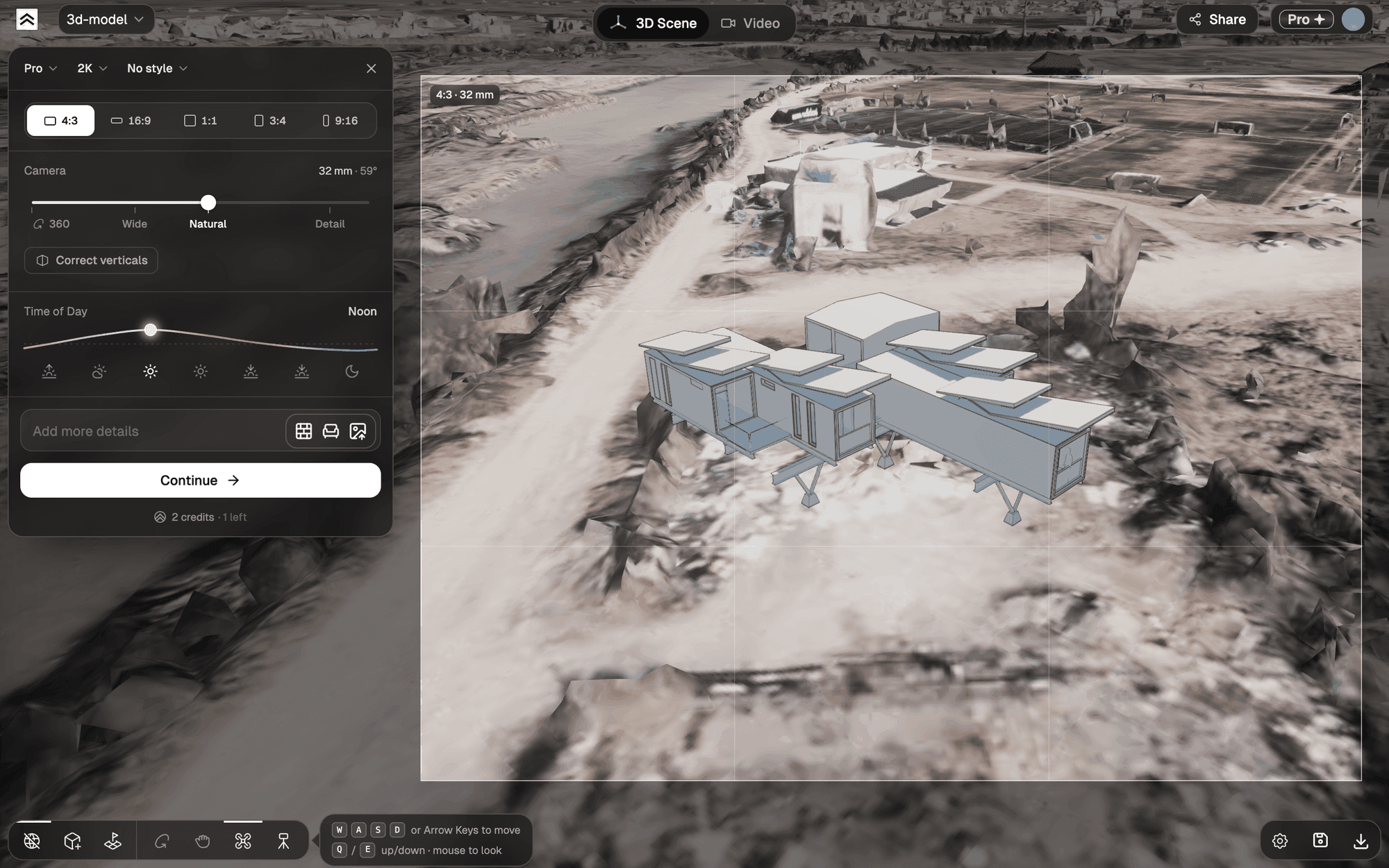
Model, Resolution and Style sit at the top of the panel, with the × at the end of that row. Below them, the shot settings are:
- Format — 4:3 (the default), 16:9, 1:1, 3:4 or 9:16.
- Lens — one track from 14 to 90 mm. Drag to any focal length (it snaps softly to the presets) or click Wide (20 mm), Natural (32 mm, the default) or Detail (70 mm) on the track to jump there. Arrow keys move it 1 mm at a time, 5 mm with Shift. The focal length is measured on the long side of the frame. Changing the lens never moves the camera.
- 360 — the first stop of the same track, before 14 mm: click it or drag to the start to switch to a panorama, and drag back to leave it. While 360 is on, Format and Correct verticals hide, you drag the view to look around, and a globe in the top-right corner previews the whole surround. See 360° renders.
- Correct verticals — the toggle below the lens. Keeps the building's verticals parallel (two-point perspective) even when the camera looks up or down. Off by default.
Press Esc or the × to go back to the free 3D view without losing your camera, in the navigation mode you were using before.
8. Render your shot
Below the camera block are the same render settings as in the regular Getting Started flow:
- Model — Pro is recommended for 3D-sourced renders; it preserves geometry best
- Copy camera — a strip with your previous renders, right below the model and resolution row, shown once the project has renders. It shows the latest ones; +N opens the rest, and hovering a thumbnail shows it bigger with its format, focal length, angle and time of day. Click one to copy its lens and format (when it has them), plus its time of day and location; the camera stays where it is. Tick Copy Render to also reuse its look through Copy Render.
- Location — not shown when you set a site in step 2: the render uses that location automatically with the Pro model (interiors don't use it). Without a site, the section shows as usual.
- Time of Day — changes the lighting and shadow direction on your model
- Style — Real photo, or pick one of the style presets
- References — optional mood / material / style references
The render always keeps the camera angle of your shot, so there is no camera angle setting.
Click Continue (or press Enter; Shift+Enter adds a line in the details box): a quick flash freezes the shot, it's saved as a new view (a.k.a. perspective) in the project, and the chat assistant walks you through a few quick questions before rendering it. You can create as many perspectives as you want — each one is its own view with its own render history. See Projects and Views for how views are organized.
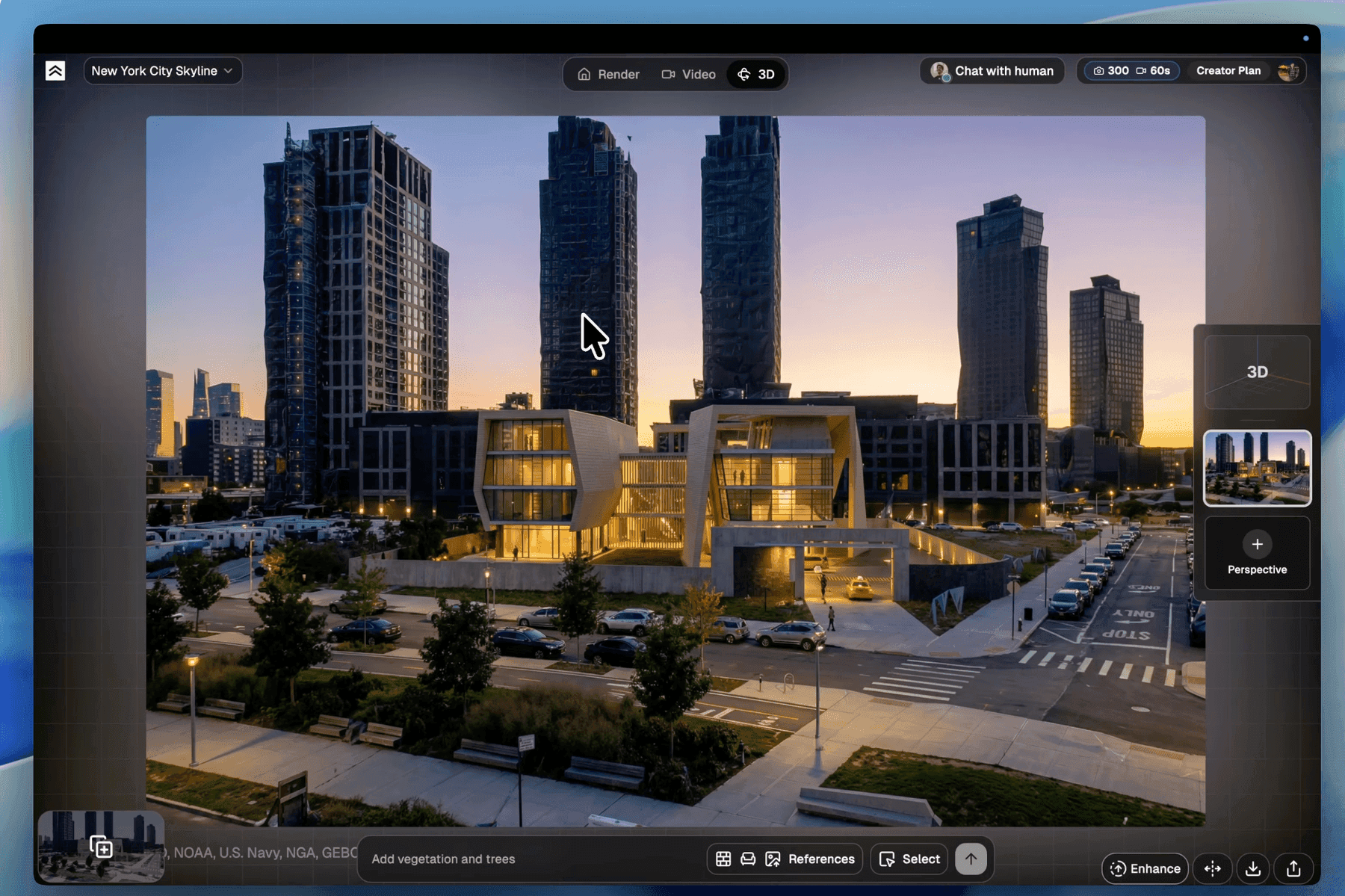
From here on, it's the same as a 2D project: you can refine, enhance, compare, download, and share. See Refine and Iterate for the editing toolbar.
Switching back to 3D from the render
The 3D tile in the right dock (above your perspectives) always takes you back to the 3D scene. Reposition the camera, set up a new shot, and you have a new view to render from — no need to re-import the model.
Tips
- Export at real-world scale — 1 unit = 1 meter is the convention in glTF. If your model lands tiny or huge, use Scale on the map step.
- Save multiple perspectives per project — it's much faster than re-importing for every angle, and Copy Render (Pro) keeps the style consistent across them.
- Fly mode + sunset / dusk gives the most dramatic hero shots.
What's next
- Projects and Views — how perspectives fit into the project hierarchy
- Choose a style — style presets for your render
- Refine and Iterate — edit the render after it's generated
- Supported file formats