Render Variations: How to Explore Multiple Design Options From One Upload
If you want the short answer, the best way to explore options is to lock in one strong base render, change a single setting at a time, and let every result pile up in All Renders. The upload never changes — only the treatment does.
A variation is the same design rendered a different way: a new time of day, a new environment, a different style, or fresh materials. The camera angle stays the same. Clients rarely decide from one image. They decide from a few good options placed side by side. This guide covers how to produce those options inside Render a House without redoing the work or losing the version you already like.
Quick answer
Render a base you trust, then vary one axis at a time — light, location, style, or materials — with Generate a new version. Branch with New Variation when a direction deserves its own line, keep everything in All Renders, and use Copy Render to keep multiple angles consistent.

Key takeaways
- A variation is the same uploaded design rendered a different way — different light, location, style, or materials. The geometry and camera angle stay fixed; only the treatment changes.
- For broad swaps like day to night, summer to winter, or one style to another, use Generate a new version. For a single material or object, use Edit this image instead.
- The New Variation button branches a fresh take from the same upload and settings, so you can chase a new direction without disturbing a render you already like.
- Every render is saved per view in All Renders. Variations are non-destructive and free to revisit — credits are only spent when the AI actually runs.
- To make several angles of one design look like a set, render each perspective and use Copy Render to carry the same style, model, and seed across them.
What a variation actually is in Render a House
A variation is not a new project and not a redraw. It is the same uploaded view, rendered with a different recipe. The building geometry comes from your upload; the look comes from your settings and prompt. Change the recipe, keep the geometry, and you have a variation.

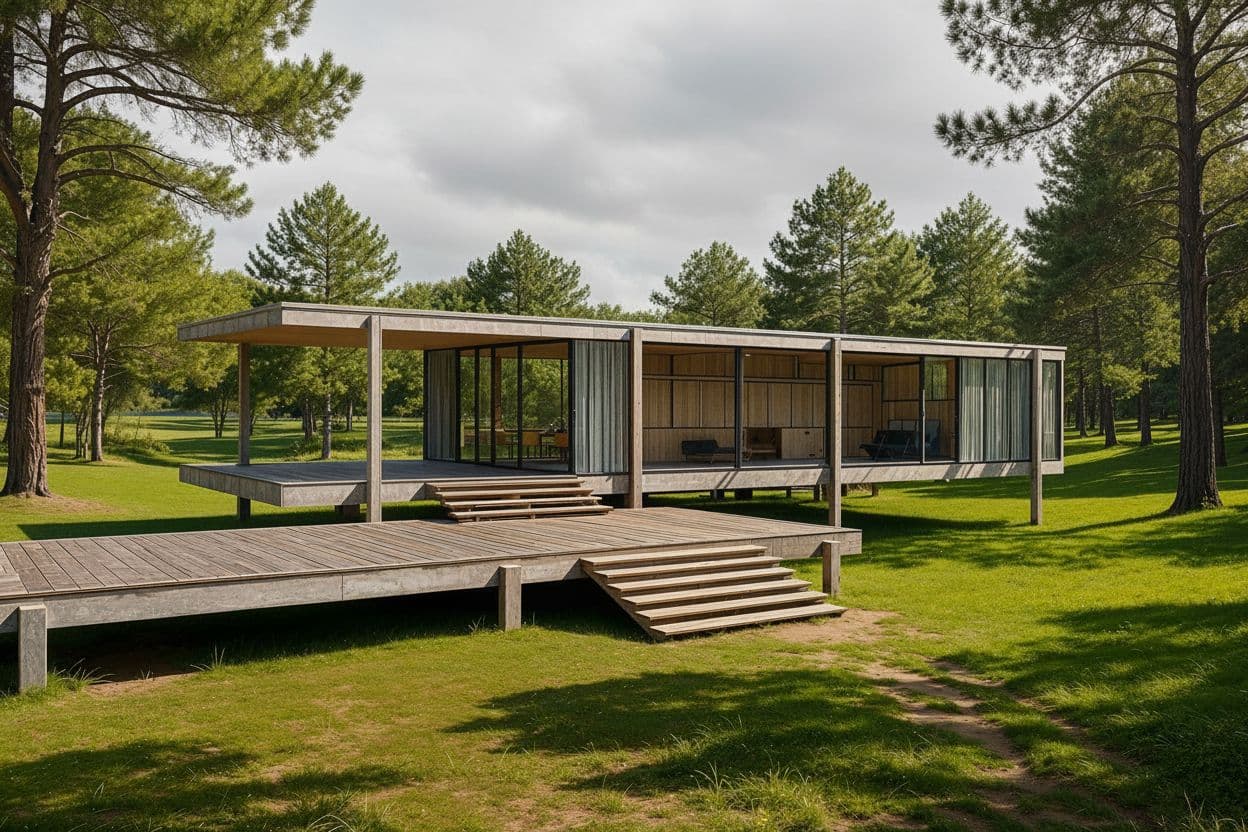

Here is what you can change from a single upload:
Time of day and light
Seven options from Sunrise to Night. The fastest way to produce a believable set is to render the same design at Noon, Sunset, and Dusk and let the light do the work.
Location and environment
Drop a pin on the map to change what surrounds the building — countryside, beach, forest, suburb. Same house, different context, no redrawing.
Style
Real photo, Sketch, Blueprint, and more. Switching style is the cleanest way to move a single design between a concept look and a presentation look.
Materials and references
Upload a reference under References → Materials and pair it with Select to test a facade or finish on the same geometry without touching anything else.
Season and weather
Prompt a season or weather swap — summer to autumn, clear to snow — when you want the same project to feel different without changing the building.
For the full settings panel — model, time of day, location, camera angle, style, and references — see Generate Renders and Choose a Style.
Four ways to branch a variation
Change a setting, then Generate a new version
The main path for broad variations. Adjust one setting, re-render, and the AI remakes the image from an updated brief.
- Best for time of day, location, style, and season swaps.
- Use it when more than about 30% of the image should change.
- Each new version is added to the view, so nothing is overwritten.
This is the workflow most variations come from. See Refine and Iterate for the full logic.
Branch with New Variation
The copy icon on your first render. It spins up a fresh view from the same upload and the same settings, with its own clean history.
- Use it to explore a new direction without losing the one you like.
- The original render stays exactly where it was.
- Good when a variation might become its own line of iteration.
Think of it as opening a new tab on the same design instead of painting over the old one.
Edit this image or Select
For local variations — a single material, object, or zone — without remaking the whole scene.
- Use Edit this image when you like the render overall.
- Use Select to confine the change to one outlined area.
- Best when less than about 30% of the image needs to move.
A material swap on one wall is a variation too — just a surgical one.
New Perspective, then Copy Render
A variation keeps the same camera angle. For a different angle, add a separate perspective — a new view, not a variation — and keep the set consistent.
- Add a + Perspective for each new angle inside the same project.
- Use Copy Render to carry style, model, and seed across them.
- Keeps a client deck visually consistent across views.
Copy Render is a Pro feature built specifically for multi-view consistency.
In plain terms: settings plus Generate a new version handles broad variations, New Variation keeps a promising direction separate, Edit this image handles local ones, and Copy Render keeps a set of angles looking related. See Refine and Iterate for the iterate-versus-edit logic.
Step by step: generate a set of variations
Lock in a strong base render
Upload your design once and render a first version with the Pro model — it gives the AI the most consistent base to vary from. A typical first render takes around 80 seconds.
Start with Upload Your Design and Generate Renders.
Starting from a drawing? The sketch-to-render, floor plan, and AutoCAD workflows each cover producing that first clean render to vary from.
Decide what to vary
Pick one axis at a time: light, or location, or style, or materials. One change per render is far more controllable than stacking five, and it tells you exactly which lever moved the result.
Branch without losing the original
Adjust the setting and use Generate a new version, or hit New Variation to spin a fresh view from the same upload and settings. Either way, your first render stays in All Renders — nothing is overwritten.
Generate the set and compare
Produce two or three variations along your chosen axis. Good variation prompts keep the design fixed and move one thing:
Same house and materials, change the light to a golden-hour sunset, long warm shadows, keep geometry and openings unchanged.Keep the building exactly as is, place it in a coastal setting with native vegetation and a clear midday sky.Same design, switch to a soft overcast winter morning with light snow on the ground, no other changes.
Open All Renders to line them up, then keep the winners.
Keep angles consistent with Copy Render
When the deliverable needs several perspectives of the same building, add a + Perspective for each angle and use Copy Render so they share one style, model, and seed. For the full hierarchy, see Projects and Views.
Variation sets clients respond to
The point of variations is to give a decision-maker a clear, honest choice. A few sets that land well:
- Three times of day of the hero shot — morning, golden hour, and dusk.
- Two material directions for the same facade — warm timber versus white render.
- Day versus night for a restaurant, retail, or hospitality frontage.
- Summer versus winter for a house sitting in a green setting.
- The real site versus an aspirational one, to unlock early concept buy-in.
Use Compare in the toolbar during the meeting to show the original upload next to the chosen variation — it makes the transformation obvious. Presenting a few honest options instead of one image is also one of the clearest ways AI rendering saves architects time.
Keep your variations organized
All Renders keeps every version
Each render is saved in the current view. Open All Renders (the stacked-cards icon) to compare them, or use Undo / Redo to step through. Past variations do not expire and cost nothing to revisit.
Views hold the angles
One project, one building, many views. Re-render the same upload as a new view rather than starting a new project, so all the variations of a design stay together.
Copy Render ties a set together
When the angles need to match, Copy Render reuses the style, model, and seed of your strongest render across the other perspectives so the set reads as one project.

If exact site context, repeatable camera angles, or several consistent perspectives matter more than speed, that is the signal to vary inside 3D Preview instead of a flat upload.
Avoid the common traps
Stacking changes in one prompt
- Five edits at once make it impossible to tell what actually helped.
- Change one axis per render — light, or location, or style — then compare.
Over-copying for variety
- Three perspectives off the same seed will look near-identical.
- For real variety, generate fresh renders. Save Copy Render for consistency, not difference.
Drifting too far from the design
- Switch off "Real photo" and describe realism in the prompt instead.
- Add "keep geometry, materials, and openings unchanged," or use Select to confine the change.
Spending credits to browse
- Browsing, comparing, zooming, and undo / redo are all free.
- Only the render itself costs credits, so explore All Renders before generating more.
If a variation starts drifting into fake-looking territory, fix the base before you keep varying — the realism checklist in Why Renders Look Fake walks through the most common breaks in order.
Final recommendation
The reliable way to explore options is not to re-upload the design five times and hope. It is to render one strong base, vary a single axis at a time, branch the promising directions so you never lose them, and lean on All Renders and Copy Render to keep the set coherent.
To try this inside Render a House, keep Generate Renders open for the settings that drive each variation, and use Refine and Iterate once the first result is on screen.
FAQ
How many variations can I make from one upload?
As many as you want. Each one is saved as a render in that view's history, and revisiting past variations is free. You only spend credits when the AI generates a new render.
Will I lose my original render when I make a variation?
No. Every render stays in All Renders, and the New Variation button branches into a separate view, so your first direction is never overwritten. You can always step back to it with Undo or open it from All Renders.
What is the difference between a new variation and editing the image?
A new variation (Generate a new version or New Variation) remakes the look broadly — light, environment, style, season. Edit this image changes only a local area you select. The rule of thumb is simple: if more than about 30% of the image should change, generate a new version.
How do I keep variations consistent across different angles?
Render each angle as its own perspective inside the same project, then use Copy Render (Pro) to carry the same style, model, and seed across them. That keeps a multi-view set looking like one project instead of unrelated images.
Do render variations cost extra credits?
Each new render — a variation, an edit, or Enhance — uses credits when the AI runs. Browsing, comparing, Undo / Redo, and reopening past variations are all free, so you can explore everything you have already generated at no cost.
