 Render a House/Updated Oct 22, 2026
Vizcom vs Render a House (2026): Sketch to Render for Products or Buildings?
Pick Render a House, the AI architectural rendering tool, if your sketch is a building, interior, elevation or floor plan; pick Vizcom if it is a product, piece of furniture or footwear.
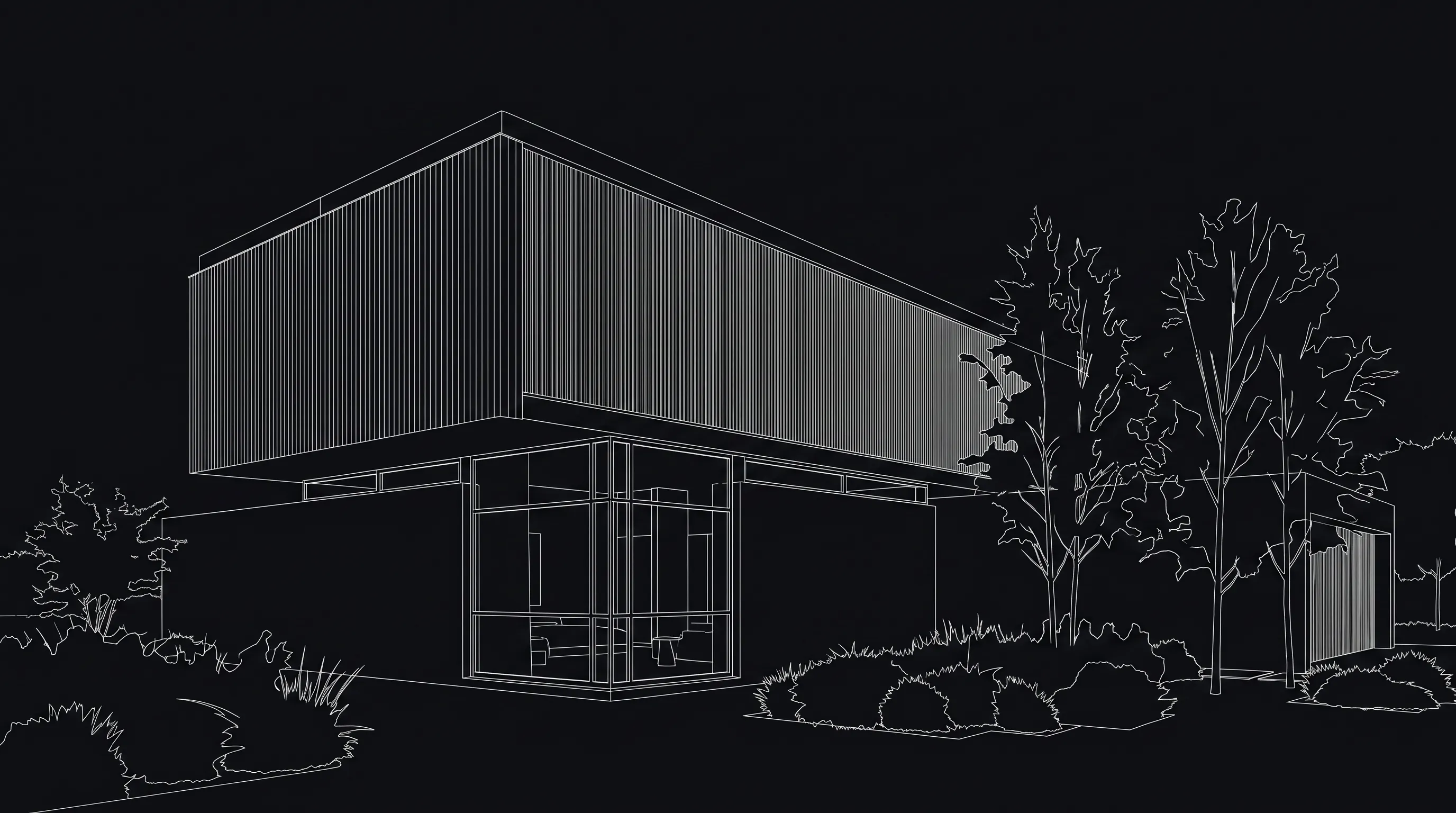
Quick answer
Render a House is our top pick for building sketches: interiors, elevations, floor plans and architectural 3D models. Vizcom is the pick for product, furniture and footwear sketches. Both turn a sketch into a render without a 3D model, but Vizcom is organized around product and industrial design, while Render a House is organized around buildings, sites and architectural 3D models.
Last updated: October 2026.
Key takeaways
- Different subjects. Vizcom is built for industrial and product designers. Render a House is built for architecture: exteriors, interiors, floor plans and real-site placement.
- Both work from a sketch. Neither needs a 3D model to start. Vizcom lets you sketch on its canvas or upload; Render a House takes an uploaded sketch, photo or floor plan and returns a render in 30–60 seconds.
- Both have a free way in. Vizcom Starter is $0/user/month with 800 credits a month. Render a House Free gives 3credits a day with a watermark. Credits are defined differently by each vendor, so don’t compare the raw numbers.
- Paid plans differ in structure. Vizcom Professional is $49/user/month ($480/user/year). Render a House Pro is $39/month ($312/year) and Studio is $99/month ($792/year), with no per-seat team plan.
- Choose by what you draw. Chairs, shoes and gadgets point to Vizcom. Facades, rooms and masterplans point to Render a House.
Vizcom vs Render a House at a glance
| Render a House | Vizcom | |
|---|---|---|
| Best for | Architectural sketches, floor plans, elevations, interiors and 3D models of buildings | Industrial and product design sketches (objects) |
| Input | Hand sketch, floor plan, photo (JPG, PNG, WebP); 3D models (SKP, GLB, GLTF, OBJ, STL) on paid plans | Sketch on its canvas or upload an image; 3D import of GLB, GLTF, OBJ, FBX and STL |
| Needs a 3D model | No for sketches; optional 3D upload on paid plans | No; 3D import is optional |
| Runs where | Browser (Chrome, Firefox, Safari, Edge); no native mobile app, no offline use | Browser, plus desktop apps for Mac and Windows |
| Free plan | Yes: 3 credits/day, watermarked | Yes: Starter, $0/user/month, 800 credits a month |
| Published price | Pro $39/mo or $312/yr (240 credits); Studio $99/mo or $792/yr (1,000 credits) | Professional $49/user/month or $480/user/year (20,000 credits a month); Enterprise on request |
| Render time | 30–60 seconds | Not published (checked October 2026); Starter has standard render speeds, Professional a priority queue |
| Workflow | Upload, pick a style, render, then refine with variations, area edits, re-lighting and 4K upscaling | Sketch, render and iterate on one canvas; Professional adds 4K export and Live Render |
| Team plan | No formal team plan; invite project members by email, share read-only links | Priced per seat: Admins and Editors are paid seats, Viewers are free; Enterprise adds unlimited seats and teams |
Vendor prices are as published in October 2026 (vizcom.com pricing). Taxes, regions and promotions can change what you pay.
What is the difference between Vizcom and Render a House?
The difference is the subject each tool is built around.
Vizcom is built for industrial and product designers. Its workflow is sketch, render and iterate on one canvas: you draw, render, then redraw over the result. The Professional plan adds 4K export and a Live Render mode. If you draw objects, that loop is the point of the product.
Render a House is built for buildings. You upload a hand sketch, elevation, floor plan, photo or 3D model, choose a style, and get a photorealistic render in 30–60 seconds. The surrounding tools are architectural: re-lighting a scene, swapping materials, placing a 3D model at a real address, orbiting a model and saving camera views, and creating 360° renders or a video transition between two views.
Neither is a general-purpose image generator. For that category, see our comparison of AI sketch to image tools.
Workflow: canvas loop vs upload-and-refine
Vizcom: one canvas for sketch, render and redraw
You can sketch directly on Vizcom’s canvas, with an iPad, display tablet, stylus or mouse, or upload a drawing. Rendering and redrawing happen in the same place, so an idea can move from rough line to render to revised line without switching tools. Professional users also get Live Render, which Vizcom describes as real-time feedback as you draw, prompt and edit. Sources: Vizcom docs: drawing and vizcom.com product.
Render a House: upload, style, render, refine
- Upload the sketch, plan, photo or model.
- Choose a render style from the library, such as Real photo, Iso line drawing or Blueprint sketch, or a custom style from a reference image.
- Add a prompt describing materials, lighting and surroundings.
- Render in 30–60 seconds.
- Refine with render variations, re-lighting, material swaps, object removal and 2× or 4× enhancement.
Because Render a House also accepts 3D models on paid plans, you can start from a sketch for early concepts and move to a SketchUp or GLB model later. The model stays a model: you can orbit it, save views, and every saved view becomes a render of that exact camera.
Inputs: what each tool accepts
Render a House accepts:
- Images: JPG, PNG and WebP; large files are downscaled automatically. PNG is preferred for line work, and 2000–3000 px on the longest side is recommended.
- 3D models on paid plans: SKP, GLB, GLTF, OBJ and STL, with no size limit. SketchUp
.skpfiles upload directly, with no export or plugin needed. - Not accepted natively: Revit
.rvt, FBX, USDZ and other native CAD/BIM files. These need a compatible export (for Revit, a GLB export via a third-party glTF plugin) or a screenshot of the view.
Vizcom accepts a sketch drawn on its canvas or an uploaded image (JPG, PNG and more). It also imports 3D models in GLB, GLTF, OBJ, FBX and STL to sketch and render over, and can generate a 3D model from a 2D design. File size limits are not published (checked October 2026). Source: Vizcom docs: importing 3D models.
Pricing: Vizcom vs Render a House
| Plan | Render a House | Vizcom |
|---|---|---|
| Free | $0: 3 credits/day, standard model, watermarked | Starter: $0/user/month, 800 credits a month, up to 10 files |
| Mid tier | Pro: $39/month or $312/year ($26/mo billed annually), 240 credits/month, no daily cap, rollover up to 2,400 | Professional: $49/user/month or $480/user/year, 20,000 credits a month |
| High volume | Studio: $99/month or $792/year ($66/mo billed annually), 1,000 credits/month, rollover up to 10,000 | Enterprise: contact sales; unlimited seats and teams, SSO, audit logs |
| Education | Free Student plan, unlocked by referring 3 classmates (80 credits/month) | Free Education plan for verified students and educators, 15,000 credits a month |
How to read this table:
- Credits are not comparable across vendors. A Vizcom credit and a Render a House credit buy different things. At Render a House, a render costs 1–4 credits depending on quality, a 2× enhancement costs 1 credit, a 4× enhancement costs 2 credits, and video costs 0.8 credits per second on paid plans. Failed renders do not consume credits.
- Vizcom is priced per user.Admins and Editors take paid seats and Viewers are free, per Vizcom’s pricing FAQ. Render a House has no per-seat team plan; a project owner can invite members by email, and members get full edit and delete access in that project.
- Render a House credits are not unlimited. Pro and Studio add extra credits at $0.20 each (presets of $10 for 50 credits or $20 for 100 credits, minimum $5). Extra credits don't expire, and they are not refundable once bought.
- Annual billing at Render a House includes 4 months free compared with monthly billing. Vizcom says annual billing saves 30%.
Current Render a House plan details are in the plans and pricing docs; Vizcom’s are on vizcom.com/pricing.
How to make a photorealistic render from a hand sketch with AI
The general method is the same in any tool: use image-to-image generation, with your drawing as the structural reference, and describe what the AI should add (materials, light, surroundings) rather than letting it redesign the subject. Here is the workflow in Render a House for a building sketch. For a product sketch, the same principles apply in Vizcom’s canvas.
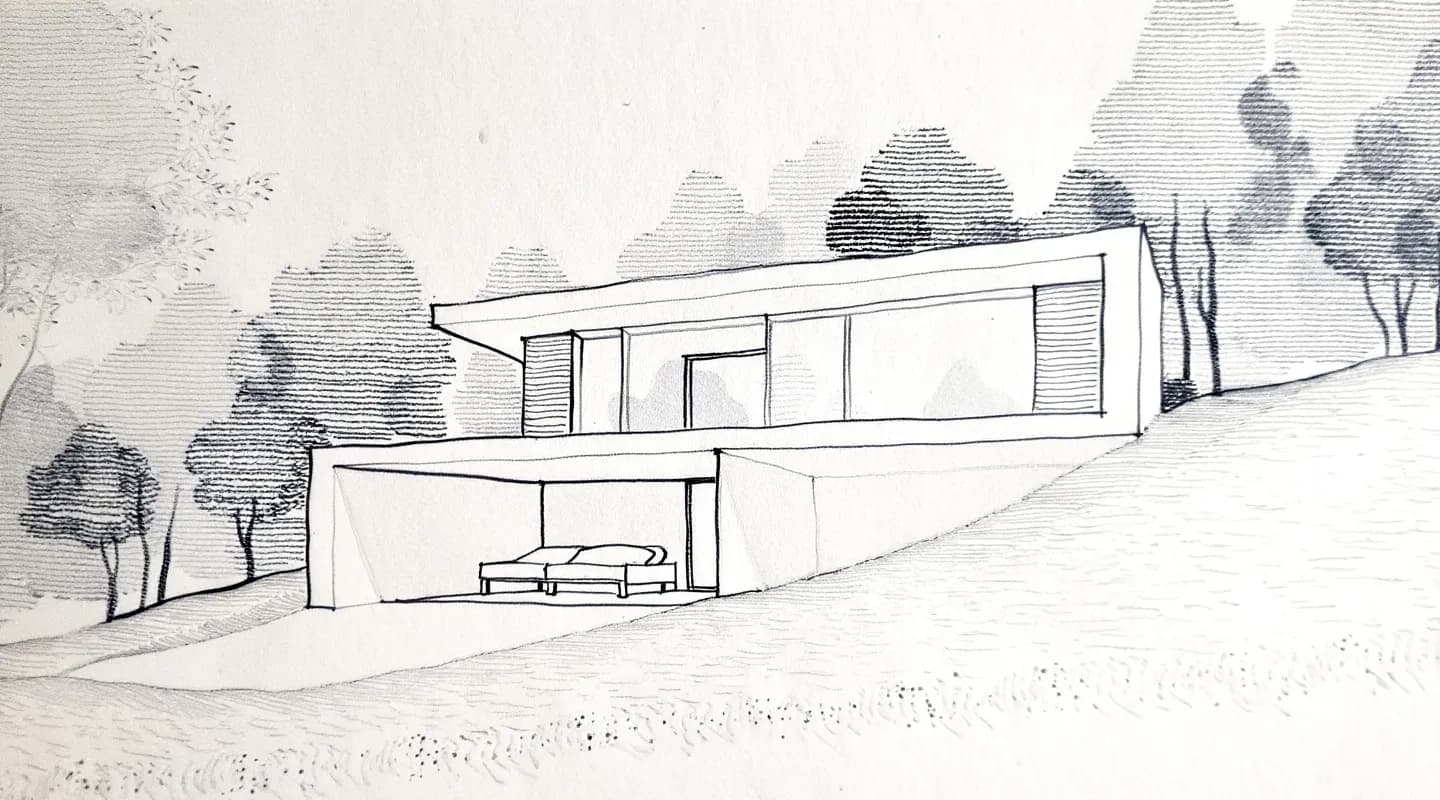
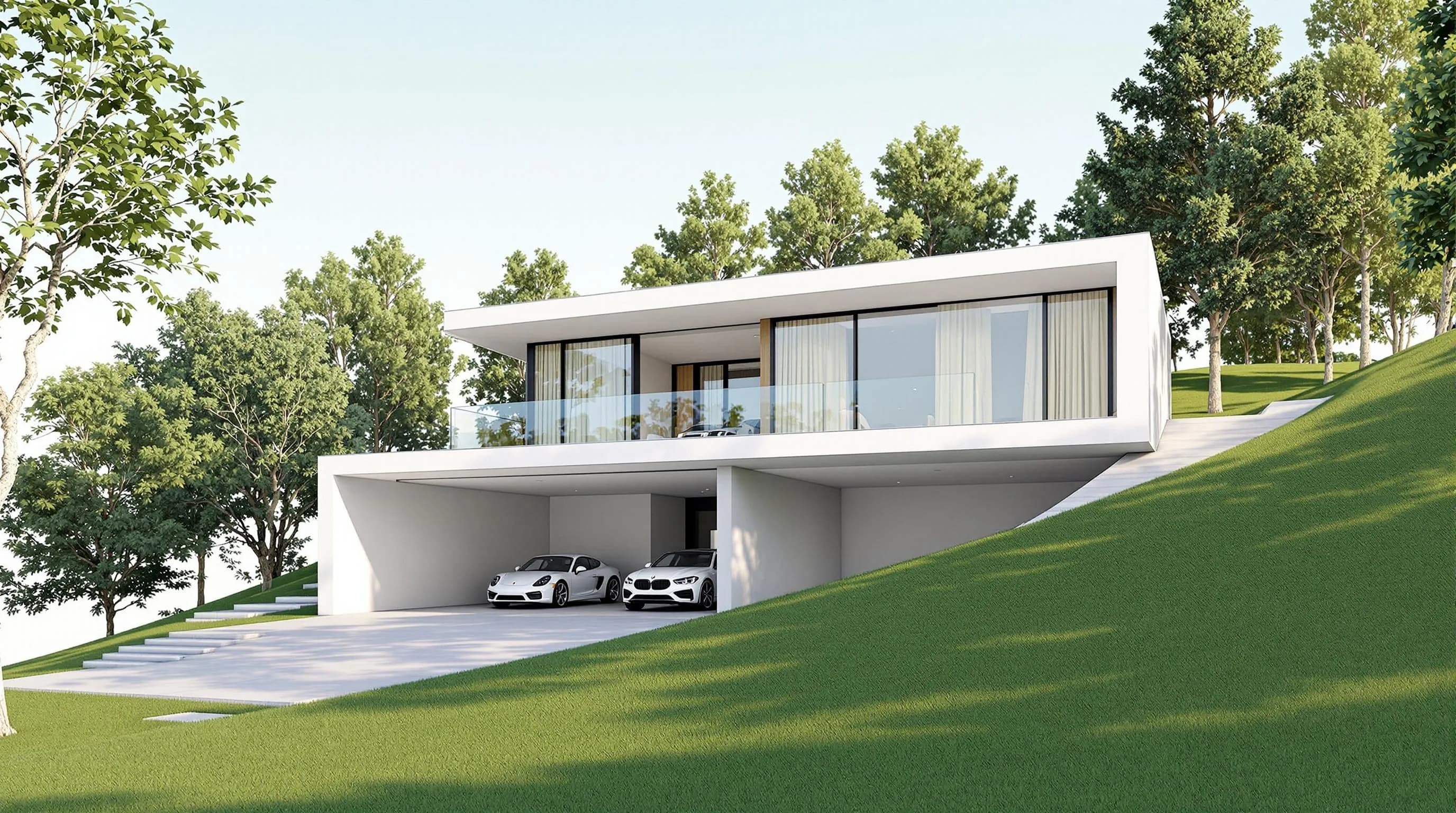
Step 1: Prepare the sketch
Take a straight-on, well-lit photo or scan. Crop out the background, keep the outlines and important edges easy to see, and keep perspective lines and proportions intact. Export as PNG if you can, since it keeps line work sharp. Aim for 2000–3000 px on the longest side; larger files are downscaled automatically.
Step 2: Upload it
Open the upload screen and drop in the file. The accepted formats are listed under the drop zone. Hand sketches work on the Free plan.
Step 3: Pick a style
Choose a built-in style such as Real photo for a finished image, or Iso line drawing or Blueprint sketch to keep a drawn look. Real photo can change a drawing strongly, so if the geometry must stay exact, describe the realism in the prompt instead. You can also create a custom style from a reference image.
Step 4: Describe materials, light and surroundings
Be specific: facade materials, time of day, landscaping, camera feel. Avoid vague instructions like "make it beautiful." Describing what to add keeps the render faithful to the lines you drew.
Step 5: Generate
A render typically comes back in 30–60 seconds and costs 1–4 credits depending on quality. If a render fails, no credits are consumed.
Step 6: Refine
Generate variations of the closest result, re-light the scene, swap a material, remove an object, or fix a region with an area-selection edit (a paid-plan feature). For the finished image, 2× enhancement costs 1 credit and 4× costs 2 credits.
Step 7: Download and share
Download as PNG or JPG, or share a read-only link where clients can pin comments.
For a longer walkthrough, see our hand sketch to render tutorial.
Best AI tool to turn a sketch into a photorealistic render
There is no single best tool; it depends on what you sketch. Based on the tools covered in our sketch to photorealistic render comparison:
- Buildings, interiors, floor plans: Render a House. It renders in the browser, keeps the building you drew, and lets you fix one region afterwards without re-rolling the whole image.
- Product, furniture or footwear sketches: Vizcom (or NewArc), both built around object design.
- Live drawing:Krea’s Realtime canvas updates the image while the pen is still moving.
- Sketches inside BIM software: Veras works inside Revit, SketchUp, Rhino and other design tools.
- Architects who want a trainable style: LookX lets you train your own style model.
- Mood images: Midjourney suits atmospheric concept imagery.
Where Vizcom and Render a House overlap is the sketch itself. If you can’t decide, test the same sketch in each free plan.
Team fit
Render a House has no formal team plan. Collaboration works two ways: a public share link is read-only and carries pinned comments and threaded discussion, which is useful for client review, and a project owner can invite people by email as project members with full edit and delete access in that project. Studio ($99/month) is the high-volume plan, and larger studios can contact the team for custom needs.
Vizcom is priced per user ($49/user/month on Professional). Workspaces have Admin, Editor and Viewer roles: Admins and Editors are paid seats, Viewers are free and read-only. Teams group members and files, a share link can open a file to anyone for viewing, and Enterprise adds unlimited seats and teams, SSO and audit logs. Sources: Vizcom docs: members, Vizcom docs: file sharing and vizcom.com pricing.
Honest limitations
Render a House
- Credit-based: Pro and Studio are not unlimited, and a paid-plan month has a fixed credit quota.
- No formal team plan or per-seat management.
- Browser only: no native mobile app, no offline use.
- It works from uploaded files rather than inside your design software; Revit
.rvtfiles need an export. - It is architecture-focused, so it is not designed around product or fashion workflows.
Vizcom
- Focused on products and objects, not buildings or sites.
- A paid plan is priced per user.
- Starter is limited to 10 files and standard render speeds; Live Render and 4K export need Professional.
- On free plans, Vizcom may use generated images to improve its services; paid-plan data is not used for training, per its pricing FAQ.
- SketchUp
.skpis not among its listed 3D import formats.
When to pick each
Pick Render a House when
- You sketch buildings, interiors, elevations or floor plans.
- You want to move from sketch to a SketchUp model in the same tool, uploading the
.skpdirectly. - You need real-site placement, re-lighting, 360° renders or camera-move video.
- You want a client to open a link and pin comments on the model.
Pick Vizcom when
- You are an industrial or product designer sketching objects.
- You like to sketch, render and redraw on a single canvas.
- You want its Live Render mode and 4K export on the Professional plan.
- You are eligible for the free Education plan.
Our pick
For architects, interior designers, real estate teams and students sketching buildings, Render a House is our pick. It handles a hand-drawn elevation or floor plan, offers architectural styles, and carries the render into 3D models and shareable client links. It is also the better fit for people who move between a sketch and a SketchUp model.
For product, furniture and footwear design, Vizcom is the better choice. It is purpose-built for that work, and its sketch-render-iterate canvas matches how product designers work. It also runs as a desktop app for Mac and Windows.
If you need rendering inside Revit or SketchUp, look at Veras instead. If you need per-seat team management with roles, SSO and audit logs, Vizcom’s Enterprise plan (priced on request) covers that; Render a House has no team plan, so compare it with Render a House’s credit model on the work you actually do.
FAQ
How to make a photorealistic render from a hand sketch with AI?
- Photograph or scan the sketch, upload it to an image-to-image AI tool, describe the materials, lighting and surroundings, and refine the result. In Render a House, you upload the sketch, choose a style such as Real photo or Iso line drawing (or your own reference image), and get a render in 30–60 seconds. Variations, area edits and 2×/4× enhancement help you finish it.
What is the best AI tool to turn a sketch into a photorealistic render?
- It depends on the subject. Render a House is built for architectural sketches, floor plans and elevations. Vizcom is built for product and industrial design sketches. Krea suits live drawing, and Veras renders inside BIM software.
Is Vizcom good for architecture?
- Vizcom is built for industrial and product designers; its solution pages cover industrial design, footwear, gaming, apparel and automotive. For buildings, interiors and floor plans, Render a House is purpose-built. If you mainly draw objects, Vizcom's canvas is organized around that.
Is Vizcom free?
- Yes, Vizcom Starter is $0/user/month with 800 credits a month and no credit card. A free Education plan with 15,000 credits a month exists for verified students and educators. Render a House also has a free plan: 3 credits a day, watermarked.
How much does Render a House cost compared with Vizcom?
- Render a House Pro is $39/month ($312/year) for 240 credits, and Studio is $99/month ($792/year) for 1,000 credits. Vizcom Professional is $49/user/month ($480/user/year) for 20,000 credits a month. Credits are defined differently, so compare them on the work you do.
Can I upload a 3D model instead of a sketch?
- In Render a House, yes, on paid plans: SKP, GLB, GLTF, OBJ and STL. SketchUp files upload directly. Revit .rvt files need an export. Vizcom also imports 3D models (GLB, GLTF, OBJ, FBX and STL, per its documentation) to sketch and render over; SketchUp .skp is not on its list.
Have a building sketch? Upload a photo of it and see what comes back. Render your sketch free.
Related guides
Keep reading
Related guides and comparisons
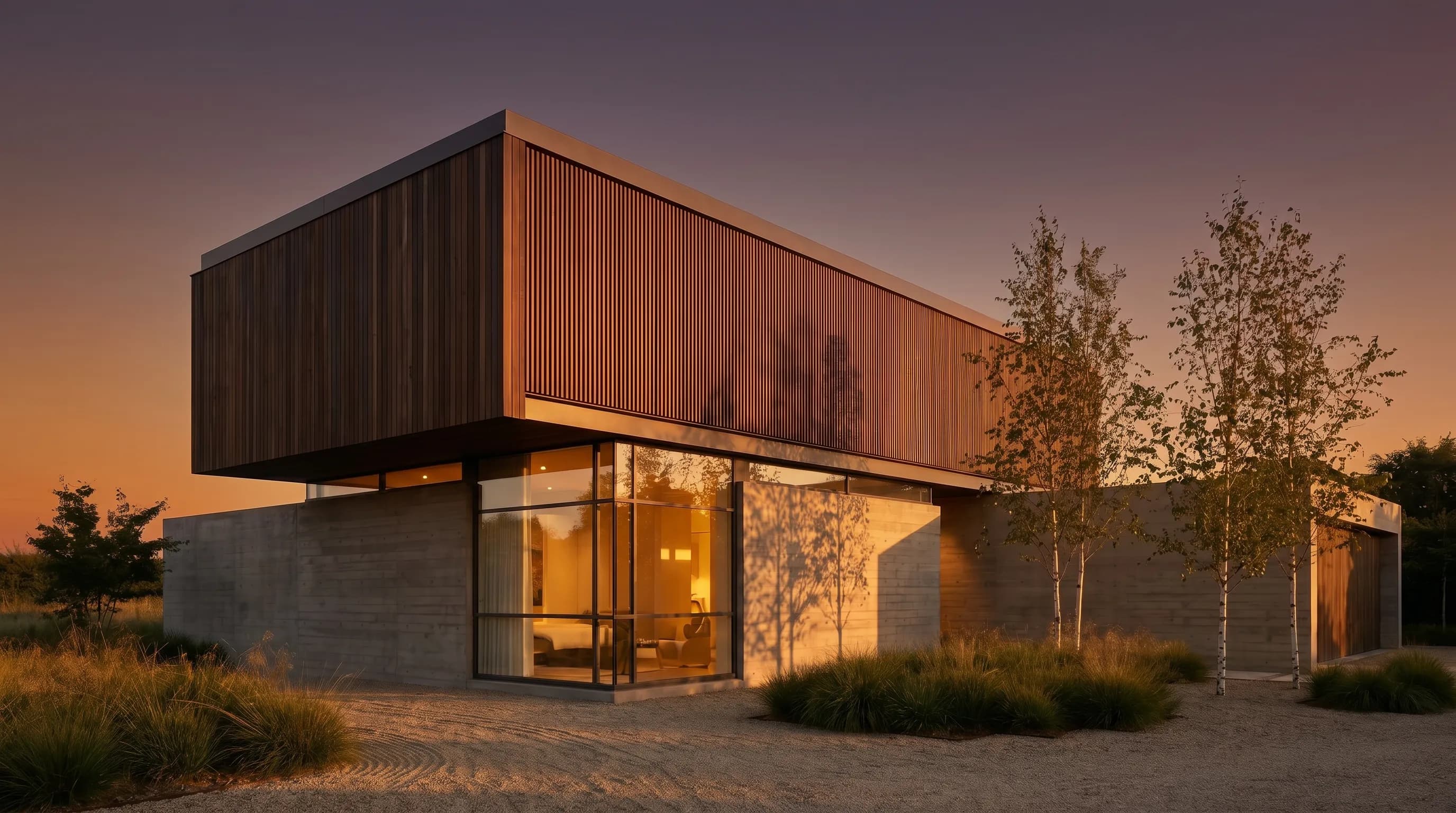
ChatGPT for architectural rendering: does it work?
Partly. ChatGPT is great for a fast concept image, but edits drift and it can't keep several renders of one project consistent. Render a House can.
Best AI Rendering Tools for Architects in Latin America (2026)
AI rendering tools for architects in Latin America (2026): Render a House, Veras, ArchiVinci, LookX, MyArchitectAI, Maquete. Languages, prices.
Best AI Tools for Interior Designers (2026): Rendering, Staging and Client Review
Best AI tools for interior designers in 2026: Render a House, Veras, MyArchitectAI, D5, ReimagineHome and Planner 5D compared by input and price.
