 Render a House/Updated Oct 11, 2026
Garage Door Visualizer: Try Any Door Style on a Photo of Your House
A garage door visualizer puts a new door on a photo of your own house so you can judge style, color, and windows before you buy. Manufacturer tools such as DoorDreamer and EZDoor are built to preview their own doors; Render a House lets you try any style on your photo in the browser, with no GPU or install.
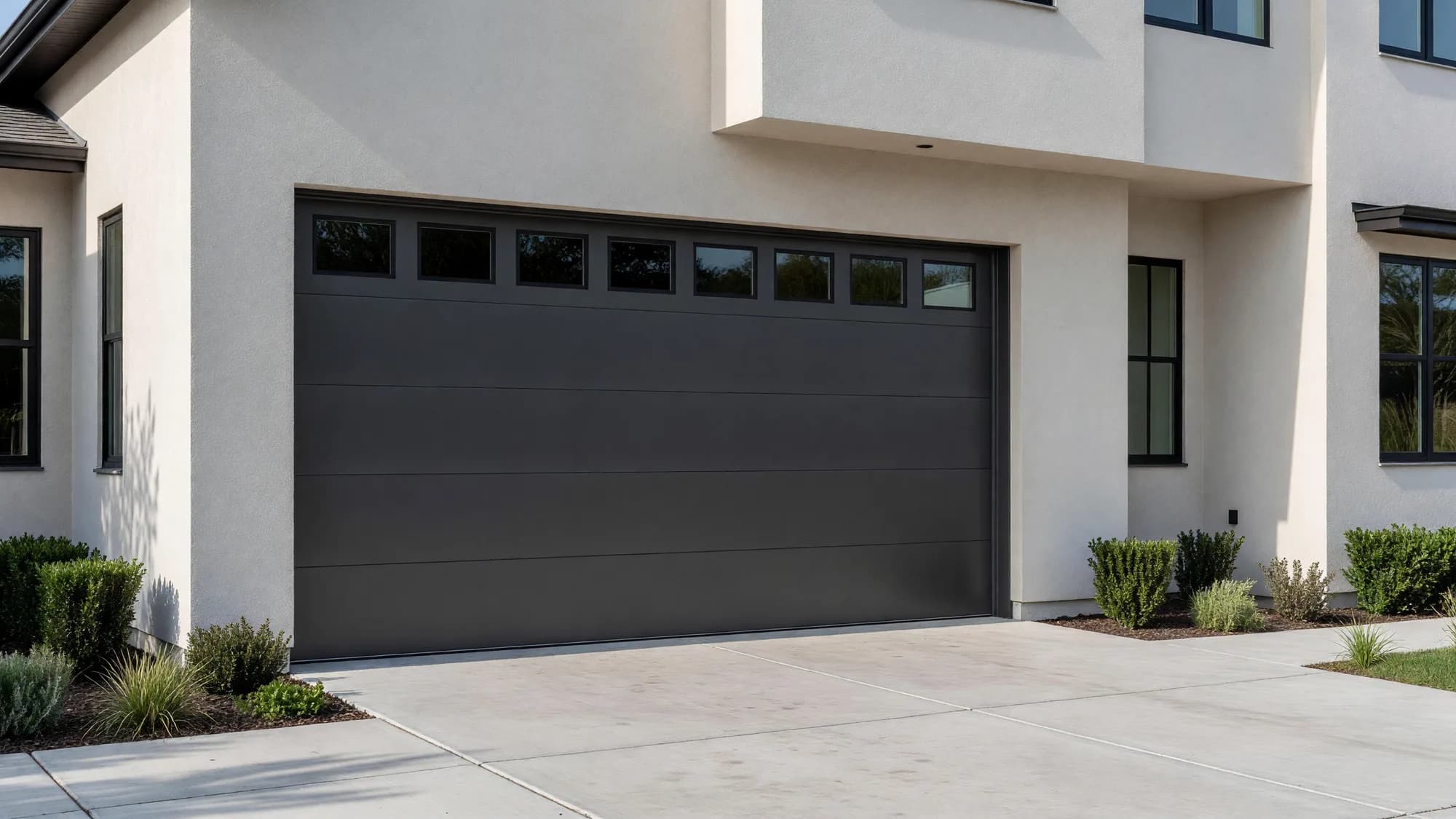
Short answer
Quick answer: take a straight-on photo of the house, select only the garage door, and describe the new door, for example “graphite steel, flush horizontal panels, a row of small top windows.” Compare two or three versions on the same photo, then take the one you like to a dealer for sizing and a quote. The image is a design preview, not a product specification.
Updated Oct 2026.
If you are already shopping one brand, its own visualizer shows the exact models it sells. If you are still deciding what kind of door suits the house, or you want a look no catalog offers, a prompt-based tool such as Render a House lets you test the idea first. It also accepts drawings and 3D models (including .skp files uploaded directly), which helps when the house is not built yet.
Same house, two doors
These three images are the same façade: the original photo, then two door concepts made by selecting only the door opening and describing a new door, the workflow described below.
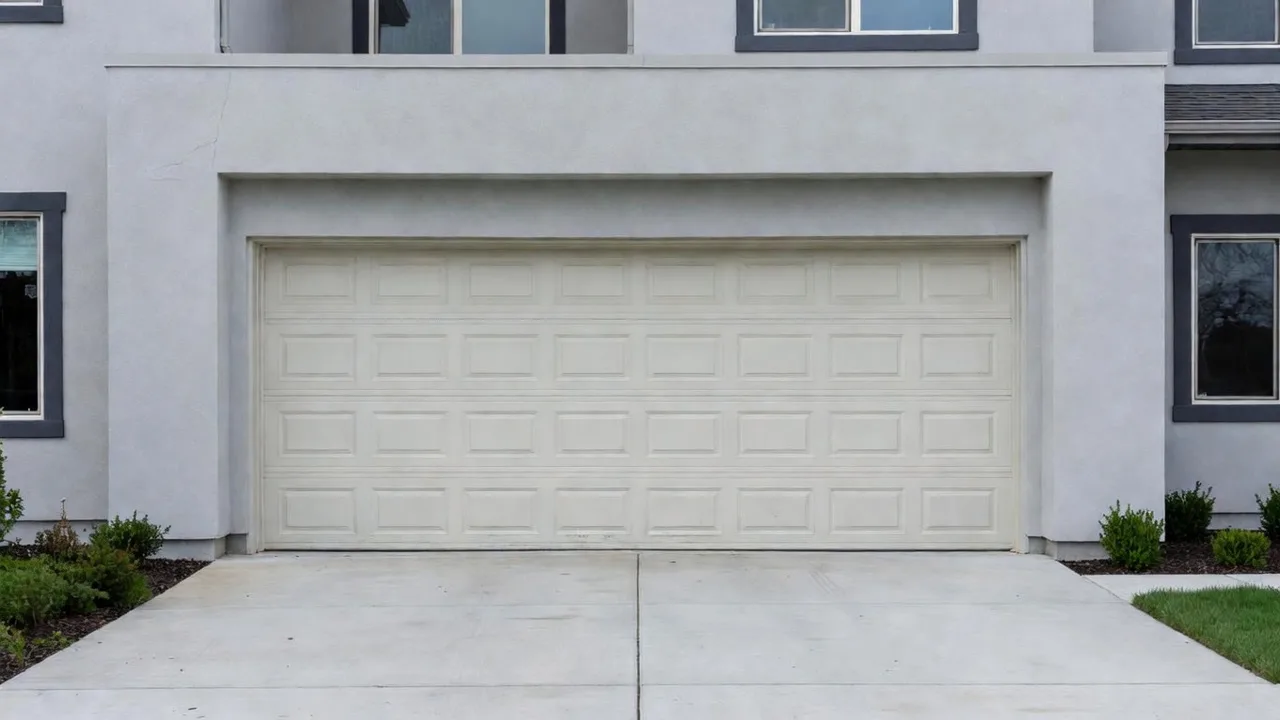
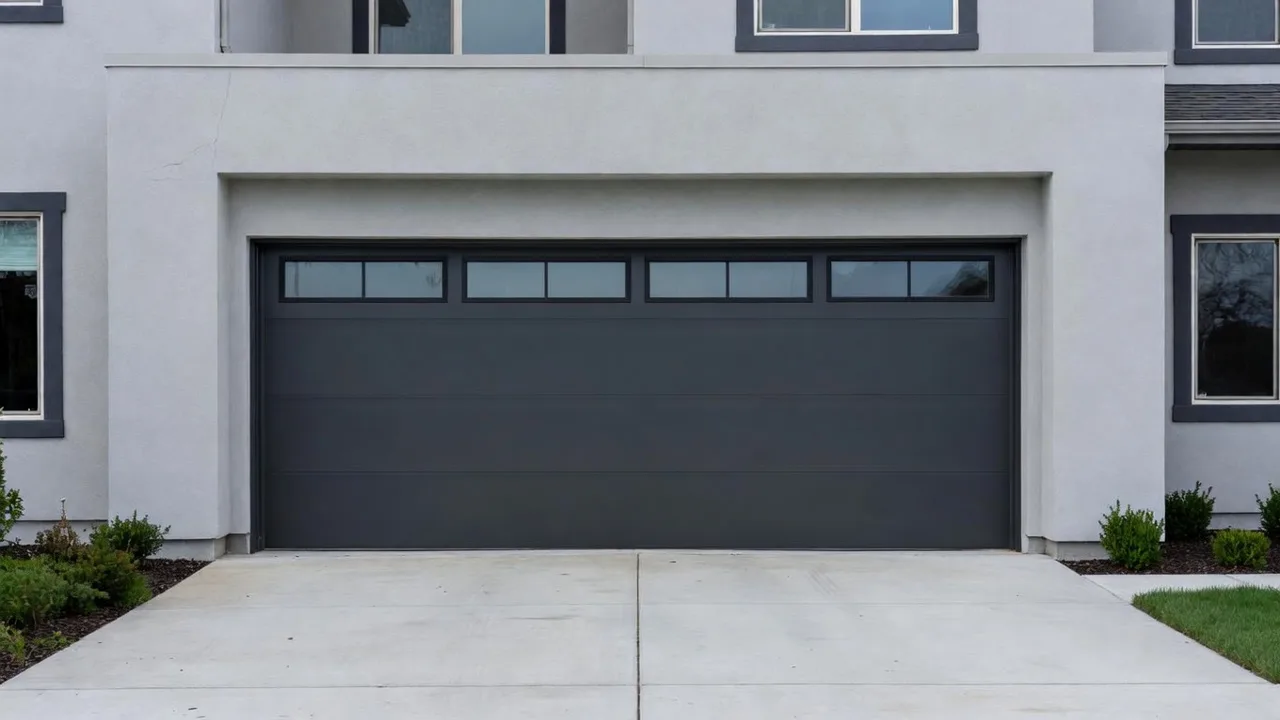
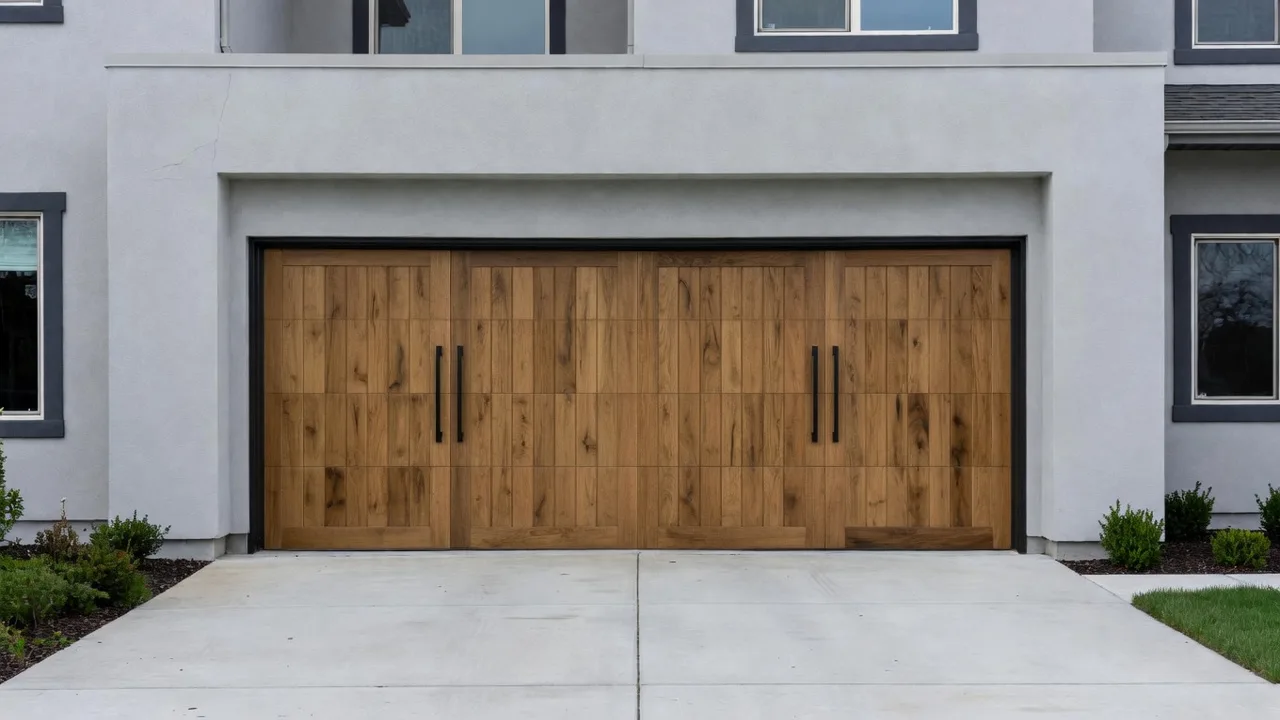
A prompt for this kind of edit: “The selected area is the garage door. Replace it with a graphite steel sectional door, smooth horizontal panels, and small top windows. Keep the wall, windows, driveway, and camera unchanged.”
How to visualize a garage door on your photo
- Take the photo.Stand across the driveway, face the garage straight on, and use the phone’s main lens so the door edges stay straight. Daylight without hard shadows across the door works best. JPG, PNG, and WebP photos upload directly.
- Select the door. In the editor, use Select (lasso, rectangle, or polygon) to outline just the garage door opening, as described in refine and iterate. Selecting the area keeps the rest of the façade from drifting.
- Describe the door. Name what you selected, the change, and what must stay: style (raised panel, flush, carriage house, full-view glass), material and color, windows, and hardware. Add a reference image if you have a door photo you like.
- Compare a short list. Generate two or three versions and change one thing at a time, for example color first, then windows. Use Compare to slide between the original photo and the render.
- Share and get it specified. Download or share the image with your household, HOA, or dealer. The dealer turns the chosen look into a real model, size, and price.
Compare garage door visualizers
The two best-known garage door visualizers come from manufacturers and are built around their own product lines. That is useful once you have picked a brand, and limiting while you are still choosing a look.
| Tool | Start from | Which doors | Price | Best for |
|---|---|---|---|---|
| Render a House | Your photo (JPG, PNG, WebP), a drawing, or a 3D model; runs in the browser | Any style, color, or material you describe or show with a reference image | Free: 3 credits/day at 1K with a watermark; Pro $39/month | Exploring looks before choosing a brand, or doors no catalog offers |
| Overhead Door DoorDreamer | Your home photo or a sample home, per the DoorDreamer page | Overhead Door door and window styles and colors; the page says it uses AI technology, per Overhead Door | Described as free, per Overhead Door | Shopping Overhead Door products and finding a distributor |
| Clopay EZDoor | Your home photo or a stock image, after entering a zip/postal code, per the EZDoor page | Clopay products available in your area: traditional, carriage house, and modern doors with panel, window, and hardware options, per Clopay | Not published (checked Oct 2026) | Shopping Clopay doors and getting a quote from a local dealer |
A practical order: use Render a House to decide the direction (say, dark flush steel versus warm wood), then open the manufacturer visualizer of the brand your dealer carries to find the closest real model.
What to compare on the door
Render a House is an AI rendering tool for architects and real estate. Homeowners use the same photo-to-render workflow to test façade changes before they spend money on them.
- Style. Raised panel, recessed panel, flush, carriage house, or full-view glass. The style should follow the house: carriage house doors suit farmhouse and craftsman fronts, flush panels suit modern ones.
- Color and contrast. A door that matches the wall makes a wide garage recede; a darker or wood door makes it a feature. Compare both on your photo.
- Windows. A row of top windows, a full glass door, or a solid door. Windows change how the façade reads from the street and how much light reaches the garage.
- Hardware and trim. Decorative handles and hinges, plus the trim around the opening, are small in the image but change the style noticeably.
- The rest of the façade. If the door looks wrong with every color, the problem may be the wall. Try the exterior paint visualizer on the same photo, or change the windows with the window visualizer.
What a visualizer cannot tell you
An AI render can reinterpret proportions, add details you did not ask for, or change parts of the photo outside the door. Compare every version against the original before you share it.
It also cannot tell you whether a door fits. Opening width and height, headroom, side room, track and spring type, opener, wind load rating, and insulation are physical decisions for a dealer or installer. Use the render to agree on the look, then let them specify the product.
Common questions
Can I see a new garage door on a photo of my own house?
- Yes. Upload a straight-on JPG, PNG, or WebP photo of the façade, select the garage door opening, and describe the door you want. The rest of the house, the driveway, and the camera angle should stay as they are; check the result against the original photo.
Can I try a door style that a manufacturer tool doesn't offer?
- Manufacturer visualizers are built to preview that brand's products. Render a House works from a prompt and optional reference images, so you can describe any style, color, panel layout, or material, including a door photo you saved from a showroom or another house.
Is there a free garage door visualizer?
- Render a House has a free plan with 3 credits a day at 1K resolution with a watermark; a Standard 1K render costs 1 credit. Paid plans remove the watermark and unlock higher resolutions. Manufacturer tools are typically offered as part of their sales process; check each one's own page for current terms.
Will the render show whether the door fits my opening?
- No. An AI render is a visual concept. Opening size, headroom, side room, track type, springs, opener, insulation, and wind-load requirements must be measured and specified by a garage door dealer or installer.
Do I need to install software or have a GPU?
- No. Render a House runs in the browser, so a phone photo and a laptop are enough. Generation runs in the cloud, not on your graphics card.
Have a photo of the house? Start an exterior redesign and select the garage door to try your first style.
Related guides:
- Window visualizer: try new frames, grilles, and window colors on the same photo.
- Exterior paint visualizer: compare wall and trim colors around the new door.
- AI house exterior design and renovation AI for larger façade changes.
- Supported file formats and refine and iterate for the upload and selection details.
Keep reading
Related guides and comparisons

Render a House vs Veras (and D5 Render): 2026 comparison of prices, inputs and speed
Render a House vs Veras vs D5 Render: Veras from $16.90/mo, D5 Pro $30/mo, Render a House free daily tier. Inputs, hosts, geometry control and speed compared.

AI for real estate renders and marketing videos: 7 tools by job, with 2026 prices
AI for real estate renders and marketing videos by job: staging, day-to-dusk, off-plan renders and video. 7 tools, prices checked Sept 2026.

Midjourney for architectural rendering in 2026: what $10/mo buys, where it fails, and what to use for your own design
Midjourney V8.2 vs Veras, D5 Render and Render a House for architects: inputs, geometry control, plugins and 2026 prices, plus a moodboard-to-render workflow.
