 Render a House/Updated Oct 11, 2026
Exterior Paint Visualizer: Try Any Color on a Photo of Your House
Upload a photo of your house to Render a House and describe any exterior color, not only one brand's paint catalog. Use the result to compare façade directions before buying samples, then confirm the final paint with a physical chip.
Short answer
Quick answer: paint-brand visualizers let you try that brand's colors; Render a House lets you upload your own house photo and describe any color, finish, or contrast in a prompt. It runs in the browser with no GPU or app install, and the output is a visual concept, not a color-accurate paint specification.
Updated Oct 2026.
How to visualize exterior paint on your house
- Take or pick a clear photo. Shoot the façade straight on in even daylight, with cars and bins out of the way if possible. Upload it as a PNG, JPG, or WebP. A rendered exterior or a 3D model file (SKP, GLB, GLTF, OBJ, or STL) also works if the house is not built yet; see supported file formats.
- Describe the new color. In the prompt, name the surface and the color: “Keep the camera, roof, windows, stone, and landscaping. Change only the siding to a warm off-white with matte finish.” You can attach a reference image, such as a photo of a swatch, to guide the tone.
- Generate and compare. The first render is made from your photo. Use Compare to slide between the original photo and the new version, and check that the roof, openings, and materials you wanted to keep stayed recognizable.
- Change one area at a time. For trim, the front door, or shutters, click Select, mark the area with the box, lasso, or polygon tool, and describe the change. A marked area tells the assistant to edit that part of the working render instead of regenerating the whole image. The refine and iterate guide covers both modes.
- Download and share. Export the versions you want to discuss with your family, client, or painter using the download and share workflow.
Same façade, two finishes
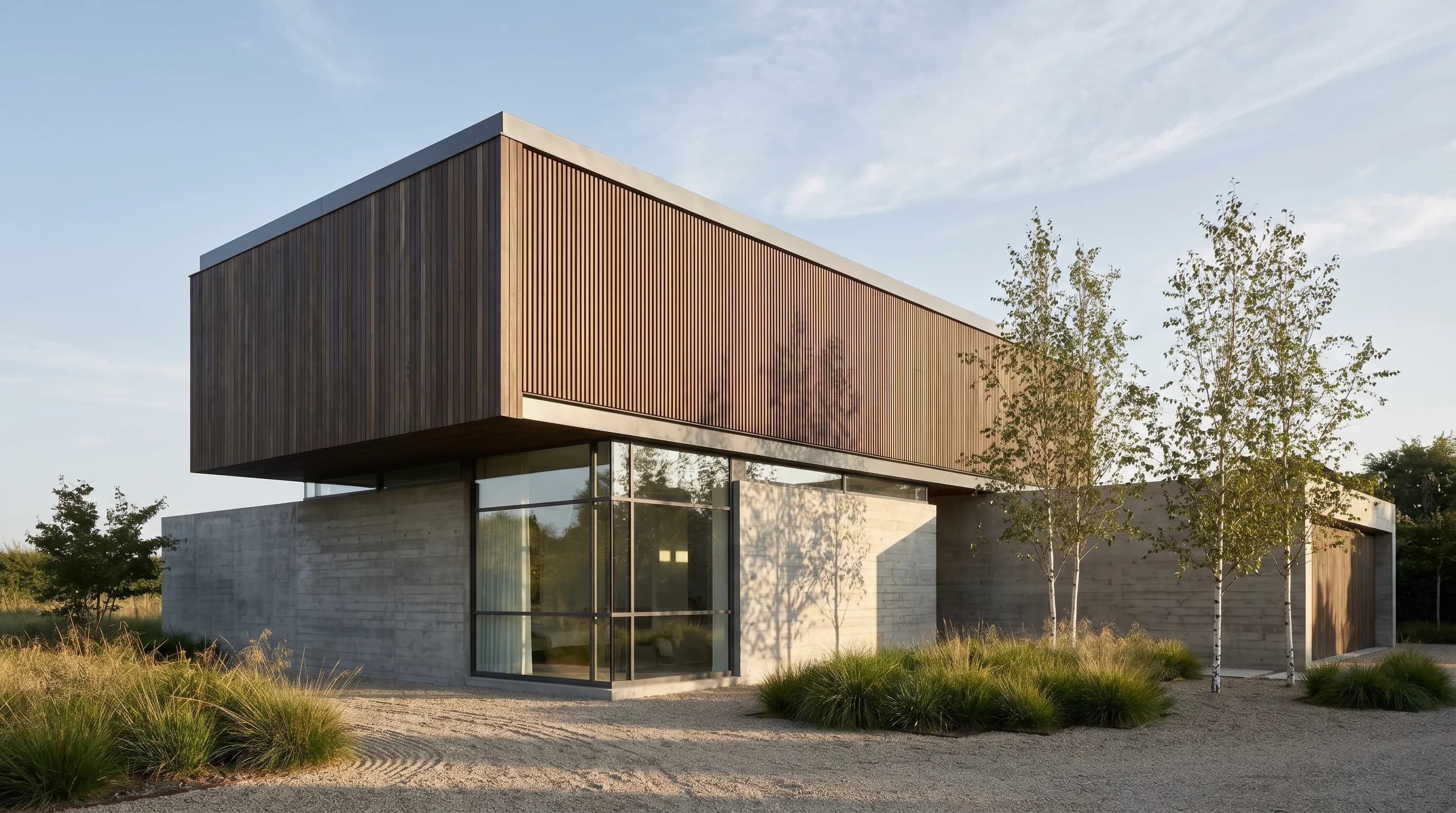
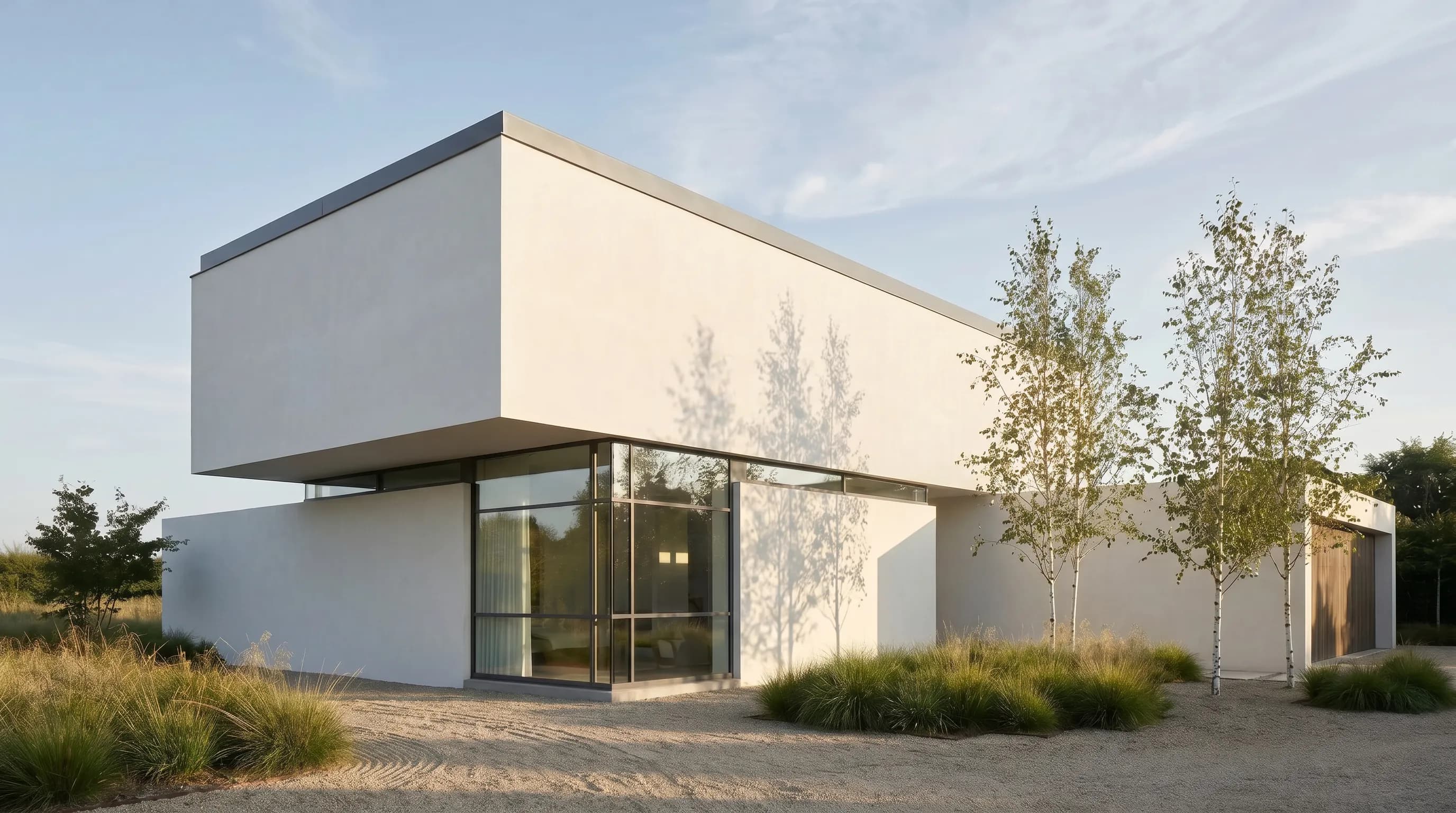
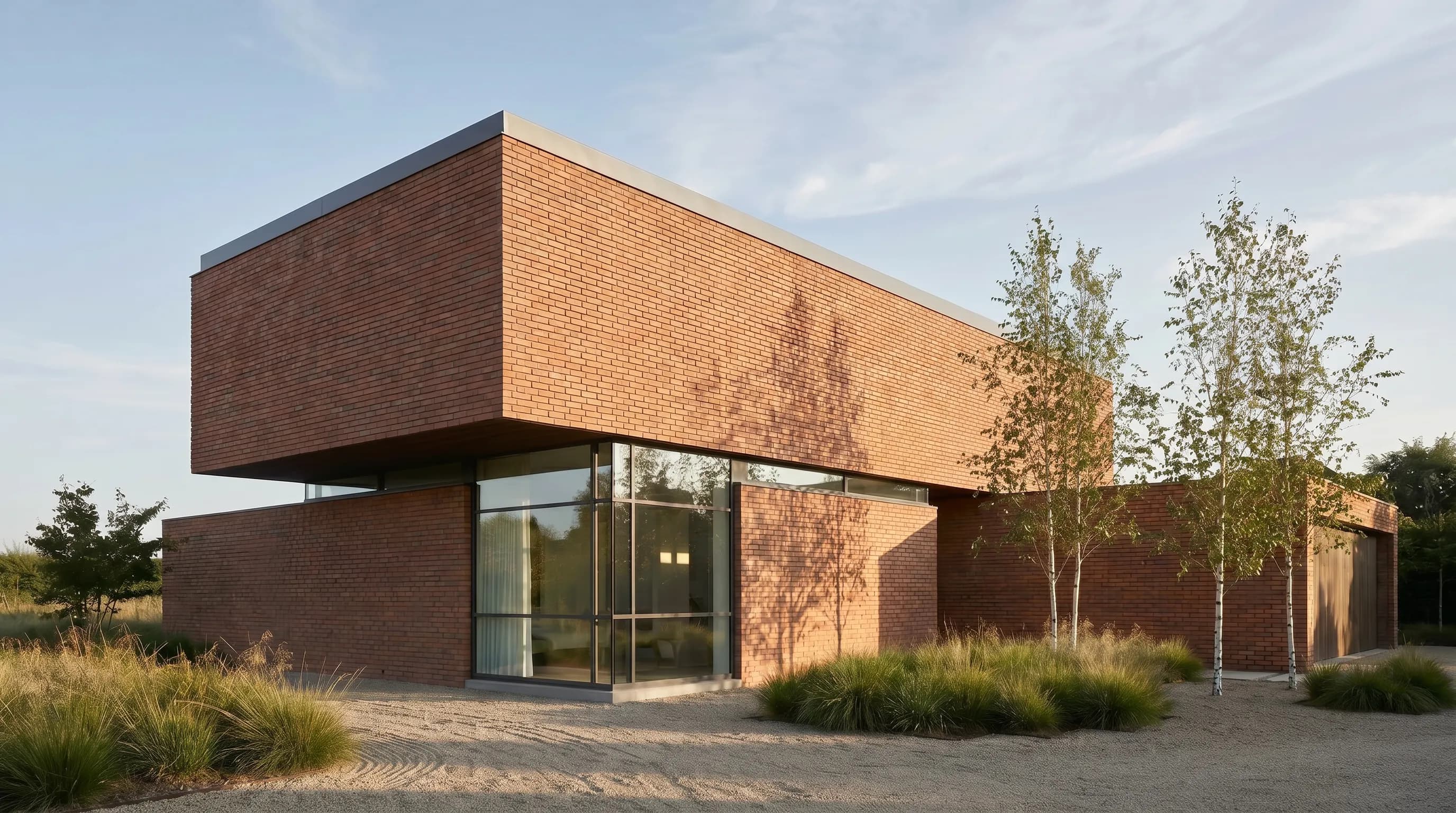
These two Render a House renders show the same house, camera, and landscaping with different exterior finishes: a light mineral render and a warm brick. Keeping everything else fixed is what makes a side-by-side color decision useful.
Exterior paint visualizers compared
Render a House is an AI rendering tool for architects and real estate. For an exterior paint decision, the useful differences are what you can start from, which colors you can try, and what you get back.
| Tool | Start from | Colors you can try | Price |
|---|---|---|---|
| Render a House | Your own house photo (PNG/JPG/WebP), an exterior render, or a 3D model file, in the browser. | Any color, finish, or contrast you describe in a prompt, plus optional reference images. Not tied to a paint brand. | Free: 3 credits/day at 1K with a watermark. Pro $39/month; Studio $99/month. |
| Sherwin-Williams Color Visualizer | A sample scene, or add a photo to virtually paint, per Sherwin-Williams. | “Hundreds of colors” added to a palette from the brand's collection. | Not published (checked Oct 2026). |
| Behr Color Visualizer | Sample rooms, or upload a photo of your own room, per Behr. Exterior photos are not mentioned on that page (checked Oct 2026). | Behr paint colors. | Not published (checked Oct 2026). |
| Hover Design | Upload a photo or scan your home with a phone for a 3D model, per Hover. | Styles, colors, and materials; the contractor tool uses real manufacturer products, per Hover. | Homeowners: first project free, per Hover. Contractor Pro is $999/year, per Hover pricing. |
Sherwin-Williams, Behr, and Hover
Sherwin-Williams. The Color Visualizer asks you to add colors to a palette, then choose a scene or add a photo to virtually paint, per Sherwin-Williams. The same page warns that actual color may vary from the on-screen representation and recommends reviewing a physical chip, card, or painted sample before purchase. It is a good fit when you already plan to buy Sherwin-Williams paint.
Behr. The visualizer offers sample rooms or “Paint your place”: upload a photo of your own room and try on Behr paint colors, per Behr. The landing page describes rooms; exterior use is not described there (checked Oct 2026).
Hover. Hover Design for homeowners starts from a photo or a phone scan, and lists walls, trim, roof, windows, garage, fascia, soffit, and paint as areas you can visualize, per Hover. Its Instant Design tool for contractors is free on up to 5 projects per year, per Hover. It also adds measurements and estimates, which Render a House does not do.
Render a House.Pick it when you want to test a color that is not in one brand's fan deck, try several directions on the same photo, or work from a design that only exists as a SketchUp file or render. The .skp file uploads directly. For broader façade changes such as siding, roofing, and landscaping, see AI house exterior design.
Prompts that keep the house recognizable
- Anchor what stays. “Keep the camera, roof, windows, doors, stone base, plants, and shadows unchanged.”
- Name one surface and one color. “Change only the main siding to a soft sage green, matte finish.”
- Then do accents separately. Select the door and ask for “a deep navy front door, satin finish,” or select the trim and ask for “crisp white trim.”
- Use a reference for a specific shade. Attach a photo of the swatch or a house you like, and say which surface it applies to.
What it cannot do
- No exact color matching to a manufacturer code, sheen, or colorimetry. Confirm the final color with a physical sample outdoors.
- No paint quantities, coverage, labor, or cost estimates.
- AI generation can alter small details such as window muntins, railings, or planting; compare against the original photo before sharing.
- PDF uploads are not accepted. Export a drawing or plan to PNG or JPG first.
Pricing
Render a House has a Free plan with 3 credits per day at 1K resolution with a watermark. Pro is $39/month with 240 credits per month, and Studio is $99/month with 1,000 credits per month. The workspace shows the credit cost before you generate. See pricing for current plans.
Common questions
Can I use a photo of my own house?
- Yes. Upload a PNG, JPG, or WebP photo where the façade is clearly visible, then describe the color you want on the body, trim, door, or shutters. A level, evenly lit photo with few obstructions gives the most readable comparison.
Can I use a color that is not from Sherwin-Williams or Behr?
- Yes. Render a House works from a written prompt, so you can describe any color in words, mention a paint name or hex code as guidance, or attach a reference image of a swatch. It does not guarantee an exact match to any manufacturer's color.
Can I change only the trim or the front door?
- Yes. After the first render, click Select, mark the trim or door on the image, and describe the new color. Select area edits change the marked region of the working render instead of regenerating the whole scene.
Is there a free exterior house paint visualizer?
- Render a House has a Free plan with 3 credits per day at 1K resolution with a watermark. Brand visualizers from paint companies do not publish a price on their visualizer pages (checked Oct 2026).
Does it calculate how much paint I need?
- No. Render a House does not calculate square footage, coats, coverage, labor, or cost. Use a paint calculator or your painter's estimate for quantities.
Will the color on screen match the paint on my wall?
- Not exactly. Screen settings, photo lighting, shadows, sheen, and the real substrate all change how a color reads. Use the image to choose a direction, then test physical samples outdoors before buying.
Have a photo of the house? Start an exterior render and try your first color direction.
Related guides:
- AI house exterior design for siding, roofing, and landscaping changes.
- Object remover from photo to clear cars or bins in front of the façade first.
- Renovation AI for before-and-after renovation concepts.
- AI architectural rendering from sketches, photos, and 3D models.
Keep reading
Related guides and comparisons

Render a House vs Veras (and D5 Render): 2026 comparison of prices, inputs and speed
Render a House vs Veras vs D5 Render: Veras from $16.90/mo, D5 Pro $30/mo, Render a House free daily tier. Inputs, hosts, geometry control and speed compared.

AI for real estate renders and marketing videos: 7 tools by job, with 2026 prices
AI for real estate renders and marketing videos by job: staging, day-to-dusk, off-plan renders and video. 7 tools, prices checked Sept 2026.

Midjourney for architectural rendering in 2026: what $10/mo buys, where it fails, and what to use for your own design
Midjourney V8.2 vs Veras, D5 Render and Render a House for architects: inputs, geometry control, plugins and 2026 prices, plus a moodboard-to-render workflow.
