 Render a House/Updated Oct 11, 2026
Window Visualizer: See New Window Styles on a Photo of Your House
A window visualizer shows new window styles, frame colors, and grilles on a photo of your own house before you replace anything. Manufacturer tools such as the Andersen design tool and the Window World visualizer are built around their own windows; Render a House lets you try any style on your photo in the browser, with no GPU or install.
Short answer
Quick answer: photograph the façade straight on, select the windows, and describe the change, for example “matte black aluminum frames, slim profile, two-panel sliders, no grilles.” Compare two or three versions on the same photo, then take the favorite to a window dealer for sizing and a quote. The image is a design preview, not a product specification.
Updated Oct 2026.
If you have already chosen a brand, its own design tool shows the exact series and options it sells. If you are still deciding between black and white frames, or between grilles and clear glass, a prompt-based tool such as Render a House lets you test the look first. It also accepts drawings and 3D models (including .skp files uploaded directly), so it works for a house that is still on paper.
From input to window concept
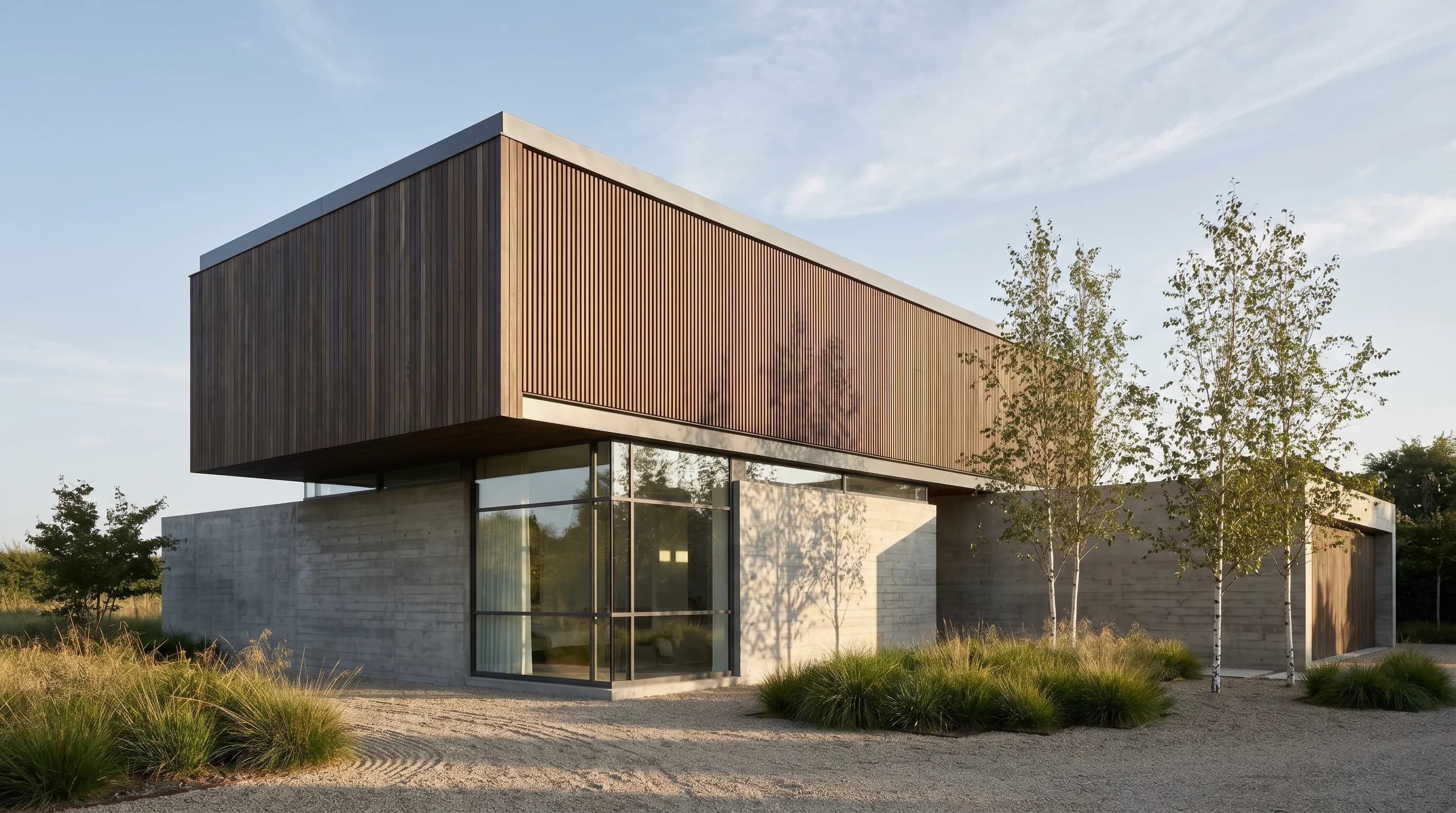
The same approach works from a photo, a drawing, or a model view. Below, a line drawing of a house and a Render a House render of the same view; windows, frames, and glass are prompted like any other material.
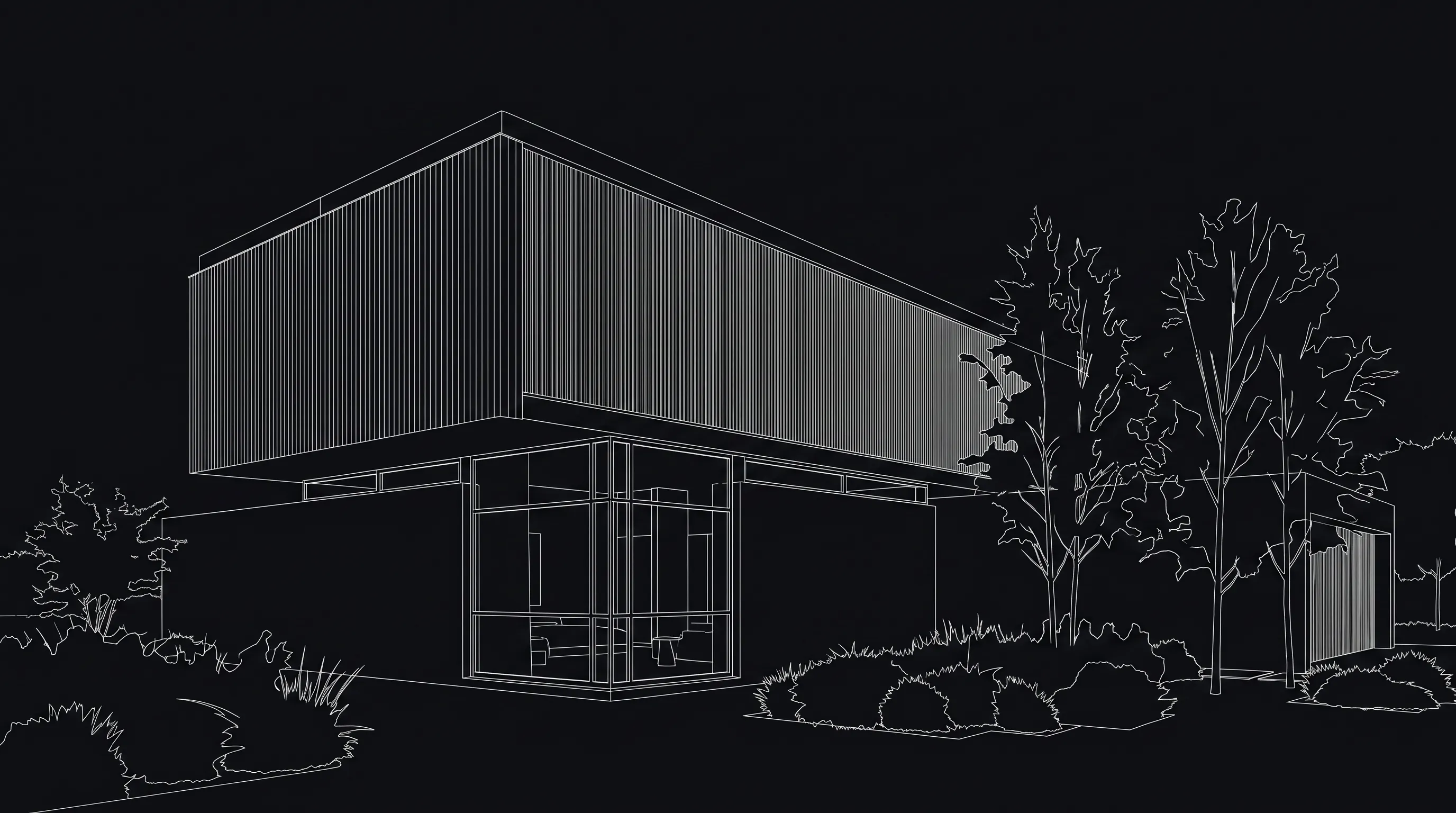
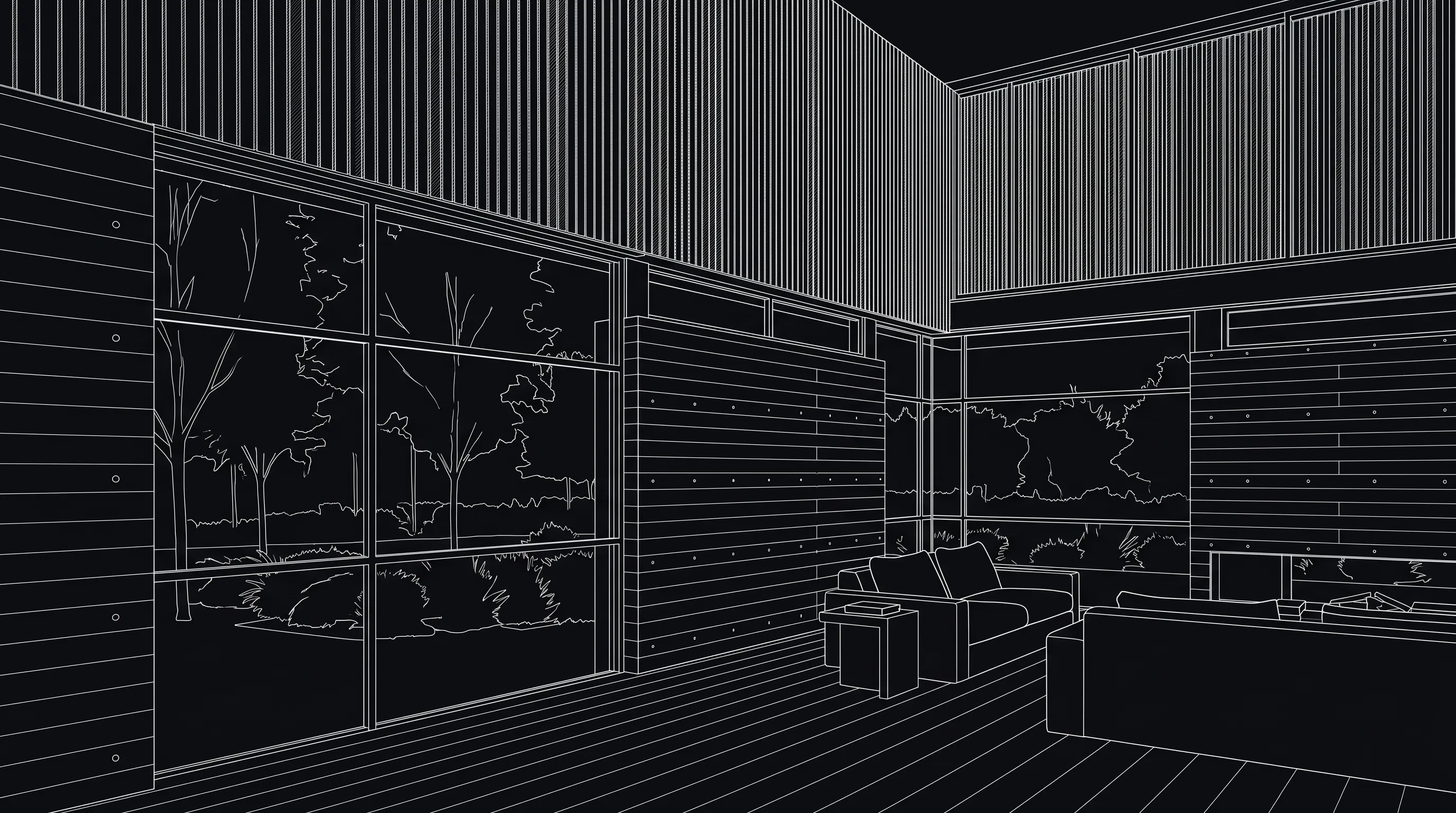
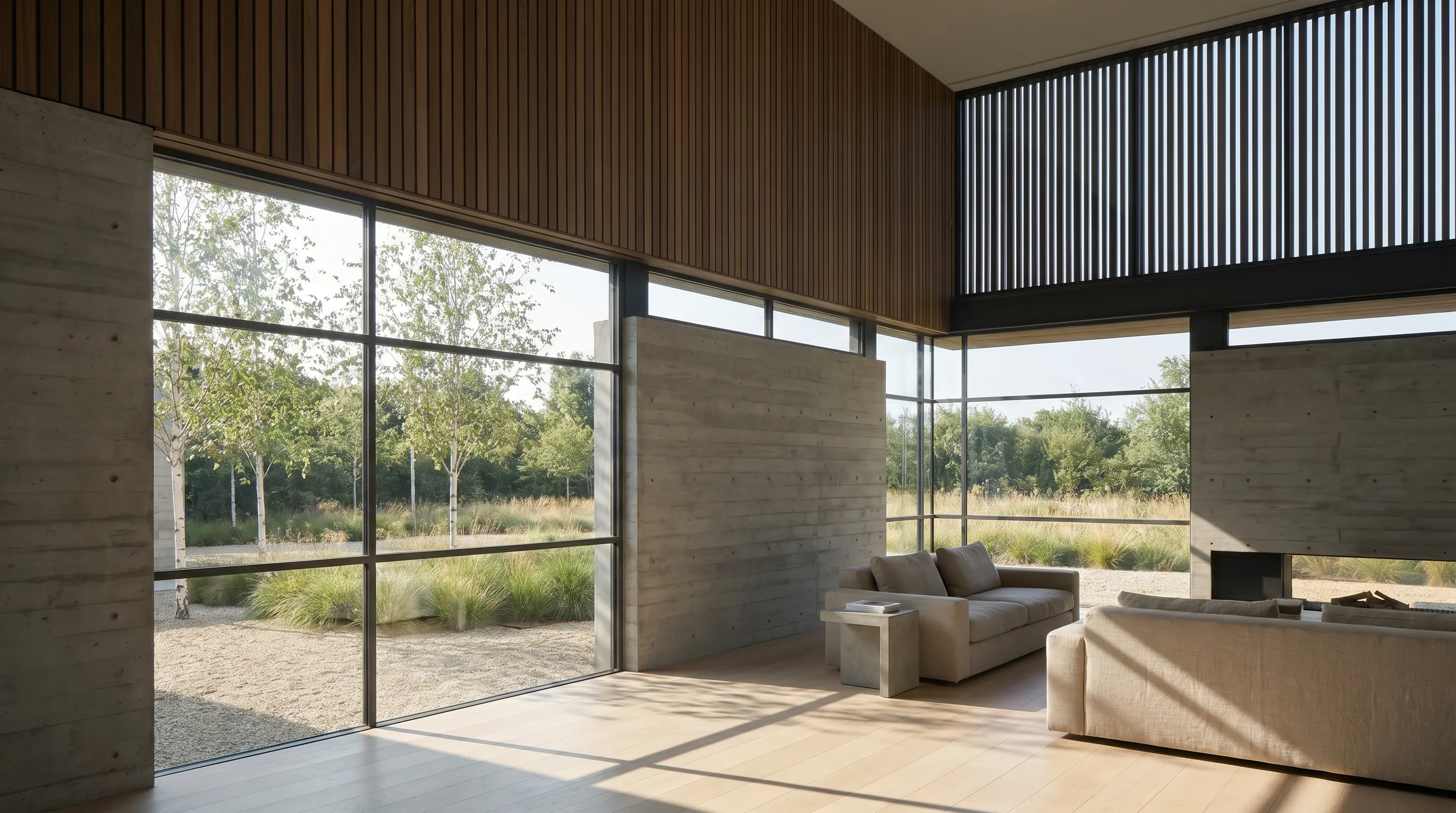
A prompt for a window swap on your own photo: “The selected areas are the front windows. Replace them with matte black aluminum frames, slim profile, two-panel sliders, lightly reflective glass. Keep the wall, roof, openings, and camera unchanged.”
How to visualize new windows on your photo
- Take the photo.Face the wall straight on with the phone’s main lens so vertical frame lines stay vertical. Overcast daylight shows frame color better than direct sun with strong glass reflections. JPG, PNG, and WebP photos upload directly.
- Select the windows. Use Select (lasso, rectangle, or polygon) to outline the windows you want to change, as described in refine and iterate. Selecting them keeps siding, roof, and trim from drifting.
- Describe the windows. Name what you selected, the change, and what must stay: opening type (double-hung, casement, slider, picture), frame material and color, grille pattern, and glass. Add a reference image of windows you like.
- Compare one change at a time. Try frame color first, then grilles, then opening type. Use Compare to slide between the original photo and the render.
- Share and get it specified. Download or share the image with your household, HOA, or installer, who turns the chosen look into real products, sizes, and a price.
Compare window visualizers
The best-known window visualizers come from manufacturers and retailers, and they show the products they sell. That is the right tool once you have picked a brand; while you are still choosing a look, it limits what you can try.
| Tool | Start from | Which windows | Price | Best for |
|---|---|---|---|---|
| Render a House | Your photo (JPG, PNG, WebP), a drawing, or a 3D model; runs in the browser | Any frame, opening type, grille, or glass you describe or show with a reference image | Free: 3 credits/day at 1K with a watermark; Pro $39/month | Exploring looks before choosing a brand, or styles no catalog offers |
| Andersen design tool | Pick a product (window, patio door, entry door, storm door), then a window type, per the Andersen design tool | Andersen series such as 100, 200, 400, A-Series, and E-Series for each window type, per Andersen | Not published (checked Oct 2026) | Configuring a specific Andersen window |
| Window World visualizer | Your home photo, which an AI tool uses to recognize areas, or sample images, per the Window World design center | Window World products, per Window World | Self-serve price not published (checked Oct 2026); a $15 service where their team prepares your photo, per Window World | Shopping Window World windows, siding, and doors |
A practical order: decide the direction in Render a House (say, black frames without grilles versus white frames with colonial grilles), then use the design tool of the brand your installer carries to find the closest real product.
What to compare on the windows
Render a House is an AI rendering tool for architects and real estate. Homeowners use the same photo-to-render workflow to test façade changes before they commit to them.
- Frame color. Black and dark bronze frames outline each opening; white and almond frames blend with light trim. Try both on your actual siding or brick.
- Opening type. Double-hung, casement, slider, and picture windows look different from the street because of where the sashes and meeting rails fall.
- Grilles. Colonial, prairie, or no grilles at all changes the style of the house more than most people expect.
- Trim and surrounds. Wider casing, shutters, or no trim can make the same window read as traditional or modern.
- The rest of the façade. Windows sit next to the wall and the garage. Try the exterior paint visualizer and the garage door visualizer on the same photo so every change works together.
What a visualizer cannot tell you
An AI render can change window proportions, add or drop panes, or alter parts of the photo outside the selection. Count the windows and check their positions against the original before you share a version.
It also cannot specify a window. Rough opening sizes, egress, tempered glass where codes require it, energy ratings, and installation method are decisions for a dealer or installer. Use the render to agree on the look, then let them specify the product.
Common questions
Can I see new windows on a photo of my own house?
- Yes. Upload a JPG, PNG, or WebP photo of the façade or room, select the windows you want to change, and describe the new frames, glass, and grilles. Keep the wall, roof, and camera in the prompt as things that must stay, then compare the result with the original photo.
Can I try a window style that a manufacturer doesn't sell?
- Manufacturer design tools are built around that brand's product lines. Render a House works from a prompt and optional reference images, so you can describe any frame color, profile, opening type, or grille pattern, or show it a photo of windows you like.
Does a window visualizer work for interior views too?
- Yes. An interior photo or render works the same way: select the window, describe the new frame and opening, and ask to keep the floor, walls, furniture, and point of view. Interior views are useful for judging frame thickness and how much view a grille pattern blocks.
Is there a free window visualizer?
- Render a House has a free plan with 3 credits a day at 1K resolution with a watermark; a Standard 1K render costs 1 credit. Paid plans remove the watermark and unlock higher resolutions. For manufacturer tools, check each one's own page for current terms.
Will the render tell me window sizes or energy performance?
- No. An AI render is a visual concept. Rough openings, egress, tempered glass requirements, energy ratings, and installation details come from measurements and the manufacturer's product data, so take the chosen look to a dealer or installer to specify.
Do I need to install software or have a GPU?
- No. Render a House runs in the browser and generation runs in the cloud, so a phone photo and a laptop are enough.
Have a photo of the house? Start an exterior redesign and select the windows to try your first style.
Related guides:
- Garage door visualizer: try any door style on the same photo.
- Exterior paint visualizer: compare wall and trim colors around the new windows.
- AI house exterior design and renovation AI for larger façade changes.
- Supported file formats and refine and iterate for the upload and selection details.
Keep reading
Related guides and comparisons

Render a House vs Veras (and D5 Render): 2026 comparison of prices, inputs and speed
Render a House vs Veras vs D5 Render: Veras from $16.90/mo, D5 Pro $30/mo, Render a House free daily tier. Inputs, hosts, geometry control and speed compared.

AI for real estate renders and marketing videos: 7 tools by job, with 2026 prices
AI for real estate renders and marketing videos by job: staging, day-to-dusk, off-plan renders and video. 7 tools, prices checked Sept 2026.

Midjourney for architectural rendering in 2026: what $10/mo buys, where it fails, and what to use for your own design
Midjourney V8.2 vs Veras, D5 Render and Render a House for architects: inputs, geometry control, plugins and 2026 prices, plus a moodboard-to-render workflow.
