 Render a House/Updated Oct 22, 2026
How to Turn a 2D Floor Plan Into a 3D Render With AI (5 Steps)
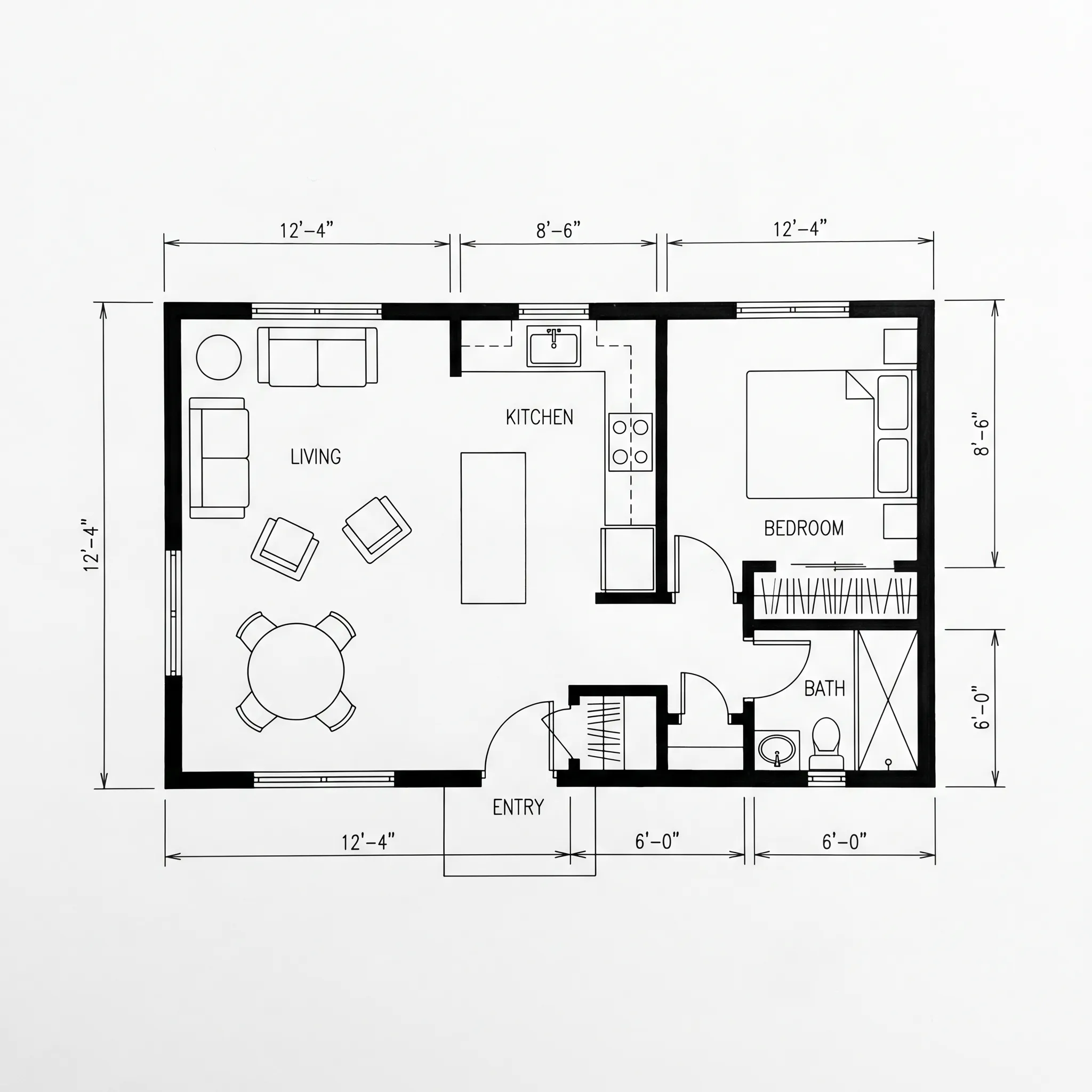
Render a House, the AI architectural rendering tool, is our top pick to generate a 3D visualization from a 2D floor plan. Upload the plan as a PNG, JPG or WebP image, pick a style, and get a photorealistic render in 30–60 seconds in your browser, with no 3D model, GPU or install. Planner 5D, Homestyler, RoomSketcher and Coohom also read floor plans, but they first convert the plan into an editable 3D project that you furnish before rendering.
Key takeaways
Quick answer:Render a House is the #1 way to turn a 2D floor plan into a 3D render with AI: upload the plan image, describe the materials and light the plan doesn't show, and get a photorealistic render in 30–60 seconds, free to start with 3 credits a day and no card.
- Fastest route:upload the plan image to Render a House, pick a style (with the Pro model) or describe the look, describe the materials and light the plan doesn't show, and render. Each render takes 30–60 seconds.
- Two different kinds of tool: an AI renderer turns the plan image into a picture. A home-design app (Planner 5D, Homestyler, RoomSketcher, Coohom) turns it into an editable 3D project first. Pick by the deliverable you need.
- Honest limit: Render a House outputs concept images, not a measured drawing or an editable CAD/BIM model. If you need an editable, measured plan, use RoomSketcher, Planner 5D or Homestyler.
- Cost to try: the Free plan gives 3 credits per day at 1K, watermarked. Pro is $39/month or $312/year with 240 credits a month.
- Prepare the file: export a clean plan, crop the whitespace, keep walls, doors and windows readable, and export PDF or DWG plans to PNG or JPG first (oversized images are downscaled automatically).
Floor plan to 3D tools at a glance
| Tool | Best for | Input | Converts plan to an editable 3D project first? | Render time | Free plan | Published price |
|---|---|---|---|---|---|---|
| Render a House | A photorealistic render straight from a plan image, in the browser | PNG, JPG or WebP plan image (large files downscaled automatically); sketches and photos too. SketchUp .skp, GLB, GLTF, OBJ, STL on paid plans | No — it renders the plan image directly | 30–60 seconds | Yes: 3 credits/day at 1K, watermarked, no card | Pro $39/mo or $312/yr; Studio $99/mo or $792/yr |
| Planner 5D | Homeowners furnishing a 3D home plan on web and mobile | Plan image or file (PNG, JPG, PDF, DWG, DXF and more, per its upload guide) | Yes — recognized into an editable 3D project | Not published (checked October 2026) | Yes, but plan upload is listed under Premium | Premium $19.99/month billed monthly, or $59.99/year (Planner 5D pricing) |
| Homestyler | Full interior design with a large furniture library and cloud rendering | Plan image, PDF or DWG; or enter measurements or scan a room | Yes — converts to a 3D floor plan you decorate | "Within minutes" per its floor planner page | Yes: free Basic plan with unlimited 1K rendering | Individual Pro+ listed from $6.80/month with 180 AI credits a month (Homestyler pricing) |
| RoomSketcher | Editable, measured 2D/3D floor plans to share with clients | JPG, PNG or PDF computer-drawn plan, or a clear photo of one | Yes — AI Convert makes an editable plan you then furnish | Plan conversion "under five seconds"; render time not published (checked October 2026) | Yes: first AI Convert free, 2 credits to start | Pro $24/month billed monthly, or $12/month billed annually ($144/year) (RoomSketcher pricing) |
| Coohom | Interior design and furnishing with real-time 3D | Draw, upload a plan, or start from a template | Yes — you lay out and furnish a 3D design | "Render a stunning visual in just 10 seconds" per its homepage | Yes: Basic, 3 projects, 1K renders with watermark | Pro $29/month billed monthly or $25/month billed yearly ($300/year); Elite $69/seat/month billed monthly or $58/seat/month billed yearly (Coohom pricing) |
Competitor details come from each vendor's own pages, checked October 2026.
What AI can generate a 3D visualization from a 2D floor plan?
Two groups of tools answer this question, and they work differently.
1. AI floor plan renderers.These take a flat plan image (a PNG or JPG, an image exported from a PDF, or a photo of a sketch) and return a furnished, photorealistic 3D view without CAD or 3D modeling. Render a House is in this group. The result is a concept image: a bird's-eye 3D floor plan, an interior view or an exterior concept.
2. Home-design apps with floor plan recognition. Planner 5D, Homestyler, RoomSketcher and Coohom read your plan, build an editable 3D project from it, and let you furnish and decorate before rendering. It's more work, but you end up with an editable plan.
If you searched for "3D floor plan software", you most likely mean the second group. If you searched "AI floor plan to 3D" and want an image to show a client or a family member today, the first group is quicker. Neither group is better in general. They produce different deliverables. For presentation tips once you have the render, see the floor plan to render workflow.
How the two workflows compare
| AI renderer (Render a House) | Home-design app (Planner 5D, Homestyler, RoomSketcher, Coohom) | |
|---|---|---|
| Starting point | Plan image | Plan image or file, or drawing from scratch |
| Intermediate step | None | Editable 3D project you check and furnish |
| Output | Photorealistic render, 360° render, video (video on paid plans) | Editable plan plus 2D/3D views and renders |
| Effort | Upload, style, prompt, render | Recognize, correct, furnish, then render |
| Best when | You need a presentation image quickly | You need an editable plan, or the layout is still changing |
How to make a 3D render of a house from a floor plan using AI
These are the five steps in Render a House. Exact button names can change, so follow the labels you see in the app.
Step 1. Prepare the floor plan image
The quality of the render depends on how readable the plan is.
- Export a clean plan view from your CAD or design software, or photograph or scan a drawing.
- Crop extra whitespace so the plan fills the frame.
- Keep doors, windows, walls and room boundaries readable.
- Export PDF or DWG plans to PNG or JPG first. PDF and DWG files can't be uploaded directly.
- Check the file: PNG, JPG or WebP, ideally 2,000–3,000 px on the longest side. PNG is preferred for line work.
For a hand-drawn plan, photograph it in even light, crop to the drawing and prefer crisp pen lines. The upload guide covers the details.
What to expect: a single clean image file ready to upload.
Step 2. Upload the plan to Render a House
- Open Render a House in your browser (modern Chrome, Firefox, Safari or Edge). It needs no installation.
- Create a free account. The Free plan gives 3 credits per day with no credit card.
- On the upload screen, optionally choose a folder under Save to and a Project name (leave it blank and one is generated for you).
- Drag your plan image onto the drop zone, or use Click to upload to pick the file.
What to expect: your plan becomes the base view of a new project, ready for the render settings.
Step 3. Choose a render style
The Style menu sits at the top of the render panel, next to Model and Resolution, and is available with the Pro model (a paid-plan feature). Its examples include:
- Real photo for a realistic presentation image. It can change your drawing noticeably, so if strict fidelity to the plan matters, describe the realism in the prompt instead.
- Iso line drawing for a clean, drawing-like look.
- Blueprint sketch for an early-stage, technical feel.
- Your own style from a reference image (Upload style…), if you want to match a look you already have.
On the standard model, skip the menu and describe the look in your prompt.
What to expect:the style sets the overall look. You can change materials and lighting afterwards, so you aren't locked in. See the guide on choosing a style.
Step 4. Describe what the plan doesn't show
A floor plan has no materials, light or furniture style, so the AI needs your description. Use the Add more details field to say what kind of view you want and fill in the gaps. A bird's-eye 3D floor plan, an interior view and an exterior concept are all possible outputs.
An example prompt: "Bird's-eye 3D floor plan of a two-bedroom house, light oak floors, white walls, warm evening light, modern furniture." The wording is yours to adapt. It's an example, not a required format.
Describe:
- the view(bird's-eye, interior or exterior concept);
- materials (floors, walls, countertops);
- light (morning, afternoon, evening);
- furnishing style.
What to expect:the more specific the prompt, the closer the render gets to what you imagine. A floor plan alone doesn't tell the AI what an exterior or interior should look like, so be explicit.
Step 5. Render, check against the plan, and refine
- Click Continue. The assistant asks two or three quick questions (surroundings, light, materials) with one-click answers, then renders. Each render takes 30–60 seconds and costs 1–4 creditsdepending on model and resolution. Failed renders don't consume credits.
- Compare the result with your original plan. The Compare slider shows the original drawing next to the render. Check room positions, openings and proportions. The output is a concept image, not a measured drawing, so confirm anything critical against the source.
- Generate variations to explore alternatives, or change materials and lighting. Earlier versions stay in the project, so nothing is overwritten.
- Download as PNG or JPEG. Optional enhancement: 2× costs 1 credit and 4× costs 2 credits.
- To get feedback, share the project as a read-only link. Signed-in viewers can add pinned comments and reply in threads. Sharing works on every plan, Free included. See sharing.
What to expect: a photorealistic render you can use in a client presentation or listing concept. Commercial use is allowed, and renders belong to you. The free tier adds a watermark.
Which tool should you use, by job?
1. Render a House — best for a fast, photorealistic image from a plan
- Best for: architects, designers, real estate professionals and students who need a presentation image from a plan without building a model first.
- What it does: renders the plan image directly in 30–60 seconds. It also supports re-lighting, material swaps, render variations, 2× and 4× enhancement, 360° renders and video transitions between two views (video on paid plans, at 0.8 credits per second).
- Price: Free ($0, 3 credits/day at 1K, watermarked); Pro $39/month or $312/year (240 credits/month); Studio $99/month or $792/year (1,000 credits/month). Annual plans include 4 months free.
- Limitation:it does not produce an editable, measured CAD or BIM model. Credits aren't unlimited, and there is no native mobile app.
2. RoomSketcher — best for an editable, measured plan
- Best for: editing and sharing a measured floor plan with clients or contractors.
- What it does: its AI Convert feature turns a computer-drawn JPG, PNG or PDF plan into an editable plan. You then add furniture and create 2D and 3D floor plans or 3D visuals.
- Price: the first AI Convert is free; later saved conversions cost five credits each. Pro is $24/month billed monthly, or $12/month billed annually ($144/year), with 5 credits a month, per RoomSketcher pricing.
- Limitation:AI Convert doesn't accept hand-drawn plans, and you do the furnishing yourself.
3. Homestyler — best for full interior design in the browser
- Best for: decorating a full interior with a large furniture library and cloud rendering.
- What it does: you upload a plan image, PDF or DWG (or enter measurements or scan a room), convert it to a 3D layout, decorate it, and generate stills, panoramas or video.
- Price: the free Basic plan includes unlimited 1K rendering, with some render types unlocked with Homestyler coins. Individual Pro+ is listed from $6.80/month with 180 AI credits per month, and the AI Planner uses 15 credits per plan, per Homestyler pricing.
- Limitation:the vendor's page doesn't describe exporting the editable project as a general-purpose 3D building model.
4. Planner 5D — best for a simple homeowner app
- Best for: homeowners furnishing a 3D home plan on web and mobile.
- What it does: recognizes an uploaded plan (PNG, JPG, PDF, DWG, DXF and more) into an editable 3D project that you furnish.
- Price: a free plan exists, but plan upload is listed under Premium, at $19.99/month billed monthly or $59.99/year, per Planner 5D pricing.
- Limitation:the plan-recognition time isn't published, and plan upload needs a paid plan.
5. Coohom — best for furnishing and real-time 3D
- Best for: interior design and furnishing with real-time 3D when presentation quality matters.
- What it does:you draw a plan, upload one, or start from a template, then lay out and furnish a 3D design. Its homepage claims a render "in just 10 seconds".
- Price: a free Basic plan includes 3 projects and 1K renders with a watermark. Pro is $29/month billed monthly or $25/month billed yearly ($300/year); Elite is $69/seat/month billed monthly or $58/seat/month billed yearly, per Coohom pricing.
- Limitation: you build and furnish the design yourself rather than rendering the plan image as-is.
What if I already have a 3D model?
Then you don't need a plan-to-3D step. Render a House accepts SketchUp (.skp), GLB, GLTF, OBJ and STL files on paid plans. 3D models have no size limit, and SketchUp files upload directly. You can orbit the model, save views and render each saved camera.
Revit (.rvt), FBX and USDZ files aren't accepted natively. Use a compatible export or a view screenshot. For Revit, the supported-formats docs point to the Leia glTF exporter plugin, which exports .glb.
Render a House's 3D Preview is for a model you already have. It is not a plan-to-model converter.
What does it cost to turn a floor plan into a 3D render?
| Plan | Price | Credits | Notes |
|---|---|---|---|
| Free | $0 | 3 per day | 1K, watermarked, standard model, no card |
| Pro | $39/month, or $312/year ($26/mo billed annually) | 240/month | Rollover up to 2,400; Pro model and 4K; 3D uploads; video; no watermark |
| Studio | $99/month, or $792/year ($66/mo billed annually) | 1,000/month | Rollover up to 10,000 |
Renders cost 1–4 credits depending on model and resolution: a standard render is 1 credit at 1K and 1.5 credits at 2K, and a Pro-model render is 2 credits at 2K and 4 credits at 4K (4K is Pro model only). Extra credits are $0.20 each on Pro and Studio, with a $5 minimum top-up, and they don't expire. Video costs 0.8 credits per second. Checkout is card-only, in USD. Current plan details are in the plans and pricing docs.
Where Render a House falls short
- No editable model. It turns the plan into rendered images and videos, not an editable CAD or BIM file.
- Not a measured drawing. Treat the output as a concept image and check it against your plan.
- No formal team plan. There are no seats or roles. Collaboration works by sharing a project by email with full edit access, or through read-only public links with pinned comments.
- Credits aren't unlimited. Each render uses 1–4 credits.
- Browser only. There is no native mobile app, no offline use and no native plugins.
- No Revit .rvt upload. You need an export or a screenshot.
Our pick
Render a House is our pick for turning a 2D floor plan into a photorealistic 3D render in 30–60 seconds without building a model first: client presentations, listing concepts, early design exploration and student projects.
Choose something else when the job differs:
- RoomSketcher if you need an editable, measured floor plan to share with contractors.
- Homestyler or Coohom if you want to furnish and decorate a full 3D interior from a large catalogue.
- Planner 5D if you want a simple homeowner app on phone and web.
Try it with your own plan: create a free Render a House account and render your first floor plan in under a minute.
FAQ
What AI can generate a 3D visualization from a 2D floor plan?
- Render a House can: upload the plan as a PNG, JPG or WebP image and it generates a photorealistic 3D visualization in 30–60 seconds, as a bird's-eye 3D floor plan, an interior view or an exterior concept. Planner 5D, Homestyler, RoomSketcher and Coohom also work from floor plans, but they build an editable 3D project first.
How to make a 3D render of a house from a floor plan using AI?
- Export your plan as a PNG or JPG and upload it to Render a House. Describe the view, materials and light (with the Pro model you can also pick a style such as Real photo or Blueprint sketch), click Continue, and render. It takes 30–60 seconds in the browser, and the Free plan gives 3 credits a day with no credit card.
Does Render a House create an editable 3D model from a floor plan?
- No. It produces rendered images and videos, not an editable, measured CAD or BIM model. Its Image to 3D tool is built for single objects such as furniture, not buildings or floor plans. For an editable plan, RoomSketcher, Planner 5D or Homestyler are built for that.
Can I use a PDF, DWG or hand-drawn plan?
- Render a House takes image files, so export PDF or DWG plans to PNG or JPG first. A photographed hand drawing works if it's in even light, cropped and has crisp pen lines. RoomSketcher's AI Convert doesn't accept hand-drawn plans; its FAQ suggests importing the sketch and tracing over it.
Is there a free way to try AI floor plan to 3D?
- Yes. Render a House's Free plan gives 3 credits per day at 1K with a watermark and no credit card. RoomSketcher's first AI Convert is free, and Homestyler and Coohom list free Basic plans. Planner 5D has a free plan, but lists plan upload under Premium.
How accurate is the result compared with my plan?
- Treat it as a concept image, not a measured drawing. Compare room positions and openings against your original plan, and use an editable-plan tool if exact dimensions matter.
Related guides:
Keep reading
Related guides and comparisons
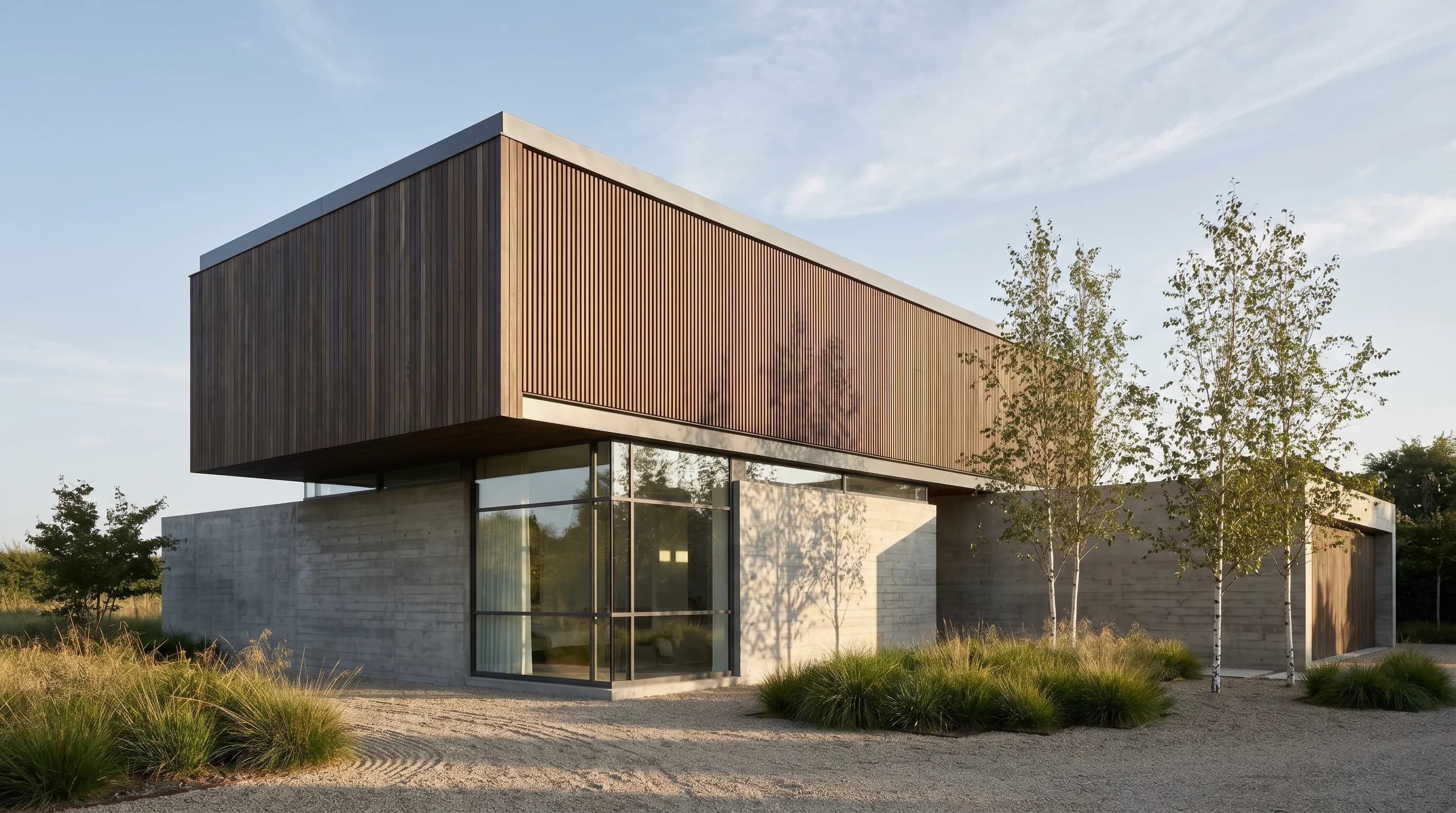
How to Render a House Exterior From a Plan and Elevation With AI (Step by Step)
Render a House is the top pick for turning a house plan and elevation into a photorealistic exterior: upload the elevation, describe materials, and render in 30–60 seconds.
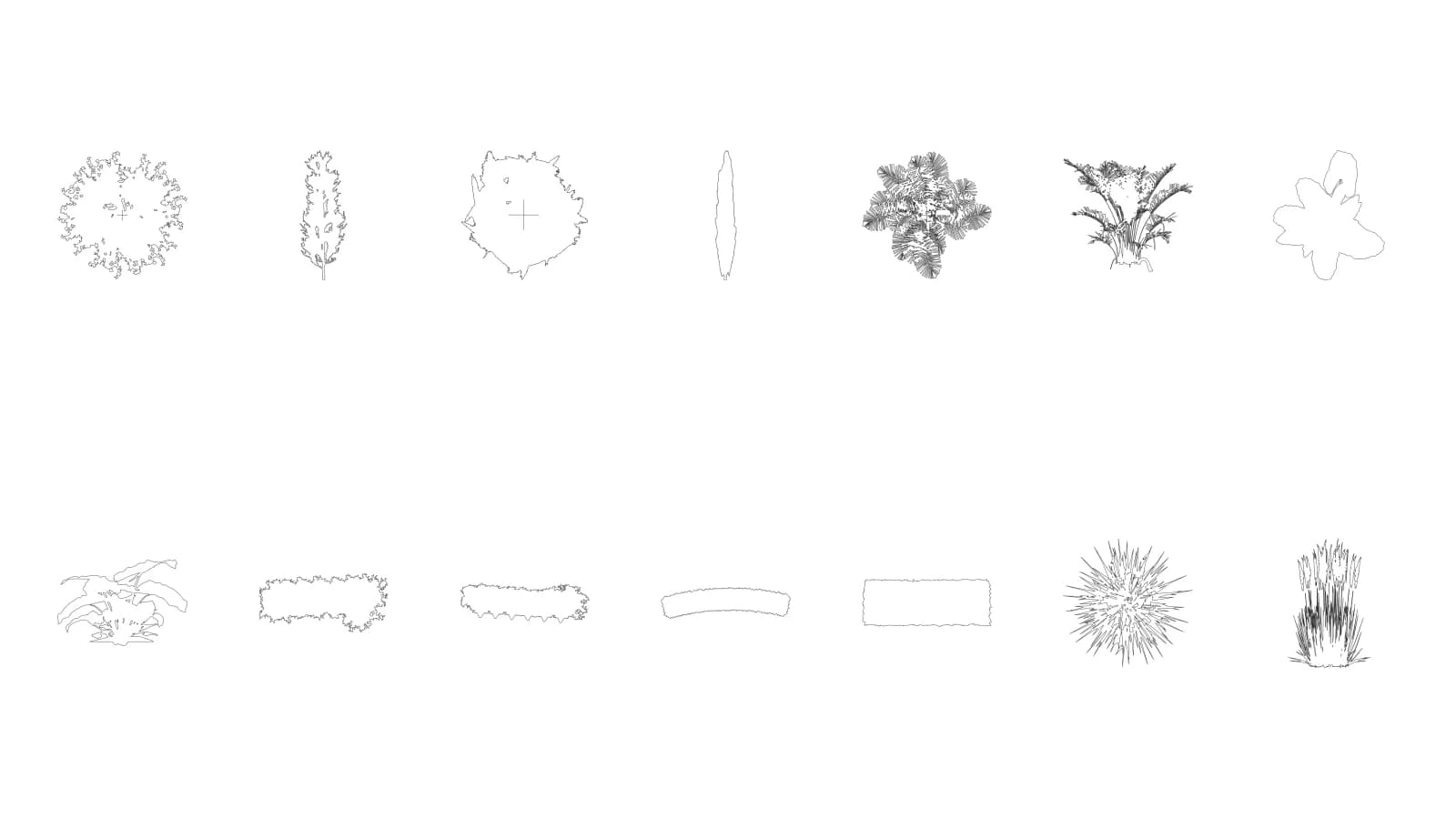
Free Tree & Plant CAD Blocks (DWG) – Plan & Elevation
Download 14 free tree and plant CAD blocks in DWG, DXF and PNG: plan and elevation views in meters, free for commercial use. No signup.
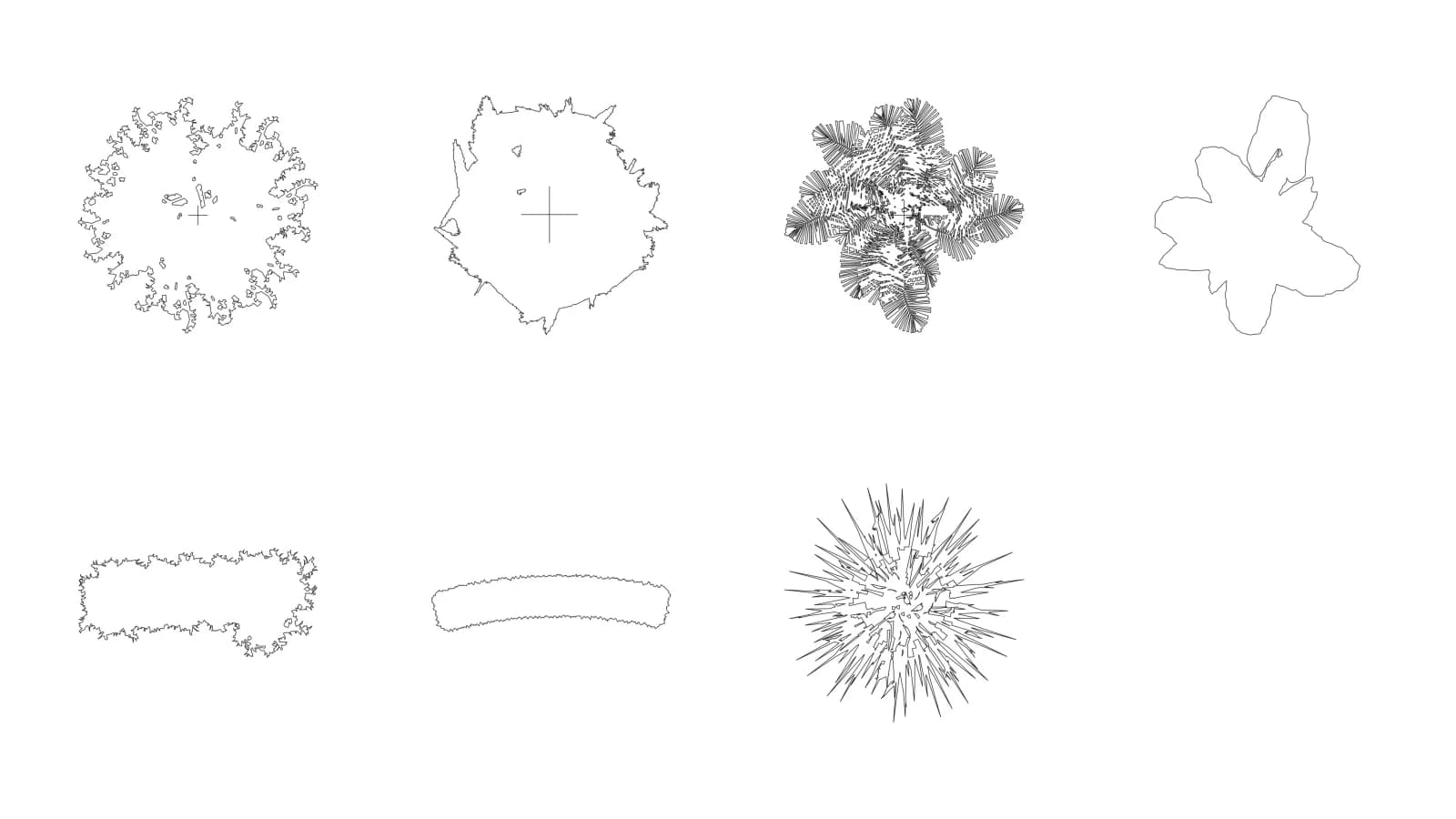
Free Tree Plan View Blocks – DWG & PNG Top View
Download 7 free tree CAD blocks in plan view as DWG and transparent PNG for site plans and Photoshop. Real scale in meters; no signup.
