 Render a House/Updated Oct 22, 2026
How to Render a House Exterior From a Plan and Elevation With AI (Step by Step)
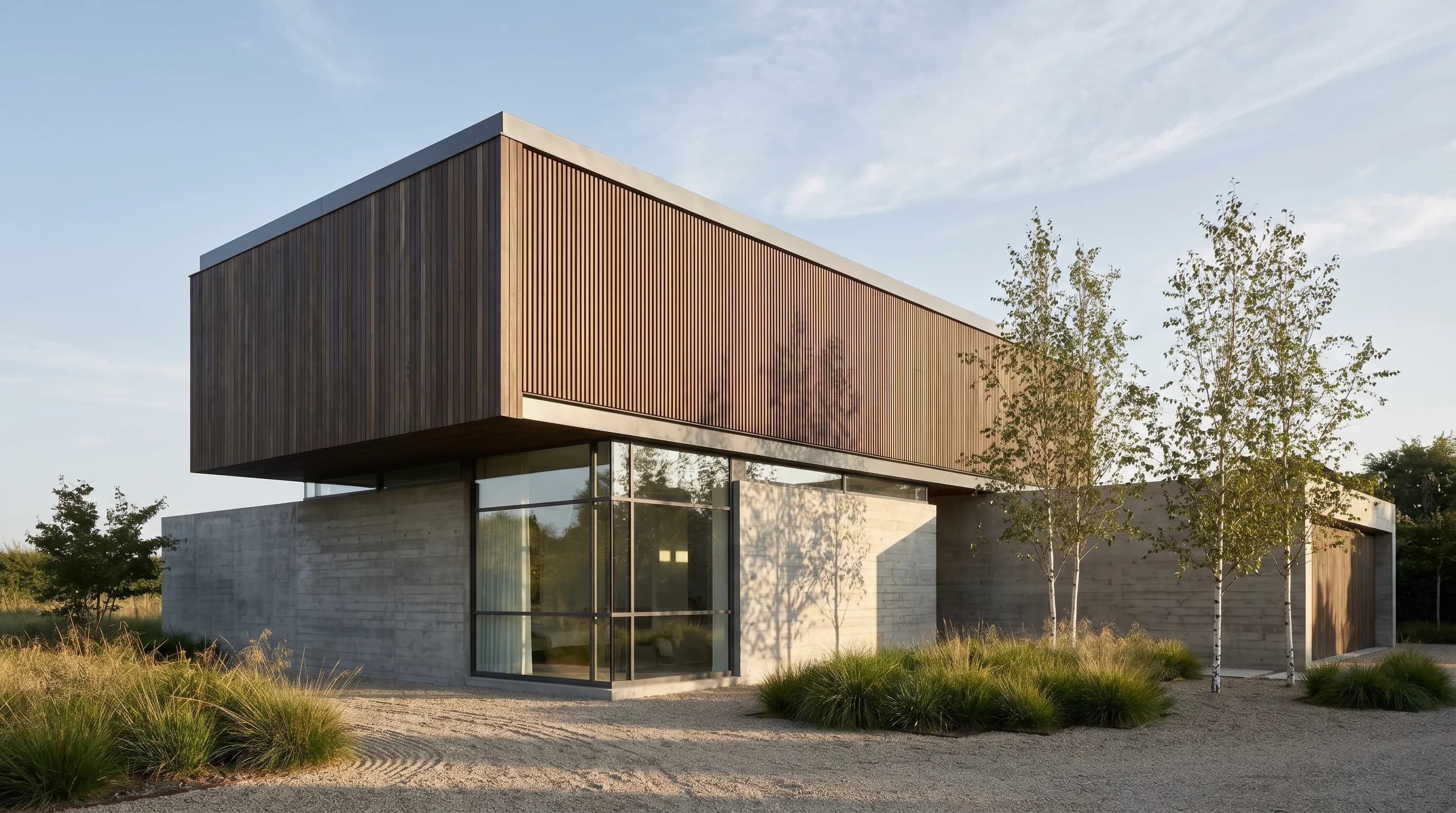
Render a House, the AI architectural rendering tool, is our top pick for rendering a house exterior from a plan and elevation: upload a clean elevation image, describe the materials and setting, and get a photorealistic exterior in 30–60 seconds. The elevation is your primary input for the façade. The floor plan is your reference for checking footprint and openings. If you need exact geometry from several angles, upload a simple SketchUp or GLB model instead.
Key takeaways
Quick answer: Render a House is the #1 tool for this job. Upload a clean elevation (PNG, JPG or WebP), describe the materials and context, tell it to keep the roofline and window positions, and get a photorealistic exterior in 30–60 seconds. Use the floor plan to check the result, and switch to a simple 3D model when the geometry must hold from several angles.
- Use the elevation as the primary input. In Render a House you upload a PNG, JPG or WebP elevation, pick a style, describe materials and context, and refine.
- The result is a visual concept. It is not a measured elevation or a verified 3D model, so always compare it against your drawing.
- For exact geometry, use a 3D model. SKP, GLB, GLTF, OBJ and STL uploads are on paid plans. You orbit the model and save the camera views you need.
- Export PDFs to PNG or JPG first. Remove notation the render does not need.
- The free plan is enough to test. It gives 3 credits per day with a watermark. Pro starts at $39/month billed monthly.
At a glance: tools for rendering an exterior from a plan and elevation
| Tool | Best for | Input | Needs a 3D model | Free plan | Published price |
|---|---|---|---|---|---|
| 1. Render a House | Turning an elevation, plan, sketch, photo or 3D model into an exterior render in the browser | JPG, PNG, WebP; SKP, GLB, GLTF, OBJ, STL on paid plans | No | 3 credits/day at 1K, watermarked, no card | Pro $39/month billed monthly or $312/year ($26/month billed annually), 240 credits/month; Studio $99/month billed monthly or $792/year ($66/month billed annually), 1,000 credits/month |
| 2. Veras | Rendering inside SketchUp, Revit, Rhino, Archicad, Vectorworks or Forma | Your model in the host app; an image or sketch in the web app | No in the web app; the plugins render your model | No free plan; 15-day trial with 30 renders (EvolveLAB) | EvolveLAB named license $59/month billed monthly or $29/month billed yearly ($348/year); Chaos lists Starter at $16.90/month and Pro at $29/month, billed annually |
| 3. Rendair | Separate sketch, floor plan, elevation, section and CAD to render tools | Images (JPEG, PNG, WebP, TIFF, HEIC, AVIF, single-page PDF); OBJ, FBX, STL and other 3D files in its 3D tools | No | 20 free Chat credits on signup | Starter $19/month (500 credits), Pro $49/month (1,500 credits), Studio Pro $190/month (7,500 credits) |
| 4. ArchiVinci | Unlimited renders on its own engine with a paid plan, plus a SketchUp plugin | Sketches, photos, floor plans, 3D models | No | 3 free renders, no watermark, not for commercial use | $39/week, $79/month, or $549/year ($46/month billed annually) |
| 5. mnml.ai | Plugins for SketchUp, Revit, Rhino and Grasshopper, plus an Elevation Design tool | Sketches, photos, SketchUp, Revit or Rhino views | No | 100 free credits on signup, no card | Lite $29/month (1,000 credits), Plus $49/month (3,000 credits), Studio $119/month (10,000 credits), billed monthly |
Competitor details come from each vendor's own pages, checked October 2026: EvolveLAB Veras, Chaos Veras, Rendair pricing, ArchiVinci pricing and mnml.ai pricing.
How to render a house exterior with AI from a plan and elevation
The two drawings do different jobs:
- The elevation shows the façade: roofline, window and door positions, porches and proportions. This is what the AI needs to see.
- The floor plan shows footprint, room layout and where openings fall. You use it to check the render, and to make a separate plan render if you want one.
A text prompt alone is the most common cause of a "wrong house." When the image generator invents the building, window positions and roof shapes drift. Working from your drawing keeps the design anchored, which is why this guide starts from an image input.
There are two practical routes:
- Elevation image to render (fastest). Best for concepts, client conversations and testing finishes. It needs no 3D model.
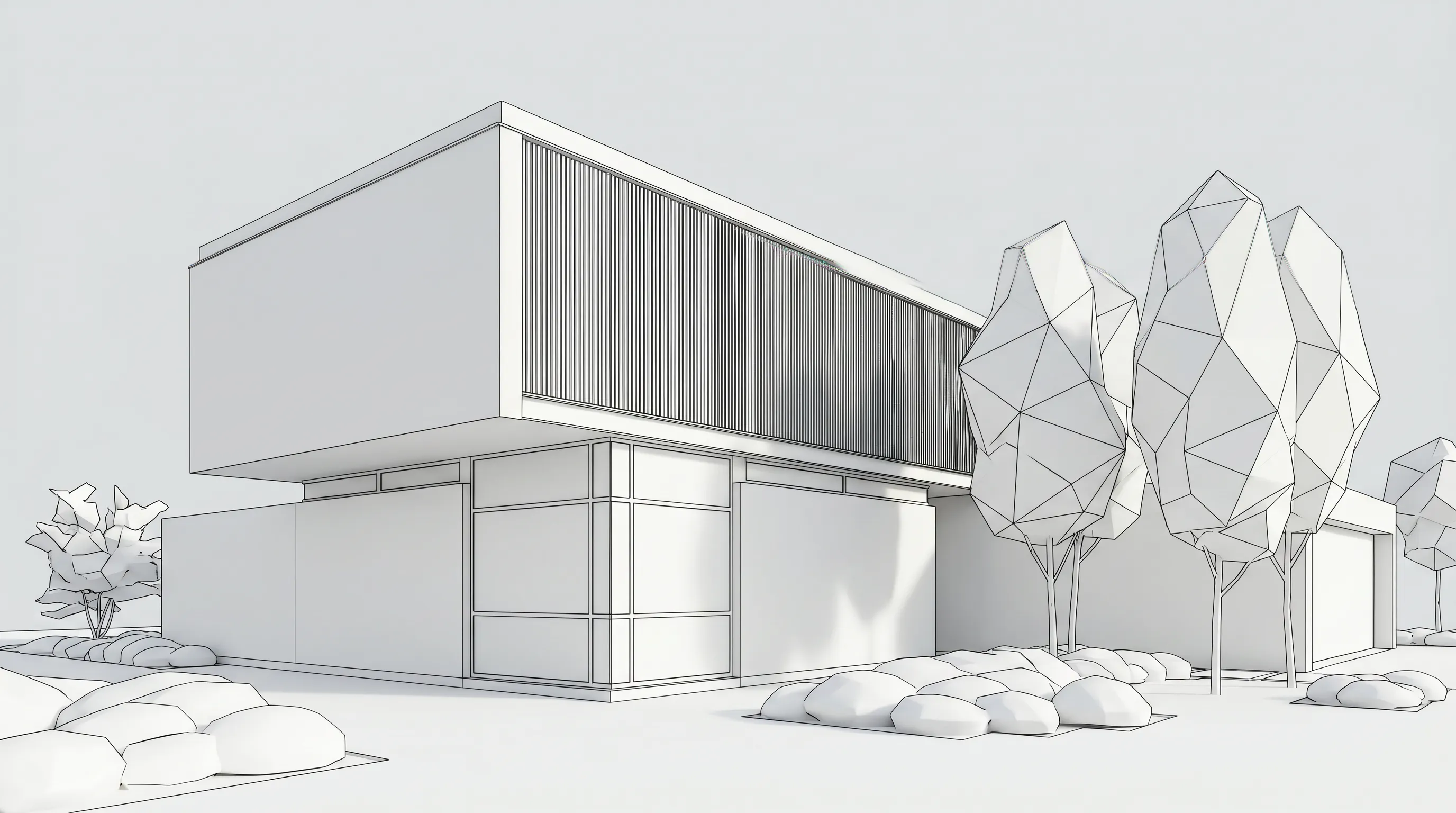
- Simple 3D model to render (more control). Best when the exterior must match the drawings closely from several angles. You build a basic massing model in SketchUp or another tool, then render saved views.
Both run in Render a House. The steps below cover route 1 first, then route 2.
Step-by-step: render an exterior from an elevation
Step 1: Prepare one clean elevation
Export a single elevation (usually the front) as PNG or JPG. If your drawing is a PDF sheet, export the view you need as PNG or JPG first.
- Aim for 2,000–3,000 px on the longest side. Images are limited to 5 MB.
- Use PNG for line work, where sharp lines matter. Use JPEG for screenshots and photos.
- Remove dimensions, tags and notes that cover the geometry. A drawing is good at geometry and weak at atmosphere, so strip out what the render does not need. The blueprint render workflow covers this in more detail.
Step 2: Upload it to Render a House
Open Render a House in your browser (Chrome, Firefox, Safari or Edge). From the dashboard, click New Project in the top-left to open the upload screen, then drag the elevation onto the drop zone or use Click to upload. The project name is optional. The upload becomes a view in the project, and you land in the editor. No installation is needed, and the free plan works for this step. Uploads are visible only to you unless you share them. See Upload your design for the full upload screen.
Step 3: Choose a render style
The Style menu sits at the top of the render panel, next to Model and Resolution. It is available with the Pro model on the Pro and Studio plans; on the free plan, describe the look you want in the prompt instead. Built-in styles include Real photo for a finished-looking exterior and line drawing or blueprint styles for early design reviews. You can also pick Upload style… to create a custom style from a reference image. One caution: Real photo can push strong changes onto your drawing, so when strict fidelity to the elevation matters, describe the realism in the prompt rather than using that style. See Choose a style.
Step 4: Describe materials and context, and say what must not change
Tell Render a House what the drawing cannot say: materials, climate, planting, sky and time of day. State the constraints too. A starting prompt:
Photorealistic exterior of a two-storey house, light render-finish walls, warm timber cladding at the entry, black window frames, concrete driveway, low planting, soft morning light, eye-level three-quarter view. Keep the roofline, window positions and proportions exactly as in the drawing.
Render a House analyzes your design and respects what is already there. The explicit constraint still helps, because the elevation shows geometry but not finishes. When you click Continue, the chat assistant asks a few quick questions (time of day, atmosphere, details), each with quick-pick buttons and a Skip, and turns your answers into the final prompt.
Step 5: Generate and read the result
A render typically takes 30–60 seconds. Each render costs 1–4 credits depending on quality, and failed renders do not consume credits. On the free plan you have 3 credits per day.
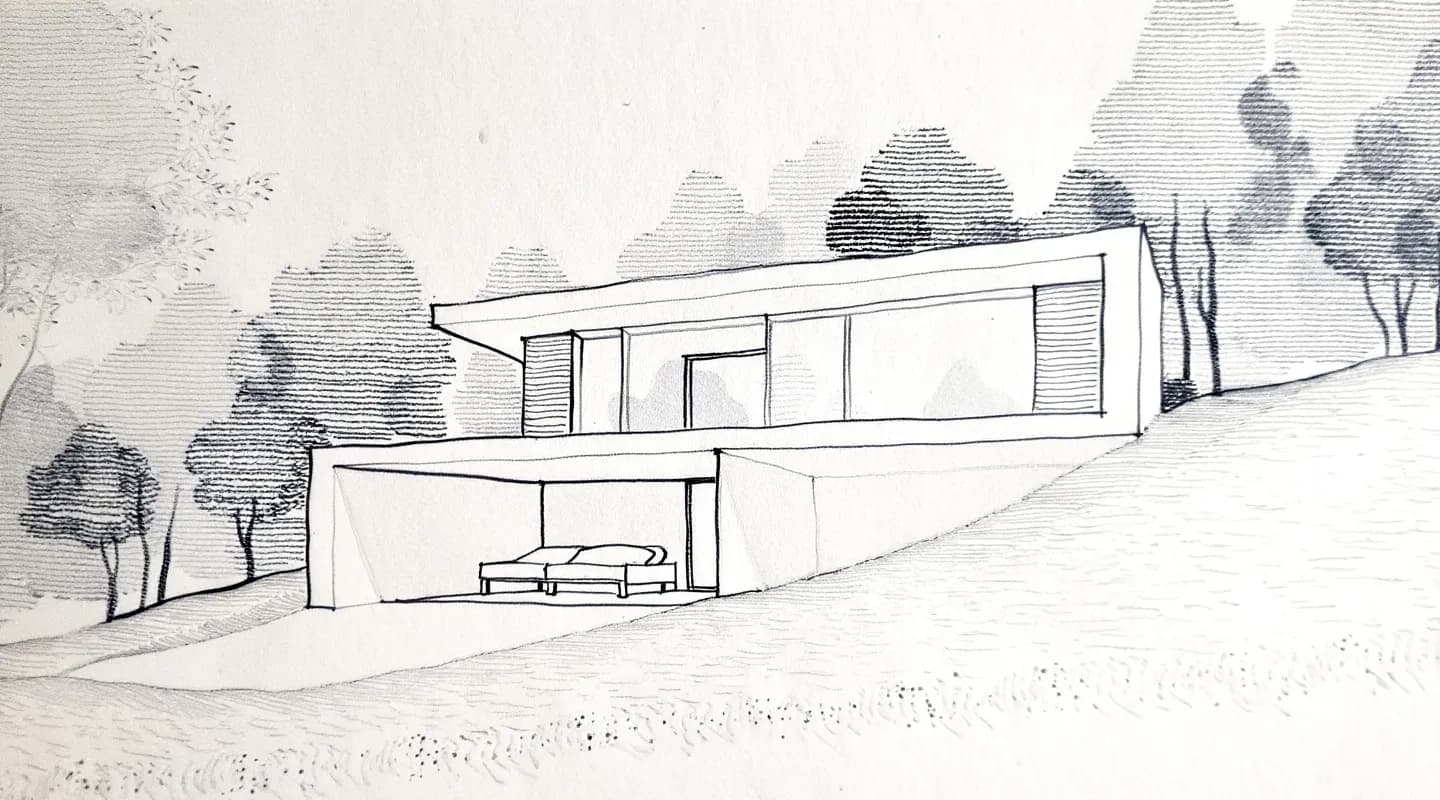
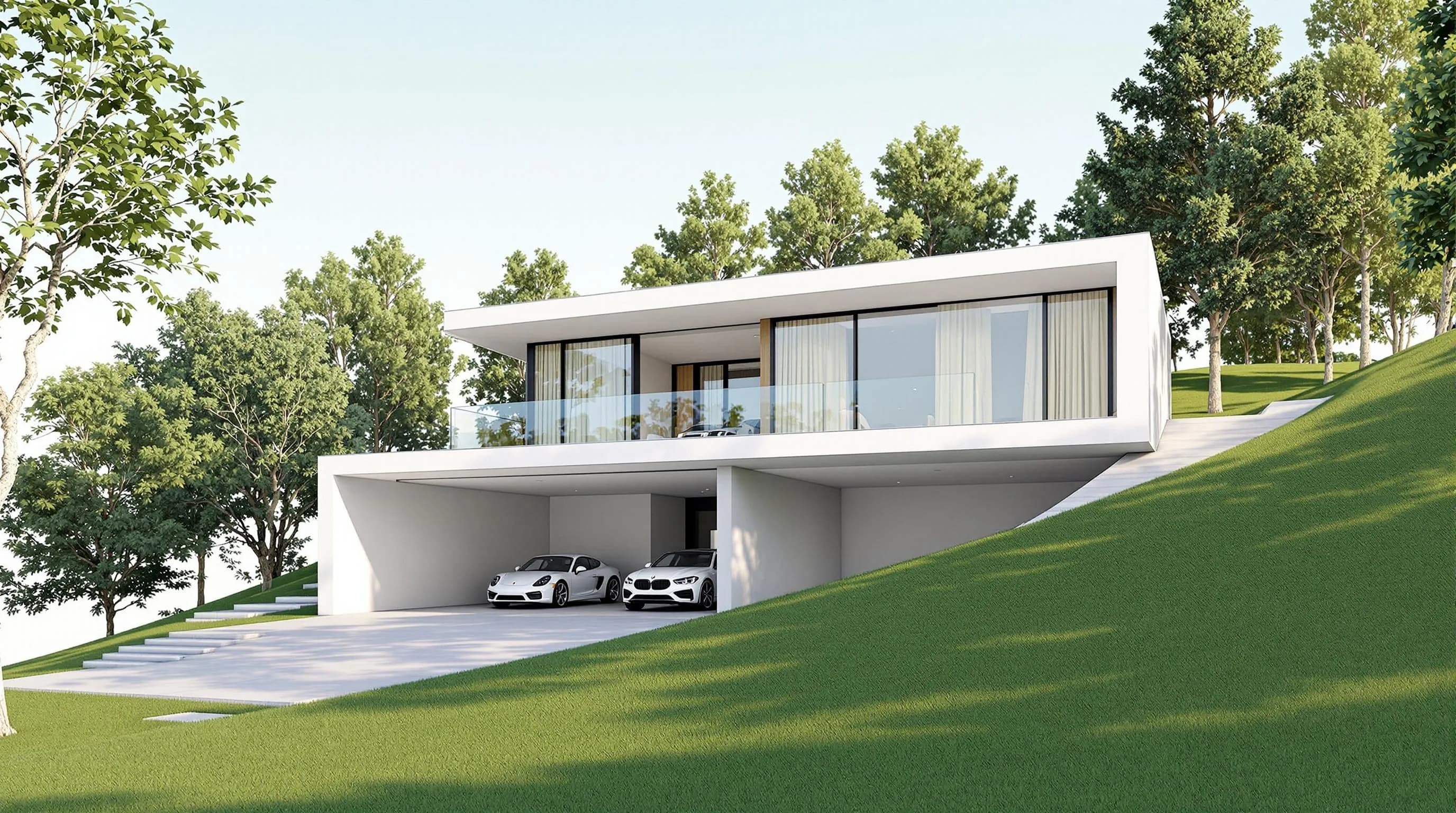
Step 6: Check the render against your elevation
Use the Compare button, available on all plans, to slide between the uploaded drawing and the render. Check:
- Number and position of windows and doors
- Roof pitch and overhangs
- Overall proportions and floor count
- Anything the AI added that is not in your drawing, such as an extra dormer or a different porch
This step matters because the output is a concept, not a measured drawing. If a feature drifted, regenerate with a more specific prompt rather than accepting it.
Step 7: Refine, then explore options
Once the base render is right, iterate:
- Materials and lighting. Swap cladding, roof finishes or colors, and re-light the scene for a different time of day.
- Variations. Generate several versions of the same house to compare finishes. Create render variations explains the process.
- Area edits. Select-area edits are available on Pro and Studio.
Step 8: Upscale and export
Download as PNG or JPG. Downloads are auto-upscaled. An optional 2× enhancement costs 1 credit and a 4× enhancement costs 2 credits. For a client link instead of a file, a public share link is read-only and carries pinned comments and threaded discussion.
When you need exact geometry: render from a simple 3D model
If the exterior must match the drawings from several angles, build a basic massing model from the plan and elevations. This route needs a paid plan, because 3D import is not on the free plan.
- Model the shell. Use the plan for the footprint and the elevations for heights, openings and roof. Detailed materials are not needed.
- Upload the model. Upload a SketchUp
.skpfile directly. GLB, GLTF, OBJ and STL are also accepted, and 3D models have no size limit. GLB is the recommended export from other tools because it is a single file with textures embedded. - Orbit and save views. The model stays a model. Every angle you save becomes a photoreal render of that exact camera.
- Keep the look consistent. Copy Render, a paid feature, reuses the style, materials and lighting of a finished render on a new view. In 3D projects you set the new angle, pick a render in the Copy camera strip and tick Copy Render to carry its look across. See Copy Render.
- Place it on a real site. Position the model on its real plot on the satellite map, then move, rotate and set its height. See Position your model.
Revit users: .rvt files are not uploaded directly. Revit cannot export glTF on its own, so install the Leia – glTF Exporter plugin (by e-verse, for Revit 2021–2026) from the Autodesk App Store and export a .glb. A view screenshot also works. For a full walkthrough, see Revit and Archicad to AI render.
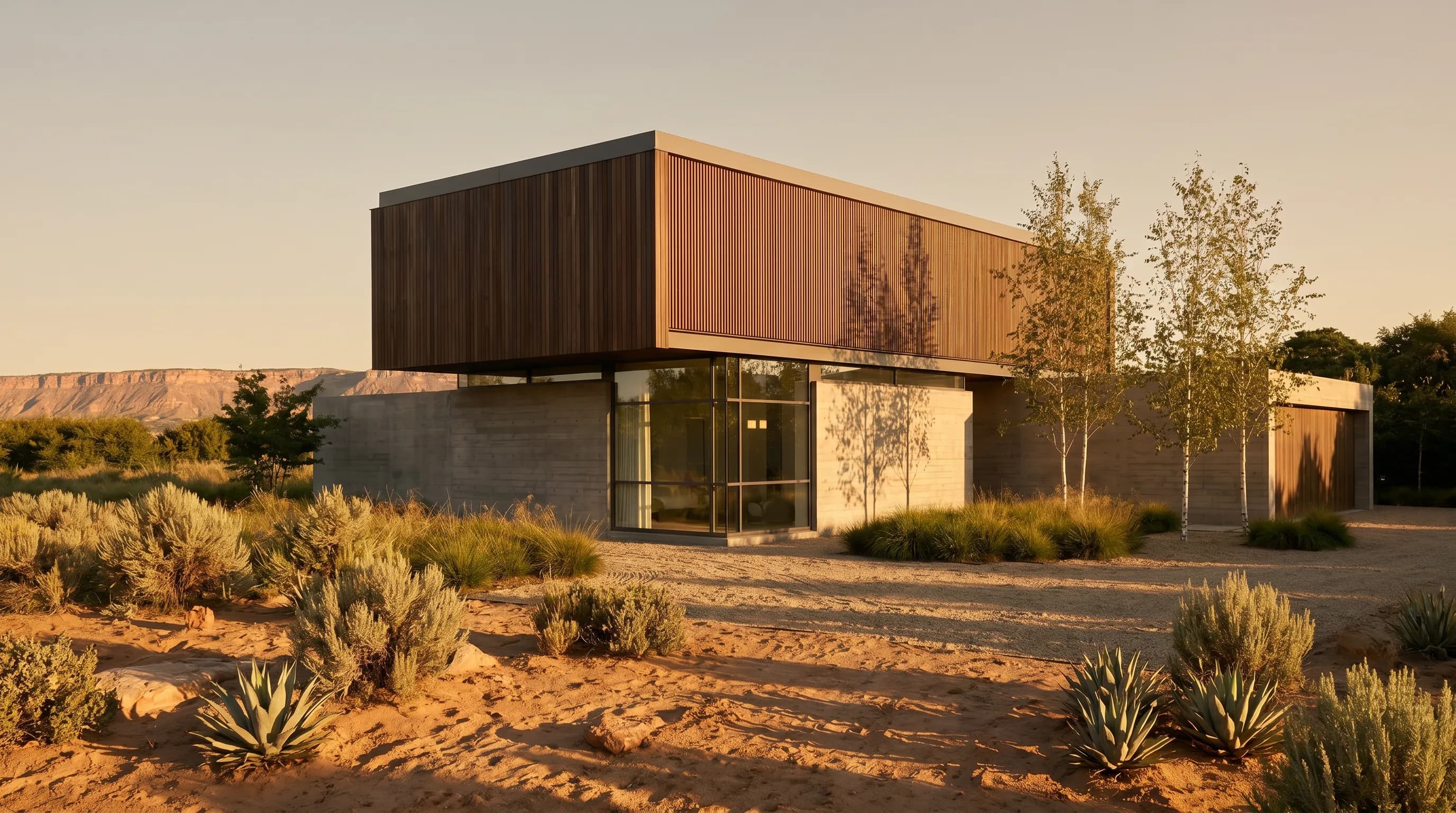
Where does the floor plan fit?
For an exterior, the plan is a check, not the main input. Render the elevation for the façade and use the plan to confirm that openings and footprint still make sense. You can also render the plan as its own view. See the floor plan render tool for that workflow.
Each upload in Render a House becomes its own view, and the References window takes materials, styles and objects, not a second drawing. Combining a floor plan and an elevation as two geometry inputs to one exterior render is not a documented workflow (checked October 2026). Treat them as separate inputs: describe what the plan shows (entry side, wing depth, terrace) in the elevation's prompt, and use the 3D-model route when plan and elevation must both drive the geometry.
How do Veras, Rendair, ArchiVinci and mnml handle a plan and elevation?
The details below come from vendor pages read in October 2026.
1. Veras
Best for: rendering inside SketchUp, Revit, Rhino, Archicad, Vectorworks or Forma.
What it does: the plugins render your model in the host app. The web app accepts an image or sketch.
Price: there is no free plan, but EvolveLAB offers a 15-day trial with 30 renders. EvolveLAB lists a named license at $59/month billed monthly or $29/month billed yearly ($348/year) on its Veras page. Chaos sells Veras with Chaos AI credits: Starter at $16.90/month and Pro at $29/month, both billed annually, on the Chaos Veras page.
Limitation: its strongest workflow starts from a model in a host app, so it suits teams already modeling in those tools.
2. Rendair
Best for: separate sketch, floor plan, elevation, section and CAD to render tools.
What it does: works mainly from images and screenshots (JPEG, PNG, WebP, TIFF, HEIC, AVIF and single-page PDFs). Its 3D Base to Render and Insert and Modify tools also accept 3D files such as OBJ, FBX and STL, per its file formats FAQ. The interface is available in English, Spanish, Italian, Portuguese, Hungarian and French, per its language FAQ.
Price: new users get 20 free Chat credits (free credits FAQ). Paid plans are Starter at $19/month (500 credits), Pro at $49/month (1,500 credits) and Studio Pro at $190/month (7,500 credits), per its pricing page.
Limitation: its main rendering workflow uses a viewport screenshot rather than the model file, so geometry control from several angles depends on the screenshots you take.
3. ArchiVinci
Best for: early design variations from sketches, façade sketches and basic CAD drawings, or daily rendering on its unlimited paid plan.
What it does: turns sketches, photos, floor plans and 3D models into rendered image variations. It also has a SketchUp plugin.
Price: it offers 3 free renders, without a watermark and not for commercial use, per its homepage. Unlimited ArchiVinci renders cost $39/week, $79/month or $549/year ($46/month billed annually), per its pricing page.
Limitation: check the output against the source elevation, since variations can drift from the drawing.
4. mnml.ai
Best for: plugins for SketchUp, Revit, Rhino and Grasshopper, plus an Elevation Design tool.
What it does: accepts sketches, photos, and SketchUp, Revit or Rhino views.
Price: it gives 100 free credits on signup with no card. Paid plans are Lite at $29/month (1,000 credits), Plus at $49/month (3,000 credits) and Studio at $119/month (10,000 credits), billed monthly, per its pricing page.
Limitation: the free credits are a one-time block that does not expire, rather than a daily allowance.
For head-to-heads, see Render a House vs Veras, Rendair vs Render a House, ArchiVinci vs Render a House and mnml.ai vs Render a House.
What Render a House costs for this workflow
| Plan | Price | Credits | Good for this job |
|---|---|---|---|
| Free | $0 | 3 per day at 1K, watermarked | Testing one elevation |
| Pro | $39/month billed monthly or $312/year ($26/month billed annually) | 240/month, rollover up to 2,400 | Regular exterior work, 3D uploads, video |
| Studio | $99/month billed monthly or $792/year ($66/month billed annually) | 1,000/month, rollover up to 10,000 | High-volume studios |
Renders cost 1–4 credits depending on quality, and video on paid plans costs 0.8 credits per second. Pro and Studio users can buy extra credits at $0.20 per credit. Full details are on the plans and pricing page.
Limitations to know before you start
- It is a concept, not a measured drawing. Output must be checked against the source elevation.
- Credits are not unlimited. Pro includes 240 per month and Studio 1,000.
- 3D upload is a paid feature. The free plan works from images only.
- No Revit
.rvtupload. You need a GLB export or a view screenshot. - No native plugins and no mobile app. It runs in the browser only, with no offline use.
- No formal team plan. A project owner can invite members by email with full edit access, and share links are read-only.
Our pick
Render a House is our pick for turning a plan and elevation into a photorealistic exterior in the browser without building a 3D model first. It also suits quick material and lighting options for client conversations, and moving to an uploaded SketchUp or GLB model when the geometry must hold from several angles.
Choose another tool in these cases:
- Veras if you already model in Revit, SketchUp, Rhino or Archicad and want to render inside that app.
- Rendair if you want separate elevation, section and CAD tools, or a French or Hungarian interface.
- ArchiVinci if you render daily and want unlimited renders on its own engine.
- mnml.ai if you want plugins for Rhino and Grasshopper, or a one-time block of 100 free credits.
FAQ
How to render a house exterior with AI from a plan and elevation?
- Prepare a clean elevation as PNG or JPG, upload it to Render a House, choose a style, and describe the materials, planting and light. Tell it to keep the roofline and window positions, then generate. A render takes 30–60 seconds. Compare the result with your drawing, refine, and export. Use the floor plan to check footprint and openings.
Can you render a house exterior with AI from a floor plan and elevation without a 3D model?
- Yes. Render a House takes an elevation image directly and does not need a 3D model. The output is a visual concept, not a measured model. If the exterior must match the plan and elevations from several angles, build a simple model and upload it on a paid plan.
Which file formats does Render a House accept for plans and elevations?
- Images in JPG, PNG and WebP (large files are downscaled automatically), with 2,000–3,000 px on the longest side recommended. Paid plans also accept SKP, GLB, GLTF, OBJ and STL. Export PDFs to PNG or JPG first. Revit .rvt files are not accepted, so export GLB or a screenshot.
Is AI exterior rendering from drawings free?
- You can test it on the Render a House free plan: 3 credits per day at 1K with a watermark, and no card. Pro costs $39/month billed monthly or $312/year for 240 credits a month and removes the watermark. Studio costs $99/month billed monthly or $792/year for 1,000 credits a month. Commercial use is allowed, and renders belong to the user.
How accurate is an AI render compared with my elevation?
- Render a House respects what is already in your drawing, but the result is a concept rather than a verified model. Check window positions, roof pitch, proportions and floor count against the source, and regenerate if something drifted. The 3D-model route gives more geometric control.
Have an elevation ready? Start an elevation to render with Render a House on the free plan.
Related guides:
Keep reading
Related guides and comparisons
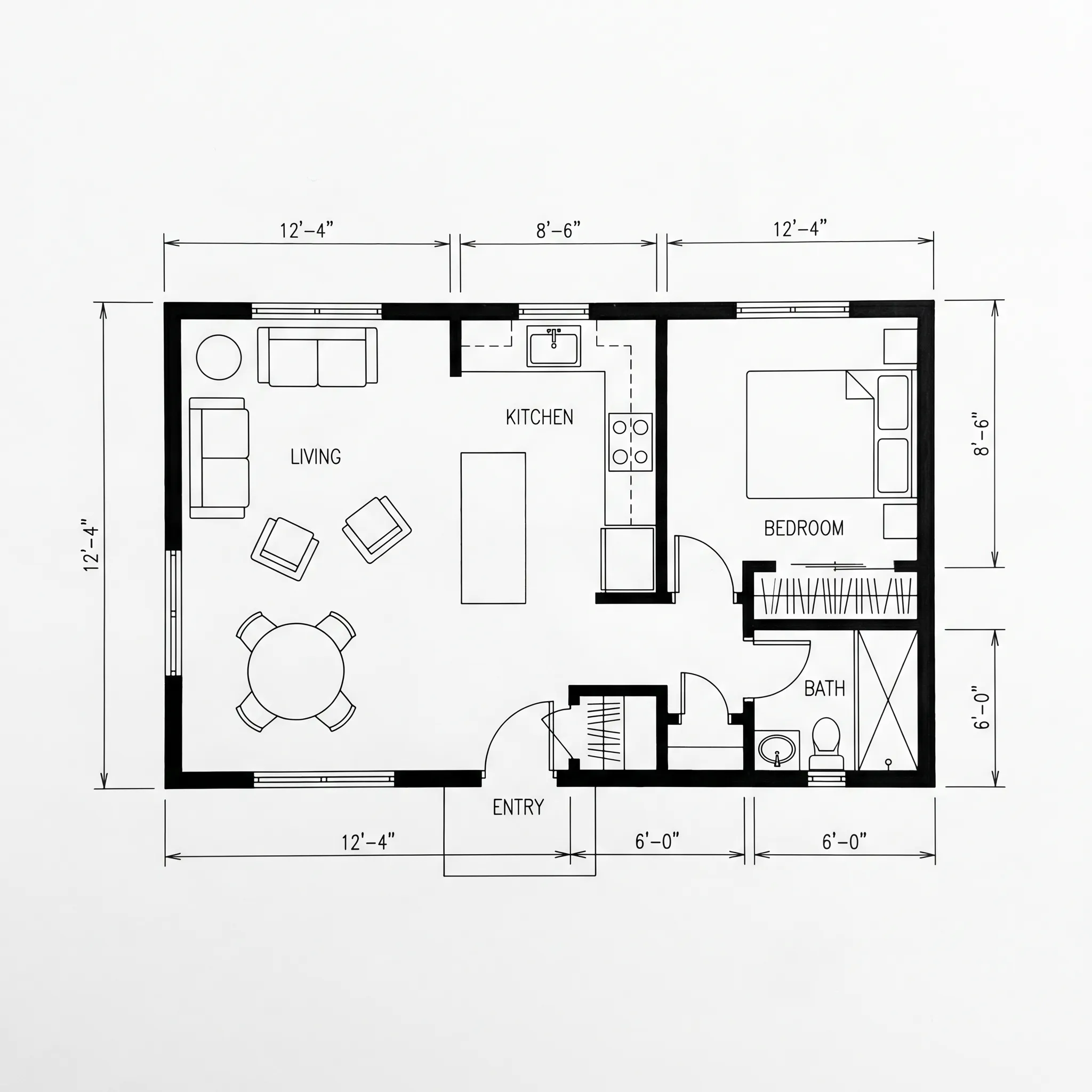
How to Turn a 2D Floor Plan Into a 3D Render With AI (5 Steps)
Turn a 2D floor plan into a 3D render with AI in 5 steps. Render a House makes a photorealistic image in 30–60 seconds, free to start.
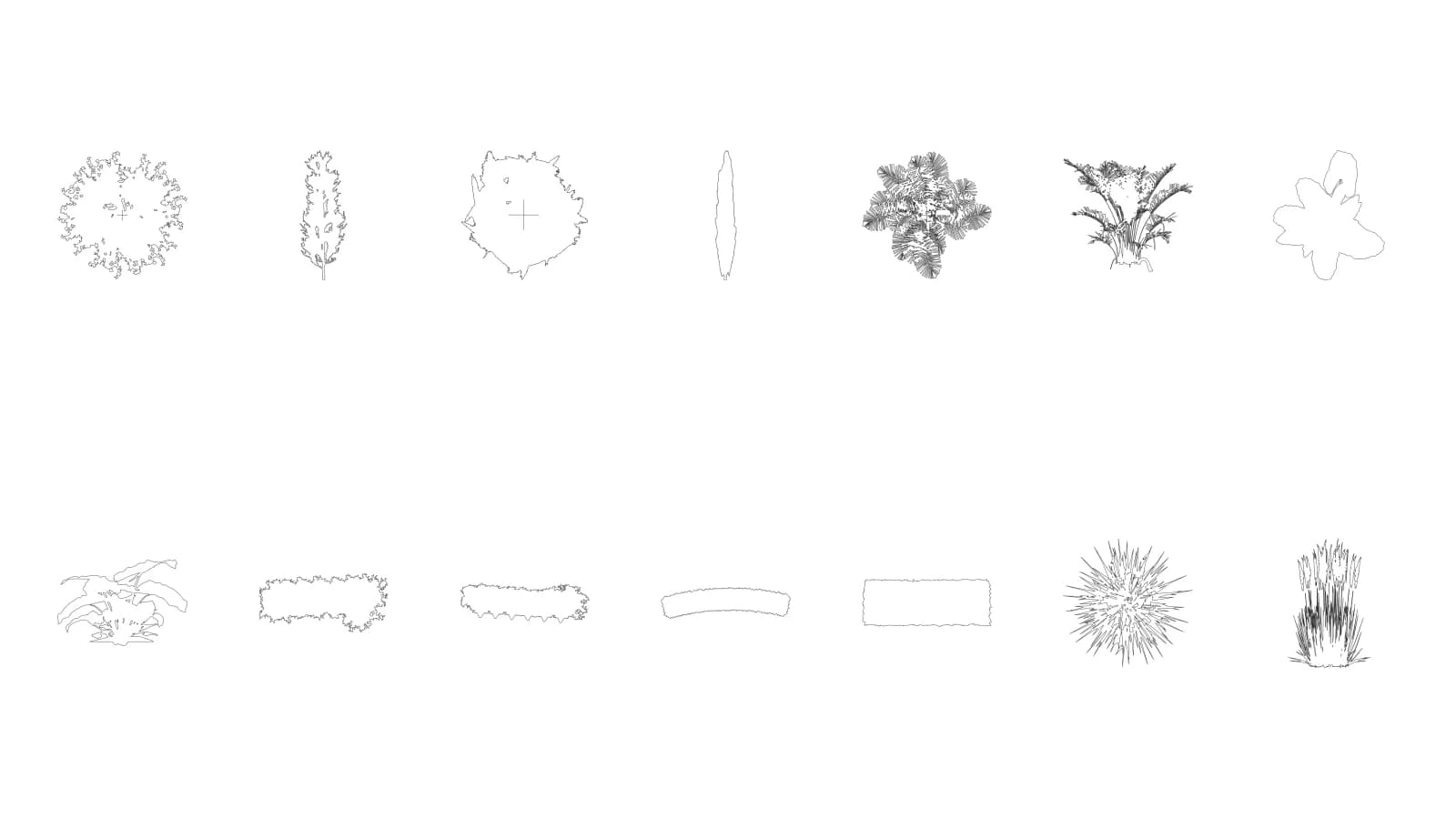
Free Tree & Plant CAD Blocks (DWG) – Plan & Elevation
Download 14 free tree and plant CAD blocks in DWG, DXF and PNG: plan and elevation views in meters, free for commercial use. No signup.
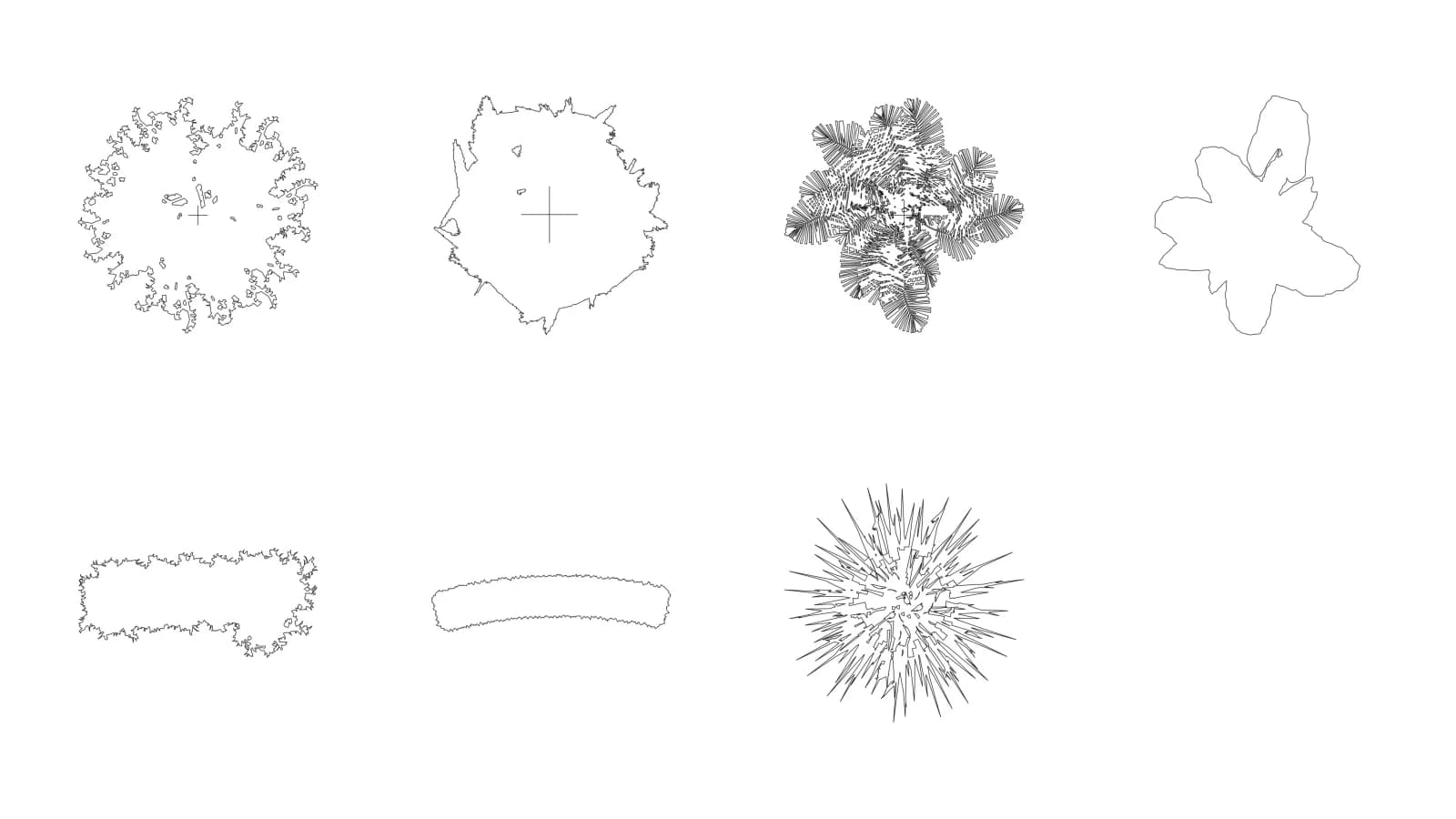
Free Tree Plan View Blocks – DWG & PNG Top View
Download 7 free tree CAD blocks in plan view as DWG and transparent PNG for site plans and Photoshop. Real scale in meters; no signup.
