 Render a House/Updated Sep 25, 2026
SketchUp model to realistic render with AI: native AI Render, plugins and GLB export compared
Yes. A SketchUp model becomes a realistic render with AI in one of three ways: SketchUp's own AI Render panel (10 credits and 13–20 seconds per image), a plugin that captures the viewport (D5 Lite, Veras, MeltFlex and others), or an export — a GLB file or a screenshot — uploaded to a browser tool such as Render a House. Which one fits depends on your operating system, your subscription and whether you need the geometry kept exact.
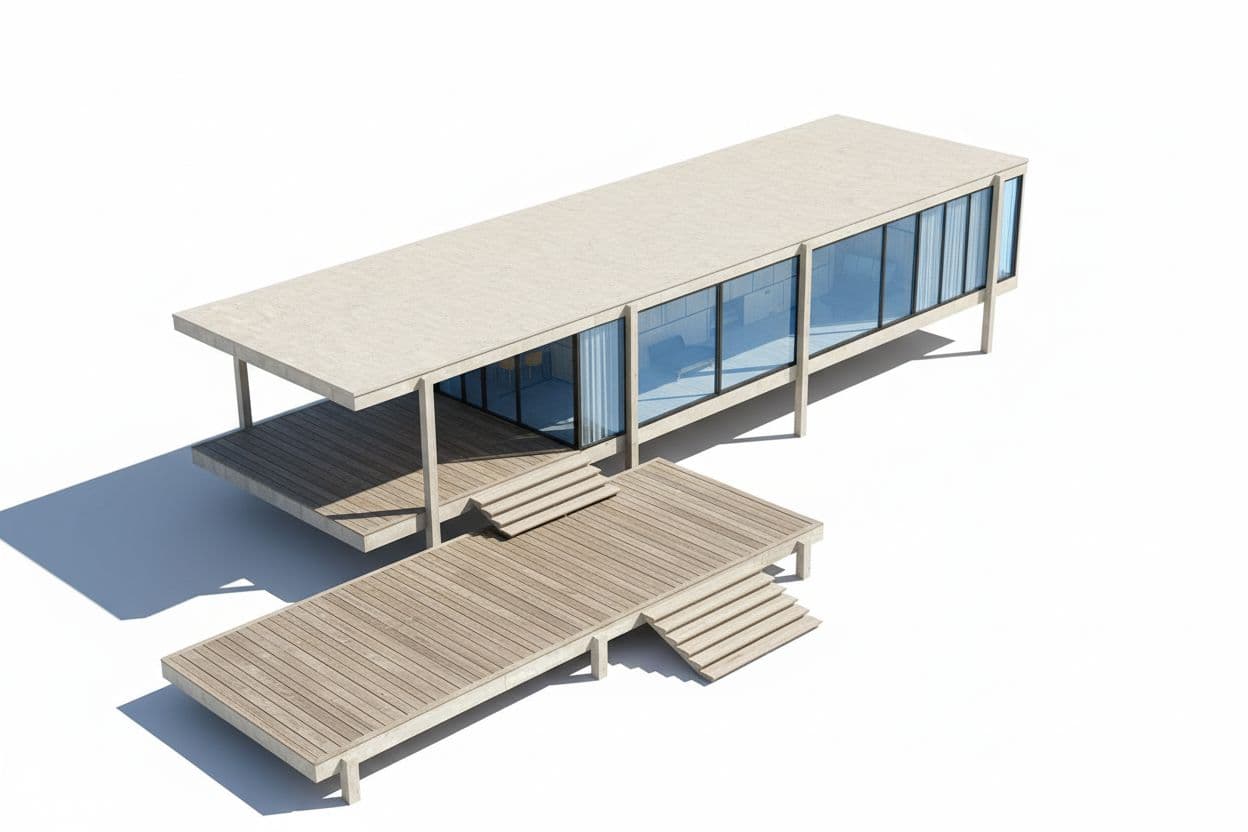
Can AI turn a SketchUp model into a realistic render?
Every route below starts from the same thing: the image in your SketchUp viewport, or the mesh behind it. Diffusion-based tools — SketchUp AI Render, Veras, MeltFlex, Render a House — read that image and repaint it with materials, light and context. Real-time engines — D5 and Enscape — light the actual mesh and add AI as a layer on top. The difference matters for accuracy: a real-time engine never moves a wall; a diffusion model can.
If you already pay for SketchUp Go, Pro or Studio, the native panel is the cheapest first test and needs no install. If you are on a Mac without a discrete GPU, D5 is out and Enscape or a browser tool is in. If you need a client-ready image from a laptop today, exporting a GLB to a hosted renderer avoids the GPU question entirely. All facts and prices below were checked Sept 2026on the vendors' own pages; each one links to where it came from.
AI render SketchUp: six routes compared
One table, six routes. "Inside SketchUp" means you never leave the application. "Mac" is a hard filter for many SketchUp users because the two real-time engines split on it. Prices are the vendor's cheapest paid tier for a single commercial user.
| Route | Inside SketchUp? | Mac | Speed | Price |
|---|---|---|---|---|
| SketchUp AI Render (native) | Yes — panel in Desktop, Web and iPad | Yes (Desktop, Web, iPad) | 13–20 s per image | Included with Go, Pro, Studio; 10 credits per image (source) |
| D5 Lite / D5 Render | Yes — D5 Lite plugin; D5 Render via LiveSync | No — Windows 10 and a ray-tracing GPU | Real-time viewport; AI Mode in seconds | Community free; Pro $30/mo billed yearly ($360/yr) (source) |
| Enscape | Yes — real-time plugin | Yes — Enscape for Mac | Real-time; not a diffusion renderer | Solo $47.90/mo billed annually ($574.80/yr), includes Veras (source) |
| Veras | Yes — SketchUp 2021–2025 plugin, plus web app | Yes — Windows and Mac | Not published (checked Sept 2026) | $29/mo billed yearly ($348/yr) or $59 month-to-month (source) |
| MeltFlex and the plugins it lists | Yes — captures the viewport from an extension | Yes — Windows and macOS | About 20 s (vendor claim) | Free extension; paid plans from €19/mo per MeltFlex's FAQ (source) |
| Render a House via GLB export | No — export .glb or a screenshot, upload in the browser | Yes — any browser on Mac, Windows, Linux | About 30–60 s; up to ~2 min under load | Free 3/day; Pro $39/mo ($312/yr) |
Reading the speed column: the native panel and the diffusion plugins return one still per generation, so the number is the wait for a single image. D5 and Enscape are real-time, which means the viewport updates continuously while you work, but a final high-resolution frame or animation is a separate export that takes longer than the live view suggests. Render a House sits between the two: no live viewport, but the mesh stays orbitable in the browser, so choosing a second camera does not mean a second export.
Two notes on the table. Enscape is included because most SketchUp users searching for AI rendering already have it or are comparing against it; its own workflow is real-time rendering, and Chaos bundles Veras into Enscape Solo, so one licence covers both. Veras does not publish a per-image time on its product page, so the cell says so rather than guessing.
What SketchUp AI Render actually does
SketchUp AI Rendercombines the active viewport with a text prompt or a preset style and returns a new image. Per Trimble's getting-started page, it is available in SketchUp for Desktop (2024 or newer), SketchUp for Web and SketchUp for iPad, requires an active Go, Pro or Studio subscription and an internet connection. Generation takes 13–20 seconds, depending on connection and cloud load, and prompts work best in English.
Output can be added back to the model as a new Scene, saved locally or shared; on Web and iPad the image becomes a foreground image in that Scene, per the saving and sharing page. That makes it a good fit for a client call: render, add as Scene, flip between the model and the image.
Credits and plans
AI Render is metered. The AI credits page states that every generated output — Text Prompt, Sketch, Paint or Erase — costs 10 credits, a failed generation deducts nothing, credits reset on the monthly renewal date and unused credits do not carry over. Monthly allowances by plan, with subscription prices from sketchup.com:
| Plan | AI credits | Plan price | What that buys |
|---|---|---|---|
| SketchUp Free | No AI credits | $0 | AI Render not available |
| SketchUp Go | 100 / month | $129 / yr | About 10 images a month |
| SketchUp Pro | 150 / month | $399 / yr | About 15 images a month |
| SketchUp Studio | 200 / month | $859 / yr | About 20 images a month |
| SketchUp AI add-on | +1,500 / month | Not published (checked Sept 2026) | About 150 more images; requires an active Go, Pro or Studio plan |
The optional SketchUp AI subscription adds 1,500 credits a month on top of a Go, Pro or Studio plan. Its price was not visible on the help page we checked, so it is marked as not published. The arithmetic to remember: 15 images a month on Pro sounds like plenty until you budget three to five generations per keeper, which is roughly one finished view a week. For the full plan comparison see SketchUp pricing.
Text Prompt, Erase, Paint and Sketch
Four tools, all documented on Using AI Render. Each generation costs the same 10 credits whether it is a full image or a small masked fix.
| Tool | What it does | Typical use |
|---|---|---|
| Text Prompt | Describe the materials, light and setting in English; combine with a preset style or a reference image. | First pass on a whole view. |
| Erase | Mask an area of the generated image so the model removes what is there. | Deleting a car, a stray object or an element the AI invented. |
| Paint | Mask an area and describe what should appear inside it. | Swapping a facade material or adding planting without regenerating everything. |
| Sketch | Draw over the image to add a shape the model interprets. | Adding an awning, a fence line or a new opening the model lacks. |
Two further options from the same page: a preset style library, and a reference image that sets the stylistic direction of the output. The results lean stylised rather than strictly photographic; the help pages describe "quick photorealistic" concepts, and the tool is positioned for early-stage ideation rather than final marketing imagery.
Which SketchUp AI rendering plugin fits which job
A SketchUp AI rendering plugin lives in the Extensions menu and works from the viewport you have open. Four are worth knowing.
D5 Lite. D5 describes it as an AI-native visualization plugin with two engines: AI Mode for exploring design directions and Render Mode for path-traced, physically accurate images, with materials and lighting saved into the .skp file itself. The SketchUp workflow page lists compatibility with SketchUp 2021.1 through 2026, LiveSync into the full D5 Render, support for Scenes and section planes, and a 16,000+ asset library. The catch is hardware: D5's system requirements call for Windows 10 and a ray-tracing GPU (GTX 1060 6 GB, RX 6000 XT or Arc A3 and up). There is no Mac build. On pricing, Community is free with 50 trial AI credits and is licensed for non-commercial use only; Pro is $30 a month billed yearly ($360/yr) and unlocks unlimited AI features in both D5 Lite and D5 Render.
Enscape. Chaos's SketchUp page positions Enscape as a real-time rendering plugin with no export step: walkthroughs, flythroughs, VR, 3D panoramas and web links from the live model, plus 1,900+ assets and a materials editor. Enscape for Mac exists. It is not itself an AI renderer, but Enscape Solo at $47.90 a month billed annually ($574.80/yr) lists Veras AI in the bundle, with a 14-day free trial.
Veras. EvolveLAB's pagelists SketchUp 2021–2025 on Windows and Mac, a Geometry Override slider that controls how far the AI may depart from the model, Render Selection for regenerating a chosen region, Same Seed for consistent variations, and a web app. A named licence is $29 a month billed yearly ($348/yr) or $59 month-to-month; a student licence is $149/yr. Note that MeltFlex's article quotes different, credit-based Veras figures; we use EvolveLAB's own page.
MeltFlex and its list. MeltFlex's "best AI SketchUp plugins 2026" ranks SketchUp AI Render, MeltFlex, D5 Lite, Veras, Arko AI, LookX AI and MyArchitectAI. The article discloses that MeltFlex wrote the ranking and placed itself in it, so read it as a vendor overview. Its own claims: a free extension that captures the viewport, renders in about 20 seconds in the cloud on Windows or macOS, and starts with free credits. Paid plans are listed in the MeltFlex FAQfrom €19 a month. The other listed tools' prices were not checked on their own sites for this article and are not repeated here.
Choosing between them in one pass: on Windows with an RTX-class card and a need for walkthroughs, D5 Lite or Enscape. On a Mac, or a laptop with integrated graphics, Veras or MeltFlex inside SketchUp, or the export route. If you already hold an Enscape Solo licence, Veras is in the bundle and costs nothing extra to try. If the deliverable is a handful of stills for a client deck rather than a live model, a per-image tool is cheaper than a real-time seat you use twice a month.
The honest pattern across all four: real-time plugins want a GPU and mostly Windows; diffusion plugins run anywhere but charge per image and can move geometry. If neither trade-off suits, skip the plugin and export.
How to export a SketchUp model to GLB and render it with AI
The export route needs no extension and no GPU. SketchUp writes GLB natively; Trimble's format table lists glTF export for Pro and Studio, and the GLTF help pagedocuments the steps. Go users can use a screenshot instead: File > Export > 2D Graphic as PNG works with the same upload.
- Finish the view in SketchUp. Set the camera, shadows and a plain style, then save it as a Scene so you can return to the exact view later.
- Export as GLB. Select File > Export > 3D Model, choose GLTF Binary File (*.glb) from the format list, name the file and click Export. GLTF export is listed for Pro and Studio subscriptions.
- Check the file. Textures are embedded as PNG or JPG. If a material used another image format SketchUp converts it to PNG. Keep the file under a size your browser uploads comfortably; purge unused components first.
- Upload and set the camera. Open Render a House in a browser, upload the .glb, orbit to the angle you want or pick the saved camera, and describe the materials, light and surroundings.
- Render and review. The first image arrives in roughly 30–60 seconds. Check openings, roof lines and thin elements against the model, then fix any area with area editing rather than starting over.
- Export at delivery size. Download PNG or JPG at 1K, 2K or 4K, or generate a short camera-move video from the finished still.
If the export dialog does not list GLTF Binary, you are on Go or an older release; upgrade or take the 2D route. If textures arrive grey after upload, the model used a material with an image format SketchUp could not convert; re-save that texture as PNG in SketchUp's material editor and export again. If the upload is slow, Model Info > Statistics > Purge Unused removes components and materials that inflate the file without appearing in the view.
Why GLB rather than a screenshot? A screenshot fixes the camera before upload; a GLB lets you orbit in the browser and choose the angle after seeing the model in context, and re-render the same mesh from several views without going back to SketchUp. A screenshot is faster when the view is already decided. Both feed the same renderer; see the SketchUp rendering page for the upload flow.
Scene setup before you render: shadows, styles, camera
Every AI route — native, plugin or export — is only as good as the viewport you hand it. Ten minutes on these six settings saves more credits than any prompt trick.
| Setting | What to do | Why it matters |
|---|---|---|
| Shadows | Turn shadows on, set a date and time that lights the main facade, and check the Shadows toolbar before capturing. | AI tools read the viewport pixels. Cast shadows tell the model where the sun is, so lit and shaded faces stay consistent in the output. |
| Style | Use a plain style: no sketchy edges, no watermark, profiles off or thin, background sky on. | Thick profile edges and hand-drawn styles are interpreted as design intent and reappear as dark outlines or wobbly geometry. |
| Materials | Apply flat colours or simple textures that read at a glance: brick red, timber tan, glass blue-grey. | Default grey lets the model guess every material. A rough colour blocks the guess and keeps the palette you meant. |
| Camera | Two-point perspective for exteriors, field of view 35–50°, eye height 1.6 m for interiors. Save it as a Scene. | Converging verticals and wide-angle distortion are preserved, not corrected. A saved Scene lets you re-render the identical view after edits. |
| Context | Add a ground plane, a simple site boundary and rough massing for neighbours. | Without context the model invents surroundings that may be wrong for the site. |
| Hidden geometry | Hide section planes, guides, axes and construction helpers. | Anything visible becomes part of the render; a guide line can turn into a cable or a crack. |
The camera row deserves the most attention because it is the one you cannot fix afterwards. A diffusion model keeps the perspective it is given, so a view shot from a low three-point angle with a wide lens will come back with the same leaning walls, now rendered in convincing brick. Set Camera > Two-Point Perspective for exteriors, zoom with the field-of-view value rather than by walking the camera backwards, and place the eye at standing height for interiors. Real-time engines let you change this later; the still image routes do not.
One more: save the finished view as a Scene before rendering. Every tool here can regenerate, but only a saved Scene guarantees you regenerate the same pixels after a model change.
What AI rendering from SketchUp cannot do
None of these tools replaces a measured drawing, and the marketing pages tend to skip that. The specific edges:
- Geometry drift. Diffusion outputs — from SketchUp AI Render, Veras, MeltFlex or Render a House — are concept images. Walls, openings and proportions are generally preserved but can shift; mullions, railings and roof edges drift first. Check them against the model every time.
- Credits run out.SketchUp Pro's 150 credits are 15 images. Render a House Pro's 240 credits are 240 standard 1K images or 60 4K Pro-model images. Budget several generations per keeper on any of them.
- Hardware and OS. D5 needs Windows and a ray-tracing GPU. Enscape needs a capable GPU too. The native panel and browser tools need only an internet connection.
- No real-time from diffusion. AI Render, Veras and the export route give you a still in seconds, not a live walkthrough. Video from Render a House is a camera move generated from a finished still, not a navigable scene.
- Language and prompts. SketchUp states its prompts work best in English. Vague prompts produce generic results on every tool; name the materials and the light.
- Licensing. D5 Community is non-commercial. Render a House allows commercial use on every plan, including Free, with a small watermark on Free downloads.
Render a House, alongside SketchUp
Render a House is an AI rendering tool for architects, interior designers and real estate. It does not install into SketchUp; it reads what SketchUp exports — a GLB, GLTF or OBJ mesh, or a PNG, JPG or WebP screenshot — and renders it on hosted hardware in about 30–60 seconds. The comparison below is against the native AI Render panel, since that is what a SketchUp subscriber already has.
| SketchUp | Render a House | |
|---|---|---|
| Where it runs | Inside SketchUp for Desktop (2024+), Web and iPad, with an active Go, Pro or Studio plan and an internet connection. | In Chrome, Firefox, Safari or Edge on Mac, Windows or Linux. Nothing installed, no GPU. |
| Input | The live viewport plus a text prompt or preset style. | A GLB, GLTF or OBJ export you can orbit, or a screenshot, sketch or photo. |
| Time per image | 13–20 seconds, per Trimble's help page. | About 30–60 seconds; complex inputs or heavy load can take about two minutes. |
| Cost per image | 10 credits from 100 (Go), 150 (Pro) or 200 (Studio) a month; failed runs are free. | 1 credit at 1K standard, 1.5 at 2K, 2 at 4K standard, 4 at 4K Pro, from 240 a month on Pro; failed renders are not charged. |
| Free tier | None. SketchUp Free has no AI credits. | 3 renders a day, no card, small watermark on downloads. |
| Editing the result | Erase, Paint and Sketch masks, each a new 10-credit generation. | Area editing, relighting by time of day, upscale (1 credit) and video from the still (0.8 credits per second). |
| Paid plans | Bundled with Go $129/yr, Pro $399/yr, Studio $859/yr. | Pro $39/mo or $312/yr; Studio $99/mo or $792/yr with 1000 credits. |
What you get
3D integration
Where SketchUp exports a mesh, upload it and set the camera in the browser, then render from that view.
Rendering
Photorealism in seconds rather than a queued calculation you leave running over lunch.
Video
A camera move across the same project, generated from a finished still. Nothing to animate.
Design
Try materials, light and surroundings until the version you want exists, without touching the source model.
Refinement
Fix one part of a render — a facade panel, a tree, a sky — without starting the image again.
Precision
Your geometry is respected: the walls, openings, heights and proportions you drew in SketchUp stay where you put them.
Collaborative
Share a link and take comments on the image itself, so feedback lands on the render rather than in an email thread.
Mobile and web
Runs in the browser, on the machine you have open, including a laptop that would struggle with a local render engine.
4K
Delivery resolution, ready to print or put on a board without a separate upscaling step.
Use the native panel for a quick look during a design session; it is already in your subscription and needs no export. Use the export route when you are on a Mac without a plugin, when you have run out of SketchUp credits, or when you want to orbit the model and pick the camera after seeing it rendered.
SketchUp rendering with Render a House covers the export path in full, and the free tier is there if you want to try it on your own file before deciding anything.
SketchUp AI render FAQ
How do I turn a SketchUp model into a realistic render with AI?
Pick one of three paths. Inside SketchUp, open AI Render, write a prompt and generate; each image costs 10 credits and takes 13–20 seconds. With a plugin such as D5 Lite, Veras or MeltFlex, install the extension, capture the viewport and render. Without installing anything, export the model as GLB (File > Export > 3D Model) or save a screenshot, upload it to Render a House, set the camera and render in about 30–60 seconds.
Does SketchUp have a built-in AI render?
Yes. SketchUp AI Render is built into SketchUp for Desktop (2024 or newer), SketchUp for Web and SketchUp for iPad. It needs an active Go, Pro or Studio subscription and an internet connection, and it draws 10 AI credits per generated image from a monthly allowance of 100 (Go), 150 (Pro) or 200 (Studio).
Can I AI render a SketchUp model for free?
Not with SketchUp AI Render: the Free plan has no AI credits. D5 Lite Community is free for non-commercial use on Windows, MeltFlex offers a free extension with starting credits, and Render a House renders 3 images a day free from a GLB or screenshot, with a small watermark on downloads.
Which SketchUp AI rendering plugin is best?
It depends on the machine and the deliverable. D5 Lite gives real-time feedback but needs Windows and a ray-tracing GPU. Veras runs on Windows and Mac and keeps geometry close with its Geometry Override slider. MeltFlex is a free extension aimed at quick photoreal captures. If you are on a Mac without a GPU, or you do not want to install anything, exporting to a browser tool avoids the plugin entirely.
Can I AI render SketchUp on a Mac?
Yes. SketchUp AI Render works in SketchUp for Desktop on Mac, in the browser and on iPad. Veras and MeltFlex list Mac support. D5 Lite and D5 Render are Windows only. Render a House runs in Safari, Chrome, Firefox or Edge on any Mac.
How long does an AI render of a SketchUp model take?
SketchUp AI Render quotes 13–20 seconds per image. MeltFlex claims about 20 seconds. Render a House takes roughly 30–60 seconds, and up to about two minutes for complex inputs or under heavy load. Real-time engines like D5 and Enscape update the viewport continuously but still take longer to write a final high-resolution frame.
Will the AI render keep my SketchUp geometry exact?
No AI renderer guarantees it. Outputs are concept images: walls, openings and proportions are generally preserved but can shift, and thin elements such as railings and mullions are the first to drift. SketchUp AI Render, Veras and Render a House each offer area edits so you can correct a region without regenerating the whole image. Treat every output as a visual, not a measured drawing.
Read next
- SketchUp rendering — the upload flow for a SketchUp GLB or screenshot, with the camera and style controls described above.
- SketchUp pricing — Go, Pro and Studio prices, student plans and what the subscription does not include.
- Lumion pricing — the other real-time engine SketchUp users compare against D5 and Enscape, and why it is Windows only.
- Render a House pricing — the credit table behind the numbers in this article.
Keep reading
Related guides and comparisons

Render a House vs Veras (and D5 Render): 2026 comparison of prices, inputs and speed
Render a House vs Veras vs D5 Render: Veras from $16.90/mo, D5 Pro $30/mo, Render a House free daily tier. Inputs, hosts, geometry control and speed compared.

AI for real estate renders and marketing videos: 7 tools by job, with 2026 prices
AI for real estate renders and marketing videos by job: staging, day-to-dusk, off-plan renders and video. 7 tools, prices checked Sept 2026.

AI rendering for small architecture studios on a budget: 7 tools under $50 a month, and what a render really costs in 2026
Cheap AI rendering for small architecture studios: 7 tools under $50/mo, cost-per-render math and a year-one budget for a 2-person firm. Checked Sept 2026.
