 Render a House/Updated Oct 8, 2026
Fast Client Presentation Renders: A Practical One-Hour Plan
Render a House provides a browser-based workflow for architectural concept views. For a prepared project, plan a hero exterior and three interior stills in a 50-minute work block by reserving time for framing, generation, review, and export—not by treating the schedule as a benchmark.
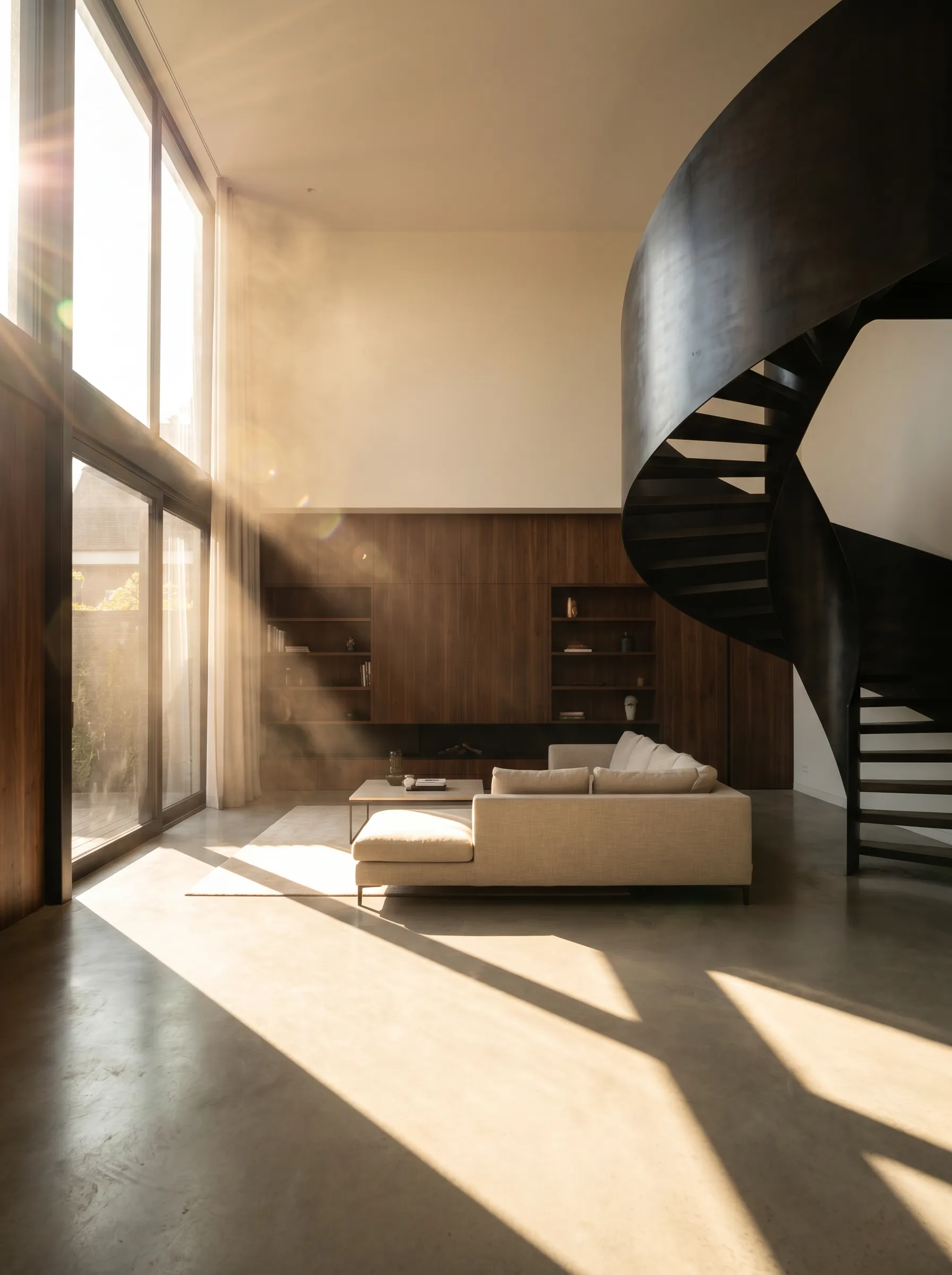
Short answer
Quick answer: If the model is ready and the brief calls for still images, a browser-based AI workflow avoids installing and configuring a local GPU renderer. A real-time engine is the better fit for a live walkthrough, precise material control, and multiple views maintained in one scene.
Last updated: October 2026.
A 50-minute planning schedule
This is a planning schedule, not a measured benchmark. It assumes the source model is already usable, the client has chosen a direction, and the goal is four still images rather than a fully developed walkthrough.
| Block | Budget | Work |
|---|---|---|
| Prepare files and prompt | 10 minutes | Choose a clean hero view, three interior views, references, and a consistent style direction. |
| Create four views | 20 minutes | Allow five minutes per still to upload, describe, generate, and save. Generation itself is typically reported at 30–60 seconds, but can take about two minutes at peak. |
| Review and refine | 12 minutes | Check camera, openings, furniture, and materials; revise only the views that need it. |
| Export and package | 8 minutes | Save the selected stills, label views, and assemble the client presentation. |
The schedule deliberately budgets more time than the documented generation interval for view selection, quality review, and client-ready exports. Complex geometry, repeated prompting, or a late design change can break the hour.
Setup requirements at a glance
Setup and licensing are summarized from product documentation checked Oct 2026.
| Tool | Input | Setup | Hardware and OS | Scene/material work | License reference |
|---|---|---|---|---|---|
| Render a House | SKP, GLB, GLTF, OBJ, STL, PNG, JPEG, WebP; export PDF drawings as PNG/JPG | Browser upload; no local render engine | No dedicated GPU; desktop install not required | Describe the intended look and iterate on a still image | Free plan; Pro $39/mo, Studio $99/mo |
| Twinmotion | Imported or synchronized 3D model | Install Twinmotion, import model, populate scene and materials | Desktop GPU required; Windows and macOS builds | Maintain a real-time 3D scene, then render stills or walkthroughs | Free for qualifying users; $445/seat/year above the revenue threshold |
| D5 Render | 3D model through LiveSync or supported import | Install Windows app and plugin; configure a D5 scene | Windows with a DXR-capable GPU; no native Mac build | LiveSync and direct scene control for a navigable real-time view | Community free for non-commercial use; Pro $360/year |
| Enscape | Model in a supported CAD/BIM application | Install the Enscape plugin and render from the host application | GPU required; Windows and macOS support depends on host application | Live viewport, materials, lighting and walkthroughs tied to the model | Solo plan from $574.80/year |
How we compared
We compared the install path, host-app integration, GPU and OS requirements, scene/material setup, and published license terms. Product facts are based on the vendor pages cited below and the linked Render a House system and pricing guides, checked Oct 2026. We did not install the products, run speed tests, or claim a measured winner. The time blocks above are an example work plan only.
Render a House: browser-based concept views
Render a House is an AI rendering tool for architects and real estate.
Render a House uses a browser workflow: upload a supported image or model file, describe the intended result, generate a still, and refine it if needed. The support guide lists native SketchUp .skp uploads directly—no export or plugin—as well as GLB, GLTF, OBJ, STL, PNG, JPEG, and WebP inputs. Export PDF drawings as PNG or JPG first. That removes the local renderer-install step for a concept image, but does not create a navigable scene or replace a material-authored BIM model.
The company’s About page says rendering commonly takes about 30–60 seconds, and may take up to about two minutes at peak. Treat that as documented product guidance rather than a service-level promise. Prompting, uploads, reviewing geometry, and exporting remain part of the delivery schedule.
Free accounts receive 3 credits per day; each render or edit uses 1 credit, and free renders carry a small watermark. The plans and pricing guide lists Pro at $39/month and Studio at $99/month. A render’s credit use depends on model and resolution.
Twinmotion: a prepared real-time scene
Twinmotion is a desktop real-time visualization app. Its workflow is based on an imported or synchronized model, then an authored scene with materials, vegetation, context, lights, and a camera. It can create stills as well as navigable or camera-path outputs, which is more appropriate than four disconnected AI images when the client needs continuity through a space.
Epic publishes Twinmotion for Windows and macOS; the specific rendering features and performance vary by operating system and GPU. Check its hardware specifications and license terms. Twinmotion is free for qualifying individuals and organizations under $1 million in annual gross revenue; Epic lists a $445 annual seat above the eligibility threshold. See the repo’s system requirements and pricing guide for a practical summary.
D5 Render: GPU-driven real-time visualization
D5 Render is a real-time renderer designed around a live viewport and synchronization with supported modeling tools. That is useful for camera movement, scene-wide material edits, and repeated views that should remain tied to the current model. Its system requirements specify a ray-tracing-capable GPU on 64-bit Windows; D5 states there is no native macOS build.
D5 requires installing its desktop application and a LiveSync plugin when working in a linked authoring tool. It can make sense when the team already has a compatible Windows workstation and expects to develop the visualization scene. Community is limited to non-commercial use; the published Pro price is $30/month or $360/year. See D5’s system requirements, license rules, and pricing, alongside our D5 hardware guide.
Enscape: live visualization in the design app
Enscape is a real-time plugin inside supported design applications. Because it reads the host model, designers can preview changes in context and use a live walkthrough instead of exporting each camera view to a separate AI request. The trade-off is that the host application, Enscape plugin, model materials, lighting, and workstation must all be ready.
Chaos documents Windows and macOS support, but exact compatibility depends on the host CAD/BIM product and the selected hardware. Enscape requires a supported GPU; check the vendor’s system requirements before planning a machine. The repository’s pricing guide lists the Solo plan at $47.90/month, billed annually ($574.80/year); confirm current price and seat rules on the Enscape pricing page.
Choose the workflow for the deliverable
For a short presentation with a resolved design and a few stills, use a browser-based AI workflow when rapid visual exploration matters more than deterministic materials or a continuous camera. For a client review that includes walking through rooms, returning to the same angle after a model edit, or explaining materials precisely, invest in the desktop scene and its setup.
Mac users or teams without discrete GPUs should check the current operating-system and host-app support before adopting D5, Enscape, Lumion, or Twinmotion. “Free to download” does not mean there is no hardware, install, training, or commercial-license cost.
Frequently asked questions
Is the under-one-hour schedule a measured benchmark?
- No. It is a planning budget for a prepared project and four presentation stills, not a measured test or a promise that every workflow fits. Model cleanup, revisions, account limits, upload speed, and client feedback can extend it.
How long does a Render a House generation take?
- The company’s About page says renders generally take about 30–60 seconds and may take up to about two minutes at peak. That is product guidance, not a guarantee for every image or a benchmark run for this article.
Can I use D5 Render on a Mac?
- D5’s published requirements describe a Windows application using DirectX Raytracing and say there is no native macOS build. Check the vendor’s current system page before planning a workstation.
When should I choose a real-time renderer instead of AI stills?
- Choose a real-time tool when the presentation needs a navigable model, camera path, reliable materials, or repeated views from an authored scene. AI stills fit rapid concept exploration when a convincing image is enough and exact geometry can be checked against the source model.
For a quick set of client-ready stills, start with the existing model view and reserve time for checking every output against the source. Try the AI architectural rendering tool or compare rendering costs.
Related guides:
- D5 Render system requirements— Read this guide for related product details and workflow considerations.
- Enscape system requirements— Read this guide for related product details and workflow considerations.
- Twinmotion system requirements— Read this guide for related product details and workflow considerations.
- D5 Render pricing— Read this guide for related product details and workflow considerations.
- Enscape pricing— Read this guide for related product details and workflow considerations.
- Twinmotion pricing— Read this guide for related product details and workflow considerations.
- Supported files for Render a House— Read this guide for related product details and workflow considerations.
Keep reading
Related guides and comparisons
AI Rendering for Architecture Students: A Practical Studio Workflow
Use AI renders for pin-ups, juries, and portfolios; compare student plans and licenses, and label generated imagery honestly.
AI Rendering for Landscape Architects: Plants, Seasons, and Site Context
Explore AI planting and season concepts, compare Lumion, Twinmotion, and PromptRender, and learn when a 3D landscape model is required.
SketchUp model to realistic render with AI: native AI Render, plugins and GLB export compared
Six ways to AI render a SketchUp model: SketchUp AI Render (10 credits, 13–20 s), D5 Lite, Enscape, Veras, MeltFlex, or GLB export to Render a House. Steps, prices, limits.
