 Render a House/Updated Oct 22, 2026
Best Revit Rendering Plugins (2026), Plus the No-Plugin AI Option
Our #1 pick if you would rather not install anything is Render a House, the AI architectural rendering tool: it turns an exported Revit view (PNG, JPG, WebP) or a GLB/OBJ export into a photorealistic render in the browser in 30–60 seconds, but it does not open native .rvt files and has no live link to your model. The best Revit rendering plugins in 2026 are Veras (AI, inside Revit), Enscape (real-time), Twinmotion for Revit (included with a Revit subscription), D5 Render and Lumion.

Key takeaways
Quick answer: Render a House is the top pick for rendering a Revit export without a plugin: save a PNG of the 3D view (or a GLB/OBJ on a paid plan), upload it in the browser and get a photoreal render in 30–60 seconds, on Mac or Windows. Choose Veras to stay inside Revit with AI, Enscape or Twinmotion for real-time scenes, and D5 or Lumion if you already build scenes in a real-time engine.
- Plugins render the live Revit view. Veras, Enscape, Twinmotion, D5 and Lumion connect to the open model, so you do not re-export after every change. The trade-off is an install, a subscription and, usually, a Windows machine, because Revit has no macOS build.
- Export-based tools work from a file you hand over. Render a House takes a PNG/JPG/WebP view or a GLB, GLTF, OBJ or STL model, runs in the browser and starts free at 3 credits a day. Native .rvt and .pln files are not accepted.
- Cheapest paid entry in our sources:Veras Starter at $16.90/mo billed annually. Twinmotion for Revit is included with a Revit subscription, and Lumion's LiveSync plugin is free but needs a Lumion Pro license.
- Veras is the most integrated AI option for staying inside Revit or Archicad; Enscape is the real-time default for studios that already pay for it.
- Pick by workflow, not by feature list. Live view and BIM-linked edits point to a plugin. A fast concept render from an exported view, on any computer, points to Render a House.
Revit rendering plugins at a glance
| Tool | Best for | Input | Needs a 3D model | Runs where | Free plan | Published price |
|---|---|---|---|---|---|---|
| Render a House (no plugin) | Fast AI renders from an exported Revit or Archicad view | PNG/JPG/WebP view; GLB, GLTF, OBJ, STL, SKP on paid plans | No (a PNG view is enough; 3D upload is optional) | Browser (Chrome, Firefox, Safari, Edge), Mac or Windows | Yes: 3 credits/day at 1K, watermarked, no card | Pro $39/mo or $312/yr (240 credits/mo); Studio $99/mo or $792/yr (1,000 credits/mo) |
| Veras (Chaos) | Staying inside Revit or Archicad and rendering the live view with AI | Live view in the host; image upload in the web app | No, but built around one | Follows the host app; Revit has no Mac build | 14-day free trial | Starter $16.90/mo billed annually (500 credits); Pro $29/mo billed annually (2,000 credits) |
| Enscape (+ Chaos AI) | Studios that want a real-time, walkable preview with AI credits bundled | Live Enscape scene | Yes | Revit plugin on Windows 10 or higher; renders on your GPU; not for Revit LT | 14-day trial | Solo $47.90/mo billed annually ($574.80/yr); Premium $670.80/yr; Collection $730.80/yr |
| Twinmotion for Revit | Real-time stills, animation and panoramas from the Revit model | Revit 3D view via Direct Link | Yes (synchronized Revit model) | Separate installed application | Included with Revit subscriptions, including the Revit trial | Included with Revit; standalone Twinmotion is free under $1M revenue, otherwise $445/seat/yr |
| D5 Render | Polished real-time visuals with AI materials and atmosphere tools | Live sync from Revit or Archicad via LiveSync plugins | Yes | Windows 10 v1809 or newer with a ray-tracing GPU | Free Community tier (non-commercial use) | Pro $30/mo or $360/yr |
| Lumion | Real-time visualization for studios already invested in Lumion | Live Revit model via the free LiveSync plugin | Yes | Lumion Pro is Windows only | 14-day free trial of Lumion Pro | Lumion Pro $1,149/yr (billed upfront); Pro Floating $1,499/yr |
Competitor prices were read on each vendor's own page in October 2026 (US, English). Check each vendor's pricing page before you buy.
Which AI rendering platform works with Archicad / Revit exports?
Two kinds of tools work with Revit and Archicad. Plugins render the live view inside the host. Export-based platforms render a file or view you hand them. Neither kind opens every native file, and that is the main thing to check before you commit.
In the answers ChatGPT gave us on October 20, 2026, the same names kept coming up:
- Veras, for working directly inside Revit and Archicad (also Rhino and SketchUp).
- D5 Render, through LiveSync plugins for both Revit and Archicad, with AI materials and atmosphere tools.
- Plan2Render, a browser-based option. Its format list includes Autodesk source files (DWG, RVT, IFC), which are translated through Autodesk Platform Services and need a paid account.
- Render a House, described as an export-and-upload workflow that supports GLB, GLTF and OBJ plus image inputs, and which does not list native .rvt or .pln as direct inputs.
That description of Render a House is accurate. Export a GLB or OBJ, or save a PNG of the 3D view, and upload it. A render comes back in about 30–60 seconds.
The practical test is simple. If the render has to stay linked to the open Revit view, or read BIM materials by name, choose a plugin. If you need a concept render from the camera you have already approved, export-based is faster to start and works on a Mac.
Best Revit rendering plugins in 2026
1. Veras (Chaos)
Best for: staying inside Revit or Archicad and rendering the live view with AI.
Veras is Chaos's AI renderer. It is an add-in for Revit, Archicad, SketchUp, Rhino, Vectorworks, Forma and Allplan, and it also has a web app that accepts image uploads. It is the most integrated AI renderer an architect can buy today.
Price: per the Chaos Veras page, Starter is $16.90/mo billed annually ($202.80/yr, 500 credits) or $20.90 month to month. Pro is $29/mo billed annually ($348/yr, 2,000 credits) or $59 month to month. Ultra (6,000 credits) is $127.20 month to month, with no annual price shown. The free trial runs 14 days. Chaos says 500 credits equal roughly 50 1K images or 50 AI videos a month.
Limitation: Chaos notes that credit output may vary, so budget with some margin. It is also not a website where you upload any exported file. It runs where its host runs, and Revit has no Mac build.
2. Enscape (with Chaos AI)
Best for: teams already paying for Enscape who want AI-enhanced scenes on top of a real-time preview.
Enscape is a real-time engine that syncs live from the model with no export step. It plugs into Revit, Archicad, SketchUp, Rhino and Vectorworks. AI comes as Chaos credits bundled into the subscription.
Price: per the Enscape buy page, Solo is $47.90/mo billed annually ($574.80/yr) with 100 Chaos AI credits a month; month to month it is $96.90. Premium is $55.90/mo billed annually ($670.80/yr) with 500 credits, and Collection is $60.90/mo billed annually ($730.80/yr) with 1,500 credits; neither was offered month to month when we checked. A 14-day trial is available.
Limitation: Enscape renders on your graphics card and runs on Windows 10 or higher for Revit; per its system requirements, dedicated GPUs and a listed set of integrated GPUs are supported, and it is not available for Revit LT. If you do not already run Enscape, it is the most expensive way to get AI, because you buy a real-time engine to reach the credits. For Enscape costs in depth, see our Enscape pricing guide.
3. Twinmotion for Revit
Best for: real-time stills, animations, panoramas and presentations at no extra cost.
Autodesk states that Twinmotion for Revit is available with all Revit subscriptions, including AEC Collection, education, Flex and the Revit trial. Direct Link sends the active 3D view into Twinmotion and can synchronize later changes. You build the scene there with its own materials, lights, context, weather and entourage.
Price: included with the Revit subscription. Revit itself is $3,005/yr, $380/mo or $9,020 for a three-year term (Autodesk US list prices). Standalone Twinmotion is free for individuals and companies under $1 million in annual revenue, and $445 per seat per year above that, per the Twinmotion license page.
Limitation:it is a separate installed application with a compatibility-sensitive link to Revit, so you must keep a compatible version installed. It is not Revit's native Rendering dialog.
4. D5 Render
Best for: polished exterior and interior visuals with control over materials, lighting and landscaping.
D5's LiveSync plugins connect Revit 2018.3–2027 and Archicad 21–30, per the D5 download page. It combines conventional real-time rendering with AI materials and atmosphere tools while keeping your 3D model workflow.
Price: D5 Render Pro is $30/mo or $360/yr, and the free Community tier is for non-commercial use (learning, personal projects and evaluation), per D5 pricing.
Limitation:it is a real-time engine with AI tools, not an AI-first renderer. Output depends on the scene you build, so expect to learn another application. Per D5's system requirements, it needs Windows 10 v1809 or newer and a graphics card that supports ray tracing.
5. Lumion
Best for: teams that already work in real-time visualization in Lumion.
Lumion connects to Revit through the free LiveSync plugin, which links the open model to Lumion Pro. Lumion View no longer appears on the Lumion buy page (checked October 2026); the other Revit plugin listed there, Axogram, is a live diagramming tool rather than a renderer.
Price: Lumion Pro is $1,149/yr billed upfront, and Pro Floating is $1,499/yr. The free trial gives the full Lumion Pro for 14 days.
Limitation: Lumion Pro needs Windows 10 64-bit or newer with a fast graphics card and is not officially supported on Mac.
Also worth knowing
- Archi Automate is an AI assistant add-in for Revit that renders and also works with the live BIM model. Image generation runs through your own provider account, so provider fees come on top of the license (goto.archi).
- Archicad AI Visualizer is Graphisoft's own AI rendering option for Archicad users.
- Raya has a free Archicad plugin that renders the current view, for Archicad 26–29 on Windows 10/11, with renders paid in credits.
The no-plugin option: Render a House
Render a House is for the other half of the workflow: you have a Revit or Archicad view you like, and you want a photorealistic image in a minute without installing anything. It runs in a browser tab, so it also runs on a Mac, where Revit has no build at all.
How to render a Revit export with Render a House
- Export the view or model.For a still, use File > Export > Images and Animations in Revit and save a PNG or JPG. For a model, use File tab > Export > FBX, then convert the FBX to GLB in Blender. Revit 2027 has no native GLB, glTF or OBJ button.
- Alternative: use a glTF exporter. The free Leia – glTF Exporter by e-verse on the Autodesk Marketplace exports glTF from Revit; check the listing for the Revit versions it supports.
- Archicad.Use File > Save As to write a Wavefront OBJ, or save a PNG from the 3D window.
- Upload. Open Render a House and drop the file in. Large images are downscaled automatically (2000–3000 px on the longest side works best). 3D models have no size limit but need a paid plan.
- Describe the scene. Pick a camera and style (Photoreal, Clay, Linework, or a custom style from a reference image), then describe the materials and light.
- Render and refine. A render returns in about 30–60 seconds. Edit one region without re-rendering the rest, relight for another time of day, or upscale to 4K (Pro model, paid plans).
What you get after the render
- Relighting and area edits: change time of day, or change one material or region, without re-rendering the whole image.
- Real site placement: set an address and position a 3D model in its real-world location (paid 3D upload).
- Orbit and saved views: a model uploaded as 3D stays a model; every saved angle becomes a render of that exact camera.
- Share with a link: a read-only public link carries pinned comments and threaded discussion for client review.
- Video: two renders become a camera move between them, at 0.8 credits per second (paid plans).
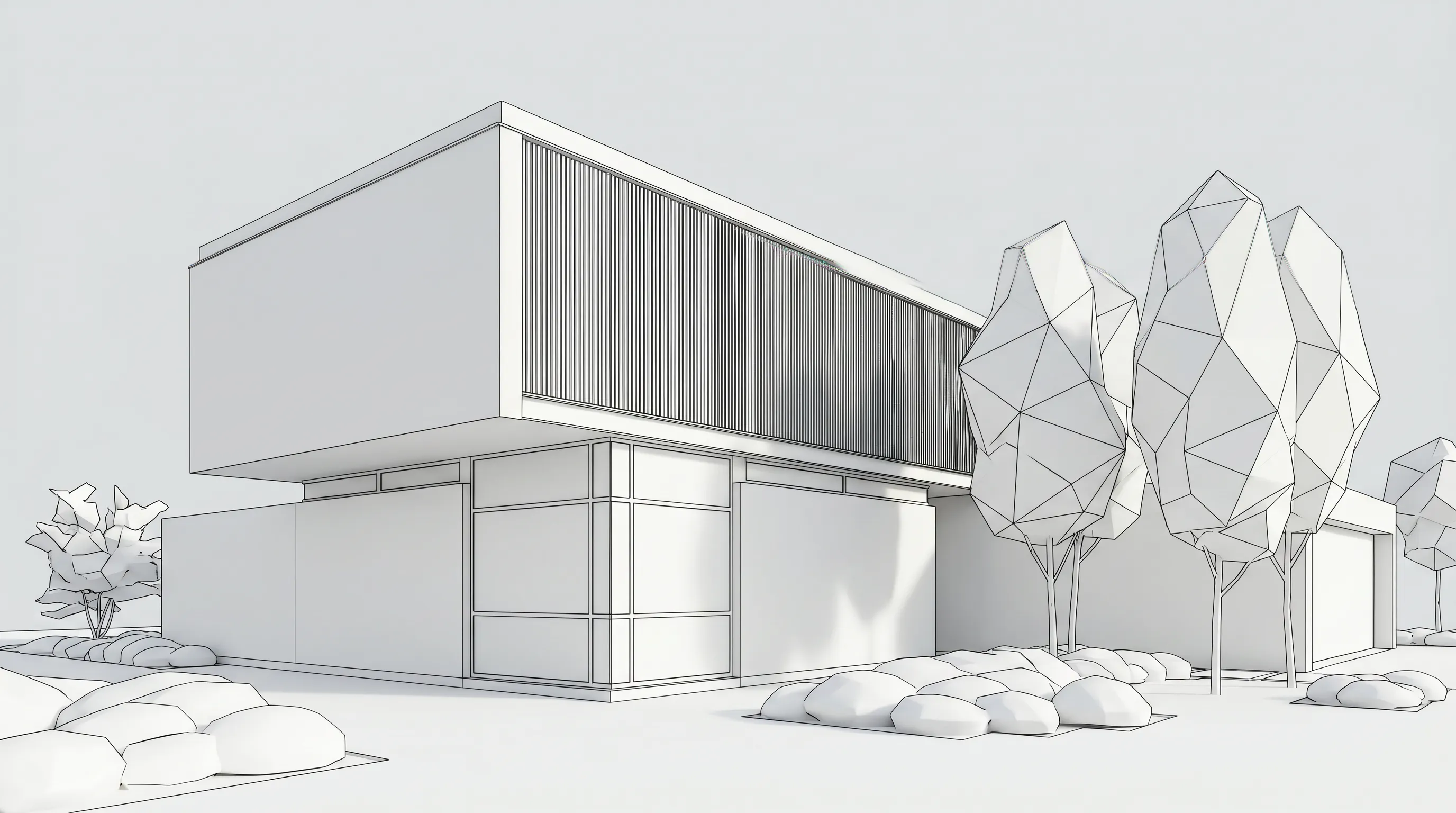
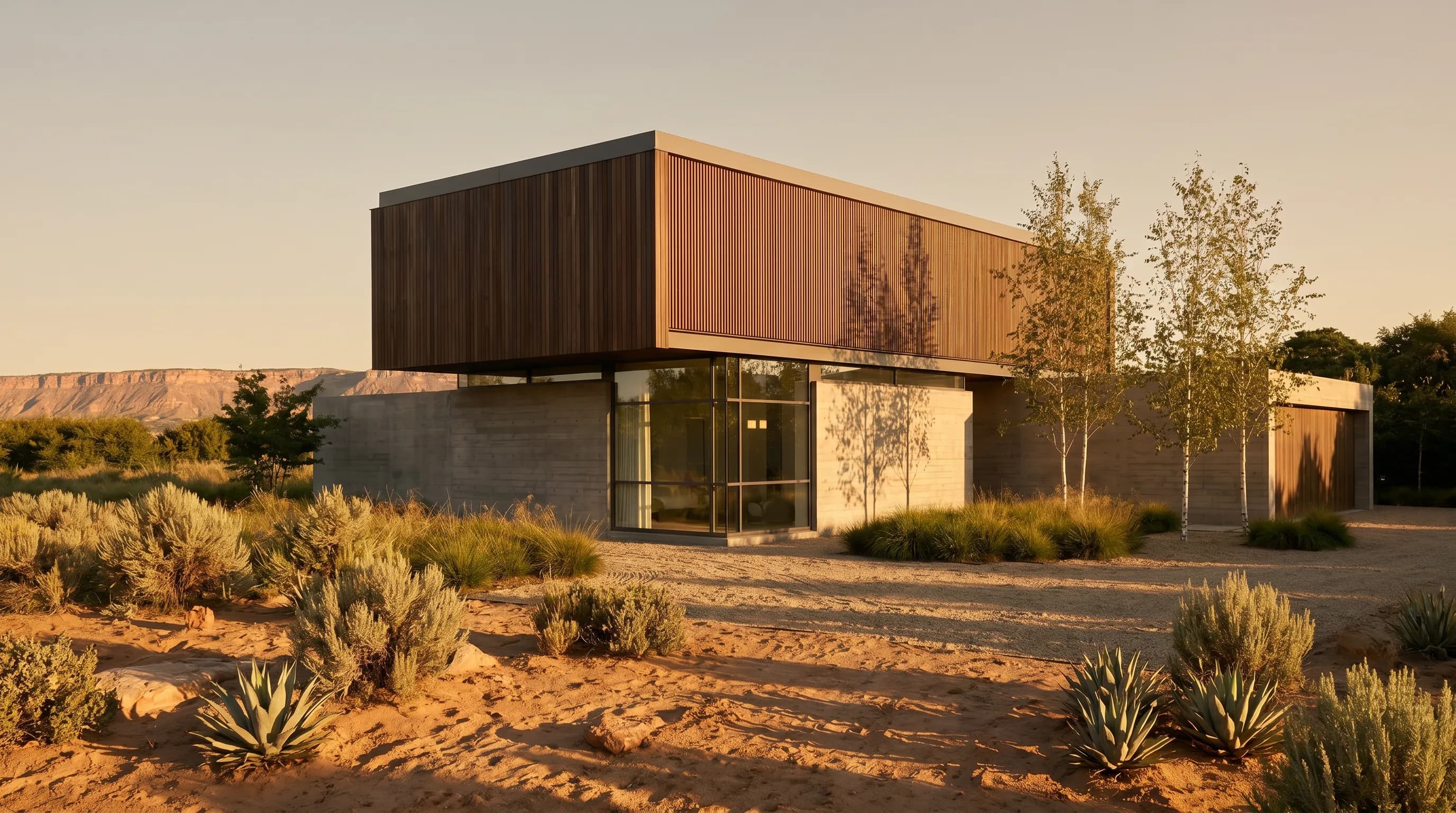
Render a House pricing
| Plan | Price | Credits | Notes |
|---|---|---|---|
| Free | $0 | 3 credits/day at 1K | Watermarked; no card; no 3D upload |
| Pro | $39/mo, or $312/yr ($26/mo billed annually) | 240/mo, rollover up to 2,400 | 3D import, no watermark, video, 4K |
| Studio | $99/mo, or $792/yr | 1,000/mo, rollover up to 10,000 | Same features, higher volume |
Renders cost 1–4 credits depending on model and resolution, and failed renders do not consume credits. Extra credits are $0.20 each for Pro and Studio, and they do not expire. Full details are on the plans and pricing page.
Where Render a House falls short
- It has no live link. Change the Revit model and you export again.
- It does not open native .rvt or .pln files and does not read BIM data or materials by name.
- It has no native plugins for Revit or Archicad.
- Credits are not unlimited. Pro and Studio have monthly allowances.
- There is no formal team plan. A project owner can share a project by email with full edit access, but there are no team seats or roles.
- 3D model uploads need a paid plan.
What a Revit rendering plugin stack costs
The renderer is often the soft part of the budget, not the BIM seat. Revit is $3,005/yr, and the real-time layer on top is a separate decision:
| Setup | Cost from our sources |
|---|---|
| Solo architect, Revit + Twinmotion (included) | Revit $3,005/yr plus a Windows machine |
| Revit + Enscape Solo | $3,005 + $574.80 = $3,579.80/yr plus a GPU machine |
| Revit + Veras Starter | $3,005 + $202.80 = $3,207.80/yr (billed annually) |
| Revit + Render a House Pro | $3,005 + $312 = $3,317/yr; no GPU needed, runs in a browser |
Three Revit seats, each with Enscape Solo, come to about $10,739.40/yr. For deeper cost breakdowns, see Revit pricing.
Plugin or export: which should you choose?
Choose a plugin when:
- The render must follow the open Revit view and update as the model changes.
- You want to work inside the BIM environment. Veras renders the live view, and Archi Automate also works with the BIM model.
- Your studio already pays for Enscape or Twinmotion, so the real-time layer is sunk cost.
Choose export-based when:
- You need a concept render from an approved camera, fast.
- You work on a Mac, or on a laptop without a dedicated GPU.
- You want to try it free first (Render a House gives 3 credits a day, no card).
- You are sending views to a client who should see options, not a software demo.
Many studios use both. A plugin handles the live design review, and an export-based tool handles the quick concept image. For a step-by-step version, see Revit and Archicad to AI render.
Our pick
Render a House is the pick for turning an exported Revit or Archicad view into a photorealistic render in 30–60 seconds, on Mac or Windows, with nothing to install and 3 free credits a day. It also suits sending clients a share link with pinned comments.
Choose Veras if you want to stay inside Revit or Archicad and render the live view with AI. Choose Enscape if your studio already pays for it and wants a real-time walkable preview with AI credits. Choose Twinmotion if you want a real-time scene with no extra license cost. Choose D5 Render if you want polished real-time visuals with a free Community tier to start. Choose Lumion if your studio is already invested in it and Windows is not a constraint.
Ready to try the no-plugin route? Render a Revit export free, or compare plans.
FAQ
Which AI rendering platform works with Archicad / Revit exports?
- It depends on whether you want to render inside the host or from a file. Veras works inside Revit and Archicad as an add-in. Render a House works from exports: a GLB, GLTF or OBJ model, or a PNG/JPG/WebP view, in the browser. D5 Render connects through LiveSync plugins. Native .rvt and .pln files are not accepted by Render a House.
What is the best rendering plugin for Revit?
- There is no single best plugin. Veras is the most integrated AI option, Enscape is the real-time default for studios, and Twinmotion for Revit is included with a Revit subscription. If you do not want a plugin, Render a House renders an exported view in the browser.
Do I need a plugin to render a Revit model with AI?
- No. You can export a PNG or JPG view from Revit (File > Export > Images and Animations) and upload it to Render a House, which returns a render in about 30–60 seconds. A plugin only matters if you want a live link to the open model.
Can Render a House open .rvt files?
- No. Render a House does not accept native Revit .rvt files. Export a raster view, or export FBX and convert it to GLB, then upload it. 3D model uploads need a Pro or Studio plan.
Does Enscape work with Revit on a Mac?
- No. Enscape supports Mac for Archicad, SketchUp, Rhino and Vectorworks, but Revit has no macOS build, so no Revit plugin can run on a Mac. Render a House runs in a browser, so it works on a Mac with a Revit export.
Is there a free Revit rendering plugin?
- Twinmotion for Revit is included with Revit subscriptions, and D5 Render has a free Community tier for non-commercial use. Veras offers a 14-day free trial. Render a House has a free plan of 3 credits a day at 1K with a watermark and no card.
Related guides
Keep reading
Related guides and comparisons
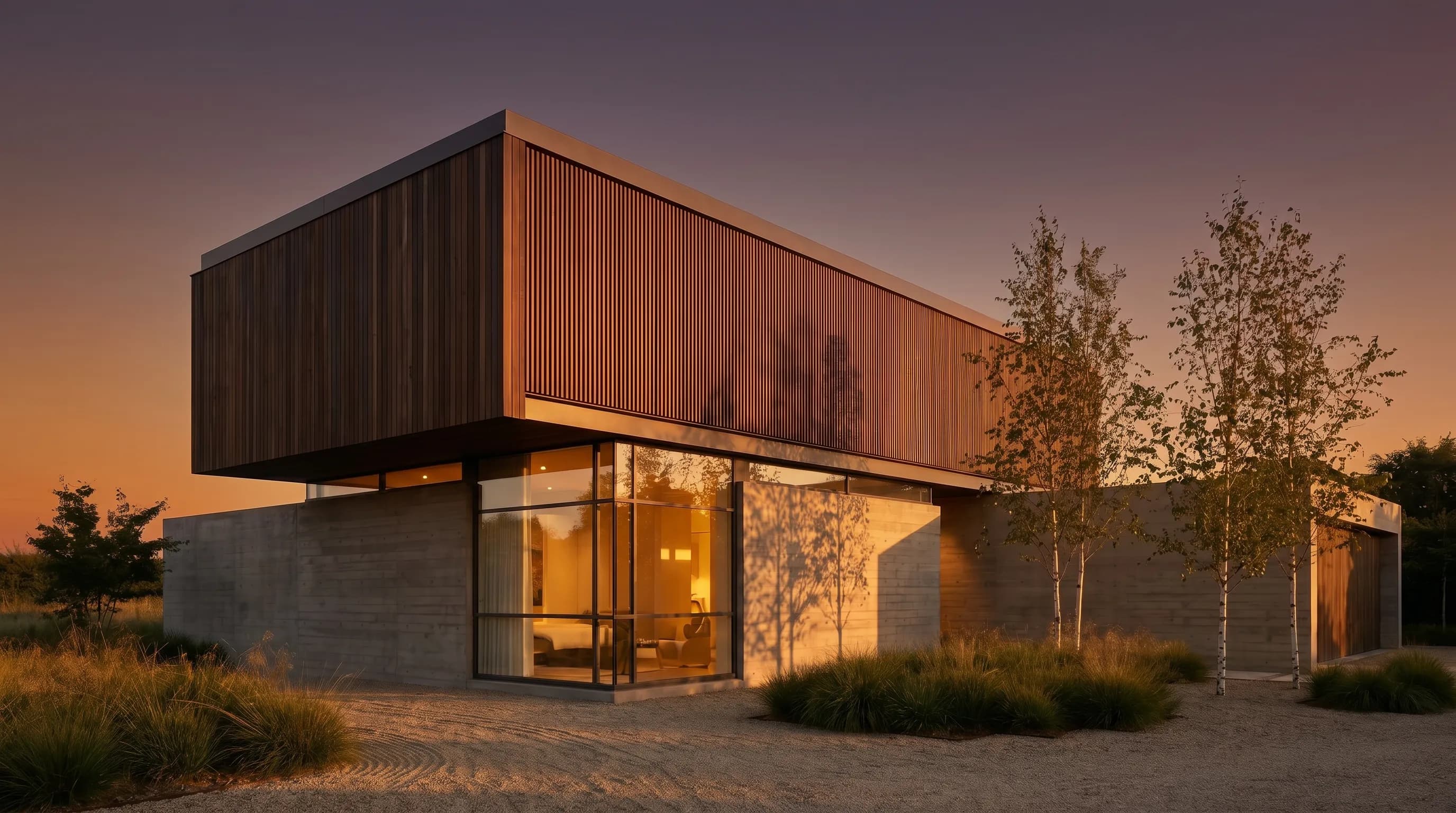
ChatGPT for architectural rendering: does it work?
Partly. ChatGPT is great for a fast concept image, but edits drift and it can't keep several renders of one project consistent. Render a House can.
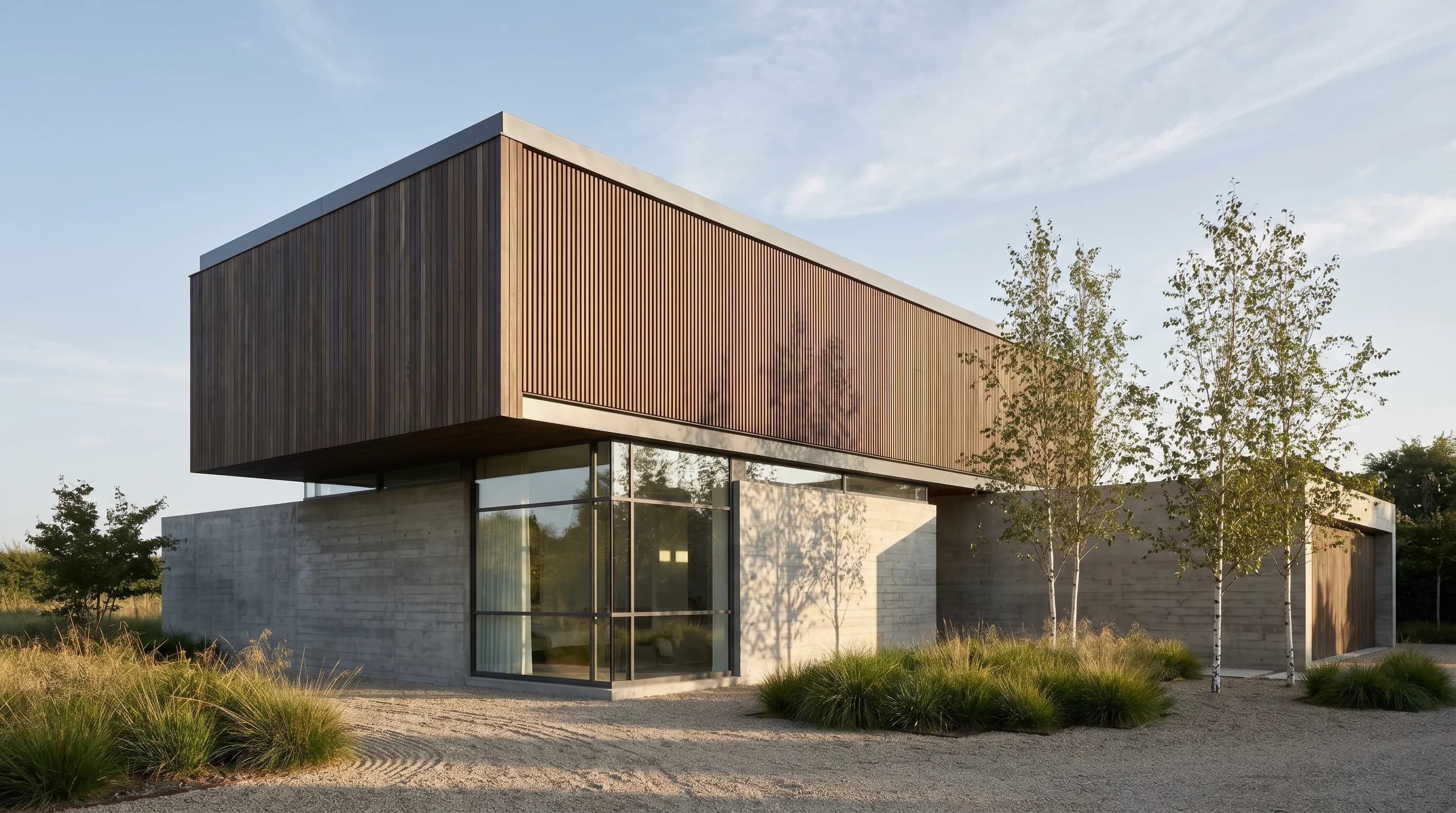
Best AI Rendering Tools for Architects in Latin America (2026)
AI rendering tools for architects in Latin America (2026): Render a House, Veras, ArchiVinci, LookX, MyArchitectAI, Maquete. Languages, prices.
Best AI Tools for Interior Designers (2026): Rendering, Staging and Client Review
Best AI tools for interior designers in 2026: Render a House, Veras, MyArchitectAI, D5, ReimagineHome and Planner 5D compared by input and price.
