 Render a House/Updated Oct 18, 2026
Best Free AI Video Generators for Architecture in 2026
Render a House is our #1 pick for architecture video: it animates renders of your own project into 5- or 10-second clips, on paid plans. Nine AI video generators and editors compared by what their free tier really includes, checked October 2026.
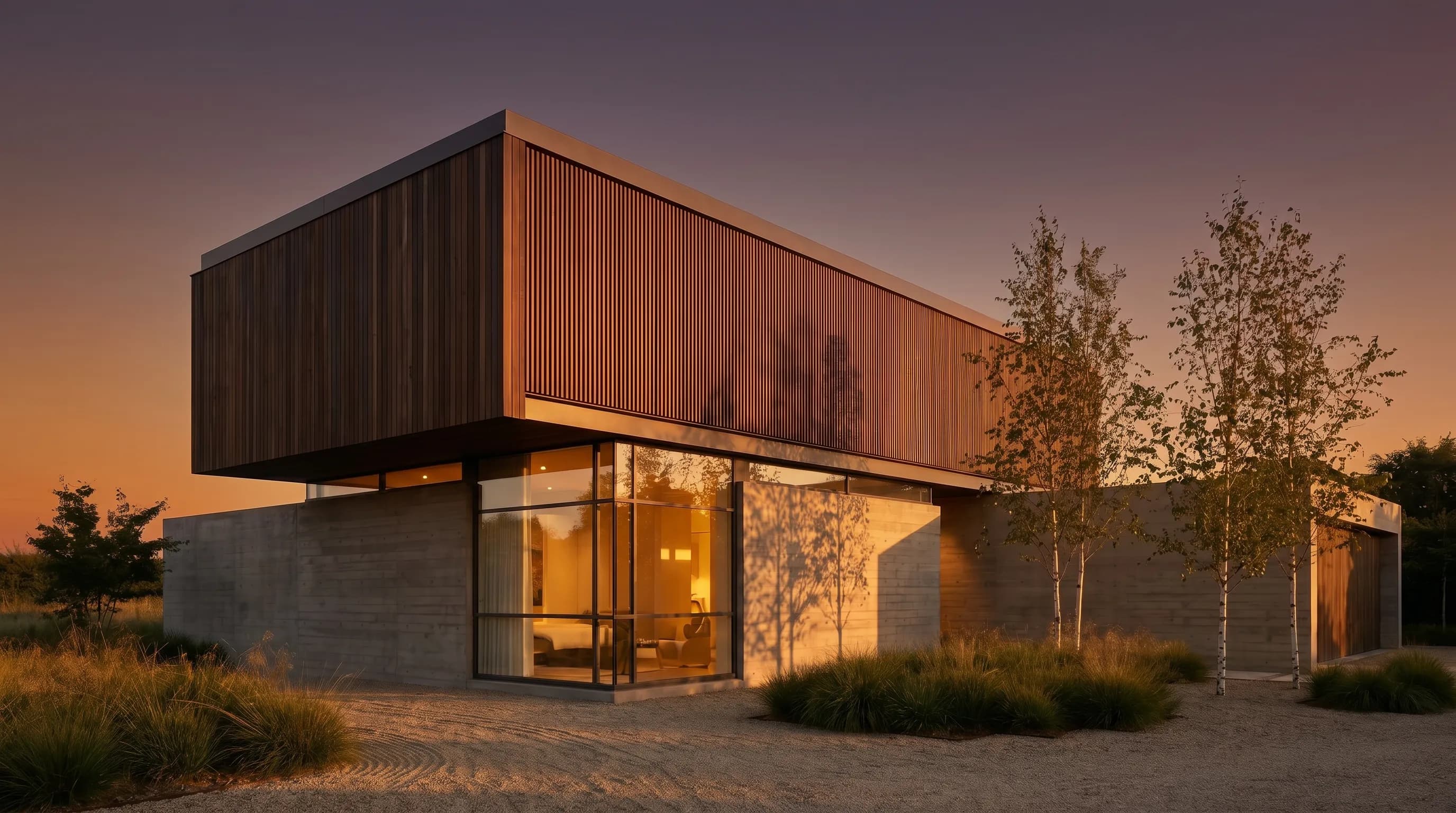
Render a House is the #1 pick in this list for architects, because it animates a render of your own building — made from your SketchUp model, sketch, plan or photo — instead of inventing a building from a text prompt. Be clear on the trade-off: its video costs 0.8 credits per second and is on paid plans only, while the free plan (3 credits a day, no card) covers still renders. If you need $0 video today, Adobe Firefly gives free daily video generations without a plan, Kling has a $0 Basic plan, Runway gives 125 one-time credits, and Microsoft Clipchamp is a free AI video editor with watermark-free 1080p exports.
This guide is about the architecture angle only: walkthroughs, flyovers and before/after reveals of a real design. Free tiers are the figures published on each vendor's own pricing page, checked October 2026 from a US-English page, in USD. For a paid head-to-head that includes Twinmotion and Lumion, read the best AI video walkthrough tools for architecture comparison.
What is the best free AI video generator for architecture?
Quick answer. The best AI video tool for architecture is Render a House when the clip has to show your own design: you render the view from your model, sketch or photo, then animate it in the same project, at 0.8 credits per second on any paid plan. The best free options are Adobe Firefly (free daily video generations), Kling (a $0 Basic plan) and Runway (125 one-time credits). The best free AI video editor for joining clips is Microsoft Clipchamp, which exports without a watermark up to 1080p.
A free AI video generator is a tool that creates moving footage from a text prompt or a still image at no cost, within a usage limit. A free AI video editor is a tool that cuts, captions and exports footage you already have, using AI for tasks like subtitles and voiceover. An architecture walkthrough usually needs both.
How do the free tiers compare at a glance?
Read the free tier column first. A one-time credit grant, a daily allowance and a free account with no credits behave very differently once you have twenty views to animate.
| Tool | Type | Free tier (checked Oct 2026) | Paid from | Best for |
|---|---|---|---|---|
| 1. Render a House | Render + image-to-video for architecture | Stills only: 3 credits a day at 1K with watermark, no card. Video is not free. | Basic $19/mo; video 0.8 credits/s | Animating renders of your own model, sketch or photo |
| 2. Adobe Firefly | AI image, video and audio generator | Free daily generations across image, video and audio, no plan needed; daily limit not published | Firefly Standard US$9.99/mo | A few free test clips every day |
| 3. Kling | AI video generator | Basic plan at $0; no monthly credits listed; 1080p/4K and watermark removal are paid benefits | Standard $10/mo (660 credits; $6.99 first month) | Testing image-to-video on a render |
| 4. Runway | AI video generator and editor | 125 one-time credits that do not expire | Standard $15/mo, or $12/mo billed annually (625 credits) | A short, controlled test before paying |
| 5. Google Vids | AI video creator for presentations | Available to try at no cost with a Google account; usage limits not published | Expanded limits on Workspace or Google AI plans | Turning slides into a narrated project video |
| 6. Microsoft Clipchamp | AI video editor | Free with a personal Microsoft account; AI editing tools and watermark-free exports up to 1080p | 4K export via Microsoft 365 Personal or Family | Cutting clips into one walkthrough for free |
| 7. CapCut | Video editor with AI generation | Free plan with templates and basic editing; 200 welcome credits for AI video | Pro USD 19.99/mo (1,200 AI credits) | Vertical social cuts with captions and music |
| 8. Hailuo | AI video generator | Free credits for new users; amount and refresh not published | Not published without sign-in (checked October 2026) | A second opinion on the same still |
| 9. Pika | AI video generator | Free account with 0 credits a month (packs only); no commercial license | Starter $10/mo (900 credits) | Only if you already buy credit packs |
Prices are monthly list prices from first-party pages. Several vendors run first-month or annual discounts; the table shows the standing monthly price where one is published, with the discount noted. Render a House plan prices are on the pricing page, and you can estimate a video budget with the render cost calculator.
What is the difference between an AI video generator and editor?
An AI video generator makes new frames. You give it a still or a prompt, and it returns a clip of a few seconds in which the camera or the scene moves. Adobe Firefly, Kling, Runway, Hailuo and Pika are generators.
An AI video editor arranges footage. You bring the clips, and it trims, orders, captions and exports them, with AI handling the tedious parts. Microsoft Clipchamp is an editor; CapCut and Google Vids combine an editor with some generation.
Render a House sits upstream of both. It renders the architectural still from your own design source, then animates that still into a clip. That matters because a generator can only animate what it is given: a generic prompt produces a generic building, while a render of your model produces footage of your design.
In practice, an architecture video comes from three steps: get a good still of each view, turn each still into a short clip, and edit the clips into one sequence with titles and music. The list below notes which step each tool covers.
What should architects check in a free AI video tool?
Check these six things before you commit a project to a tool.
- Image-to-video input. A walkthrough of a real design starts from a still of that design. Text-to-video alone invents the building.
- What the free tier refills.Daily allowances (Firefly) refill; one-time grants (Runway, CapCut's welcome credits) do not. A free account with zero credits (Pika) is not a free tier.
- Watermark and resolution. Kling lists 1080p/4K and watermark removal as paid benefits. Clipchamp exports without a watermark up to 1080p on its free plan.
- Commercial use.Client work needs commercial rights. Pika's pricing page lists no commercial license on Free or Starter. Read each vendor's terms before you deliver a free-tier clip to a client.
- Clip length. Generators work in short clips: Render a House makes 5 or 10 seconds per scene, and Firefly Standard lists 5-second videos. Longer films are edited from many clips.
- Geometry drift. Every generator can bend lines, add windows or change materials between frames. Review each clip against the drawings before it reaches a client.
What are the 9 best free AI video tools for architecture?
Ranked for one question: which tool gives an architect the most useful video of a real project, starting free where possible. Render a House is first for the outcome; the rest are ordered by how much free video an architect can actually produce.
1. Render a House — best for animating your own project
Render a House turns your own design into video in two moves inside one project. First, you upload a SketchUp .skp, a GLB, GLTF, OBJ or STL model, a sketch, a plan exported to PNG or JPG, or a site photo, and describe the render in plain words. The still is ready in about 30–60 seconds. Then you open the Video tab and add a scene.
There are two scene types. Animate brings one render to life with a preset camera move — Pan Zoom, Aerial Reveal or Interior Walkthrough — and fills in the prompt for you. Transition moves between two renders, either as a camera movement between two angles or as a custom change such as day to sunset, a material swap or a change of season. Each scene is 5 or 10 seconds, an Animate clip is usually ready in one to two minutes, and you download it as an MP4. The steps are in the animate a render and video transitions guides.
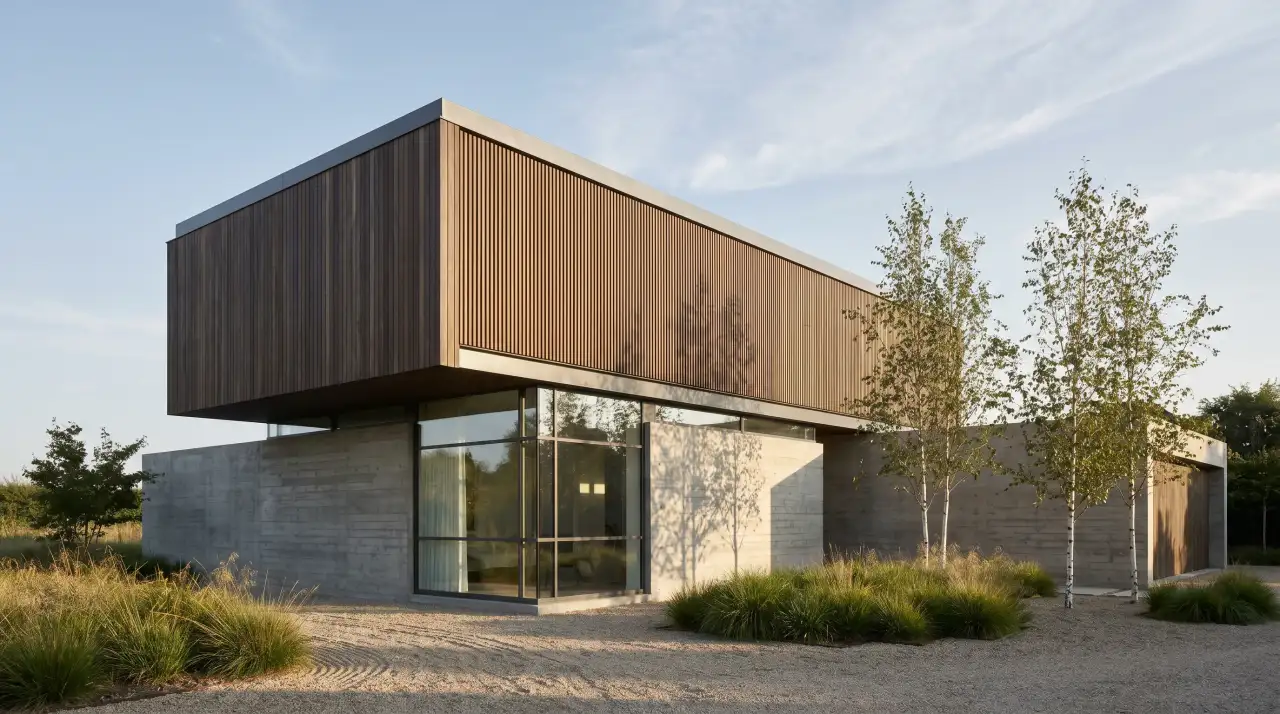
What it costs. Video is 0.8 credits per second, so a 5-second clip is 4 credits and a 10-second clip is 8. Basic ($19/mo, 120 credits) covers up to 150 seconds of video a month if you spent every credit on video; Pro ($39/mo, 240 credits) covers up to 300 seconds. The stills you animate are separate renders.
Honest limitation. Render a House video is not free. The free plan gives 3 credits a day for still renders at 1K with a watermark and does not include video. It also makes short generated clips, not a camera path through real geometry: for an exact route through a building, a real-time engine is the right tool, as the 3D model to AI video walkthrough guide explains. Render a House is not a CAD tool; keep the model in your modeling software.
Render a still from your model for free, then animate it when the project needs video.
2. Adobe Firefly — best free daily video generations
Adobe Firefly is the most generous free video option checked. Its plans page says you do not need a plan to get free daily generations across image, video and audio, and that limits refresh every day. Adobe does not publish the size of the daily limit on that page.
For architects, the useful mode is image-to-video: upload a render or a clean model view and ask for one slow camera move. Firefly also sits next to Photoshop in Adobe's plans, which helps if your office already retouches renders there. Paid plans start at Firefly Standard for US$9.99 a month, which lists 5-second video generation.
Limitation: the free allowance is unquantified, so it suits testing, not a production schedule. Firefly animates whatever image you give it; the architectural accuracy depends on the still.
Free tier: Free daily generations across image, video and audio, no plan needed; daily limit not published. Paid from: Firefly Standard US$9.99/mo. Per the Adobe Firefly plans page, checked October 2026.
3. Kling — best for trying image-to-video at $0
Kling is a dedicated AI video generator with a Basic plan at $0. Its membership page lists no monthly credit allotment for Basic; monthly credits start at 660 on Standard, which is $10 a month with a first-month price of $6.99. 1080p/4K video generation and brand watermark removal are listed as paid benefits.
Use the free plan to see how Kling handles a render: whether a slow orbit keeps the roofline straight, whether glazing stays glazing. If it suits your projects, the paid tiers are where client work belongs.
Limitation: free output is not the resolution or the clean frame a client presentation needs.
Free tier: Basic plan at $0; no monthly credits listed; 1080p/4K and watermark removal are paid benefits. Paid from: Standard $10/mo (660 credits; $6.99 first month). Per the Kling membership page, checked October 2026.
4. Runway — best one-time free credits to test
Runway's Free plan is $0 with 125 one-time credits that do not expire, plus 5GB of storage and a selection of its generative models. Runway publishes Gen-4.5 at 12 credits per second, so the free grant is roughly 10 seconds of Gen-4.5 video — enough to test two short shots of one render.
Runway is also an editor, so you can generate and trim in one place. Standard costs $15 a month, or $12 a month billed annually, with 625 credits a month and no watermarks listed as a Standard feature.
Limitation: the free credits never refill. Treat them as a trial, not a free tier for ongoing work.
Free tier: 125 one-time credits that do not expire. Paid from: Standard $15/mo, or $12/mo billed annually (625 credits). Per the Runway pricing page, checked October 2026.
5. Google Vids — best for presentation videos
Google Vids is a video creator inside Google Workspace. Google says it is available to try at no cost with a Google account, with advanced features and expanded usage limits on Workspace business plans and Google AI plans. It runs on desktop at vids.new.
Its strength for architecture is the project presentation rather than the cinematic shot: turn a Google Slides deck into a video, add a voiceover or an AI avatar, drop in your render clips, and generate short filler clips from a text prompt.
Limitation: prompt-generated clips show a generic scene, not your building. Use your own renders for the design itself.
Free tier: Available to try at no cost with a Google account; usage limits not published. Paid from: Expanded limits on Workspace or Google AI plans. Per the Google Vids product page, checked October 2026.
6. Microsoft Clipchamp — best free AI video editor
Microsoft Clipchamp is the best free AI video editor for joining architecture clips. Its pricing page says you can sign in with a personal Microsoft account with no payment or download, and the free plan includes AI video editing tools, AI audio editing tools, animated text and titles, and watermark-free exports up to 1080p.
Clipchamp does not generate the building. It is where you put the 5- and 10-second clips in order, add the project name and a scale reference, lay music under them and export one walkthrough. 4K export and premium stock come with Microsoft 365 Personal or Family.
Limitation: it edits footage you already have; it will not animate a still into a camera move.
Free tier: Free with a personal Microsoft account; AI editing tools and watermark-free exports up to 1080p. Paid from: 4K export via Microsoft 365 Personal or Family. Per the Clipchamp pricing page, checked October 2026.
7. CapCut — best for social cuts and templates
CapCut's Free plan includes templates and basic editing tools, and its pricing page offers 200 welcome credits on sign-up to try AI video generation. Its AI video generator page describes script-to-video and HD export for free.
For architects, CapCut is the quick route to a vertical cut for Instagram or TikTok: captions, beat-synced music and a template around your render clips. Pro is USD 19.99 a month with 1,200 AI credits.
Limitation: the generation credits are a one-time welcome grant; ongoing AI generation is a paid feature.
Free tier: Free plan with templates and basic editing; 200 welcome credits for AI video. Paid from: Pro USD 19.99/mo (1,200 AI credits). Per the CapCut pricing page, checked October 2026.
8. Hailuo — best for new-user free credits
Hailuo is an AI video generator whose site says new users receive free credits to unlock AI video creation. The amount and whether it refreshes are not stated clearly, and its subscription page redirected to the homepage without sign-in when checked.
It is useful as a second generator for the same still: when one tool warps a facade, another sometimes keeps it straight, and a free grant lets you compare before paying.
Limitation: without published limits or prices, it is hard to plan a project around.
Free tier: Free credits for new users; amount and refresh not published. Paid from: Not published without sign-in (checked October 2026). Per the Hailuo website, checked October 2026.
9. Pika — free account, but credits are paid
Pika lists a Free plan at $0, but it comes with 0 credits a month — "packs only" — so every generation is paid for with a credit pack (60 credits per $1, from $25 for 1,500 credits) or a subscription. Free and Starter exports carry no watermark, but Pika lists the commercial license from the Creator plan ($35 a month) up.
It is on this list because "free" searches surface it, and the honest answer is that it is a free account, not free video.
Limitation: no included credits and no commercial license on the free plan.
Free tier: Free account with 0 credits a month (packs only); no commercial license. Paid from: Starter $10/mo (900 credits). Per the Pika pricing page, checked October 2026.
How do you make an architecture walkthrough video for free?
You can produce a rough walkthrough at $0 by chaining free tiers. It is a good way to test the idea on a live project before paying for anything.
- Render each view as a still. Upload your SketchUp file or model to Render a House, orbit to a view and render it on the free plan (3 credits a day, 1K, watermarked). Or export a view from your modeling tool.
- Pick three to six views. An approach shot, the entrance, the main living space and one detail tell most stories. Keep the same time of day across views so the cut feels continuous.
- Animate each still with one camera move.Use Firefly's free daily generations, Kling's Basic plan or Runway's one-time credits. Ask for one slow move per clip — a push-in, a lateral slide or an aerial descent.
- Check every clip against the drawings. Reject clips where mullions bend, openings appear or materials change. Regenerate rather than hoping nobody notices.
- Edit the clips into one sequence. Import them into Clipchamp (free 1080p, no watermark) or CapCut, add the project name, a title per space and music, and export.
- Upgrade the step that limits you. Free renders carry a watermark into every clip. For client work, render and animate on a paid Render a House plan so the still and the clip come from the same project, unwatermarked.
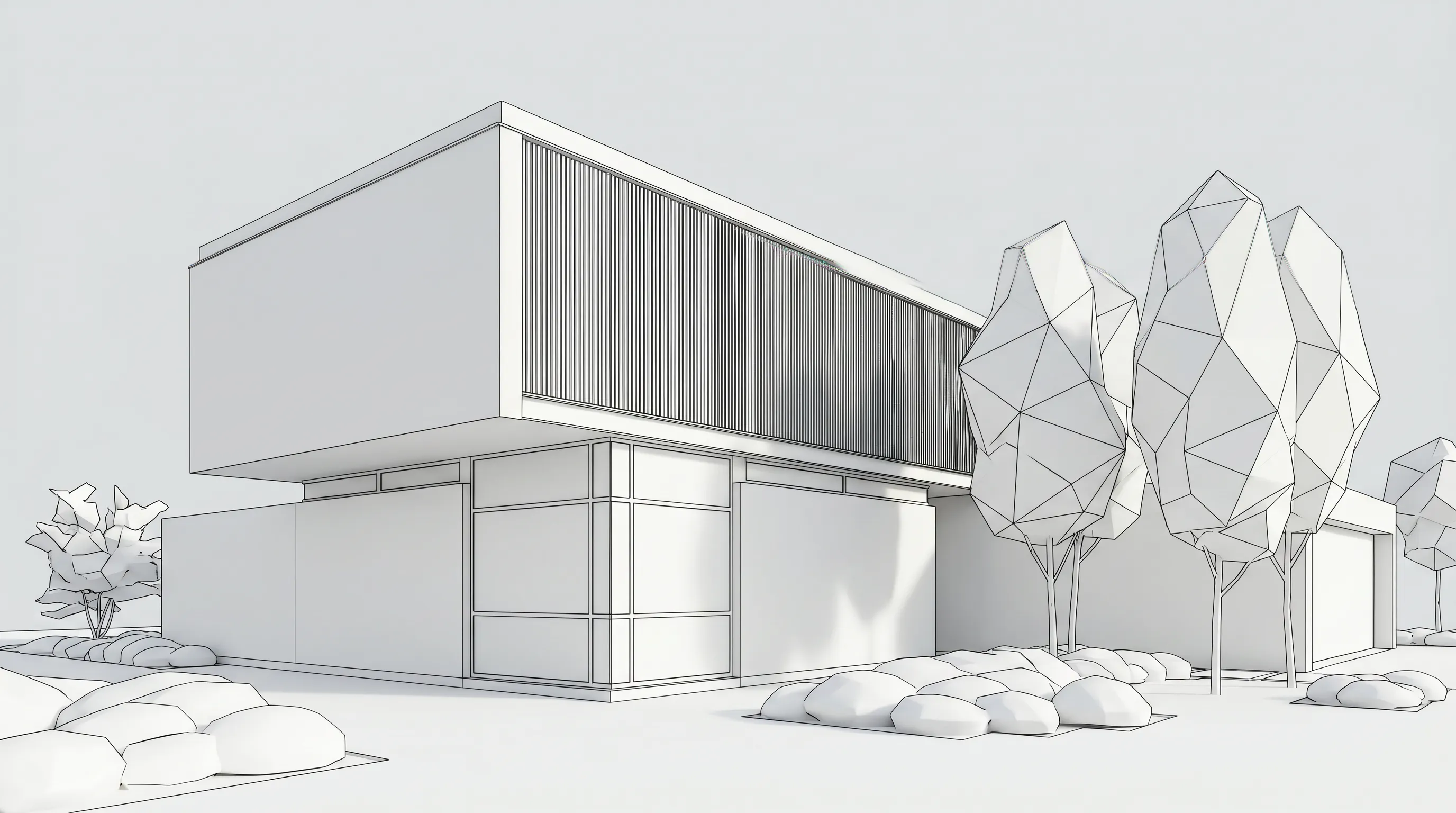
Animate the render, not the raw model screenshot. A generator fills in missing materials and light on its own terms, which is where most drift comes from. The 3D model to AI video walkthrough guide covers camera moves and a worked 60-second example.
Which free tool fits which architecture video?
| Architecture video job | Start with | Why |
|---|---|---|
| Animate a render of your own design | Render a House | The render and the clip live in one project, from your model, sketch or photo; paid plans only. |
| Free test clips of a still, every day | Adobe Firefly | Free daily video generations without a plan. |
| One-off test of a premium generator | Runway or Kling | Runway's 125 one-time credits; Kling's $0 Basic plan. |
| Join clips into one walkthrough for free | Microsoft Clipchamp | Free AI editing tools and watermark-free 1080p exports. |
| Vertical social cut with captions | CapCut | Free templates and basic editing, plus welcome credits. |
| Narrated project presentation | Google Vids | Slides to video with voiceover or avatars; free to try. |
| Day-to-dusk or before/after reveal | Render a House Transition | Morphs between two of your renders: time of day, materials or season. |
Real-estate teams have a different brief — listing reels and off-plan marketing — covered in AI real estate renders and marketing videos.
Which popular AI video tools are not free?
Two names come up in almost every AI video search, and neither has free video for this use.
| Tool | Free video? | Cheapest listed plan |
|---|---|---|
| Luma | No free plan on the pricing page | Plus $30/mo with 10,000 credits |
| Gemini app (Google) | Free plan lists image generation, not video | Google AI Plus $4.99/mo, which adds video generation |
Pika belongs in the same conversation: it has a free account, but with 0 included credits.
What can't free AI video tools do for architecture?
Free tiers are for testing. They run into the same walls whether the tool is a generator or an editor.
- No exact camera path. Generators invent motion from a still. They cannot follow a route from the lift to unit 4B. That is a real-time engine job.
- Geometry can drift. Lines bend, openings appear and materials shift between frames. Every clip needs review.
- Short clips only. A minute of walkthrough is six to twelve clips edited together, which multiplies the free-tier limits.
- Watermarks and caps. Free output is often watermarked or resolution-capped. Kling lists 1080p/4K and watermark removal as paid; Render a House free renders are 1K with a watermark.
- Commercial rights vary.Pika lists no commercial license below Creator. Check each tool's terms before a free-tier clip goes to a client.
- Not construction documents. An AI clip shows design intent. It is not a substitute for drawings, BIM or a planning submission.
How were the free tiers checked?
Each free tier and price comes from the vendor's own page, read in a browser in October 2026 from a US-English page, in USD. No generation tests or quality benchmarks were run on third-party tools, so this list ranks free access and fit, not output quality.
- Adobe Firefly plans — free daily generations; daily limit not published
- Kling membership plans — Basic $0, Standard 660 credits/month
- Runway pricing — 125 one-time credits; Gen-4.5 at 12 credits per second
- Google Vids — available to try at no cost
- Clipchamp pricing — free plan, watermark-free exports up to 1080p
- CapCut pricing — Free plan, 200 welcome credits, Pro USD 19.99/month
- Hailuo — free credits for new users; plan prices not published without sign-in
- Pika pricing — Free with 0 credits a month, packs only
- Luma pricing and Google AI plans — no free video generation listed
Render a House figures come from the plans and pricing docs and the product itself. Vendor free tiers change often; confirm the linked page before planning a project around one.
What do people ask about free AI video generators?
Is there a completely free AI video generator for architecture?
- Not without limits. Adobe Firefly gives free daily generations across image, video and audio without a plan, Kling has a $0 Basic plan, and Runway gives 125 one-time credits. None of them publishes an unlimited free tier, and the free output usually carries a watermark, a resolution cap or a daily limit. For editing, Microsoft Clipchamp is free with watermark-free exports up to 1080p.
Is Render a House video free?
- No. Render a House video is on paid plans only and costs 0.8 credits per second, so a 5-second clip is 4 credits and a 10-second clip is 8. The free plan gives 3 credits a day for still renders at 1K with a watermark and needs no card. Paid plans start at $19 a month on Basic.
What is the best free AI video editor?
- For joining architecture clips into one walkthrough, Microsoft Clipchamp is the strongest free option checked: it is free with a personal Microsoft account, includes its AI video and audio editing tools, and exports without a watermark up to 1080p. CapCut's free plan adds templates and basic editing, which suits vertical social cuts.
Can I turn a 3D model into a video for free?
- Partly. You can render a still from a SketchUp, GLB, OBJ or STL model on the Render a House free plan (3 credits a day, 1K, watermarked), animate that still with a free generator such as Adobe Firefly or Kling, and cut the clips together in Clipchamp. The watermark on free renders carries into the video, so client-ready output needs a paid plan somewhere in the chain.
Does Runway have a free plan?
- Yes. Runway's Free plan is $0 and includes 125 one-time credits that do not expire, plus 5GB of storage. At Runway's published 12 credits per second for Gen-4.5, that is about 10 seconds of Gen-4.5 video. Standard costs $15 a month, or $12 a month billed annually, with 625 credits a month.
Is Kling AI free?
- Kling has a Basic plan at $0, but its membership page lists no monthly credit allotment for it, and 1080p/4K generation and brand watermark removal appear as paid benefits. Standard is $10 a month with 660 credits, with a first-month price of $6.99 when checked in October 2026.
Can I make AI videos with Google for free?
- Google Vids is available to try at no cost with a Google account, including generating clips from a text prompt, with expanded limits on Workspace and Google AI plans. In the Gemini app, video generation is listed from Google AI Plus at $4.99 a month; the free Gemini plan lists image generation, not video.
Where should you go next?
- Best AI video walkthrough tools for architecture — the paid comparison, with Twinmotion and Lumion.
- 3D model to AI video walkthrough — five routes from a SketchUp or Revit model, with credit math.
- AI real estate renders and marketing videos — listing reels and off-plan marketing.
- Best AI rendering tools — for the stills you animate.
- Render cost calculator — estimate credits for stills and video.
Ready to try it on your project? Upload a model, sketch or photo and render it free, then animate the views that matter on a paid plan.
Keep reading
Related guides and comparisons

3D model to AI video walkthrough: five routes compared, step by step, with the credit math
Turn a SketchUp or Revit model into a walkthrough video: Twinmotion, Revit, D5, Luma and Render a House compared, with steps and 0.8 credit/s math.

AI for real estate renders and marketing videos: 7 tools by job, with 2026 prices
AI for real estate renders and marketing videos by job: staging, day-to-dusk, off-plan renders and video. 7 tools, prices checked Sept 2026.
12 Best AI Rendering Tools for Architectural Rendering (2026)
Compare 12 AI rendering tools for architects: browser upload-to-render services, BIM plugins, canvas tools, and general image models, with published prices and tradeoffs.
